
Claude Desktop Configuration
Connect ConnectSafely MCP server to Claude Desktop for AI-powered LinkedIn engagement management. Step-by-step setup guide with screenshots and troubleshooting tips.
Connect ConnectSafely to Claude Desktop for AI-powered LinkedIn engagement management. This integration uses Model Context Protocol (MCP) to enable seamless AI-driven automation.
Prerequisites
- Pro or Agency plan subscription on ConnectSafely
- Your MCP server URL from the MCP Setup page
- Claude Desktop app installed (available for macOS and Windows)
Connection URL
Your MCP server URL format:
https://mcp.connectsafely.ai/?apiKey=YOUR_API_KEYNote: Get your unique MCP server URL from the MCP Setup page in your ConnectSafely dashboard.
Setup Instructions
Step 1: Open Claude Desktop Settings
Launch Claude Desktop and click on the settings icon or menu.
Step 2: Navigate to Connectors
Go to the Connectors section in settings.
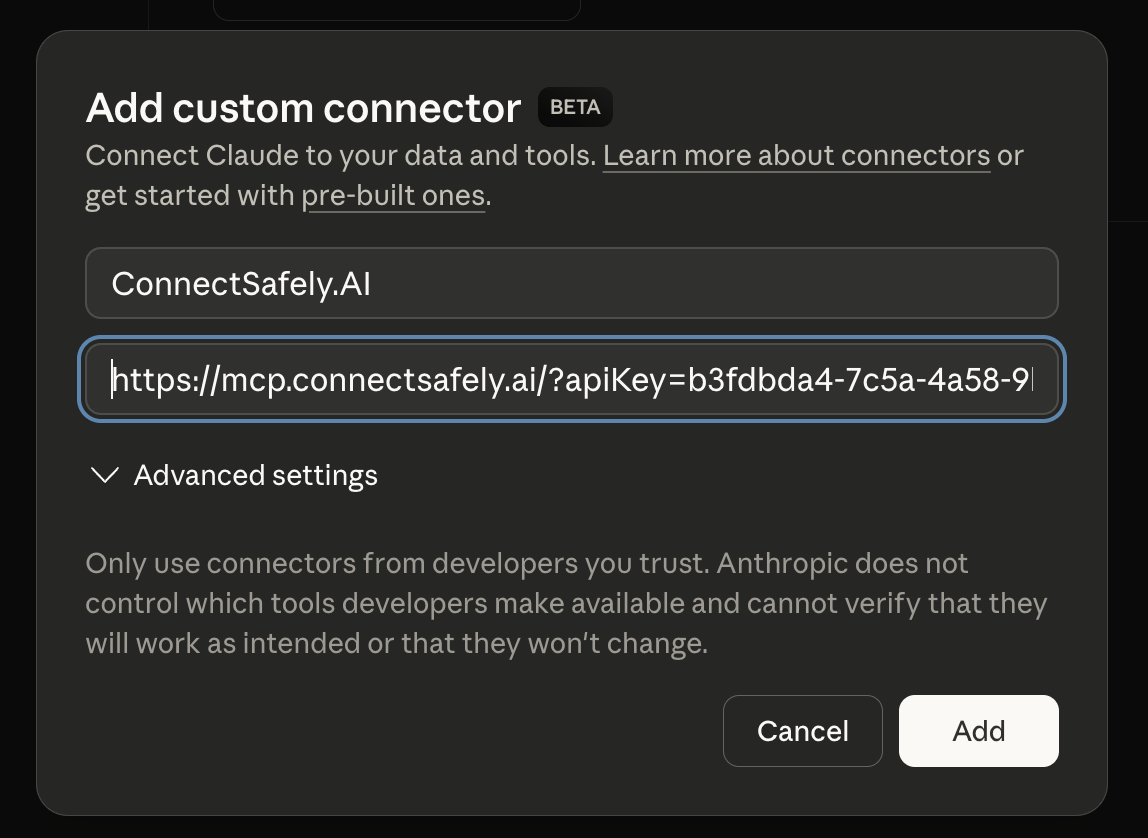
Step 3: Add Custom Connection
- Click Add Custom Connection button
- Enter the connection name:
ConnectSafely.AI - Paste your MCP server URL in the Remote MCP Server URL field:
https://mcp.connectsafely.ai/?apiKey=YOUR_API_KEY - Click Save
Step 4: Verify Connection
The connection will be active immediately. You should see ConnectSafely.AI listed in your active connectors.
Configuration Screenshot
Using ConnectSafely with Claude
Once connected, you can leverage the ConnectSafely API through natural language:
- Manage LinkedIn comments - Use the Comment API to analyze and respond intelligently
- Create engagement strategies - Develop data-driven approaches using post analytics
- Generate personalized content - Create posts and responses tailored to your audience
- Track performance metrics - Monitor engagement via profile visitors
- Automate workflows - Set up smart automation for messaging and connections
Example Prompts
Show me the most engaging comments on my latest LinkedIn postHelp me create a response strategy for negative commentsAnalyze my LinkedIn engagement trends from the past monthDraft a personalized response to the top comment on my recent post about AITroubleshooting
Connection Not Appearing
- Verify you entered the correct MCP server URL
- Check that your API key is active and valid
- Restart Claude Desktop after adding the connection
- Use the Poke tool to test connectivity
Authentication Failed
- Ensure you have an active Pro or Agency subscription
- Regenerate your API key from ConnectSafely Settings
- Update the MCP server URL with the new API key
Server Not Responding
- Check your internet connection
- Verify the API key hasn't been revoked or expired
- Try removing and re-adding the connection
Security Best Practices
⚠️ Security Warning
Your MCP server URL contains your API key. Keep it secure and never share it publicly. Review OWASP API Security guidelines for best practices.
Best Practices:
- Store your MCP URL securely—don't share it with others
- Regenerate keys immediately if exposed or compromised
- Monitor your API usage regularly in the dashboard
- Consider using different API keys for different integrations
Advanced Usage
Combining with Other Tools
Claude Desktop allows multiple MCP connections. You can:
- Connect both ConnectSafely and other MCP servers
- Switch between contexts seamlessly
- Build complex workflows across multiple data sources
API Rate Limits
Be aware of:
- Rate limits based on your subscription tier
- Daily/monthly usage quotas
- Best practices for efficient API usage
Alternative Platforms
Also available for other MCP clients:
- Claude Code - CLI-based integration
- Cursor IDE - AI-assisted development
- VS Code - Visual Studio Code integration
- ChatGPT - OpenAI assistant integration
- n8n AI Agent - Advanced automation
Learn More
- Model Context Protocol Specification - Official MCP documentation
- Anthropic's Claude - Learn about Claude AI
- ConnectSafely API Reference - Full API documentation
- MCP Server Overview - All MCP integration options
- TypeScript SDK - Programmatic integration
- Python SDK - Python integration
ChatGPT Configuration
Connect ConnectSafely MCP server to ChatGPT for AI-powered LinkedIn automation. Step-by-step setup guide with configuration examples.
Claude Code Configuration
Connect ConnectSafely MCP server to Claude Code for AI-powered LinkedIn automation directly in your terminal. Step-by-step setup guide with configuration examples.