How to disconnect a LinkedIn account from ConnectSafely?
🚀 Disconnecting your LinkedIn account from ConnectSafely is a straightforward process that can be completed in just a few steps 🚀. This guide will walk you through the safe disconnection process and explain what happens to your data.
LinkedIn Account Disconnection Process
Safe account removal and data management
Before You Disconnect
Before disconnecting your LinkedIn account, it's important to understand what will happen to your campaigns, conversations, and account data. This ensures you can make an informed decision and prepare accordingly.
🔧 What Happens When You Disconnect
- Active campaigns using this account will be paused
- Future scheduled messages will not be sent
- Account will be removed from sender rotation
- Historical conversation data will be archived
- Account settings will be saved for potential reconnection
- You can reconnect the same account later
Important Considerations
- Disconnecting is reversible - you can reconnect later
- Your LinkedIn account itself is not affected
- Only ConnectSafely integration is removed
- Other team members' accounts remain unaffected
- Campaign data is preserved for reporting purposes
Step-by-Step Disconnection Process
Follow these steps to safely disconnect your LinkedIn account from ConnectSafely:
🔗 Disconnection Steps
- Log into your ConnectSafely account
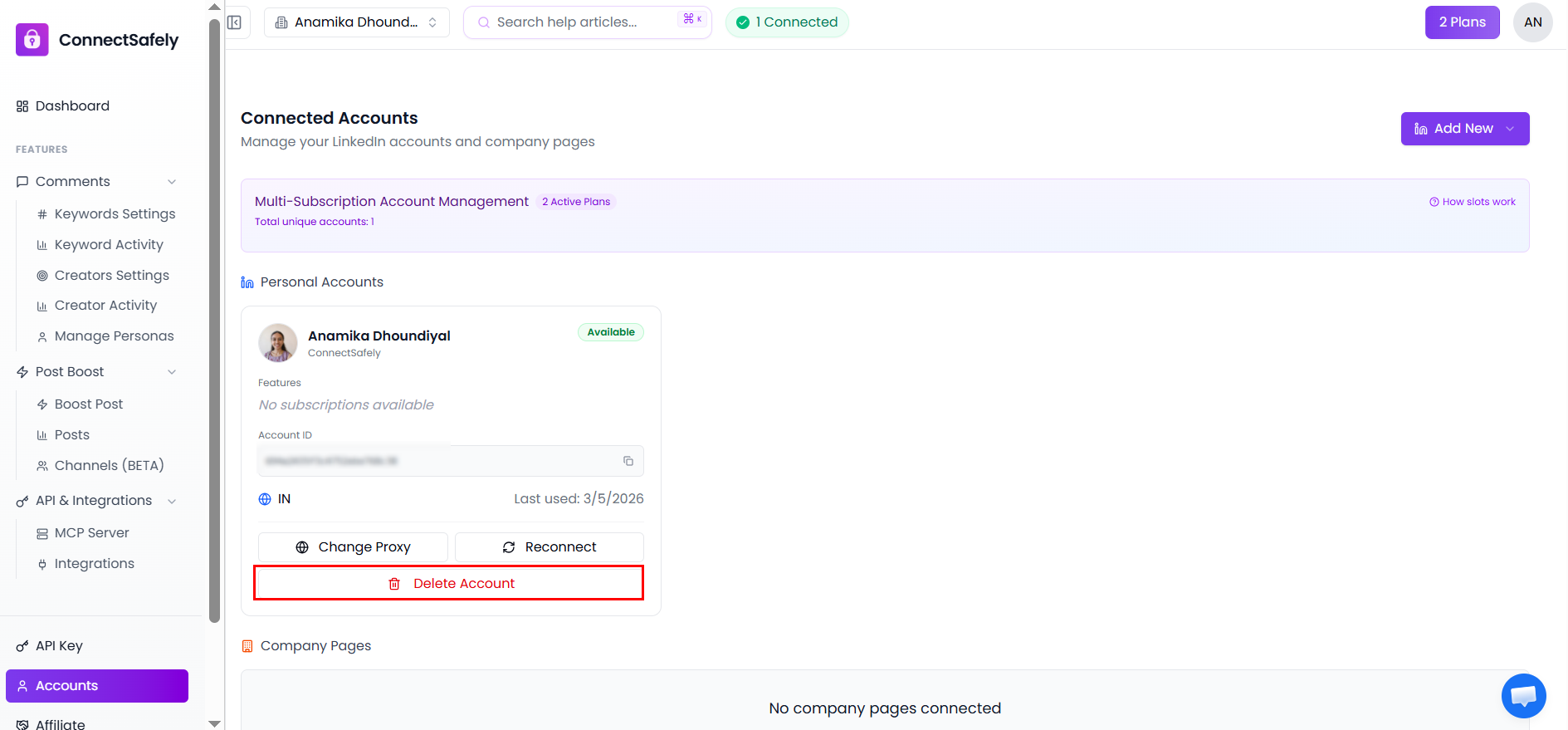
- Navigate to "LinkedIn Accounts" section
- Find the account you want to disconnect
- Click on the account settings or menu
- Select "Disconnect Account" option
- Confirm the disconnection in the popup
- Wait for confirmation message
Accessing Account Settings
To begin the disconnection process, you'll need to access your LinkedIn account settings within ConnectSafely.
LinkedIn Accounts Section
Navigate to Settings → LinkedIn Accounts or use the direct link from your dashboard. You'll see a list of all connected accounts with their current status.
Account Menu Options
Click the three-dot menu or settings icon next to the account you want to disconnect. This will reveal account management options including the disconnect function.
Confirmation and Safety Measures
ConnectSafely includes safety measures to prevent accidental disconnections and ensure you understand the implications of removing an account.
✅ Confirmation Process
- Confirmation popup explains disconnection consequences
- You'll see which campaigns will be affected
- Active campaign count will be displayed
- You must explicitly confirm the action
- Disconnection is not reversible from the confirmation screen
🛡️ Safety Features
- Confirmation required before disconnection
- Warning about affected campaigns
- Clear explanation of consequences
- Option to cancel before final confirmation
- Success confirmation after disconnection
What Happens After Disconnection
Understanding the post-disconnection state helps you plan your next steps and ensures you're aware of what data and functionality remains available.
📦 Data Preservation
- Historical campaign data is archived for reporting
- Conversation records remain accessible
- Performance metrics are preserved
- Account settings are saved for potential reconnection
- Campaign templates remain available
⚠️ Immediate Effects
- Account is immediately removed from sender rotation
- Active campaigns are paused within minutes
- Scheduled messages are cancelled
- No new activities can be initiated
- Account status changes to "Disconnected"
Campaign Impact
When you disconnect an account, it affects any campaigns that are currently using that account as a sender.
Active Campaigns
Any campaigns actively using the disconnected account will be paused. You'll need to assign a different sender or reconnect the account to resume these campaigns.
Scheduled Messages
Messages scheduled to be sent from the disconnected account will be cancelled. Consider the timing impact on your outreach sequences.
Reconnecting After Disconnection
One of the benefits of ConnectSafely's disconnection process is that you can easily reconnect the same LinkedIn account later if needed.
🔄 Reconnection Process
- Navigate to LinkedIn Accounts section
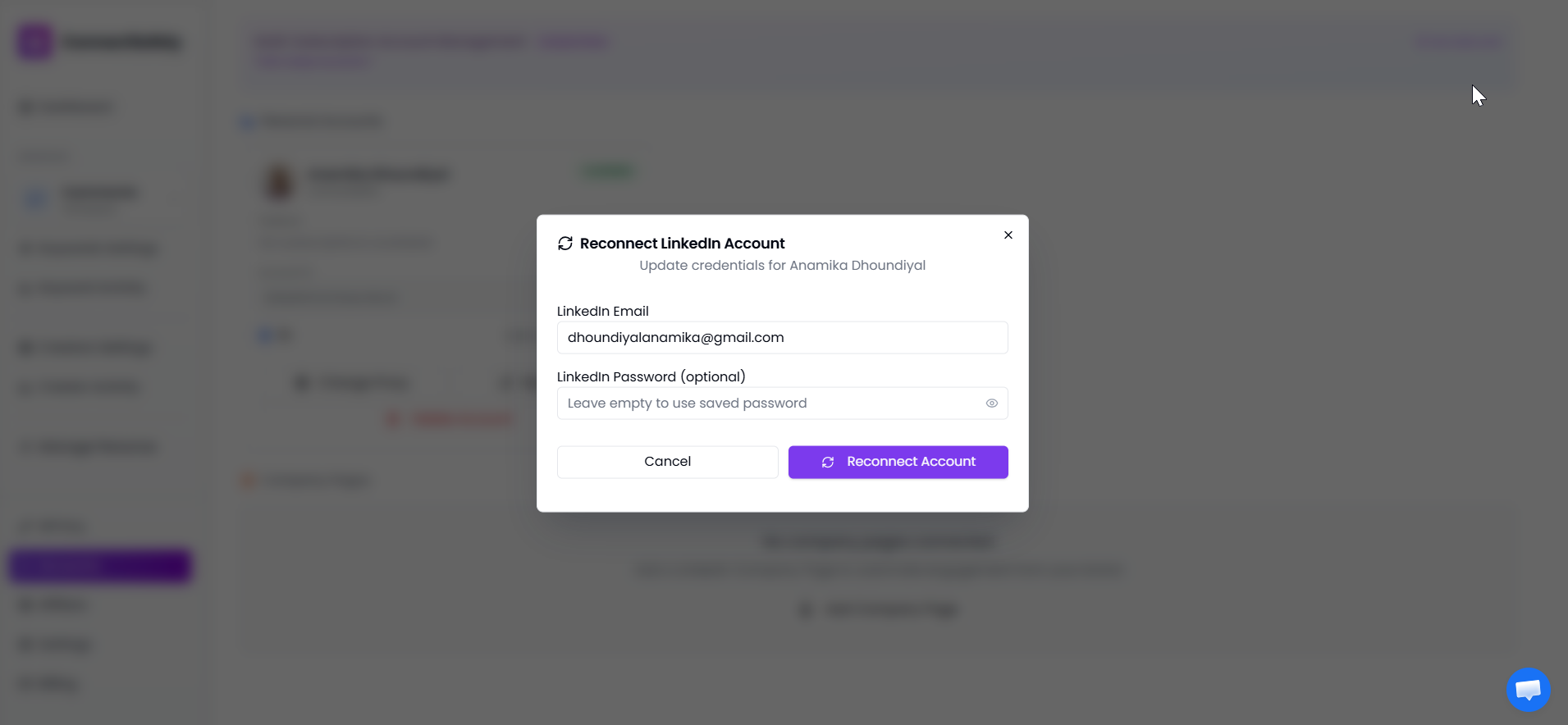
- Click "Add Account" or "Reconnect Account"
- Use the same LinkedIn credentials
- Follow the standard connection process
- Account settings are restored automatically
- Historical data remains accessible
💾 Data Restoration
- Previous campaign settings are preserved
- Conversation history remains intact
- Performance metrics continue from where they left off
- Account-specific settings are maintained
- Templates and sequences remain available
Exporting Data Before Disconnection
If you need to preserve specific data before disconnecting, ConnectSafely provides export options for your account information and campaign data.
📊 Export Options
- Campaign performance reports
- Conversation history exports
- Contact and lead information
- Account activity logs
- Message templates and sequences
- Analytics and metrics data
📋 Pre-Disconnection Checklist
- Review active campaigns using this account
- Export any needed performance data
- Inform team members about the disconnection
- Plan alternative sender assignments
- Consider timing impact on ongoing sequences
- Document reasons for future reference
Account Disconnection and Reconnection Process
Safe disconnection, data preservation, and reconnection capabilities
Best Practices for Account Disconnection
- Plan disconnections during low-activity periods
- Communicate with your team before disconnecting
- Export important data before disconnection
- Monitor campaign impact after disconnection
- Keep credentials secure for potential reconnection
- Document reasons for disconnection
Disconnection Complete
Your LinkedIn account has been successfully disconnected from ConnectSafely. The account is no longer active for campaigns, but all historical data is preserved and the account can be reconnected at any time. Remember to update your campaign strategies to account for the reduced sender capacity.