
LinkedIn MCP Server
Connect LinkedIn to Claude Desktop, Cursor, and n8n using the Model Context Protocol (MCP). AI-powered inbound lead generation, engagement automation, and intelligent workflows—no coding required.
AI INTEGRATION
MCP Server
Model Context Protocol (MCP) enables AI assistants to access ConnectSafely's features directly, creating powerful AI-driven workflows for LinkedIn automation.
AI-Powered Workflows
Let AI assistants manage your LinkedIn engagement intelligently
Seamless Integration
Works with Claude Desktop, Cursor, n8n, and more
Secure & Private
Uses your API key for secure authentication
What is a LinkedIn MCP Server?
Model Context Protocol (MCP) is an open standard that lets AI assistants like Claude connect to LinkedIn and take actions—not just read data, but generate engagement and automate workflows.
AI-Native LinkedIn Access
Tell Claude "find B2B prospects in my industry" and it searches LinkedIn, analyzes profiles, and drafts engagement
Inbound Lead Workflows
Automate authority-building engagement that attracts qualified prospects to your profile
Universal Compatibility
Works with Claude Desktop, Cursor, n8n, Zed, and any MCP-compatible AI tool or IDE
LinkedIn MCP Server Tools & Actions
8+ powerful tools accessible through natural language commands in Claude, Cursor, or n8n
get_profile
Retrieve LinkedIn profile data including experience, education, skills, and contact info
search_prospects
Find ideal prospects by job title, company, location, and industry filters
generate_comment
AI-powered engagement comments that build authority and attract inbound leads
get_analytics
Track engagement metrics, inbound leads, and campaign performance
schedule_post
Schedule and publish LinkedIn content at optimal engagement times
get_company
Analyze company pages, employee data, and recent updates
manage_campaign
Create, pause, and optimize inbound engagement campaigns
track_leads
Monitor inbound lead responses and conversation engagement
Natural Language Access
All tools are accessible through conversational commands. Ask Claude: "Find software engineers at Series A startups in San Francisco and draft engagement comments for their recent posts."
No coding required — just describe what you want to accomplishLinkedIn MCP Setup Guides
Connect your LinkedIn MCP server to Claude, Cursor, or n8n in under 5 minutes
Claude Desktop Configuration
Connect ConnectSafely to Claude Desktop for AI-powered LinkedIn engagement management
Step-by-step guide:
- Open Claude Desktop Settings
- Navigate to Connectors section
- Click Add Custom Connection
- Enter the name:
ConnectSafely.AI - Paste your MCP server URL in the Remote MCP Server URL field
- Save the connection - it will be active immediately
Your MCP Server URL format:
https://mcp.connectsafely.ai/?apiKey=YOUR_API_KEY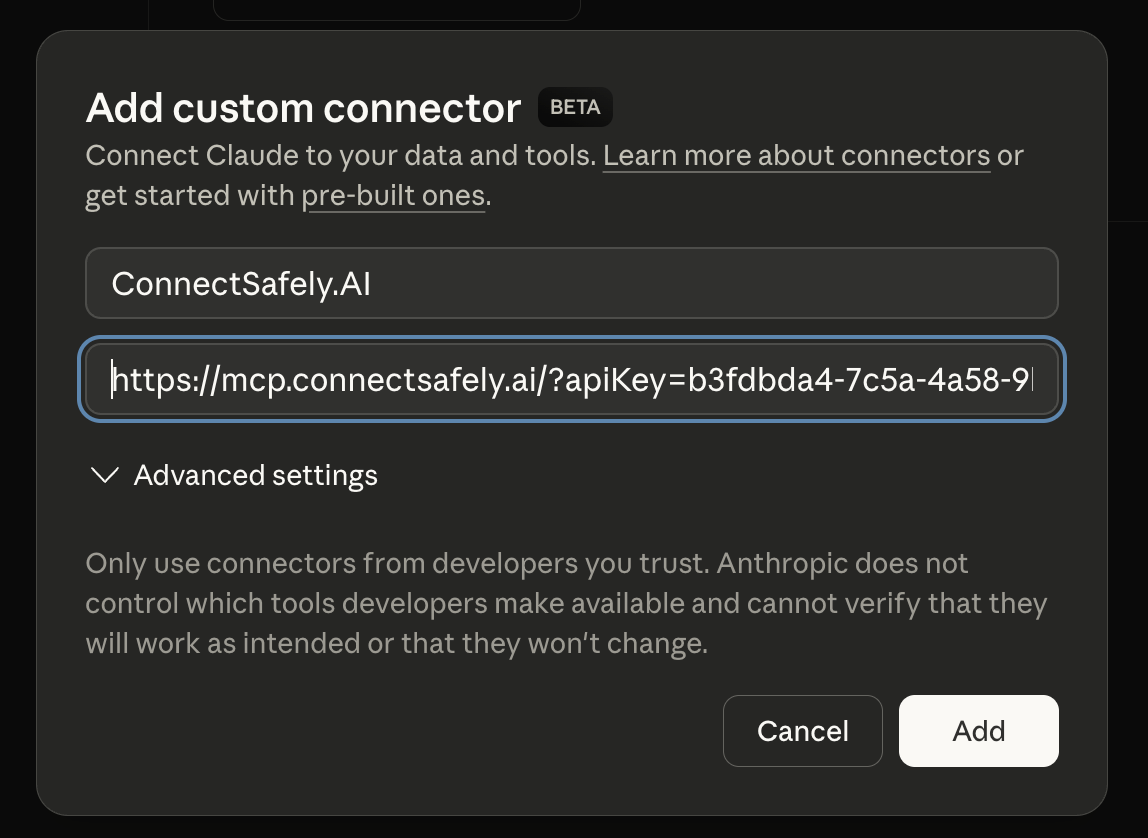
Cursor Configuration
Integrate ConnectSafely with Cursor IDE for AI-assisted development workflows
Configuration steps:
- Open Cursor settings
- Navigate to MCP configuration section
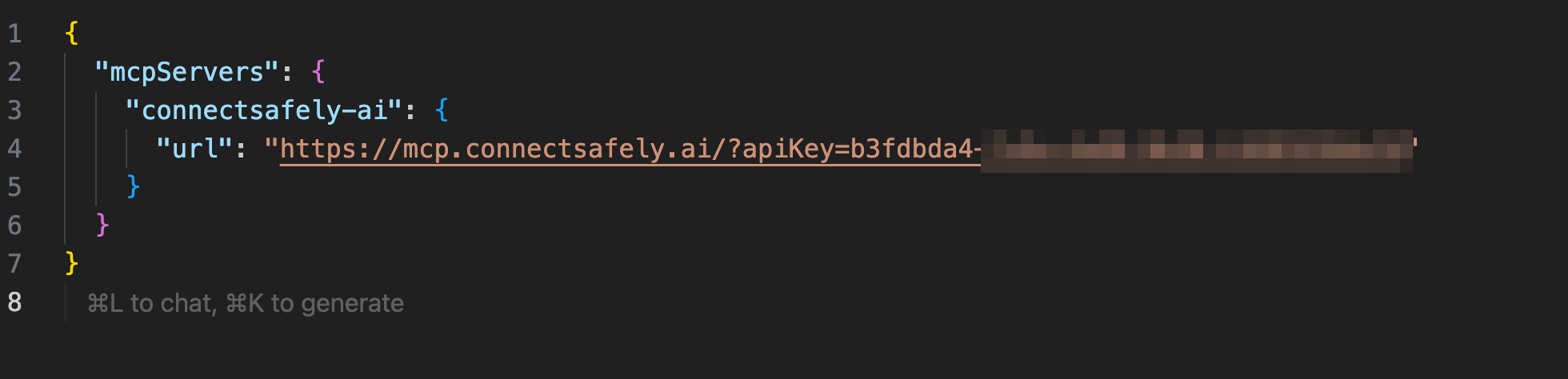
- Add the configuration shown below to your MCP settings file
- Replace
YOUR_API_KEYwith your actual API key - Save the file and restart Cursor
Add to your MCP config:
{
  "mcpServers": {
    "connectsafely": {
      "url": "https://mcp.connectsafely.ai/?apiKey=YOUR_API_KEY"
    }
  }
}
n8n MCP Configuration
Use ConnectSafely MCP server in n8n workflows for advanced AI automation
Setup in n8n:
- Create or open an n8n workflow
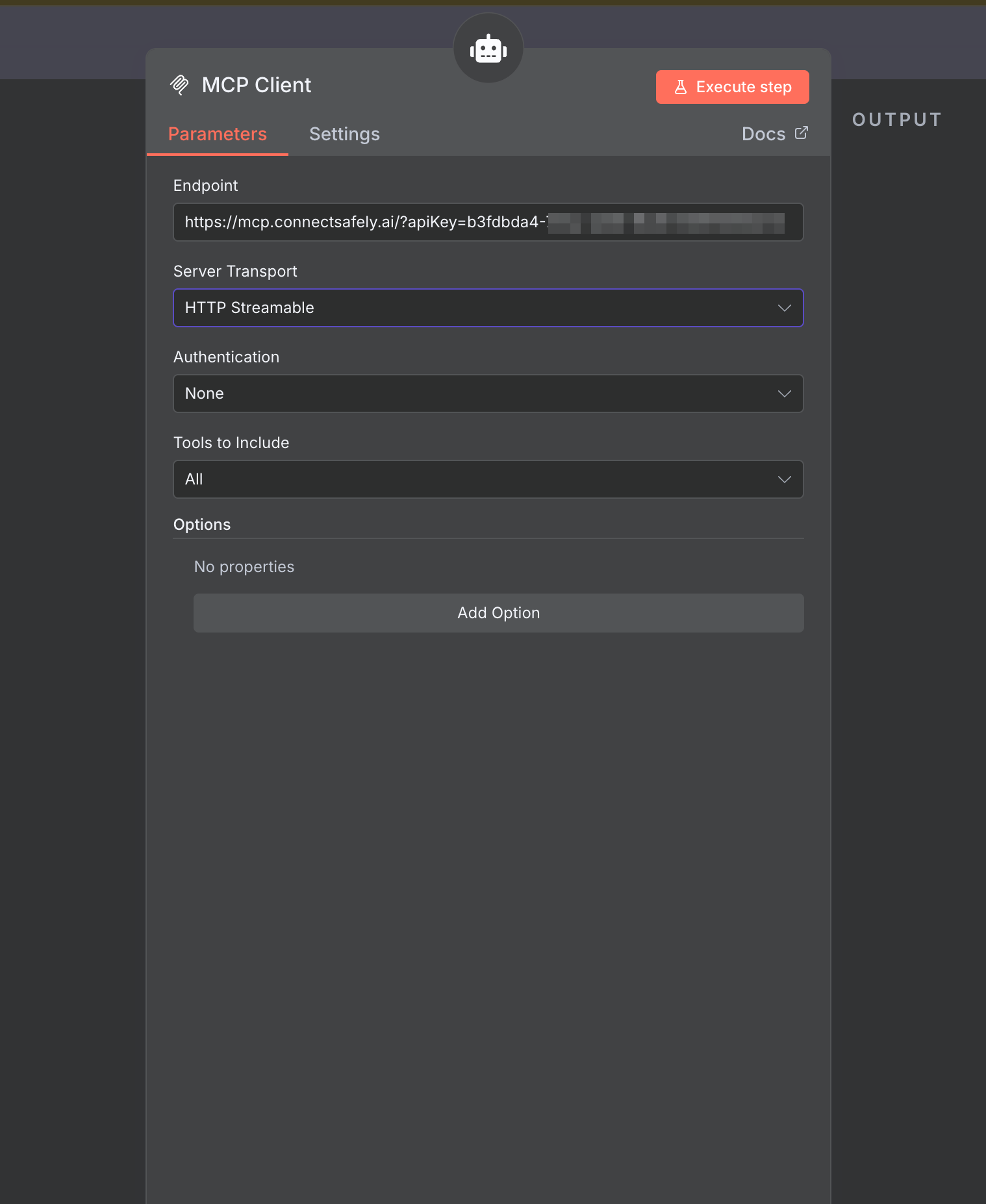
- Add an AI Agent node that supports MCP
- In the agent configuration, add a new MCP server
- Enter name:
ConnectSafely - Set the server URL to your MCP endpoint
- Test the connection and save your workflow
MCP Server URL:
https://mcp.connectsafely.ai/?apiKey=YOUR_API_KEYTip: For non-AI workflows, use our native n8n nodes which provide direct access to all ConnectSafely features.
Other MCP-Compatible Tools
ConnectSafely MCP server works with any MCP-compatible client
The Model Context Protocol is an open standard. Any tool that supports MCP can connect to ConnectSafely:
Zed Editor
High-performance code editor with built-in AI assistant and MCP support
Continue
Open-source AI coding assistant that supports MCP integrations
Langchain
Build LLM applications with MCP server integrations for enhanced context
Custom Applications
Build your own MCP client using the official SDK and protocol specification
Why Use a LinkedIn MCP Server for Lead Generation?
AI-powered inbound workflows that attract qualified prospects without risky automation
AI-Powered Management
Let AI assistants intelligently manage your LinkedIn comments, posts, and engagement strategies
Seamless Workflows
Integrate ConnectSafely into your existing AI workflows without switching contexts
Smart Automation
Build intelligent automation that adapts and learns from your LinkedIn engagement patterns
Universal Standard
Open protocol means you can use ConnectSafely with any MCP-compatible tool
Developer Friendly
Simple REST API with secure authentication makes integration straightforward
Secure & Private
Your API key ensures secure access with full control over permissions
ConnectSafely vs. Other LinkedIn MCP Servers
Why choose a managed LinkedIn MCP solution over open-source alternatives
| Feature | ConnectSafely MCP | Open-Source MCP | LinkedIn Official API |
|---|---|---|---|
| Setup Complexity | 5 minutes | 1-2 hours (Docker, uv) | Days (OAuth app approval) |
| LinkedIn Compliance | Inbound-safe | Risk of ban (scraping) | Compliant |
| Inbound Lead Gen Tools | 8+ tools | Limited (data only) | Basic (profile, posts) |
| AI Comment Generation | Included | Not included | Not available |
| Cloud Hosting | Managed | Self-hosted | Self-hosted |
| Support | Priority | Community only | Enterprise only |
| Pricing | $10/month per LinkedIn account | Free (+ hosting costs) | $899+/month |
The bottom line: Open-source LinkedIn MCP servers are great for developers who want to tinker. ConnectSafely is for professionals who want inbound leads without the technical overhead or account risk.
LinkedIn MCP Server FAQs
Everything you need to know about connecting LinkedIn to Claude, Cursor, and other AI assistants.
What is a LinkedIn MCP server and how does it work?
A LinkedIn MCP (Model Context Protocol) server enables AI assistants like Claude Desktop and Cursor to interact with LinkedIn through a standardized API. ConnectSafely's LinkedIn MCP server lets you automate inbound lead generation, manage engagement, analyze profiles, and execute workflows through natural language commands—all without coding.
How do I connect Claude Desktop to LinkedIn using MCP?
To connect Claude Desktop to LinkedIn via ConnectSafely MCP: 1) Get your MCP server URL from connectsafely.ai/mcp-server, 2) Open Claude Desktop Settings → Connectors, 3) Click 'Add Custom Connection', 4) Name it 'ConnectSafely.AI' and paste your MCP URL, 5) Save. The connection activates immediately with full LinkedIn access.
What can I do with a LinkedIn MCP server integration?
ConnectSafely's LinkedIn MCP server provides 8+ tools including: get LinkedIn profile data, analyze company pages, manage engagement campaigns, schedule content posting, track inbound leads, search for prospects, generate AI comments, and automate connection workflows. All accessible through natural language in Claude, Cursor, or n8n.
Is ConnectSafely better than other LinkedIn MCP servers?
Unlike open-source LinkedIn MCP servers that require complex setup and risk account bans, ConnectSafely provides a managed, LinkedIn-compliant solution focused on inbound lead generation. You get enterprise security, no coding required, cloud-hosted reliability, and specialized tools for attracting qualified leads—not just scraping data.
Can I use LinkedIn MCP with Cursor, n8n, or VS Code?
Yes! ConnectSafely's LinkedIn MCP server works with any MCP-compatible client: Claude Desktop, Cursor IDE, Zed Editor, VS Code (via Continue), n8n AI agents, Langchain, and custom MCP applications. Simply add your MCP server URL to the tool's configuration file.
How much does LinkedIn MCP server access cost?
There is no separate MCP plan — MCP comes with API access. That is the API & MCP Access plan at $10/month per LinkedIn account. You get unlimited AI agent interactions, all 8+ LinkedIn tools, priority support, and full API access. No per-request fees or usage limits.
Is LinkedIn MCP server automation safe for my account?
ConnectSafely's MCP server uses platform-compliant engagement methods that LinkedIn rewards, not risky scraping or automation. Your API key provides secure authentication, data is encrypted in transit and at rest, and our inbound approach builds authority rather than triggering spam detection.
What's the difference between MCP and LinkedIn API?
LinkedIn's official API is limited to basic profile data and company pages. MCP (Model Context Protocol) enables AI assistants to take actions—managing engagement, generating content, and automating workflows. ConnectSafely bridges both: official API compliance with MCP-powered AI capabilities for inbound lead generation.
Need help setting up MCP?
Contact supportConnect LinkedIn to Your AI Assistant Today
Get your LinkedIn MCP server URL and start attracting inbound leads with AI-powered workflows. Setup takes less than 5 minutes. Included with the API & MCP Access plan — $10/mo per LinkedIn account.