How to Block Someone on LinkedIn: Complete Guide
Learn how to block and unblock someone on LinkedIn in 2026. Step-by-step guide for desktop and mobile with screenshots.


Yes, you can block someone on LinkedIn—and they won't be notified. Blocking removes the person from your connections, hides your profile from them, and prevents all future interactions. Here's exactly how to do it on desktop and mobile.
Key Takeaways
- LinkedIn allows blocking any member, and they won't receive a notification when you block them
- Blocking removes the connection and hides your profile, posts, and messages from that person
- You can unblock anytime, but must wait 48 hours before re-blocking the same person
- LinkedIn limits blocking to 1,400 members maximum per account
Can You Block Someone on LinkedIn?
Yes, LinkedIn allows you to block any member on the platform. According to LinkedIn's official Help Center, blocking is a privacy feature designed to give you control over who can interact with you.
Want to Generate Consistent Inbound Leads from LinkedIn?
Get our complete LinkedIn Lead Generation Playbook used by B2B professionals to attract decision-makers without cold outreach.
No spam. Just proven strategies for B2B lead generation.
When you block someone on LinkedIn:
- They're removed from your connections (if connected)
- They can't view your profile or content
- They can't message you or send connection requests
- They can't see your posts, comments, or activity
- They won't be notified that you blocked them
How to Block Someone on LinkedIn (Desktop)
Method 1: Block from Their Profile
This is the quickest way to block someone:
Step 1: Navigate to their profile by searching their name or clicking their profile from a post/comment.

Step 2: Click the "More" button (three dots icon) below their profile header.
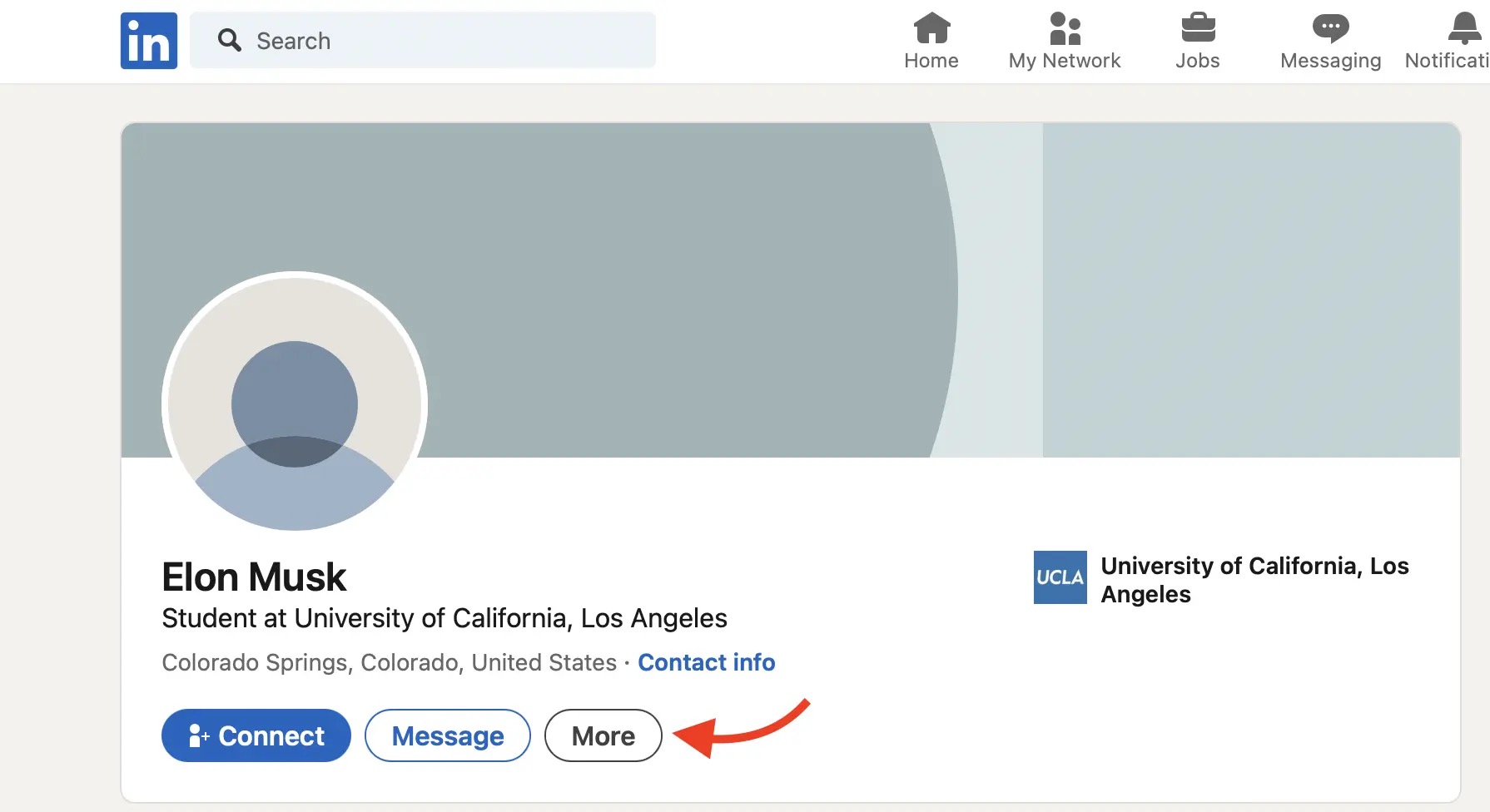
Step 3: Select "Report/Block" from the dropdown menu.
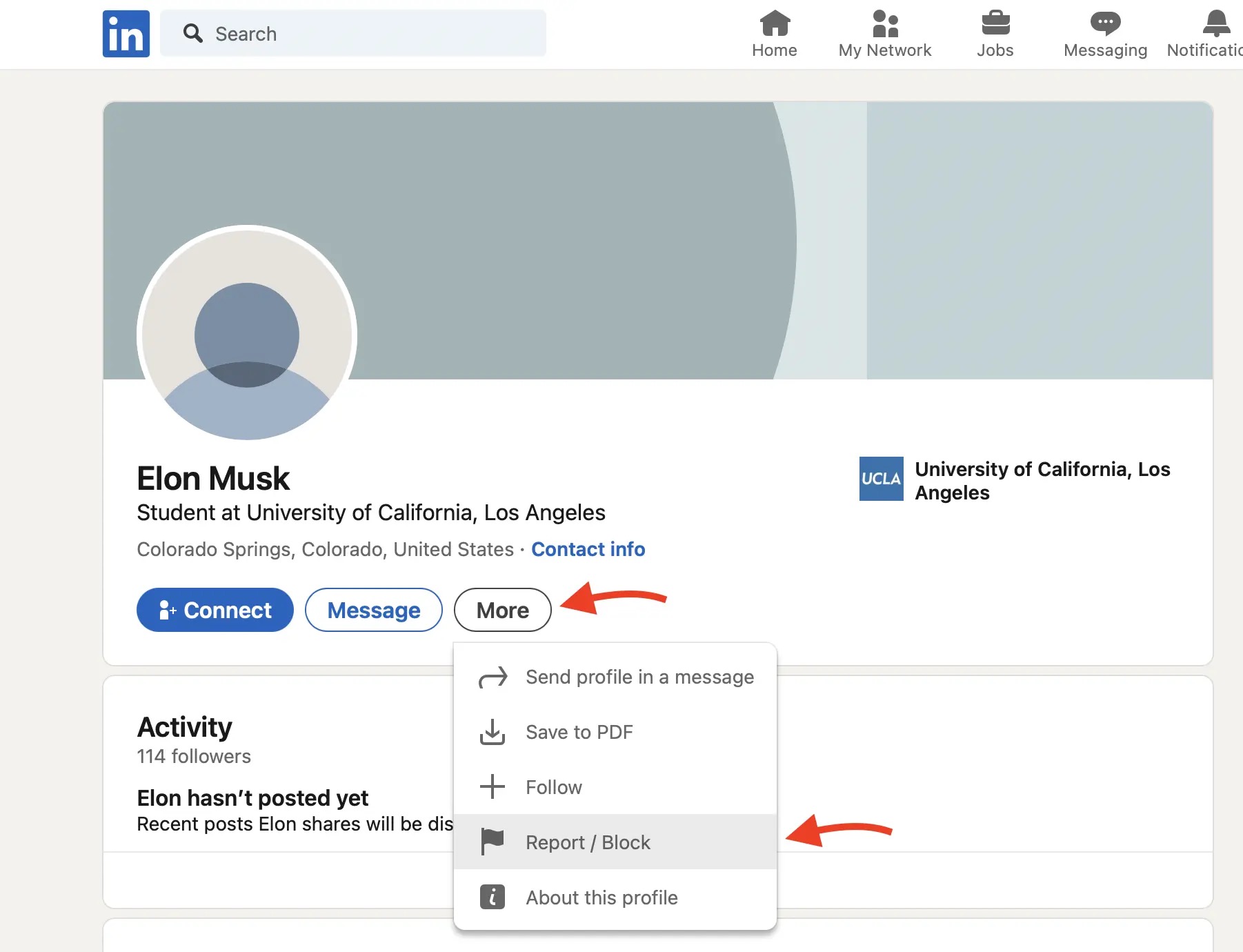
Step 4: Click "Block [Name]" to confirm. A confirmation message will appear.
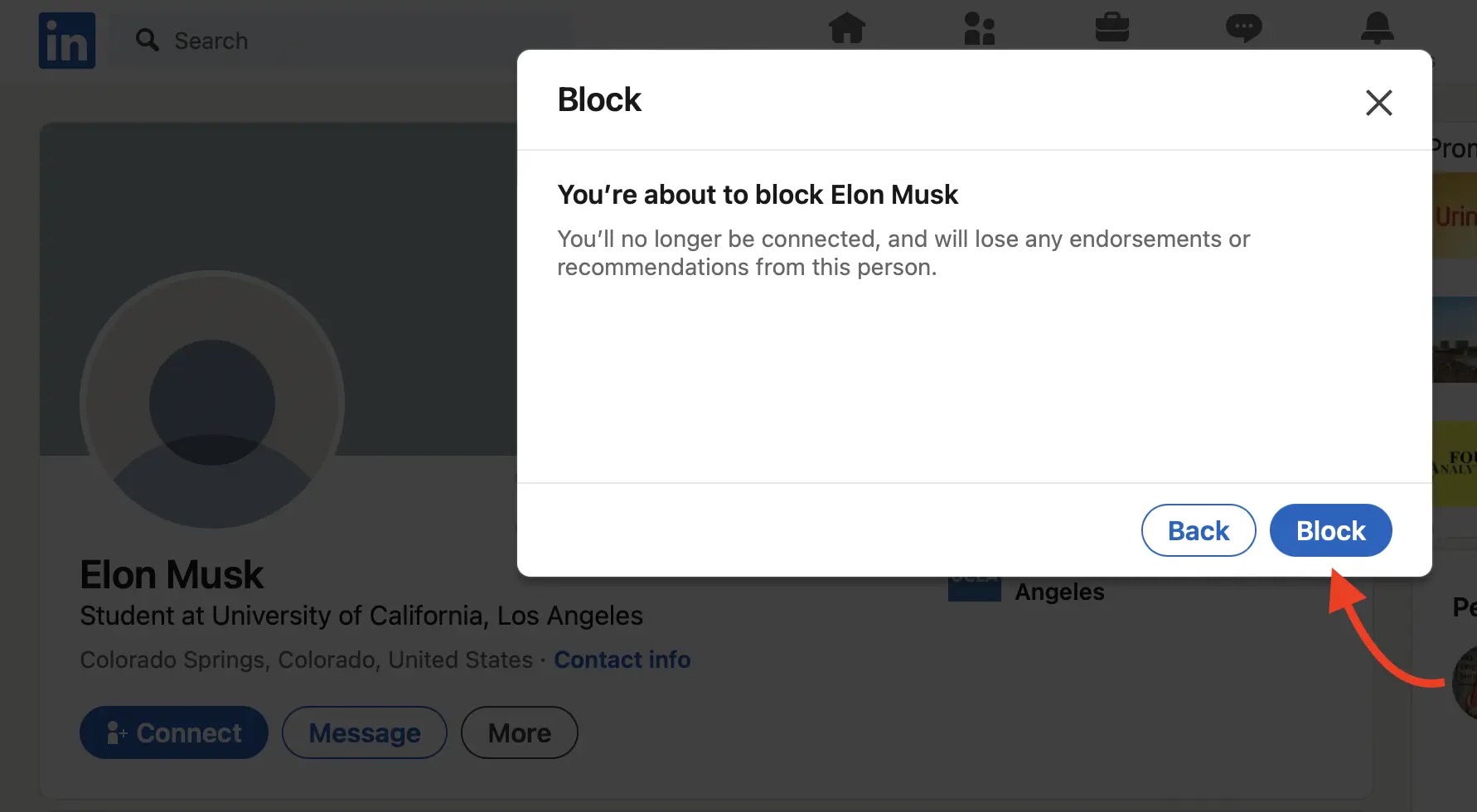
Click "Block" to complete the action.
Method 2: Block Without Visiting Their Profile
If you'd rather not visit someone's profile to block them:
- Click your profile photo in the top-right corner
- Select "Settings & Privacy"
- Click "Visibility" in the left sidebar
- Under "Visibility of your profile & network," find "Blocking"
- Click "Change" or "Edit"
- Click "Add new" and enter the person's name or email
- Select the correct person and confirm the block
How to Block Someone on LinkedIn (Mobile App)
On iOS or Android:
- Open the LinkedIn app and navigate to the person's profile
- Tap the three dots (More icon) in the top-right corner
- Tap "Report or block"
- Select "Block [Name]"
- Confirm by tapping "Block"
Alternatively, you can access blocking through settings:
- Tap your profile photo (top-left)
- Tap Settings (gear icon)
- Go to Privacy → Blocking
- Tap "Add member to block"
- Search for and select the person to block
How to Unblock Someone on LinkedIn
If you change your mind, you can unblock someone at any time. Whether you want to unblock on LinkedIn using desktop or mobile, the process takes less than a minute.
How to Unblock on LinkedIn (Desktop)
- Click your profile photo → Settings & Privacy
- Go to Visibility → Blocking
- Find the person in your blocked list
- Click "Unblock" next to their name
- Enter your password to confirm
- Click "Unblock member"
How to Unblock in LinkedIn (Mobile App)
- Open the app and tap your profile photo
- Go to Settings → Privacy → Blocking
- Find the person you want to unblock
- Tap "Unblock"
- Enter your password and confirm
Tip: To unblock on LinkedIn quickly, you can also search for the person's name in your blocked list using the search bar in Settings.
What Happens After You Unblock Someone
According to LinkedIn Help, here's what to expect after unblocking:
| Action | What Happens |
|---|---|
| Connection status | You're no longer connected—must send new request |
| Message history | Previous messages remain accessible |
| Re-blocking | Must wait 48 hours before blocking again |
| Notification | They won't be notified that you unblocked them |
| Profile access | They can view your profile again (if public) |
LinkedIn Blocking Limits and Rules
According to LinkedIn's blocking policies:
- Maximum blocked members: 1,400 people
- Re-blocking cooldown: 48 hours after unblocking
- Notification: LinkedIn does NOT notify blocked members
- Mutual connections: Blocking doesn't affect mutual connections' ability to mention you both
When Should You Block Someone on LinkedIn?
Consider blocking when someone:
- Sends spam or unwanted messages repeatedly
- Harasses you in comments or messages
- Impersonates you or someone else
- Shares inappropriate content on your posts
- Is a competitor you don't want viewing your activity
- Is a former employer you prefer to avoid
For minor annoyances, consider these alternatives first:
- Unfollow: Stop seeing their posts without disconnecting
- Remove connection: Disconnect without fully blocking
- Mute: Hide their posts from your feed
Does Blocking Affect Your LinkedIn Authority?
Blocking doesn't negatively impact your LinkedIn profile or algorithm standing. In fact, maintaining a professional network by removing problematic connections can improve your engagement quality.
For building genuine authority that attracts qualified leads, focus on:
Blocking vs. Reporting on LinkedIn
| Action | Use When | Result |
|---|---|---|
| Block | You want to prevent all interaction | Person can't see or contact you |
| Report | Content violates LinkedIn policies | LinkedIn reviews for policy violations |
| Block + Report | Harassment or serious violations | Both outcomes apply |
You can block someone without reporting, or do both simultaneously through the same menu.
How ConnectSafely.ai Helps Maintain Quality Connections
Rather than dealing with unwanted outreach, ConnectSafely.ai helps you build a network of qualified, engaged professionals who reach out to you:
- Inbound-focused approach attracts the right connections
- Strategic engagement positions you as an authority
- Quality over quantity means fewer problematic connections
- Platform-compliant methods that LinkedIn rewards
Frequently Asked Questions
Can you block someone on LinkedIn without them knowing?
Yes. LinkedIn does not notify users when they've been blocked. The blocked person will simply no longer be able to find or view your profile. They may notice if they try to visit your profile directly and can't access it.
How do I block someone on LinkedIn who isn't a connection?
You can block anyone on LinkedIn, regardless of connection status. Simply visit their profile, click the "More" (three dots) button, and select "Report/Block" → "Block [Name]."
What happens when you block someone on LinkedIn?
When you block someone: they're removed from your connections, they can't view your profile or posts, they can't message you, and they can't send connection requests. Previous messages remain in your inbox but they can't send new ones.
How do I unblock someone on LinkedIn?
Go to Settings & Privacy → Visibility → Blocking. Find the person in your blocked list and click "Unblock." You'll need to enter your password to confirm. After unblocking, you must wait 48 hours before you can block them again.
How do I unblock on LinkedIn mobile app?
Open the LinkedIn app, tap your profile photo, then go to Settings → Privacy → Blocking. Find the person in your blocked list and tap "Unblock." Enter your password when prompted. The process works the same on both iOS and Android.
Is there a limit to how many people you can block on LinkedIn?
Yes, LinkedIn allows you to block up to 1,400 members. If you've reached this limit, you'll need to unblock someone before you can block a new person.
Can a blocked person still see my comments on mutual connections' posts?
No. When you block someone, they cannot see any of your activity on LinkedIn, including comments on other people's posts. However, mutual connections can still tag or mention both of you.
Ready to build a LinkedIn presence that attracts quality connections instead of spam? Start your free trial and see how inbound authority works.
The Unintended Consequences of Blocking on LinkedIn
Blocking someone on LinkedIn may seem like a straightforward solution to avoid unwanted interactions, but it can have unintended consequences. For instance, if you block a connection who has commented on one of your posts, their comment will still be visible to others, even though they can't see your profile or interact with you further. This can lead to awkward situations where others may respond to the blocked person's comment, not realizing they're no longer able to engage. Additionally, if you're part of a LinkedIn group where the blocked person is also a member, you may still see their posts and comments within that group, even though you've blocked them. It's essential to consider these potential consequences before blocking someone, especially if you're active in LinkedIn groups or have a large following.
Myth vs Reality: What Blocking on LinkedIn Really Means
There are several myths surrounding blocking on LinkedIn, and it's time to separate fact from fiction. One common misconception is that blocking someone will completely erase them from your LinkedIn existence. However, this isn't entirely true. While blocking does prevent the person from viewing your profile, posts, and messages, it doesn't remove their previous interactions with you. For example, if the blocked person has liked or commented on one of your posts, their interaction will still be visible to others, even after you've blocked them. Another myth is that blocking is a permanent solution. In reality, you can unblock someone at any time, and they'll be able to interact with you again as if nothing happened. It's crucial to understand the actual implications of blocking on LinkedIn to avoid any misunderstandings or unexpected outcomes.
Advanced Blocking Strategies for LinkedIn Power Users
For experienced LinkedIn users, blocking can be a nuanced tool to manage their online presence and interactions. One advanced strategy is to use blocking in conjunction with LinkedIn's "private mode" feature. By enabling private mode, you can prevent others from seeing your online status, and when combined with blocking, you can effectively create a "blacklist" of users who can't interact with you or see your activity. Another strategy is to use blocking to manage LinkedIn group interactions. If you're part of a large group and want to avoid interactions with specific members, blocking them can be an effective way to do so without having to leave the group altogether. However, it's essential to note that group administrators can still see blocked members' interactions, so it's not a foolproof solution. By leveraging these advanced blocking strategies, power users can take their LinkedIn game to the next level and maintain a high level of control over their online presence.
The Gray Area: When Blocking on LinkedIn Isn't a Clear-Cut Decision
In some cases, blocking on LinkedIn isn't a straightforward decision. For instance, what if you need to block a colleague or business partner who is also a connection on LinkedIn? Blocking them may damage your professional relationship or create awkward situations in the workplace. Similarly, if you're a recruiter or HR professional, blocking a candidate who has applied for a job at your company may not be the best approach, as it could be perceived as unprofessional or even discriminatory. In these situations, it's essential to weigh the pros and cons of blocking and consider alternative solutions, such as muting or limiting interactions with the person. It's also crucial to have a clear understanding of your company's social media policies and guidelines to ensure you're not inadvertently creating a liability or reputational risk.
The Limitations of Blocking on LinkedIn: What You Need to Know
While blocking on LinkedIn can be an effective way to manage unwanted interactions, it's not a silver bullet. One significant limitation is the 1,400-member blocking limit per account. If you're a high-profile user or have a large following, you may reach this limit quickly, leaving you vulnerable to harassment or spam. Another limitation is that blocking only prevents interactions on LinkedIn, not on other social media platforms or in real life. Additionally, blocked users can still see your public posts and activity, even if they can't interact with you directly. It's also worth noting that LinkedIn's algorithms may not always prioritize blocked users' content, but it's not a guarantee that you won't see their posts or comments in your feed. By understanding these limitations, you can use blocking as part of a broader strategy to manage your online presence and interactions, rather than relying on it as a sole solution.
See How It Works
Watch how people get more LinkedIn leads with ConnectSafely




Related Articles