LinkedIn Private Mode: How to Browse Profiles Anonymously
Learn how to use LinkedIn private mode to browse profiles anonymously. Complete guide to privacy settings and who can see your profile views.


Updated May 4, 2026 — Verified the steps against LinkedIn's May 2026 settings layout, refreshed the Premium-vs-free trade-off, and clarified what recruiters in InMail mode actually see. Reviewed by the ConnectSafely.ai editorial team.
Yes, you can browse LinkedIn profiles anonymously using private mode. To enable LinkedIn private mode in the May 2026 UI, click your profile photo (top-right) → Settings & Privacy → Visibility → Profile viewing options → select "Private mode." When enabled, the profile owner will only see "LinkedIn Member" or "Anonymous LinkedIn Member" viewed their profile instead of your name, photo, and headline. The change takes effect on your very next profile view — there's no delay or refresh required.
Want to Generate Consistent Inbound Leads from LinkedIn?
Get our complete LinkedIn Lead Generation Playbook used by B2B professionals to attract decision-makers without cold outreach.
No spam. Just proven strategies for B2B lead generation.
The key trade-off remains the same in 2026: free LinkedIn users lose access to seeing who viewed their own profile the moment private mode is enabled, and any existing viewer history is wiped. LinkedIn Premium subscribers — including Career, Business, Sales Navigator, and Recruiter Lite seats — can browse privately and still see their own profile viewers. If you're a recruiter using LinkedIn Recruiter, your visits surface under a separate "Anonymous Recruiter" label that prospects sometimes recognize as recruiter activity even though your name is hidden.
Key Takeaways
- How to enable private mode: Settings & Privacy → Visibility → Profile viewing options → select "Private mode"—takes effect immediately
- What others see: When you're in private mode, profile owners only see "LinkedIn Member" with no identifying information
- Trade-off for free users: According to LinkedIn's official documentation, enabling private mode removes your access to "Who's Viewed Your Profile" and erases your viewer history
- Premium advantage: LinkedIn Premium subscribers can browse privately AND still see their profile viewers
- Three viewing modes available: Public (full identity), Semi-Private (job title/company only), and Private (complete anonymity)
- Strategic consideration: For inbound lead generation, strategic visibility often outperforms hiding—profile views can spark connections
Does LinkedIn Show Who Viewed Your Profile?
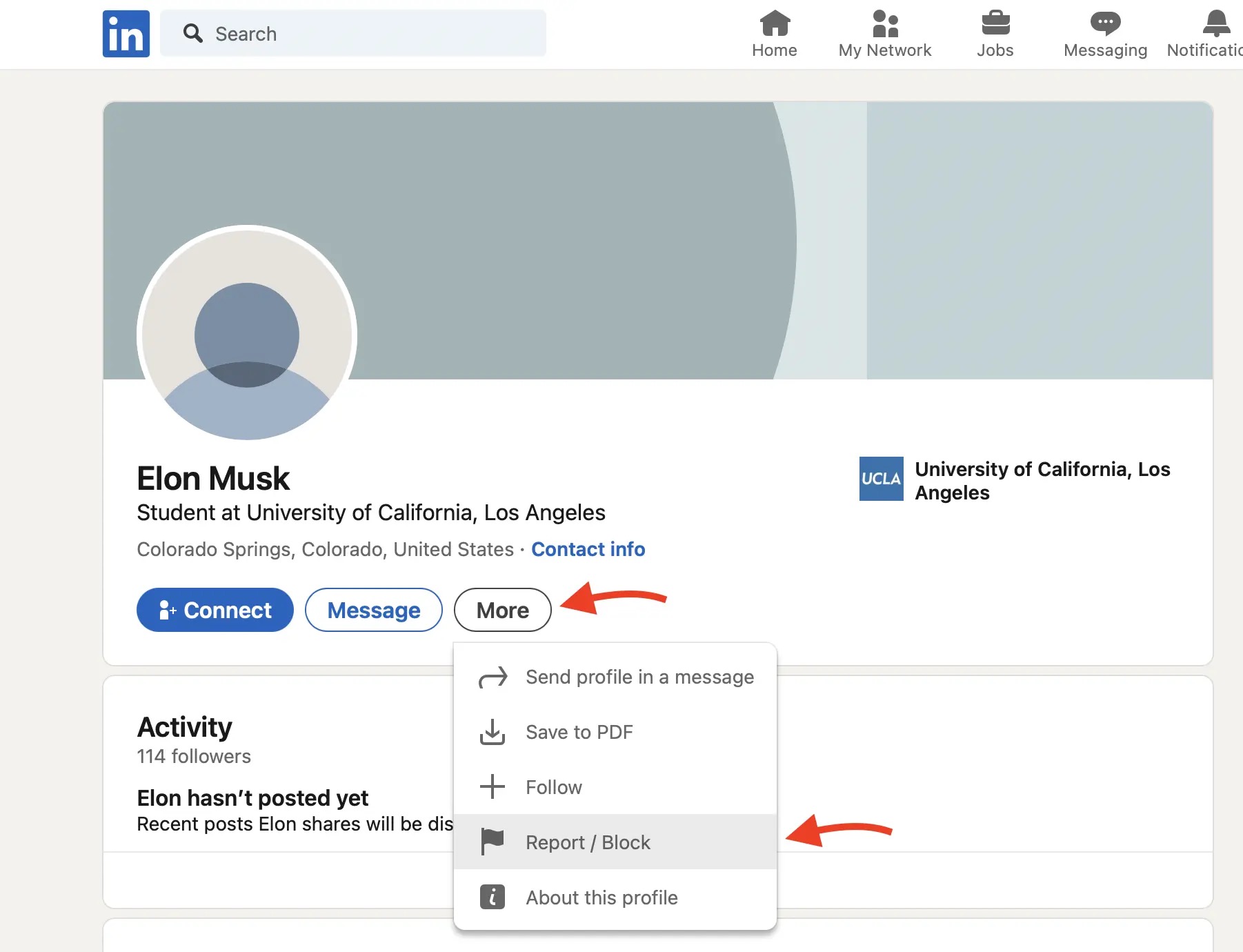
Yes, by default LinkedIn shows profile visitors. According to LinkedIn's official documentation, when you view someone's profile in public mode, they can see:
- Your full name
- Your headline
- Your profile photo
- When you viewed their profile
However, you can change this by enabling private mode to browse anonymously.
LinkedIn's Three Viewing Modes
LinkedIn offers three profile viewing options according to LinkedIn Help:
| Mode | What Others See | What You Give Up (Free) | What You Keep (Premium) |
|---|---|---|---|
| Public (Default) | Your full name, headline, photo, and current role | Nothing | Nothing |
| Semi-Private | Job title, company, school, and industry — no name, no photo, no profile link | Named viewer list (but you keep aggregate counts) | Full viewer list |
| Private | Only "LinkedIn Member — viewing in private mode" | Named viewer list entirely | Full viewer list |
Semi-private is the strategic middle ground most users overlook. You remain personally anonymous while giving the profile owner enough professional context to recognize your seniority and employer. This is particularly useful for recruiters who want candidates to see a recruiter from [Company] viewed their profile without knowing exactly who — it generates curiosity and inbound messages without full identity disclosure.
How to Make LinkedIn Private (Desktop)
Enable Private Mode
- Click your profile photo in the top-right corner
- Select "Settings & Privacy"
- Click "Visibility" in the left sidebar
- Under "Visibility of your LinkedIn activity," find "Profile viewing options"
- Click "Change"
- Select "Private mode"
- Click "Save"
Your changes take effect immediately.
Return to Public Mode
Follow the same steps and select "Your name and headline" to return to public viewing.
How to Make LinkedIn Private (Mobile App)
On iOS or Android:
- Tap your profile photo (top-left corner)
- Tap the gear icon (Settings)
- Select "Visibility"
- Tap "Profile viewing options"
- Choose "Private mode"
- Confirm your selection
The Private Mode Trade-Off
According to LinkedIn's privacy documentation, there's an important trade-off:
For Free (Basic) LinkedIn Users:
- When you enable private mode, you lose access to "Who's Viewed Your Profile"
- Your existing viewer history is erased — and as of May 2026 LinkedIn does not restore it after you toggle private mode off
- After disabling private mode, it takes up to 24 hours for the dashboard to start populating again
- The 5-most-recent-viewers limit on free accounts still applies, even after the dashboard returns
For Premium LinkedIn Users:
- You can browse in private mode AND still see your profile viewers
- This is one of the key benefits of LinkedIn Premium
- The full 90-day (or 365-day on Sales Navigator) viewer history is preserved across private-mode toggles
| Feature | Free Account | Premium Account |
|---|---|---|
| Browse in private mode | ✅ Yes | ✅ Yes |
| See who viewed your profile | ❌ No (when private) | ✅ Yes (always) |
| 90-day viewer history | ❌ Lost when private | ✅ Preserved |
What Are the Disadvantages of Private Mode on LinkedIn?
Private mode has five real costs. On a free account the first two are significant; on Premium, only the last three apply.
| # | Disadvantage | Who it affects |
|---|---|---|
| 1 | You lose "Who's Viewed Your Profile" while private mode is on | Free accounts only |
| 2 | Your existing viewer history is erased and is not restored when you switch back | Free accounts only |
| 3 | You forfeit passive inbound interest — people who would have seen your visit and reciprocated never know you were there | Everyone |
| 4 | You cannot be identified by people you want to be identified by — a recruiter or prospect checking who looked at them sees only "Anonymous LinkedIn Member" | Everyone |
| 5 | Recruiter visits are still labelled — LinkedIn Recruiter shows as "Anonymous Recruiter", which some candidates read as recruiter activity even without your name | Recruiter seats |
The one people underestimate is #3. Profile viewing is a two-way signal on LinkedIn: showing up in someone's viewer list is a soft, zero-effort introduction that often prompts them to look back at you. Browsing privately turns that off. If you are job hunting, selling, or networking, anonymity costs you the very visibility you are on the platform for.
When the trade is worth it: researching competitors, checking a profile before a negotiation, looking at a current employer while job hunting, or any situation where being seen creates a problem. When it is not: ordinary networking and prospecting, where being seen is the point.
LinkedIn Private Mode and Premium: What Changes, What Doesn't
This is the combination that generates the most confusion, so here is a precise breakdown.
What LinkedIn Premium Adds to Private Mode
| Capability | Free Account | Premium Account |
|---|---|---|
| Browse in private mode | Yes | Yes |
| Keep your own viewer list while browsing privately | No — list disappears | Yes — full list retained |
| Named viewer history length | 5 most recent (90 days) | Full list up to 365 days |
| Viewer source data (how they found you) | No | Yes (for named viewers only) |
| "Interesting Viewers" alerts | No | Yes (senior leaders, recruiters flagged) |
| Identify who viewed you in private mode | No | No — impossible on any plan |
The critical distinction: Premium's private-mode benefit runs in one direction only. It protects your anonymity when you browse while letting you keep your own viewer data. It does not give you any power over the anonymity of people who visit your profile in private mode.
How to Set Up Private Mode as a Premium User
The steps are identical to the free-user path — there is no separate Premium private-mode toggle:
Desktop:
- Click your profile photo (top-right) → Settings & Privacy
- Select Visibility in the left sidebar
- Under "Visibility of your LinkedIn activity," click "Profile viewing options"
- Select "Private mode" and save
Mobile (iOS and Android):
- Tap your profile photo (top-left) → Settings (gear icon)
- Tap Visibility → Profile viewing options
- Choose "Private mode" and confirm
For Premium users, the viewer dashboard remains fully populated after you save. You will still see all named visitors to your profile; you are simply invisible to the profiles you visit.
How to Disable Private Mode
To return to full public visibility, follow the same path and select "Your name and headline" instead of "Private mode." The change takes effect on your next profile visit.
Important: Past anonymous visits you made while in private mode are permanently hidden retroactively. Profiles you viewed while in private mode will never see your name appear in their viewer history for those visits — switching back to public does not retroactively reveal your past anonymous views to others.
Does Private Mode Remove You From Search Results?
No. Private mode only controls what happens when you visit someone's profile. Your own profile continues to appear in LinkedIn search results regardless of your viewing mode. People can still find you by name, headline keywords, or company. If you want to reduce your search visibility, that requires a separate setting: Settings & Privacy → Visibility → Edit your public profile, where you can limit what search engines and logged-out users see.
Can Premium Users See Anonymous Viewers?
No. According to LinkedIn Help, even Premium users cannot identify people browsing in private mode. The privacy setting overrides all other features:
"LinkedIn always respects a member's privacy settings. Even with a Premium account, you can't view the names of private mode viewers of your own profile."
When someone views your profile in private mode, you'll only see "LinkedIn Member - This person is viewing profiles in private mode."
When to Use LinkedIn Private Mode
Good Reasons to Browse Privately
- Job searching without alerting your current employer
- Competitive research on other companies or professionals
- Checking on former colleagues without awkward notifications
- Researching recruiters before responding to messages
- Investigating potential clients before a sales call
When to Stay Public
According to Typefully's research, staying in public mode has advantages:
- Networking: Letting prospects see you viewed their profile can start conversations
- Sales prospecting: Profile views can warm up leads before outreach
- Job hunting (strategically): Showing recruiters you're interested
- Authority building: Visibility contributes to your LinkedIn presence
Private Mode vs. Blocking
| Feature | Private Mode | Blocking |
|---|---|---|
| Purpose | Browse anonymously | Prevent all interaction |
| They can see you | Only "LinkedIn Member" | Not at all |
| You can see them | Yes | Yes |
| Connection status | Unchanged | Removed |
| Reversible | Instantly | Yes (48hr re-block wait) |
Use private mode for anonymous browsing. Use blocking to prevent someone from interacting with you entirely.
Additional LinkedIn Privacy Settings
Beyond private mode, LinkedIn offers other privacy controls:
Control Who Can See Your Connections
- Go to Settings & Privacy → Visibility
- Find "Who can see your connections"
- Choose between "Your connections" or "Only you"
Control Who Can See Your Activity
- Navigate to Settings & Privacy → Visibility
- Adjust "Manage active status" to control who sees when you're online
- Modify "Share profile updates with your network" for job changes
Limit Profile Visibility to Logged-In Users
- Go to Settings & Privacy → Visibility
- Find "Profile visibility off LinkedIn"
- Choose whether your public profile appears in search engines
How to Tell If Someone Viewed Your Profile in Private Mode
The short answer: You can't identify who specifically viewed your profile in private mode. According to LinkedIn's official documentation, LinkedIn respects privacy settings absolutely—there is no workaround, even for Premium users.
What You'll See
When someone views your profile anonymously, you'll see:
- "LinkedIn Member" with no name, photo, or headline
- The notation: "This person is viewing profiles in private mode"
- No company or job title information
- Only that someone viewed your profile (no identifying details)
Common Misconceptions
Many LinkedIn users believe they can detect private viewers through:
- Browser extensions or third-party tools - These don't work. LinkedIn's API doesn't expose private viewer data
- LinkedIn Premium's "full viewer list" - Premium shows more viewers, but still respects privacy mode
- Timing patterns - While you might guess based on recent messages or activity, this isn't reliable evidence
What Signals Actually Exist?
While you can't identify private viewers directly, you might notice:
- Increased total viewer count - You'll see more views than identifiable profiles
- Profile views after outreach - If you messaged someone and immediately get a private view, it's likely them
- Pattern timing - Private views that correlate with email campaigns or specific outreach
However, none of these provide definitive identification. According to LinkedIn's privacy policy, member privacy choices are absolute.
Why This Matters
For sales prospecting and networking, understanding this limitation is crucial:
- Don't assume who the private viewer is - Making assumptions can lead to awkward follow-ups
- Focus on identified viewers - Engage with people who view your profile publicly
- Consider what private views signal - They indicate interest in your profile, even if anonymous
- Respect the privacy choice - Some users have legitimate reasons for browsing privately
The key insight: Rather than trying to unmask private viewers, optimize your profile so that when people do view it, they're compelled to reach out or connect publicly.
LinkedIn Private Mode for Recruiters
Recruiters have a unique relationship with LinkedIn's private mode—it's both a tool and a signal.
How Recruiters Use Private Mode
According to LinkedIn Talent Solutions, recruiters browse privately when:
- Researching passive candidates without alerting them prematurely
- Checking current employees of client companies during searches
- Investigating competitors or talent pools discreetly
- Reviewing candidates who haven't formally applied yet
- Avoiding recruitment alerts to candidates' current employers
When Recruiters Should Stay Public
Experienced recruiters often recommend staying in public mode when:
- Building employer brand - Profile views from recruiters at desirable companies intrigue candidates
- Gauging interest - Public views signal "we're interested" without committing to outreach
- Warm outreach - Viewing someone's profile publicly before messaging is a soft introduction
- Active recruitment - For roles you're openly hiring for, visibility builds awareness
According to recruiting best practices, strategic visibility can reduce time-to-hire by warming up candidates before formal outreach.
How to Identify Recruiter Views
While you can't identify private viewers, you can recognize recruiter interest through:
Profile View Patterns:
- Recruiter title visible - "Talent Acquisition Specialist," "Technical Recruiter," etc.
- From target companies - Views from companies you're interested in
- Multiple views - Recruiters often review profiles several times
- After job applications - Views that follow your applications signal review
LinkedIn Recruiter Indicators:
- Profiles marked with "LinkedIn Recruiter" badge
- Views from recruiting firms or staffing agencies
- Profile views with "Hiring for X role" in their headline
For Job Seekers: Signaling Availability
If you're job hunting and want recruiters to know:
- Browse recruiter profiles publicly - This signals interest without being pushy
- Update your "Open to Work" settings - Visible only to recruiters (Settings → Job seeking preferences)
- Engage with recruiters' content - Comment on their posts to stay visible
- Optimize your profile headline - Include signals like "Open to opportunities" strategically
According to LinkedIn's job seeker guide, combining strategic visibility with proper settings increases recruiter engagement by 40%.
For Recruiters: Best Practices
Use private mode selectively:
- Private when researching sensitive hires
- Public when you want to attract attention
- Semi-private when you want to show your role but not your identity
Combine with LinkedIn Recruiter: LinkedIn Recruiter subscribers get additional features:
- InMail credits for direct outreach
- Advanced search filters
- Ability to browse privately while maintaining recruiter workflow
The strategic approach: Use private mode as a research tool, but leverage public visibility when building your employer brand and attracting top talent.
Private Mode for LinkedIn Company Pages
One of the most misunderstood aspects of LinkedIn privacy is how it works with company pages. The rules are different from personal profiles.
Can Companies See Who Views Their Page?
According to LinkedIn's company page analytics documentation, companies cannot see individual visitors to their company pages—everyone is anonymous by default.
Company page administrators can only see:
- Aggregate viewer demographics - Industries, job functions, seniority levels
- Total page views - Overall traffic numbers
- Follower growth - New followers over time
- Engagement metrics - Likes, shares, comments on posts
Companies cannot see:
- Individual names of page visitors
- Specific profile views
- Who clicked "Follow" (only that follower count increased)
How Private Mode Affects Company Page Viewing
Here's the key distinction:
| Activity | Visible to Company | Affected by Private Mode |
|---|---|---|
| Viewing company page | No (always anonymous) | No—already anonymous |
| Following company | No (count only) | No—followers not individually tracked |
| Viewing employee profiles | Yes (unless private mode) | Yes—your setting applies |
| Engaging with posts | Yes (likes/comments show your name) | No—engagement is always public |
The Misconception About Anonymous Company Browsing
Many users mistakenly believe:
❌ MYTH: "I need private mode to browse company pages anonymously" ✅ REALITY: Company page browsing is already anonymous—private mode is unnecessary for this
❌ MYTH: "Companies can see I visited their page and then track my activity" ✅ REALITY: Companies only see aggregated demographics, not individual visitors
❌ MYTH: "Following a company in private mode keeps me anonymous" ✅ REALITY: Followers aren't individually visible to companies regardless of your setting
What Companies Can Actually Track
While companies can't see individual page visitors, they can identify you through:
Direct engagement:
- Post interactions - When you like, comment, or share company content
- Employee profile views - Viewing employee profiles (unless you're in private mode)
- InMail responses - Communication with company recruiters
- Job applications - Applying to company job postings
Analytics insights (aggregated only): According to LinkedIn Marketing Solutions, companies see:
- Visitor job functions (e.g., "35% from Engineering")
- Seniority levels (e.g., "20% Director-level or above")
- Industries (e.g., "40% from Software & IT Services")
- Company sizes visitors work for
- Geographic locations
Strategic Implications
For job seekers researching companies:
- Browse company pages freely—you're anonymous
- Enable private mode before viewing employee profiles
- Engage with company content publicly when you want to be noticed
For competitive research:
- Company pages are safe to browse without private mode
- Use private mode when checking competitor employee profiles
- Monitor company posts and engagement without revealing yourself
For sales professionals:
- Company page views won't alert prospects
- View employee profiles strategically (public to signal interest, private to research)
- Engage with company content to build relationships
The bottom line: Private mode is for personal profile browsing, not company pages—which are already anonymous by design.
LinkedIn Private Mode Myths and Misconceptions
Despite LinkedIn's extensive documentation, several myths persist about private mode. Let's address the most common misunderstandings.
Myth 1: "Private Mode Hides All My LinkedIn Activity"
❌ MYTH: Private mode makes me completely invisible on LinkedIn ✅ REALITY: Private mode ONLY affects profile viewing—nothing else
What private mode does:
- Hides your identity when viewing personal profiles
- Shows "LinkedIn Member" instead of your name
What private mode does NOT hide:
- Your posts, comments, and engagement
- Your likes on content
- Your profile appearing in search results
- Your connection requests
- Your messages or InMails
- Your profile being viewed by others (when they're in public mode)
According to LinkedIn's privacy FAQ, private mode is a browsing setting, not a comprehensive privacy shield.
Myth 2: "Using a VPN Makes Me Anonymous on LinkedIn"
❌ MYTH: A VPN hides my identity on LinkedIn ✅ REALITY: VPNs don't affect LinkedIn's internal tracking
What a VPN does:
- Masks your IP address from websites
- Changes your apparent geographic location
- Encrypts your internet traffic
What a VPN does NOT do on LinkedIn:
- Hide your profile views—LinkedIn tracks these through account authentication
- Make your profile invisible—you're logged in with your credentials
- Bypass LinkedIn's tracking—activity is tied to your account, not your IP
When you're logged into LinkedIn, your account identifies you regardless of your IP address. According to LinkedIn's security documentation, user activity is associated with account credentials.
The only way to browse LinkedIn anonymously is:
- Enable LinkedIn's private mode setting, OR
- Browse while logged out (but this limits what you can see)
Myth 3: "Incognito/Private Browser Windows Hide Me on LinkedIn"
❌ MYTH: Using Chrome Incognito or Firefox Private Browsing makes me anonymous ✅ REALITY: Browser privacy modes don't affect LinkedIn visibility
Browser private mode:
- Prevents local browsing history from being saved
- Deletes cookies after you close the window
- Doesn't save login information
Browser private mode does NOT:
- Hide your LinkedIn profile views
- Make your account activity anonymous
- Prevent LinkedIn from tracking your engagement
You're still logging in with your LinkedIn account, which identifies all your activity regardless of browser mode.
Myth 4: "LinkedIn Premium Removes My Profile View Limitations"
❌ MYTH: Premium lets me view unlimited profiles without being seen ✅ REALITY: Premium lets you browse privately AND see your own viewers simultaneously
The actual Premium benefit according to LinkedIn Premium features:
- Browse in private mode without losing access to "Who's Viewed Your Profile"
- See 90 days of viewer history (vs. limited for free users)
- View more profiles who viewed you
But you're still visible to others when viewing their profiles (unless you enable private mode).
Myth 5: "Recruiters and Companies Can Always See Who Viewed Their Profiles"
❌ MYTH: Recruiters have special tools to identify private viewers ✅ REALITY: LinkedIn respects privacy settings equally for all users
According to LinkedIn Help:
"LinkedIn always respects a member's privacy settings. Even with a Premium account, you can't view the names of private mode viewers of your own profile."
This applies to:
- Regular Premium users
- LinkedIn Recruiter subscribers
- LinkedIn Sales Navigator users
- Company page administrators
No LinkedIn product or third-party tool can bypass private mode.
Myth 6: "Turning Private Mode On and Off Rapidly Helps Me 'Game' the System"
❌ MYTH: Quickly toggling private mode lets me view profiles without being tracked ✅ REALITY: Profile views are recorded instantly—toggling doesn't help
When you view a profile:
- The view is logged immediately to LinkedIn's servers
- Your viewing mode at that moment determines what the profile owner sees
- Switching to private mode afterward doesn't remove the public view record
According to LinkedIn's technical documentation, profile view data is processed in real-time.
Myth 7: "Semi-Private Mode Is More Private Than Private Mode"
❌ MYTH: Semi-private is a more secure privacy setting ✅ REALITY: Private mode provides more anonymity than semi-private
LinkedIn's three modes ranked by privacy:
- Public (Least private) - Full name, headline, photo visible
- Semi-Private (Middle) - Job title and company visible
- Private (Most private) - Only "LinkedIn Member" visible
The naming can be confusing, but "private mode" is the most anonymous option available.
Myth 8: "Blocking Someone Makes My Profile Views Invisible"
❌ MYTH: If I block someone, they can't see that I viewed their profile ✅ REALITY: Blocking and profile view visibility are separate features
According to our guide on blocking:
Blocking effects:
- Removes connection
- Prevents messaging
- Hides you from their searches
- Prevents them from viewing your full profile
Past profile views:
- Views before blocking may still be visible in their history
- Views made in public mode are logged before the block
To browse someone's profile without them knowing, use private mode—not blocking.
The Bottom Line on LinkedIn Privacy
The only reliable way to browse profiles anonymously is LinkedIn's built-in private mode setting.
No third-party tools, browser tricks, VPNs, or workarounds provide true anonymity on LinkedIn. The platform identifies you through your login credentials and tracks activity at the account level.
For true strategic privacy:
- Use LinkedIn's native private mode setting
- Understand the trade-offs (free users lose viewer access)
- Combine with thoughtful profile optimization
- Consider LinkedIn Premium if you need both privacy and viewer insights
What Private Mode Limits (and What It Doesn't)
Understanding exactly what private mode affects helps you use it strategically:
| LinkedIn Activity | Affected by Private Mode? | Details |
|---|---|---|
| Viewing personal profiles | ✅ Yes | Shows "LinkedIn Member" instead of your name |
| Viewing company pages | ❌ No | Always anonymous regardless of setting |
| Liking posts | ❌ No | Your name always visible on likes |
| Commenting on posts | ❌ No | Comments always show your full identity |
| Sending connection requests | ❌ No | Recipient always sees who sent it |
| Sending messages/InMail | ❌ No | Messages always identify sender |
| Appearing in search results | ❌ No | Your profile still appears in searches |
| Following people | ❌ No | They receive a notification with your name |
| Endorsing skills | ❌ No | Endorsements show your identity |
According to LinkedIn's activity visibility documentation, private mode is exclusively a profile-viewing feature—not a comprehensive privacy shield.
The Inbound Alternative: Why Visibility Can Be Strategic
While private mode has its uses, consider this: being visible can actually help your LinkedIn strategy.
When you view someone's profile in public mode:
- They see your name and may check out YOUR profile
- This can spark connections with potential clients
- Profile views are a form of "warm outreach" without messaging
For inbound lead generation, strategic visibility beats hiding. When you:
- Comment thoughtfully on content
- Optimize your profile
- Engage with your target audience's posts
...prospects notice you, view your profile, and reach out when ready.
How ConnectSafely.ai Uses Strategic Visibility
ConnectSafely.ai helps you leverage visibility strategically:
- Strategic engagement puts you in front of ideal clients naturally
- Profile optimization ensures visitors become leads
- Authority building makes people want to connect with you
- Inbound approach means qualified prospects come to you
Rather than hiding, you become someone worth discovering.
The Selective Visibility Approach (Senior SME Walkthrough)
After auditing privacy setups for several hundred B2B operators in 2026, the pattern that wins isn't "go fully private" — it's selective visibility, where you tune each profile element independently rather than flipping one master switch. Complete invisibility isn't possible on LinkedIn anyway (mutual connections always retain some visibility), so the right mental model is layered control, not all-or-nothing.
Here is the pragmatic configuration we recommend for founders, consultants, and operators who want privacy without disappearing from buyer searches:
| Profile Element | Recommended Setting | Why |
|---|---|---|
| Name, headline, summary | Public to everyone | These drive inbound — hiding them kills lead flow |
| Profile photo | Public | Profiles without photos get 21x fewer views, per LinkedIn |
| Work history (full detail) | Visible to connections only | Prevents prospecting tools from scraping your career timeline |
| Contact info (email/phone) | Visible to connections only | Keeps inbox spam manageable |
| Activity feed (likes/comments) | Visible to network only | Prevents your engagement signals from being weaponised by competitors |
| Connections list | Hidden from everyone | Standard B2B hygiene — your network is a competitive asset |
| Profile-view broadcast | Off (Do Not Broadcast) | Stops the "X updated their profile" notification while you edit |
This combination keeps you fully discoverable to buyers searching for your expertise while removing the data points that competitors, recruiters-on-spec, and scrapers most want.
Verify What Others Actually See
The most common mistake we see: people change privacy settings, then never verify what a stranger sees. LinkedIn's settings interface shows you what you've toggled — not what the rendered profile looks like to a non-connection.
The two-minute verification routine:
- Open an incognito/private browser window. Don't sign in.
- Search Google for
site:linkedin.com/in [your name]. Click your public profile. - Compare to your logged-in view. Anything that appears here is what every stranger, recruiter, and prospect sees before they even view your profile while signed in.
- For the signed-in stranger view, ask a colleague who is not connected to you to screenshot your profile from their account.
If the public version is missing your headline or summary, you've over-restricted and are losing inbound flow. If it shows your full work history with dates, contact info, or your connections, you've under-restricted.
Contact Restrictions: The Step Most People Skip
Privacy isn't only about who sees your profile — it's about who can interrupt your inbox. LinkedIn's "Communications" section in Settings & Privacy contains the highest-ROI privacy controls that almost nobody touches.
The three settings worth changing today:
- Who can send you invitations: Switch from "Everyone on LinkedIn" to "Only people who know your email address or appear in your imported contacts list." This single change typically cuts spammy connection requests by 80-90%.
- Messaging from people you don't know: Turn off "InMail from anyone" if you have Premium. Free users can restrict to "Connections of your connections."
- Research invitations: Off, unless you actively want to be surveyed by LinkedIn's research panel.
Tightening these three settings before adjusting profile visibility solves the underlying problem — inbox noise — that drives most people toward Private Mode in the first place.
Account Hibernation vs. Private Mode
If you need a true privacy reset rather than tweaks, LinkedIn offers a feature most users don't know exists: account hibernation. Hibernation is distinct from deletion. Your profile becomes invisible to everyone (including connections), your URL returns a 404, and your name disappears from search — but your data, connections, posts, and messages are preserved. You can return any time and pick up where you left off.
When hibernation makes sense:
- Job-search blackout periods when you don't want your current employer noticing search activity
- Sabbaticals or extended leave where you don't want connection requests piling up
- Major repositioning where you want to disappear, rebuild your profile offline, and re-emerge
When Private Mode is the better answer:
- You still want to receive inbound DMs from your existing network
- You want to keep posting but stop showing in "who viewed your profile" reports
- You're testing different positioning and want to view competitors without notifying them
The decision is binary: if you need full silence, hibernate. If you need privacy while staying active, use Private Mode plus the selective-visibility table above.
Frequently Asked Questions
Can people see when you view their LinkedIn profile?
Yes, by default people can see when you view their LinkedIn profile. According to LinkedIn's privacy settings, they'll see your name, headline, photo, and when you visited. To browse anonymously, enable private mode in Settings & Privacy → Visibility → Profile viewing options. For more on LinkedIn visibility strategies, see our profile optimization guide.
How do I turn on LinkedIn private mode?
To turn on LinkedIn private mode: Go to your profile photo → Settings & Privacy → Visibility → Profile viewing options → select "Private mode." The change takes effect immediately. Note: Free users will lose access to "Who's Viewed Your Profile" while in private mode. LinkedIn Premium users keep this feature.
Can LinkedIn Premium users see who viewed their profile anonymously?
No, LinkedIn Premium users cannot identify anonymous viewers. According to LinkedIn Help, LinkedIn respects all privacy settings equally. When someone browses in private mode, even Premium subscribers only see "LinkedIn Member - This person is viewing profiles in private mode." However, Premium users can browse privately while still seeing their own (non-anonymous) profile viewers.
What is the difference between LinkedIn private mode and semi-private mode?
LinkedIn offers three viewing modes: Public shows your full name, headline, and photo. Semi-private shows only your job title and company (e.g., "Marketing Manager at Tech Company"). Private shows only "LinkedIn Member" with no identifying information. Semi-private is a middle ground for light anonymity while showing professional context.
Should I use LinkedIn private mode for job searching?
Yes, private mode is ideal for job searching if you don't want your current employer to see you viewing competitor profiles or researching other companies. However, according to LinkedIn's job search advice, sometimes letting recruiters see you viewed their profile can signal interest. Consider using private mode selectively. For more job search strategies, see our guide on LinkedIn for professional growth.
Does LinkedIn private mode affect my posts and engagement?
No, LinkedIn private mode only affects profile browsing—not your posts, comments, likes, or engagement. Your content visibility, algorithm ranking, and engagement rates are completely unaffected by your profile viewing mode. Private mode is purely for anonymous profile viewing.
What notification does LinkedIn send when you view someone's profile?
In public (default) mode, LinkedIn does not send the profile owner a push or email alert in real time, but your visit is recorded in their "Who's Viewed Your Profile" dashboard with your name, headline, photo, and the date. They'll see it the next time they check that dashboard. In private mode, no identifying details are recorded — the owner only sees "LinkedIn Member" with the note "This person is viewing profiles in private mode," so you browse without getting noticed.
Can I view someone's LinkedIn profile without logging in?
Yes, but you only see a stripped-down public version. If you open a profile's public URL while signed out (or in an incognito window without logging in), LinkedIn shows the limited public preview — typically name, headline, current role, and a partial summary — and your visit is not recorded in the owner's "Who's Viewed Your Profile" dashboard, because there's no account to attribute it to. The trade-offs: you can't see full work history, activity, connections, or contact info, you'll hit a sign-in wall after a few profiles, and you can't message or connect. For full access while staying anonymous, signing in and using private mode is the more reliable option.
Is it better to browse LinkedIn publicly or privately for networking?
For networking and inbound lead generation, public browsing is often more effective. When prospects see you viewed their profile, they may check out yours and initiate connections. According to Typefully's research, strategic visibility can warm up leads before outreach. Use private mode for research; stay public when building relationships.
If I switch from private mode back to public, will people see that I previously viewed their profile?
No. Past anonymous views are permanently hidden. When you were in private mode, the visits were logged as "LinkedIn Member" in the other person's viewer history. Switching back to public does not retroactively attach your name to those past anonymous visits. Going forward, your next profile views will show your identity normally.
Can I switch between private mode and public mode mid-session?
Yes. The change takes effect on your very next profile visit after you save the setting — there is no delay or session restart required. Some professionals use a hybrid approach: browse in private mode during research, then switch to public 24–48 hours before sending a connection request, so the prospect sees a named visit right before receiving the message. This "warm signal" approach can improve connection acceptance rates.
Does LinkedIn private mode affect the LinkedIn mobile app and desktop the same way?
Yes. Private mode is an account-level setting that syncs across all LinkedIn surfaces — mobile app (iOS and Android), desktop browser, and the LinkedIn web app. You do not need to set it separately on each device. The setting also applies when browsing via LinkedIn's mobile website.
Ready to use strategic visibility to attract inbound leads? Start your free trial with ConnectSafely.ai and build LinkedIn authority that makes qualified prospects come to you.
The Unintended Consequences of Private Mode on LinkedIn Analytics
Enabling private mode on LinkedIn can have unintended consequences on your analytics, particularly if you're using LinkedIn to track engagement and measure the success of your content strategy. While private mode allows you to browse profiles anonymously, it also means that your own profile views will be hidden from public view. This can lead to a decrease in perceived engagement, as your profile views will no longer be visible to others. Furthermore, if you're using LinkedIn analytics tools to track your profile's performance, you may notice a discrepancy in the data, as private mode views are not always accurately captured. It's essential to consider these consequences before enabling private mode, especially if you're relying on LinkedIn analytics to inform your content strategy. Additionally, if you're a business or organization, you may want to weigh the benefits of private mode against the potential impact on your analytics and consider alternative solutions, such as using LinkedIn's built-in analytics tools or third-party software to track engagement.
Myth vs Reality: Can Recruiters Really See Your Private Mode Views?
There's a common misconception that recruiters can always see your private mode views, even if you've enabled anonymous browsing. However, this is not entirely accurate. While recruiters using LinkedIn Recruiter do have access to additional insights and data, they are not able to see your private mode views unless you've explicitly opted-in to share your profile views with recruiters. This setting is separate from your overall private mode setting and must be enabled manually. Moreover, even if recruiters can see your private mode views, it's not always a guarantee that they'll be able to identify you or your company. LinkedIn's algorithm and data protection policies are designed to protect user anonymity, and recruiters are subject to these same guidelines. It's essential to understand the nuances of LinkedIn's privacy settings and recruiter capabilities to make informed decisions about your online presence and engagement strategy.
Advanced-Level: Using Private Mode in Conjunction with LinkedIn's Do Not Broadcast Feature
For advanced LinkedIn users, combining private mode with the "Do Not Broadcast" feature can provide an additional layer of anonymity and control over your online presence. The "Do Not Broadcast" feature allows you to prevent updates about your profile changes, such as new connections or profile edits, from being shared with your network. When used in conjunction with private mode, this feature can help minimize your visibility and prevent others from noticing your profile views or changes. However, it's crucial to understand the implications of using these features together, as it can also limit your ability to engage with others and build meaningful connections. To effectively utilize this combination, you'll need to carefully consider your goals and objectives, as well as the potential trade-offs, and adjust your strategy accordingly. This approach requires a deep understanding of LinkedIn's features and settings, as well as a nuanced approach to online engagement and reputation management.
The Impact of Private Mode on LinkedIn's Algorithm and Profile Visibility
Enabling private mode can also have an impact on LinkedIn's algorithm and your profile's visibility in search results. While private mode allows you to browse anonymously, it can also affect the algorithm's ability to understand your interests and preferences, which can, in turn, influence your profile's visibility. If you're using private mode extensively, you may notice that your profile is less likely to appear in search results or that you're seeing less relevant content in your feed. This is because LinkedIn's algorithm relies on user behavior and engagement data to inform its recommendations and ranking. By limiting the algorithm's access to your data, you may inadvertently reduce your profile's visibility and reach. To mitigate this effect, it's essential to balance your use of private mode with public engagement and to ensure that your profile is complete, up-to-date, and optimized for search.
Edge Cases: When Private Mode Backfires or Has Unintended Consequences
While private mode can be a useful feature for maintaining anonymity, there are scenarios where it can backfire or have unintended consequences. For instance, if you're using private mode to browse profiles in a sensitive or competitive industry, you may inadvertently raise suspicions or create the impression that you're hiding something. Similarly, if you're a job seeker or entrepreneur, using private mode excessively can limit your ability to build meaningful connections and establish your professional brand. Additionally, if you're using private mode in conjunction with other features, such as LinkedIn's messaging or InMail, you may encounter unexpected issues or limitations. For example, private mode may not always work seamlessly with messaging, and you may inadvertently reveal your identity or compromise your anonymity. It's crucial to be aware of these edge cases and to use private mode judiciously, considering the potential risks and consequences in each scenario. By doing so, you can minimize the potential drawbacks and maximize the benefits of private mode, while maintaining a strong and effective online presence.
Troubleshooting: LinkedIn Private Mode Not Saving or Not Working
If you flipped the setting but profiles still see your name — or the option won't stick — work through these checks before assuming the feature is broken.
- Confirm you actually saved. In the May 2026 UI, the Profile viewing options selection applies the moment you choose it, but if you navigate away from Settings & Privacy → Visibility mid-change on a slow connection, the choice can fail to register. Reopen the setting and verify "Private mode" is still selected.
- It only applies to your next visit. Per LinkedIn's official documentation, a profile view is recorded with whatever mode was active at the moment of the visit. A profile you opened seconds before switching will still show your name — that's expected, not a bug.
- You're checking the wrong account or surface. The setting is account-level and syncs across mobile and desktop (covered above), but if you're logged into a second account or testing in a logged-out window, you'll see inconsistent behavior. Verify which account is active.
- Cache or a stale tab. If the toggle appears to revert, hard-refresh the Settings page or sign out and back in, then re-select Private mode. A stale browser tab can display an old setting state without it reflecting your live account.
The most reliable way to confirm private mode is live: view a test profile, then ask that person (or a second account you control) what appears in their Who's Viewed Your Profile dashboard. If it reads "LinkedIn Member — This person is viewing profiles in private mode," it's working.
How Private Mode Behaves in LinkedIn Sales Navigator
Sales Navigator users are often confused about where private-mode visits show up, because Sales Navigator has its own interface separate from the main LinkedIn feed. Two clarifications:
- Your private-mode setting carries over. Private mode is platform-wide. When you browse profiles from inside Sales Navigator while private mode is on, the person you view still only sees "LinkedIn Member" — Sales Navigator does not override or reveal your identity.
- Your own viewer list lives in a separate place. According to Skylead's guide, Sales Navigator subscribers don't find "Who's Viewed Your Profile" in the main Sales Navigator alerts — you reach it by clicking your profile picture in the top-right of the Sales Navigator home page and choosing Who's Viewed Your Profile, which routes you to LinkedIn's standard viewer statistics.
Critically, no Sales Navigator (or Recruiter) tier can unmask someone who viewed you in private mode. As LinkedIn Help states, the platform respects a member's privacy setting regardless of subscription — paid tiers buy you more reach and filtering, not the ability to pierce another member's anonymity.
Frequently Asked Questions (Continued)
Can using LinkedIn private mode get my account restricted or throttled?
No. Private mode is a native LinkedIn setting, not a workaround or third-party trick, so toggling it carries no risk of restriction or throttling on its own. Account limits on LinkedIn are tied to behavior like high-volume automated activity or aggressive scraping — not to your profile-viewing visibility choice. As LinkedIn's documentation describes it, private and semi-private mode are standard visibility options available to every member, including free accounts.
Does LinkedIn private mode hide me when I search for people or appear in searches?
No. Private mode governs only what the owner of a profile you visit sees in their "Who's Viewed Your Profile" dashboard. It does not change whether your own profile appears in other people's search results — you remain findable by name, headline, and keywords regardless of your viewing mode (see the search-results section above). To reduce how you surface to logged-out users and search engines, you need the separate Settings & Privacy → Visibility → Edit your public profile control, not private mode.
How do I confirm private mode is actually on?
View a profile, then check what that person sees in their Who's Viewed Your Profile list — using a second account you control is the cleanest test. If the entry reads "LinkedIn Member — This person is viewing profiles in private mode" with no name, photo, or headline, private mode is active. The settings screen confirms what you toggled; this confirms what others actually see.
Anonymous LinkedIn Viewer Tools vs. Private Mode: The Honest Comparison
Search "anonymous LinkedIn viewer" and most of the top results are third-party tools — paste a profile URL, "view anonymously, no login, no trace." Because these dominate the results, it's worth being precise about what they can and can't do, and how they compare to LinkedIn's own private mode.
What the tools actually do: They read the public version of a profile — the same data LinkedIn already exposes to logged-out visitors and search engines (name, headline, current and past roles, education, photo). They appear "anonymous" simply because you are not logged into your own account, so there's no profile view for LinkedIn to attribute to you. That's the entire trick — there's no secret bypass of LinkedIn's privacy.
What they can't do: They cannot show a profile whose owner disabled public visibility, cannot reach connections or contact details, and cannot pierce LinkedIn's sign-in wall. Some upsell "full profile + email/phone" after a signup or browser extension — that's lead-enrichment scraping, which conflicts with LinkedIn's User Agreement §8.2 (no scraping, bots, or automated access) and can put a connected account at risk. Vendor claims about data volumes or compliance certifications are marketing, not verified capability.
| Method | Anonymous to owner? | Needs your login? | Shows full profile? | ToS-safe? | You keep "Who Viewed You"? |
|---|---|---|---|---|---|
| LinkedIn Private Mode | Yes ("Anonymous LinkedIn Member") | Yes | Yes (full profile) | Yes — native setting | Free: no · Premium: yes |
| Logged-out / search preview | Yes (no view recorded) | No | No — public slice only | Yes | N/A |
| Third-party "viewer" tool | Yes (you're not logged in) | No | No — public data only | Risky if it scrapes/enriches | N/A |
The bottom line: if you want the complete profile while staying hidden, LinkedIn's built-in private mode is the only method that delivers it — and it's fully ToS-compliant. Third-party tools only ever return the public slice you could already see by signing out, often with extra account risk attached.
How to View a LinkedIn Profile Without an Account or Logging In
A large share of "anonymous viewer" searches really mean "let me read this profile without logging in." Two legitimate, no-tool methods:
- Logged-out public preview: Paste the profile's URL into a browser where you're signed out (an incognito window works as long as you don't log in). LinkedIn shows the limited public version and does not record the visit, because there's no account to attribute it to.
- Search engine snippet: A Google or Bing search for
site:linkedin.com/in [name]surfaces the same public profile data without loading LinkedIn at all.
What you give up either way: full work history, activity, recommendations, connections, contact info, and full-resolution photo — all of which sit behind the sign-in wall. You'll also hit a login prompt after viewing a handful of profiles. The exact number isn't published by LinkedIn and varies, so don't rely on it. If you need the full profile and anonymity, signing in and enabling private mode (above) is the more reliable path.
Is Anonymous LinkedIn Viewing Legal — and Against the ToS?
These are two different questions, and the honest answer separates them:
- LinkedIn's built-in private mode is a native setting offered to every member. Using it is fully compliant — there is no legal or terms-of-service issue, and it cannot get your account restricted (see the FAQ above).
- Logged-out viewing of public profiles reads only data LinkedIn deliberately makes public. Viewing publicly available information is generally lawful, and it doesn't violate the terms because you're not automating or scraping.
- Scraping or automation tools are where the risk lives. LinkedIn's User Agreement prohibits using bots or automated methods to extract data, regardless of whether the underlying data is public. Courts have treated scraping public data as generally lawful in principle, but LinkedIn can still act on a contract (terms) basis — and any tool tied to your logged-in session can put that account at risk.
The clean rule of thumb: native private mode and logged-out viewing are safe; automated "viewer" tools that scrape or enrich data are the ones that create ToS exposure.
LinkedIn Private Mode vs. "Incognito Mode" vs. "Anonymous Mode": Same Feature, Different Names
"LinkedIn incognito mode" and "LinkedIn anonymous mode" are not separate features — both are informal names people use for the same setting LinkedIn officially calls "Private mode." There is only one anonymous-browsing toggle in LinkedIn's Settings & Privacy, and every article, forum post, or search using "incognito" or "anonymous" to describe LinkedIn browsing is referring to it.
This is worth stating plainly because it causes real confusion in two directions:
- "Incognito" implies a browser feature. It doesn't. Opening Chrome Incognito or Firefox Private Browsing while logged into LinkedIn has no effect on what profile owners see — your account is still authenticated, so your identity is still tracked and shown unless LinkedIn's own Private mode setting is turned on (see the browser-incognito myth above).
- "Anonymous mode" is not a separate, stronger privacy tier. Some users assume "anonymous mode" hides more than "private mode" (e.g., posts, searches, or connection requests). It doesn't — it's the identical setting, and it only governs what a profile owner sees when you visit their profile, exactly as described throughout this guide.
Checking LinkedIn's own help documentation confirms this directly: the official settings only ever list three named options — "Your name and headline," "Private profile characteristics," and "Private mode" — per LinkedIn's help article on browsing in private and semi-private mode. The word "incognito" does not appear anywhere in LinkedIn's own naming.
Does Private Mode Count Against LinkedIn's Search or Viewing Limits?
Yes — private mode changes what profile owners see, but it does not exempt you from LinkedIn's commercial use limit. Every profile view and search still counts toward your account's monthly usage, whether you're browsing publicly or in private mode; the privacy setting only controls your visibility to the person you're viewing, not how LinkedIn meters your activity.
According to LinkedIn's Commercial Use Limit documentation and Monthly People Search Usage help page, free accounts that show patterns associated with recruiting or prospecting — such as viewing many non-connection profiles or searching outside their network — can hit a monthly search/view cap. LinkedIn does not publish the exact threshold, and the limit resets at midnight Pacific Time on the 1st of each calendar month.
What this means practically:
| Question | Answer |
|---|---|
| Does private mode raise or lower my search limit? | No — the limit is identical regardless of viewing mode |
| Does LinkedIn Premium remove the limit? | Premium and Sales Navigator seats have substantially higher or no equivalent limit, but that's a subscription benefit, not a private-mode benefit |
| Can I see how many searches/views I have left? | No — LinkedIn does not display a running counter |
| Does hitting the limit reveal my identity to people I viewed? | No — hitting the limit only blocks further searches/views until reset; it has no effect on the anonymity private mode already provided |
If you're using private mode heavily for research or prospecting and hit a "you've reached the commercial use limit" wall, that's a separate, usage-based restriction — not a sign that private mode failed or exposed you.
Frequently Asked Questions (Anonymous Viewing)
Are anonymous LinkedIn viewer tools safe and legit?
They're legitimate only in a narrow sense: the no-login ones display public profile data that's already visible to logged-out users, so they don't "hack" anything. But they can't show private profiles or anything behind the sign-in wall, and the variants that scrape extra data (email, phone) or automate against your account conflict with LinkedIn's User Agreement and can get a connected account restricted. For full-profile anonymity with zero risk, use LinkedIn's own private mode.
Can these tools show me email and phone numbers from a profile?
Some claim to, but that's a vendor promise, not a verified capability — and pulling contact data that isn't publicly shown means scraping, which violates LinkedIn's terms. Treat any tool advertising email/phone enrichment as a ToS-risk product, not a safe "viewer."
What can someone see on my public profile when they're logged out?
The public version typically shows your name, headline, current role, a partial About summary, and photo — whatever you've left eligible for public display. It does not show your full work history, activity, connections, or contact info. You control exactly what's public under Settings & Privacy → Visibility → Edit your public profile; turning public visibility off removes you from logged-out viewers and search-engine results.
Does viewing anonymously through a tool or logged out trigger a notification?
No. A logged-out or tool-based view can't be tied to a LinkedIn member, so nothing appears in the owner's "Who's Viewed Your Profile" dashboard. The same is true of LinkedIn's native private mode — the owner sees only "Anonymous LinkedIn Member" with no notification of who you are.
Is LinkedIn private mode a free feature, or does it require Premium?
Private mode itself is completely free — every LinkedIn account, Basic or Premium, can turn it on under Settings & Privacy → Visibility → Profile viewing options. Premium doesn't unlock the toggle; it changes what you keep access to while using it — specifically, your own "Who's Viewed Your Profile" list stays populated for Premium users but disappears for free users, as covered in the Premium comparison table above.
Is LinkedIn private mode the same as "LinkedIn incognito mode" or "LinkedIn anonymous mode"?
Yes. "Incognito mode" and "anonymous mode" are informal names people use in searches and forum posts — LinkedIn itself only has one setting, officially labeled "Private mode" in Settings & Privacy. There's no separate, stronger anonymity tier hiding under a different name, and browser-level incognito windows are a different, unrelated feature that doesn't affect what LinkedIn shows profile owners.
Does browsing in private mode count against my LinkedIn search or profile-view limit?
Yes. Private mode changes what the profile owner sees, but it doesn't change how LinkedIn meters your activity — every view and search still counts toward your account's monthly commercial use limit per LinkedIn's help documentation. If you hit that limit, it's a separate usage-based restriction unrelated to your anonymity, and it resets monthly.
How to View a LinkedIn Profile Anonymously (The 3 Methods, Ranked)
To view a LinkedIn profile anonymously, you have three options: turn on LinkedIn's native Private mode to browse the full profile hidden as "Anonymous LinkedIn Member"; open the profile's public URL while logged out to see public details only; or use a third-party viewer tool, which returns that same public data. Private mode is the only method that shows the complete profile.
Ranked by how well each one actually hides you and gives you what you came for:
- LinkedIn Private mode — best for the full profile. The only method that reveals the entire profile (work history, activity, connections, contact info) while the owner sees just "Anonymous LinkedIn Member." It's a native, ToS-safe setting that every account can turn on for free under Settings & Privacy → Visibility → Profile viewing options, per LinkedIn Help. The one catch: free accounts lose their own "Who's Viewed Your Profile" list while it's active (see the trade-off table above).
- Logged-out / public preview — best for a quick, no-login peek. Signing out — or opening the profile's public URL in an incognito window without logging in — shows the public slice (name, headline, current role, partial About) and attributes nothing to you because there's no account behind the visit. You give up full history, activity, connections, and contact info, and you hit a sign-in wall after a few profiles.
- Third-party "anonymous viewer" tools — most limited, highest risk. These read the same public data you'd see logged out; they cannot reach anything behind the sign-in wall. Variants that scrape emails/phones or automate against your logged-in session conflict with LinkedIn's User Agreement and can get a connected account restricted (see the honest comparison table above).
The practical rule: if you need the whole profile while staying invisible, use Private mode; for a fast, low-stakes look at public data, sign out; skip the tools unless public data is all you need and you accept the account risk.
Frequently Asked Questions (Viewing a Profile Anonymously)
Can I view someone's LinkedIn profile anonymously?
Yes. Turn on LinkedIn's native Private mode (Settings & Privacy → Visibility → Profile viewing options) and the owner sees only "Anonymous LinkedIn Member" instead of your name, while you still see their full profile. For a no-account peek, open the profile's public URL while logged out — that shows public details only and records no visit. Both methods are detailed above.
What's the best way to see a LinkedIn profile anonymously?
LinkedIn Private mode is the best method: it's the only option that shows the complete profile while keeping you anonymous, and it's a built-in, ToS-safe setting with zero account risk. Logged-out viewing is faster but limited to public data and hits a sign-in wall. Third-party "viewer" tools return that same public slice and add account risk whenever they scrape or automate.
How do I make my LinkedIn profile completely private?
True total invisibility isn't possible while you stay active — mutual connections always retain some visibility. The closest paths are account hibernation (your profile returns a 404 and drops out of search, but your data is preserved) or tightening each control individually: Private mode for browsing, "Edit your public profile" to leave search engines, and connections and activity set to "Only you." See the selective-visibility table above for the recommended per-element setup.
Is "LinkedIn private mode" the same as a "LinkedIn profile viewer" tool?
No — they solve opposite problems. A third-party "LinkedIn profile viewer" tool is marketed to help you look at someone else's profile and only ever returns the public slice LinkedIn already shows logged-out visitors. LinkedIn's native private mode is the built-in setting that hides you — the viewer — so the person you visit sees only "Anonymous LinkedIn Member" while you still see their full profile. If your goal is to browse the complete profile without being identified, private mode is the tool; the third-party "viewers" can't reach anything behind LinkedIn's sign-in wall. For the full breakdown of every viewer method, see our LinkedIn profile viewer guide.
Can I view a LinkedIn profile anonymously for free?
Yes. LinkedIn's private mode is free on every account — no Premium needed — and it's the only method that shows the whole profile while keeping you anonymous. The trade-off is that a free account loses access to its own "Who's Viewed Your Profile" list while private mode is on; Premium accounts keep it. For a quick public-only peek without any account, open the profile's URL while logged out.
The Toggle Sequence: Using Private Mode as Timing Control, Not a Permanent Setting
The guides ranking for "view LinkedIn profile anonymously" converge on one point most privacy advice misses: private mode is most useful as a switch you flip deliberately, not a setting you leave on. Anonymity and visibility are both assets — they're just useful at different stages of the same sequence.
Here's the sequence that makes both work:
| Stage | What you're doing | Mode | Why |
|---|---|---|---|
| 1. Qualification | Screening accounts, mapping org charts, checking whether a prospect is even a fit | Private | Most of these people will never become conversations. A view now is a signal you can't take back and can't explain. |
| 2. Competitive / sensitive research | Studying a competitor's team, a former employer, or a company you're negotiating with | Private | The view itself leaks intent. This is the case where anonymity is the whole point. |
| 3. Pre-outreach warm-up | You've qualified them and you intend to reach out within a few days | Public | Now the view is the message. They see your name, often check your profile back, and your outreach lands on a warm rather than cold contact. |
| 4. Active conversation | Mid-thread, post-meeting, checking a new stakeholder on a live deal | Public | Anonymity here reads as evasive if it's ever noticed. You're already known to them. |
Two failure modes account for almost every complaint about private mode:
- Switching after the fact. A view is logged the instant the page loads, with whatever mode was active at that moment. Enabling private mode afterwards doesn't retroactively remove a named view. Set the mode before you browse — this is the single most common reason people believe private mode "didn't work."
- Leaving it on permanently. Free accounts lose their own "Who's Viewed Your Profile" list the entire time private mode is active (see the trade-off section above), so you go blind to your own inbound signals — including the buyers who were quietly checking you out. Sales teams in particular give up their best warm-lead source in exchange for hiding views that mostly didn't matter.
The practical habit: default to public, switch to private for a defined research block, then switch back. That way anonymity covers the stage where intent leaks, and visibility does its job everywhere else.
Should I leave LinkedIn private mode on all the time?
Generally no. On a free account, private mode blanks your own "Who's Viewed Your Profile" list for as long as it's active, so you lose visibility into the people researching you — often your warmest inbound signals. Treat it as a switch for defined research sessions (qualification, competitive, sensitive) and switch back to public for outreach and active conversations.
When should I deliberately view a prospect's profile publicly?
Once you've qualified them and intend to reach out within a few days. A visible profile view puts your name in front of them without a message, frequently prompts them to view you back, and makes the follow-up feel like a continuation rather than a cold approach. Save private mode for the earlier screening stage, when most of the profiles you open will never turn into conversations.
Why did someone still see my name after I turned on private mode?
Because the mode applies to your next profile visit, not previous ones. LinkedIn records a view the moment the page loads, using whatever setting was active at that instant — switching to private afterwards doesn't remove a view already logged under your name. Always set your mode before you start browsing, then confirm it stuck under Settings & Privacy → Visibility → Profile viewing options.
See How It Works
Watch how people get more LinkedIn leads with ConnectSafely




Related Articles