LinkedIn Open to Work: Enable, Remove & Settings Guide
Learn how to enable or remove Open to Work on LinkedIn. Step-by-step guide covering visibility settings, green badge, and best practices for job seekers.


LinkedIn's Open to Work feature signals to recruiters and your network that you're actively seeking new opportunities. According to CNBC, over 220 million people currently have Open to Work enabled—a 35% increase from the previous year. Here's everything you need to know about enabling, managing, and removing this feature.
Key Takeaways
- Open to Work doubles recruiter messages according to LinkedIn's internal data
- Two visibility options: Recruiters Only (private) or All LinkedIn Members (public green badge)
- The green badge increases InMails by 40% but may signal desperation to some hiring managers
- Easy to remove: Takes less than 2 minutes through your profile settings
Video Guide
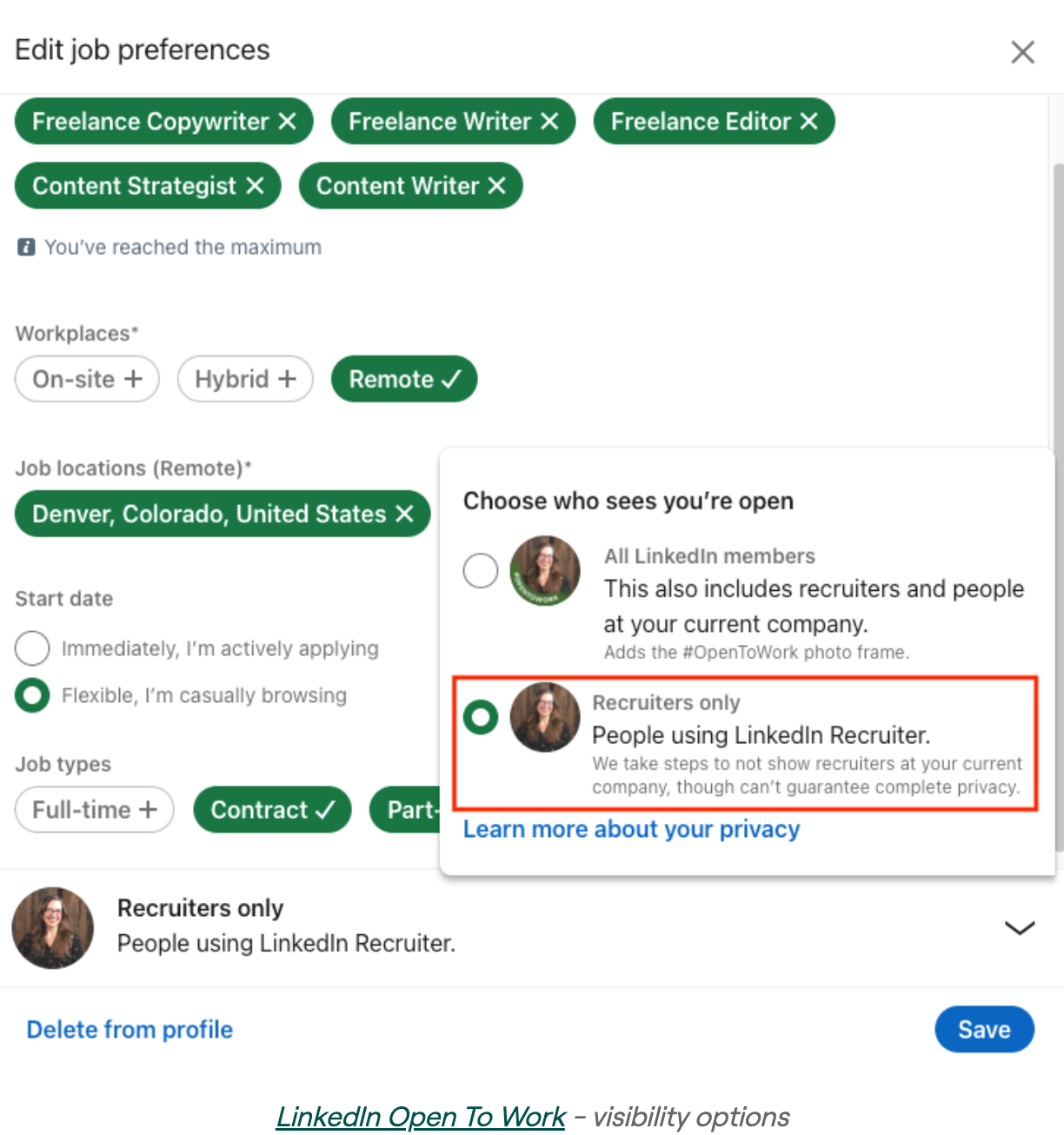
You can signal availability to recruiters without the green #OpenToWork frame your current employer can see. The setting is buried under "Choose who sees you're open":
What is Open to Work on LinkedIn?
Open to Work is a LinkedIn feature launched in 2020 that lets you indicate you're actively seeking new job opportunities. When enabled, it helps recruiters find you more easily through LinkedIn's search filters.
The feature has two components:
- Job preferences: Your desired job titles, locations, start date, and employment types
- Visual indicator: Either a private signal to recruiters or a public green "#OpenToWork" photo frame
According to LinkedIn, members who enable Open to Work are:
Want to Generate Consistent Inbound Leads from LinkedIn?
Get our complete LinkedIn Lead Generation Playbook used by B2B professionals to attract decision-makers without cold outreach.
No spam. Just proven strategies for B2B lead generation.
- 2x more likely to receive recruiter InMails
- 86% more likely to apply to jobs they view
How to Enable Open to Work on LinkedIn (Desktop)
Step-by-Step Instructions
- Go to your LinkedIn profile by clicking your profile photo in the top navigation
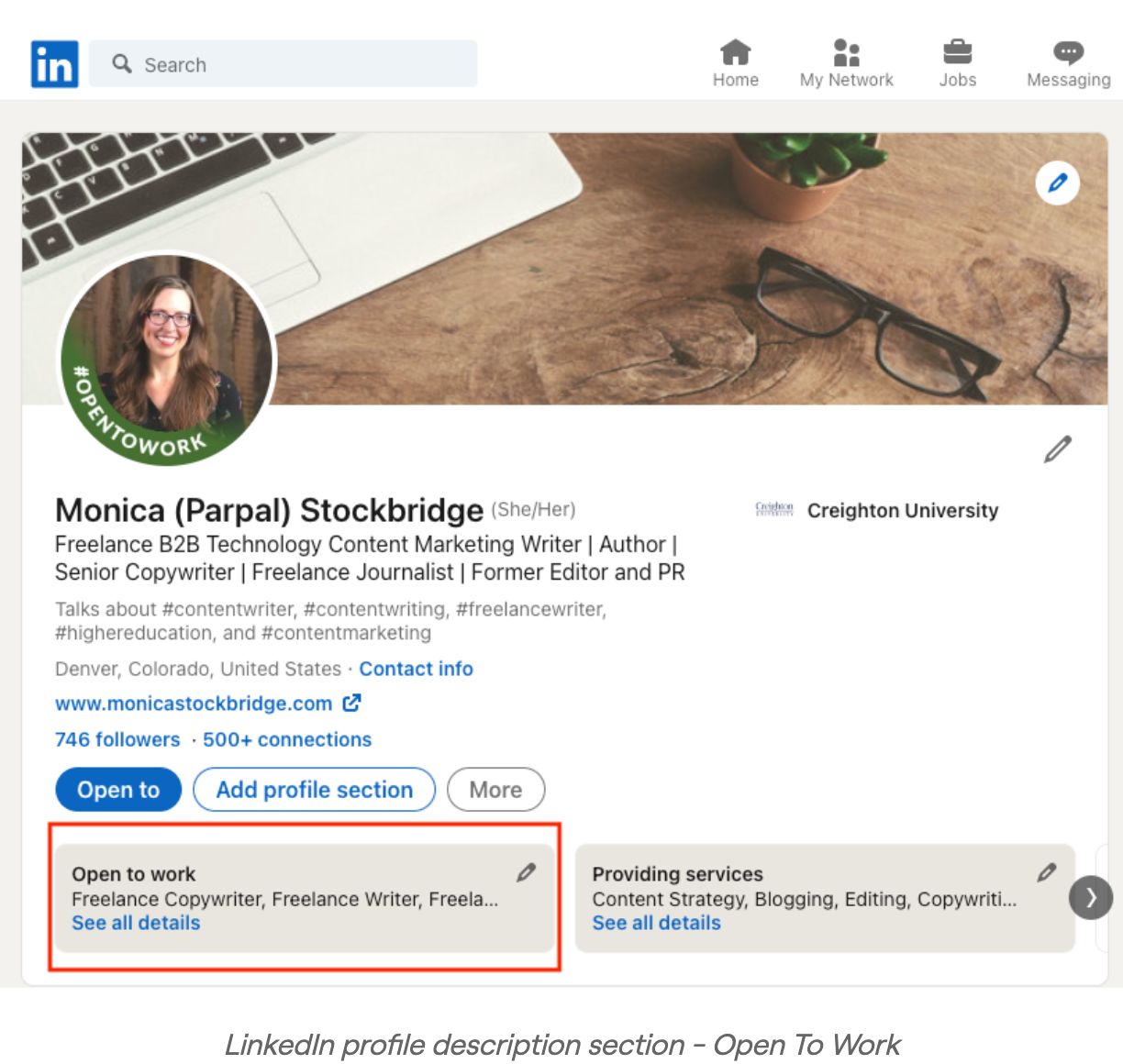
- Click "Open to" button below your headline (in your intro section)
- Select "Finding a new job" from the dropdown options
- Fill in your job preferences:
- Add up to 5 job titles you're interested in
- Select your preferred locations (can include "Remote")
- Choose start date (Immediately, In 1 month, In 3 months, etc.)
- Select employment types (Full-time, Part-time, Contract, etc.)
- Choose your visibility setting:
- Recruiters only: Private signal visible only to recruiters using LinkedIn Recruiter
- All LinkedIn members: Public green badge visible to everyone
- Click "Add to profile" to save
Alternative Method via Jobs Tab
- Click "Jobs" in the top navigation bar
- Select "Preferences" from the left sidebar
- Click "Open to Work"
- Complete your preferences and click "Save"
How to Enable Open to Work on LinkedIn (Mobile App)
On iOS or Android:
- Open the LinkedIn app and tap your profile photo (top-left)
- Tap "View Profile"
- Scroll to find "Open to" section or tap the "+" button
- Select "Finding a new job"
- Complete your job preferences
- Choose visibility (Recruiters only or All members)
- Tap "Save" to confirm
How to Remove Open to Work on LinkedIn
Desktop Steps
- Navigate to your LinkedIn profile
- Find the "Open to work" section on your profile (below your intro)
- Click the pencil icon (edit button) in that section
- Scroll down in the editing window
- Click "Delete from profile" at the bottom
- Confirm deletion when prompted
- Refresh your profile to verify removal
Mobile App Steps
- Open the LinkedIn app
- Go to your profile
- Find "Open to work" section
- Tap the pencil icon to edit
- Scroll to bottom and tap "Delete from profile"
- Confirm deletion
Remove Just the Green Photo Badge
If you want to keep signaling to recruiters but remove the public green badge:
- Go to your profile and click on your profile photo
- Click "Frames" (desktop) or "Edit Frame" (mobile)
- Select your original photo without the Open to Work frame
- Save changes
Alternatively, edit your Open to Work preferences and switch visibility from "All LinkedIn members" to "Recruiters only."
Visibility Settings: Recruiters Only vs. All Members
| Setting | Who Sees It | Visual Indicator | Best For |
|---|---|---|---|
| Recruiters Only | Only recruiters with LinkedIn Recruiter license | None (private signal) | Currently employed, confidential searches |
| All LinkedIn Members | Everyone on LinkedIn | Green #OpenToWork photo frame | Actively unemployed, networking openly |
Recruiters Only (Private)
According to Coursera, choosing "Recruiters only":
- Makes your status visible only to people using LinkedIn Recruiter (premium accounts)
- LinkedIn attempts to hide your status from recruiters at your current company
- No visual indicator appears on your profile
- Ideal for discreet job searching while employed
Important caveat: According to Job Stars, LinkedIn's current-company blocking isn't 100% accurate. Company mappings can be imperfect, and recruiters change organizations.
All LinkedIn Members (Public)
Choosing this option:
- Displays the green "#OpenToWork" photo frame on your profile picture
- Visible to everyone including colleagues and your current employer
- According to LinkedIn data, increases InMails by 40%
- Best for those openly job searching or recently laid off
Pros and Cons of Open to Work
Advantages
According to Huntr's research:
- 2x more recruiter messages: LinkedIn confirms this statistic
- 40% more InMails with public badge: The green frame increases visibility
- Easier discovery: Recruiters can filter specifically for Open to Work candidates
- Network support: Research shows 85% of job seekers who post about their search receive network support
Disadvantages
Some hiring professionals express concerns:
- Perception of desperation: According to CNBC, former Google recruiter Nolan Church calls the green badge "the biggest red flag on LinkedIn"
- Current employer discovery: Even with "Recruiters only," there's no guarantee your company won't find out
- Auto-deactivation: LinkedIn may automatically turn off Open to Work if you're inactive or don't respond to recruiters
Best Practices for Open to Work
Optimize Your Job Preferences
According to The Interview Guys:
- Use specific job titles: "Digital Marketing Manager" beats generic "Manager"
- Add 3-5 related titles: Don't limit yourself to one perfect role
- Include realistic locations: Add "Remote" if you're flexible
- Update regularly: Keep preferences current to avoid auto-deactivation
When to Use the Public Badge
The green badge works best when:
- You're openly unemployed and networking
- You're a recent graduate entering the job market
- You've been publicly laid off
- You're in an industry where job searching is normalized
When to Stay Private
Choose "Recruiters only" when:
- You're currently employed and searching discreetly
- Your company culture penalizes job searching
- You want to test the waters before committing
- You're in a senior role where discretion matters
Open to Work Statistics
| Metric | Value | Source |
|---|---|---|
| People with Open to Work enabled | 220 million+ | CNBC |
| Increase in recruiter messages | 2x | |
| InMail increase with public badge | 40% | |
| Recruiters using LinkedIn for hiring | 72% | FinancesOnline |
| Jobs applied per minute on LinkedIn | 9,000+ | Cognism |
| People hired per minute on LinkedIn | 7 | Cognism |
The Inbound Alternative: Attracting Opportunities Without the Badge
While Open to Work is useful for active job seekers, there's a more strategic approach: building authority that makes opportunities come to you.
When you build your LinkedIn presence through:
...recruiters and hiring managers reach out because of your demonstrated expertise, not just because you flagged availability.
How ConnectSafely.ai Supports Career Growth
ConnectSafely.ai helps professionals build the kind of LinkedIn presence that attracts opportunities naturally:
- Strategic engagement puts you in front of decision-makers
- Authority building makes your profile stand out to recruiters
- Consistent visibility keeps you top-of-mind without desperation signals
- Inbound approach attracts higher-quality opportunities
Rather than signaling you need a job, you become someone companies want to pursue.
The Privacy Paradox: Why "Recruiters Only" Is Not Truly Private
The "Recruiters Only" setting offers psychological safety, not real privacy. LinkedIn itself states it "cannot guarantee" that recruiters at your current employer will be hidden from the signal. The setting is a calculated risk rather than a guarantee.
Where the leak happens:
- Company mapping gaps — If your employer uses a parent-company or rebranded entity name on LinkedIn Recruiter that does not exactly match your profile, the block fails
- Recently changed recruiters — A recruiter who left your company last month, but still has access to a leftover Recruiter seat, is not auto-excluded
- Agency recruiters retained by your employer — Third-party recruiters working for your company are not flagged as "internal" and see your status normally
- Boolean-search side effects — Recruiters do not need to filter by "Open to Work" explicitly. A title + skills search still surfaces you as a candidate, and the green-flag badge inside Recruiter is visible regardless of the filter used
The honest framing: "Recruiters Only" lowers risk by an estimated 80–90%, not 100%. If discovery would be career-ending, do not use the feature at all — pursue opportunities through warm referrals and content-led inbound instead.
The Badge Is a Signal, Not a Strategy (Profile-Badge Dependency)
The Open to Work badge increases inbound recruiter messages — but only when the rest of the profile cashes the check. Recruiters reach you in three clicks: badge → profile photo → headline → experience. A weak link anywhere in that chain neutralizes the signal.
The 5-element minimum viable profile for Open to Work:
- Headline that names the role you want, not the role you have — "Senior Product Manager | B2B SaaS | Open to PM Lead roles" outperforms "Senior Product Manager at Acme"
- About section opening with a positioning sentence — Two lines summarizing the value you deliver, not your career history
- Recent role bullets formatted as outcomes, not duties — "Cut churn 18% in 6 months" beats "Responsible for retention strategy"
- 3+ recommendations from the last 24 months — Stale recommendations signal stale relationships
- Activity in the last 14 days — A comment, a repost, anything. Recruiters check the activity tab and skip ghosts
Without these elements, Open to Work doubles your visibility but cuts your reply rate — recruiters see you, click, and bounce. The badge becomes a vanity metric.
LinkedIn's Auto-Deactivation: The Hidden Gotcha
LinkedIn quietly disables Open to Work for users who appear inactive on recruiter outreach, and the platform does not send a clear notification before doing so. Many users believe they are still discoverable months after the feature has been silently switched off.
The deactivation triggers (observed, not officially documented):
- 30+ days without opening a recruiter InMail
- 60+ days with no profile login
- Multiple unanswered InMails from verified recruiters
- Letting the start-date preference expire (e.g., "Available in 1 month" becomes 4 months stale)
The 90-second monthly maintenance routine:
- Profile → Open to → confirm status still shows active
- Edit preferences → push the start-date field forward
- Update at least one job-title preference (even minor edits reset the freshness signal)
- Open one recruiter InMail (even to decline) to keep the engagement metric alive
Treat Open to Work like a subscription that auto-cancels. Schedule a recurring reminder if a discrete job search is critical.
Myth vs Reality: Open to Work Misconceptions That Cost Job Seekers
| Myth | Reality |
|---|---|
| "The green badge always hurts your reputation" | Stigma has largely faded post-mass-layoffs (2022–2024). In tech, finance, and media, the badge is now neutral-to-positive, especially for IC-level roles. The risk persists primarily in conservative industries (legal partner-track, executive search, banking MD-level). |
| "Recruiters only see Open to Work candidates" | Recruiters search by title + skills + location first. Open to Work is a secondary filter most use only to break ties. A strong non-Open-to-Work profile often outranks a weak Open-to-Work one. |
| "Enabling Open to Work boosts your appearance in the feed" | The feature affects Recruiter search and InMail volume, not the consumer-side LinkedIn feed algorithm. Content reach is unrelated. |
| "Once you start a new role, just remove the badge" | Removing the badge is necessary but insufficient. Update headline, About, and current role first — otherwise you appear as a job-hopper whose profile lags reality. |
| "All recruiters can see your 'Recruiters Only' signal" | Only recruiters with active LinkedIn Recruiter seats (paid Talent Solutions subscriptions) can see it — not regular Premium or free users with the recruiter title in their bio. |
Advanced: Geo-Specific Open to Work Variations and Career-Stage Tactics
For experienced job seekers — this section assumes you already understand the basics and the trade-offs above.
Regional feature variations:
- India — Mandatory
Notice PeriodandExpected Salaryfields appear in the preferences panel, visible only to recruiters. Skipping these results in significantly lower recruiter response rates in the Indian market. - US and Europe — Salary expectations remain optional and self-reported. Adding a range with the label "Open to discussion" tests better than leaving the field blank.
- Singapore, UAE, Australia — Work-pass / visa-sponsorship status emerges as the dominant filter recruiters use; signaling this in the headline outperforms badge visibility.
Career-stage decision matrix:
| Stage | Use Open to Work? | Visibility Setting |
|---|---|---|
| Recent graduate / first job | Yes — the badge normalizes search status | All members (green badge) |
| IC at non-managerial level | Yes if actively searching | Recruiters Only if employed; All members if unemployed |
| Senior IC or Manager | Depends — board / industry visibility risk | Recruiters Only only |
| Director and above | Generally no — use executive search firms and warm intros | Off entirely; pursue inbound via content authority |
| Founders / executives between ventures | No — signals failure rather than transition | Off; replace with a positioning post about what's next |
The post-removal announcement reversal: Once you land the role, the highest-leverage move is a single "I'm joining X as Y" post. LinkedIn's algorithm amplifies role-change posts heavily (20–50x normal reach), turning the conclusion of a job search into the launch of your next personal-brand chapter.
Frequently Asked Questions
How do I remove Open to Work on LinkedIn?
Go to your LinkedIn profile, find the "Open to work" section, click the pencil icon to edit, scroll to the bottom, and click "Delete from profile." Confirm the deletion when prompted. The process takes less than 2 minutes.
Can my current employer see my Open to Work status?
If you select "Recruiters only," LinkedIn attempts to hide your status from recruiters at your current company. However, this protection isn't 100% guaranteed due to imperfect company mappings and recruiter movement between organizations.
What's the difference between the green badge and Recruiters Only?
The green #OpenToWork photo frame (All LinkedIn Members) is visible to everyone on LinkedIn. "Recruiters only" is a private signal that only appears to people using LinkedIn Recruiter's premium tools—no visual indicator shows on your profile.
Does Open to Work really help find jobs?
Yes, according to LinkedIn data. Members with Open to Work enabled receive 2x more recruiter messages. Those with the public green badge receive 40% more InMails. However, some recruiters view the public badge negatively.
Will LinkedIn automatically turn off my Open to Work?
Yes, LinkedIn may automatically deactivate Open to Work if you appear inactive—such as not responding to recruiter InMails for several months or being generally inactive on the platform. Check your settings periodically to ensure it's still enabled.
Should I use Open to Work if I'm currently employed?
If you're employed and searching, use the "Recruiters only" option for privacy. While not foolproof, it significantly reduces the chance of your current employer discovering your job search.
How do I add Open to Work on LinkedIn?
Go to your profile, click the "Open to" button below your headline, and select "Finding a new job." Fill in your job titles, locations, start date, and job types, then choose your visibility ("Recruiters only" or "All LinkedIn members") and click "Add to profile." On the mobile app, open your profile, tap the "Open to" section or the "+" button, and follow the same steps. See the step-by-step desktop and mobile instructions earlier in this guide.
How do I turn on Open to Work on LinkedIn on the mobile app?
Open the LinkedIn app, tap your profile photo, then "View Profile," scroll to the "Open to" section (or tap the "+"), and select "Finding a new job." Complete your job preferences, choose whether recruiters only or all members can see it, and tap "Save."
Is Open to Work free on LinkedIn?
Yes. Open to Work is a free feature available to all LinkedIn members—you don't need Premium to enable it, add the green badge, or use the private "Recruiters only" signal. Premium adds separate perks like InMail credits and applicant insights, but the Open to Work status itself costs nothing.
Ready to build a LinkedIn presence that attracts opportunities naturally? Start your free trial and let your authority do the work.
The Unintended Consequences of Open to Work on Personal Branding
Enabling Open to Work on LinkedIn can have unintended consequences on personal branding, particularly for professionals who are not actively seeking new opportunities but are open to exploring them. For instance, having the green "#OpenToWork" badge visible to all LinkedIn members can make it seem like you're desperate for a new job, which may not be the case. This can lead to a perceived lack of commitment to your current role or company, potentially damaging your professional reputation. Furthermore, if you're a thought leader or influencer in your industry, having Open to Work enabled can undermine your authority and make you appear less stable or secure in your position. It's essential to weigh the potential benefits of Open to Work against the potential risks to your personal brand and consider whether the feature aligns with your overall career goals and online presence.
Advanced Open to Work Strategies for Passive Candidates
For advanced LinkedIn users, particularly those who are passive candidates, there are strategies to maximize the effectiveness of Open to Work while minimizing its visibility. One approach is to enable Open to Work with the "Recruiters only" visibility setting, which allows you to signal your interest in new opportunities to recruiters without publicly advertising your job search. Additionally, you can use LinkedIn's "Career interests" feature to specify your job preferences and desired company culture, which can help recruiters find you more easily. Another strategy is to leverage LinkedIn's "Job alerts" feature, which allows you to receive notifications about job openings that match your preferences, even if you don't have Open to Work enabled. By combining these features, you can maintain a low profile while still being discoverable by recruiters and potential employers.
Myth vs Reality: Debunking Common Misconceptions about Open to Work
There are several common misconceptions about Open to Work that can lead to misunderstandings about its effectiveness and potential drawbacks. One myth is that enabling Open to Work will automatically make you visible to all recruiters and hiring managers on LinkedIn. In reality, recruiters need to have a LinkedIn Recruiter account and be using the platform's search filters to find candidates who have Open to Work enabled. Another myth is that Open to Work is only for job seekers who are actively looking for new opportunities. However, the feature can also be useful for professionals who are open to exploring new opportunities but are not actively seeking them. By understanding the realities of Open to Work, you can make informed decisions about whether to enable the feature and how to use it effectively.
The Impact of Open to Work on LinkedIn Algorithms and Visibility
Enabling Open to Work can have an impact on LinkedIn's algorithms and your visibility on the platform. When you enable Open to Work, LinkedIn's algorithms take into account your job preferences and desired company culture, which can affect the types of job postings and content that appear in your feed. Additionally, having Open to Work enabled can increase your visibility to recruiters and potential employers, which can lead to more InMails and job opportunities. However, it's essential to note that LinkedIn's algorithms are constantly evolving, and the impact of Open to Work on visibility can vary depending on individual circumstances. For example, if you have a strong LinkedIn profile and are actively engaged with the platform, enabling Open to Work may not have a significant impact on your visibility. On the other hand, if you have a weak profile or are not actively using the platform, enabling Open to Work may not be enough to increase your visibility.
Edge Cases: Navigating Open to Work in Unconventional Career Situations
There are several edge cases where Open to Work may not be straightforward, such as when you're a freelancer, entrepreneur, or non-traditional worker. In these situations, enabling Open to Work can be complex, as you may not be looking for traditional employment opportunities. For instance, if you're a freelancer, you may want to signal your availability for new projects without appearing desperate for work. One approach is to use LinkedIn's "Service offerings" feature to showcase your skills and services, which can help potential clients find you without enabling Open to Work. Another approach is to leverage LinkedIn's "Publishing platform" to establish yourself as a thought leader in your industry, which can help attract new opportunities without relying on Open to Work. By understanding these edge cases and adapting your strategy accordingly, you can effectively use Open to Work to achieve your career goals, even in unconventional situations.
See How It Works
Watch how people get more LinkedIn leads with ConnectSafely




Related Articles