LinkedIn Salesforce Integration: CRM Setup Guide
Connect LinkedIn to Salesforce with Sales Navigator sync, Lead Gen Forms, and third-party tools. Step-by-step integration guide with automation workflows.


Your sales team prospects on LinkedIn but lives in Salesforce. Every manual data transfer wastes time and creates errors. According to Salesforce's State of Sales report, reps spend only 28% of their time actually selling—administrative tasks like CRM updates consume the rest.
LinkedIn Salesforce integration eliminates this friction. Here's how to set it up in 2026.
Want to Generate Consistent Inbound Leads from LinkedIn?
Get our complete LinkedIn Lead Generation Playbook used by B2B professionals to attract decision-makers without cold outreach.
No spam. Just proven strategies for B2B lead generation.
Key Takeaways
- LinkedIn Sales Navigator offers native Salesforce integration for Enterprise accounts
- LinkedIn Lead Gen Forms sync to Salesforce via native connection or Zapier
- AppExchange apps like Salestools and Surfe enable profile-to-CRM imports
- Enterprise integration enables bidirectional sync between platforms
Integration Options Overview
| Method | Requirements | Best For |
|---|---|---|
| Sales Navigator Native | Sales Navigator Enterprise + Salesforce Enterprise | Large sales teams |
| Lead Gen Forms Sync | LinkedIn Campaign Manager + Salesforce | Marketing-generated leads |
| AppExchange Apps | Salesforce subscription + app license | Teams without Sales Navigator |
| Zapier/Make | Zapier account + LinkedIn Marketing | Custom workflows |
Option 1: LinkedIn Sales Navigator Native Integration
The most robust option is LinkedIn's native Sales Navigator integration with Salesforce.
Requirements
- LinkedIn Sales Navigator Advanced or Advanced Plus
- Salesforce Enterprise Edition or higher
- Admin access to both platforms
- CRM Sync add-on (included with Advanced Plus, add-on for Advanced)
What You Get
| Feature | Capability |
|---|---|
| InMail from Salesforce | Send LinkedIn messages without leaving CRM |
| Profile embedding | See LinkedIn data on lead/contact records |
| Activity logging | LinkedIn interactions recorded in Salesforce |
| Lead recommendations | Sales Navigator suggests leads based on Salesforce data |
| Account mapping | Sync accounts between platforms |
| CRM writeback | Save leads from Sales Navigator directly to Salesforce |
Setup Process
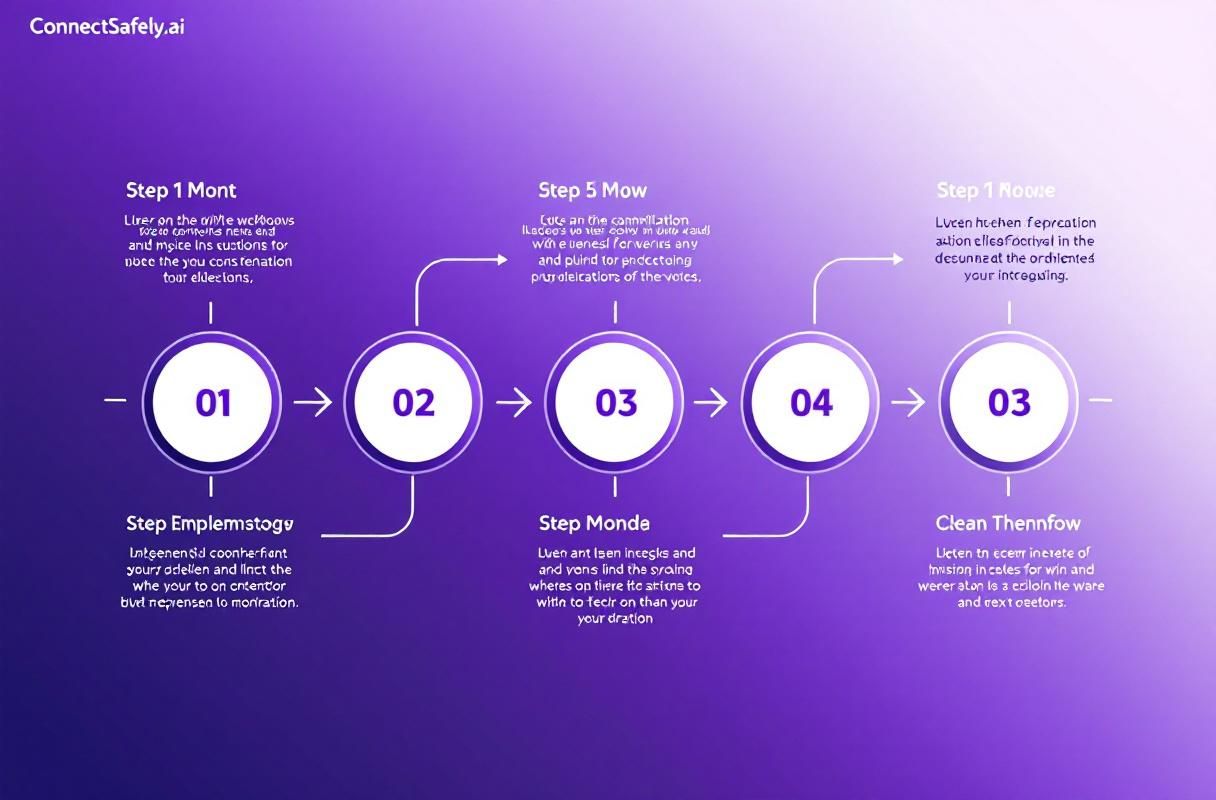
Step 1: Enable in Salesforce
- Log into Salesforce Setup
- Navigate to AppExchange
- Search for "LinkedIn Sales Navigator"
- Install the managed package
- Assign permissions to user profiles
Step 2: Configure in Sales Navigator
- Log into LinkedIn Sales Navigator Admin
- Go to Admin Settings → CRM Settings
- Select Salesforce as your CRM
- Click Connect and authorize
- Map user accounts between platforms
Step 3: Configure Sync Settings
Choose what data syncs:
| Sync Option | Direction | Impact |
|---|---|---|
| Account sync | Bidirectional | Keeps company data aligned |
| Contact sync | LinkedIn → Salesforce | Imports new prospects |
| Activity sync | LinkedIn → Salesforce | Logs InMails, views, saves |
| Lead recommendations | Salesforce → LinkedIn | Uses CRM data for targeting |
Option 2: LinkedIn Lead Gen Forms Integration
LinkedIn Lead Gen Forms capture prospect information with auto-filled profile data. According to LinkedIn's documentation, these forms achieve 2-5x higher conversion rates than landing pages.
Native Salesforce Connection
LinkedIn offers direct integration with Salesforce for Lead Gen Forms:
- In LinkedIn Campaign Manager, go to Account Assets → Lead Gen Forms
- Click "Connect CRM"
- Select Salesforce
- Authorize connection
- Map form fields to Salesforce lead/contact fields
- Enable automatic sync
Sync happens in near real-time—leads appear in Salesforce within minutes of form submission.
Zapier Alternative
For more control or complex routing:
- Create Zap: LinkedIn Lead Gen Forms → Salesforce
- Trigger: New Lead
- Action: Create Lead in Salesforce
- Add conditions: Route by form, campaign, or lead data
- Add secondary actions: Assign owner, create task, trigger workflow
Example workflow:
New Lead Gen Form submission
  → Create Salesforce Lead
  → Set Lead Source = "LinkedIn Lead Gen"
  → Assign to round-robin queue
  → Create follow-up task (due: 5 minutes)
  → Send Slack notification to sales channel
Option 3: AppExchange Apps
For teams without Sales Navigator Enterprise, AppExchange offers third-party solutions.
Salestools.io
Salestools provides LinkedIn-to-Salesforce sync:
- One-click profile import from LinkedIn
- Chrome extension overlay
- Contact enrichment with LinkedIn data
- Activity tracking
Pricing: Starting at $29/user/month
Surfe (formerly Leadjet)
Surfe adds CRM functionality to LinkedIn:
- Import contacts while browsing profiles
- View Salesforce data on LinkedIn
- Sync messages to Salesforce
- Find verified emails
Pricing: Free plan available; paid from $29/month
Dux-Soup (Data Export)
Dux-Soup exports LinkedIn data for Salesforce import:
- Profile data extraction
- CSV export for bulk upload
- Automated profile visiting
Important: Verify compliance with LinkedIn's terms of service before using scraping tools.
Step-by-Step: Complete Salesforce Setup
Prerequisites Checklist
- Salesforce Enterprise Edition or higher
- LinkedIn Sales Navigator (for native integration) OR AppExchange app
- Admin access to both platforms
- Custom fields created for LinkedIn data (optional)
Step 1: Create Custom Fields (Optional)
Add LinkedIn-specific fields to Lead and Contact objects:
| Field Name | Field Type | Purpose |
|---|---|---|
| LinkedIn Profile URL | URL | Direct link to profile |
| LinkedIn Connection Level | Picklist | 1st, 2nd, 3rd degree |
| Sales Navigator Save Date | Date | When saved to list |
| Last LinkedIn Interaction | Date/Time | Most recent engagement |
Step 2: Configure Data Mapping
Map LinkedIn fields to Salesforce fields:
| LinkedIn Data | Salesforce Field | Notes |
|---|---|---|
| First Name | FirstName | Standard field |
| Last Name | LastName | Standard field |
| Requires verification | ||
| Job Title | Title | Standard field |
| Company | Company/Account | May need matching rules |
| Industry | Industry | Picklist mapping needed |
| LinkedIn URL | LinkedIn_Profile__c | Custom field |
Step 3: Set Up Duplicate Rules
Prevent duplicate records:
- Go to Setup → Duplicate Management
- Create matching rules based on Email and/or LinkedIn URL
- Set action: Alert, Block, or Auto-merge
- Apply to Lead and Contact objects

Step 4: Configure Lead Routing
Assign imported leads automatically:
- Create assignment rules based on criteria
- Options: Round-robin, territory-based, or lead score
- Set up notifications for assigned reps
- Create automated follow-up tasks
What Most Guides Get Wrong About LinkedIn Salesforce Integration
Myth 1: "Integration automatically generates leads"
Wrong. Integration moves data between platforms—it doesn't create opportunities. You still need a LinkedIn strategy that generates interested prospects. Integration without strategy just produces a well-organized list of people who don't respond.
Myth 2: "Sync everything for maximum data"
Not necessarily. Over-syncing creates noise. Sync high-value signals: Lead Gen Form submissions, InMail replies, explicit saves. Don't sync every profile view or passive interaction—focus on intent signals.
Myth 3: "Native integration is always better"
Depends on your stack. Native Sales Navigator integration is most robust but requires Enterprise subscriptions for both platforms. For smaller teams, AppExchange apps or Zapier provide sufficient functionality at lower cost.
Integration Best Practices
1. Define Clear Use Cases
Before integrating, specify exactly what you want:
| Use Case | Integration Approach |
|---|---|
| Import lead gen form submissions | Native sync or Zapier |
| View LinkedIn data in Salesforce | Sales Navigator embed |
| One-click profile imports | AppExchange extension |
| Log LinkedIn conversations | Activity sync |
| Trigger Salesforce workflows from LinkedIn | Zapier automation |
2. Train Your Team
Integration fails without adoption:
- Demonstrate time savings (show before/after workflows)
- Create documentation for common tasks
- Set expectations for data quality
- Monitor adoption metrics
3. Monitor Data Quality
Integration can introduce errors:
- Regular deduplication runs
- Field validation rules
- Activity audits (are reps actually using it?)
- Source tracking for attribution
Why Integration Works Better with Inbound Authority
Tools that sync data faster don't help if that data represents uninterested cold contacts.
The ConnectSafely approach generates warm inbound interest before any outreach. When prospects request your content, engage with your posts, or reach out via DM—those are high-intent signals worth syncing to Salesforce.
According to Salesforce research, inbound leads close at 14.6% compared to 1.7% for outbound. Integration amplifies this advantage by ensuring your CRM captures intent signals the moment they happen.
The inbound integration workflow:
- Build authority through consistent LinkedIn content
- Engage authentically with target prospects
- Capture high-intent signals (comments, DMs, form submissions)
- Auto-sync to Salesforce with engagement context
- Sales follows up with warm, contextualized outreach
Getting Started
- Choose your integration method based on existing subscriptions and budget
- Configure field mapping to capture LinkedIn data correctly
- Set up routing rules to assign leads to the right reps
- Train your team on the new workflow
- Build inbound authority to generate leads worth syncing
Start your ConnectSafely free trial to build the LinkedIn presence that fills your Salesforce with qualified opportunities.
Frequently Asked Questions
Does Salesforce integrate with LinkedIn natively?
Yes, through LinkedIn Sales Navigator. The native integration requires Sales Navigator Advanced or Advanced Plus plus Salesforce Enterprise Edition. It embeds LinkedIn data into Salesforce records, enables InMail from Salesforce, and syncs activities bidirectionally. For Lead Gen Forms, LinkedIn Campaign Manager offers direct Salesforce connection.
How do I sync LinkedIn leads to Salesforce?
Three main options: (1) LinkedIn Lead Gen Forms native sync through Campaign Manager settings, (2) Sales Navigator CRM Sync for imported leads and contacts, or (3) Zapier/Make automation for custom workflows. Lead Gen Forms sync is the most straightforward—leads appear in Salesforce within minutes of form submission.
Do I need Sales Navigator for Salesforce integration?
Not necessarily. Lead Gen Forms sync without Sales Navigator. AppExchange apps like Surfe and Salestools enable profile imports without Sales Navigator. However, Sales Navigator provides the most comprehensive integration—InMail from Salesforce, activity logging, and bidirectional sync.
How much does LinkedIn Salesforce integration cost?
Costs vary by method: Sales Navigator Advanced ($135/month/user) + Salesforce Enterprise ($165/month/user) for native integration. AppExchange apps range from $29-99/month/user. Zapier starts free (100 tasks/month) with paid plans from $19.99/month. Lead Gen Forms integration requires LinkedIn Campaign Manager (ad spend determines cost).
Can I import LinkedIn contacts to Salesforce in bulk?
Yes, through several methods: Sales Navigator list export to CSV for manual upload, AppExchange data enrichment tools for bulk import, or automation platforms for scheduled syncs. Important: Verify compliance with LinkedIn's terms of service—bulk scraping violates platform policies and can result in account restrictions.
Ready to generate LinkedIn leads worth syncing to Salesforce? Start your free trial and build the inbound authority that fills your CRM with qualified opportunities.
Edge Cases in LinkedIn Salesforce Integration: When Native Integration Falls Short
When implementing LinkedIn Salesforce integration, it's essential to consider edge cases that may not be immediately apparent. For instance, if your sales team uses a custom Salesforce object to track interactions with key decision-makers, the native Sales Navigator integration may not be able to capture these interactions accurately. In such cases, relying solely on the native integration can lead to incomplete data and a fragmented view of customer interactions. Furthermore, if your organization has a complex sales process with multiple stakeholders and approval stages, the native integration may not be able to handle the nuances of your sales workflow. It's crucial to identify these edge cases and develop a customized integration strategy that takes into account the unique requirements of your sales team and organization. By doing so, you can ensure a seamless and accurate transfer of data between LinkedIn and Salesforce, even in complex sales scenarios.
Myth vs Reality: Debunking Common Misconceptions about LinkedIn Salesforce Integration
One common misconception about LinkedIn Salesforce integration is that it's a straightforward, plug-and-play process. However, the reality is far more complex. Many organizations assume that simply installing the Sales Navigator managed package in Salesforce will automatically sync all their LinkedIn data, but this is not the case. In reality, the integration requires careful configuration, testing, and validation to ensure that data is being synced correctly and that the integration is stable. Another myth is that LinkedIn Salesforce integration is only useful for large enterprises with complex sales teams. While it's true that large enterprises can benefit greatly from the integration, smaller businesses and even individual sales professionals can also reap significant benefits from integrating LinkedIn with Salesforce. By understanding the realities of LinkedIn Salesforce integration, organizations can avoid common pitfalls and make the most of this powerful integration.
Advanced-Level: Using LinkedIn Salesforce Integration to Power Account-Based Marketing
For advanced marketers, LinkedIn Salesforce integration can be a powerful tool for powering account-based marketing (ABM) strategies. By integrating LinkedIn data with Salesforce, marketers can gain a deeper understanding of their target accounts and develop highly personalized marketing campaigns that resonate with key decision-makers. One advanced technique is to use LinkedIn's account mapping feature to identify key accounts and then use Salesforce to develop customized marketing campaigns that target these accounts. Marketers can also use LinkedIn's lead recommendation feature to identify potential leads within their target accounts and then use Salesforce to develop personalized lead nurturing campaigns. By leveraging the power of LinkedIn Salesforce integration, marketers can take their ABM strategies to the next level and drive significant revenue growth.
The Dark Side of LinkedIn Salesforce Integration: Common Pitfalls and Gotchas
While LinkedIn Salesforce integration can be a game-changer for sales and marketing teams, there are also common pitfalls and gotchas to be aware of. One common issue is data duplication, where the same contact or lead is created multiple times in Salesforce due to incorrect syncing. Another issue is data inconsistencies, where the data in LinkedIn and Salesforce become out of sync due to changes in the sales process or organization. Furthermore, if the integration is not properly configured, it can lead to a flood of unnecessary notifications and alerts, overwhelming sales teams and reducing productivity. To avoid these pitfalls, it's essential to carefully plan and configure the integration, test it thoroughly, and monitor it regularly to ensure that data is being synced correctly and that the integration is stable.
It Depends: When to Use Native Integration, Zapier, or Custom Development for LinkedIn Salesforce Integration
The choice of integration method for LinkedIn Salesforce integration depends on a variety of factors, including the size and complexity of the sales team, the level of customization required, and the technical expertise of the organization. For small to medium-sized sales teams with simple sales processes, the native Sales Navigator integration may be sufficient. However, for larger sales teams with complex sales processes, Zapier or custom development may be required to handle the nuances of the sales workflow. Additionally, if the organization requires a high level of customization or has specific data validation requirements, custom development may be the best option. On the other hand, if the organization is looking for a quick and easy integration solution with minimal setup, Zapier may be the way to go. Ultimately, the choice of integration method depends on the unique requirements of the organization, and it's essential to carefully evaluate these requirements before making a decision.
See How It Works
Watch how people get more LinkedIn leads with ConnectSafely




Related Articles