
Article Type: Technical Guide | Audience: AI users, advanced automation | Goal: Explain MCP protocol and AI-driven workflows
MCP Server
ConnectSafely supports the Model Context Protocol (MCP), an open standard that allows AI assistants to interact with external tools and services. Using the MCP server, you can integrate ConnectSafely with AI-driven workflows for advanced automation and decision-making.
This article explains what MCP is, how it works, and how to use it with ConnectSafely.
What Is Model Context Protocol (MCP)?
MCP is an open protocol that enables AI assistants to securely access tools, data, and services. It acts as a bridge between AI systems and external applications, allowing AI to perform actions beyond simple conversation.
With MCP, AI assistants can:
- Trigger automation in ConnectSafely
- Fetch data from your ConnectSafely workspace
- Make decisions based on real-time information
- Integrate with complex, multi-step workflows
This is ideal for teams that want to leverage AI for sophisticated, context-aware automation.
How MCP Works with ConnectSafely
When you enable the MCP server in ConnectSafely, AI assistants can:
- Access your workspace data (with proper permissions)
- Trigger actions like sending messages or managing connections
- Retrieve campaign performance metrics
- Update settings and configurations
The AI assistant acts as an intelligent orchestrator, making decisions and taking actions based on the context of your workflows.
Compatible AI Tools
ConnectSafely offers an MCP server that you can connect to your local AI clients like Claude desktop. This allows you to interact with your LinkedIn account directly from your favorite AI tools.
- Claude Desktop - Anthropic's desktop AI assistant
- Cursor - AI-powered code editor
- Custom AI applications - Build your own MCP-compatible tools
As MCP adoption grows, more tools will become compatible.
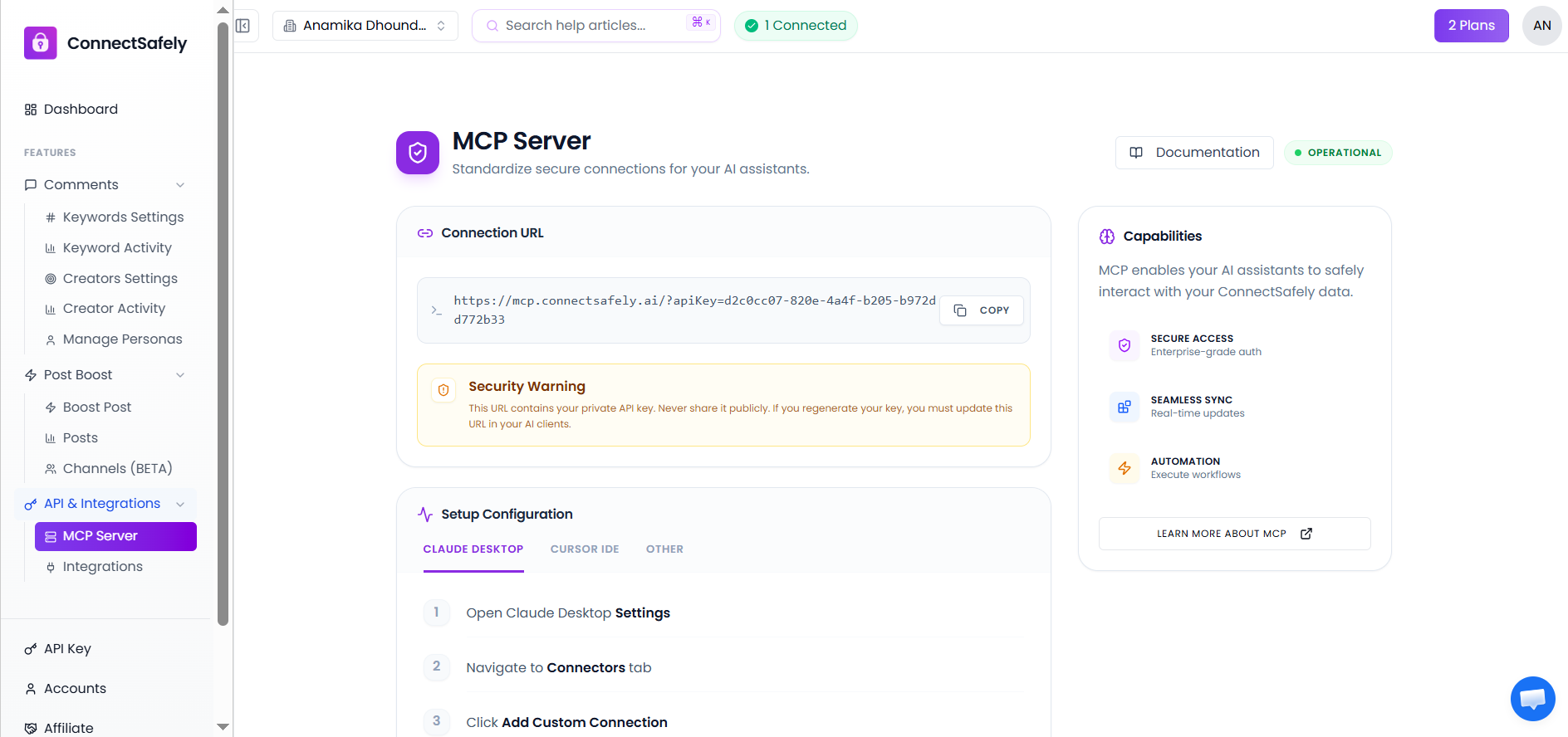
Setting Up the MCP Server
To enable MCP server functionality:
- Navigate to your ConnectSafely workspace settings
- Enable MCP server in the integrations section
- Generate an MCP server URL
- Configure your AI tool with the server URL
- Test the connection
Once configured, your AI assistant can begin interacting with ConnectSafely through MCP.
⚠️ Important: Keep your MCP server URL private and secure. Never share it publicly or commit it to version control.
Use Cases for MCP
Teams use MCP with ConnectSafely for:
- Intelligent campaign management - AI decides when to launch campaigns based on market conditions
- Dynamic targeting - AI adjusts targeting criteria based on performance data
- Contextual messaging - AI crafts personalized messages using CRM and workspace data
- Automated optimization - AI continuously optimizes campaigns based on results
The possibilities expand as AI capabilities and MCP support grow.
Security Considerations
When using MCP:
- Keep MCP server URLs private
- Review AI tool permissions carefully
- Monitor AI actions and decisions
- Implement proper access controls
- Test thoroughly before production use
Security is paramount when enabling AI-driven automation.
Next Steps
To get started with MCP:
- Enable MCP server in your ConnectSafely workspace
- Choose an MCP-compatible AI tool
- Configure the connection
- Start with simple automation tasks
- Gradually increase complexity as you become comfortable
External Resources