
If you lost your LinkedIn 2FA secret key or need to generate a new one, don't worry! According to LinkedIn's official documentation, you can reset your two-factor authentication in just a few minutes by disabling and re-enabling it.
Key Takeaways
- Time required: 3-5 minutes to complete the full reset process
- Method: Disable current 2FA, then re-enable to get a new secret key
- Critical: Save your new secret key immediately—LinkedIn won't show it again
- After reset: Update your ConnectSafely credentials if using Infinite Login
📋 What You'll Need
- Access to your LinkedIn account
- Your authenticator app (Google Authenticator, Microsoft Authenticator, or Authy)
- About 3-5 minutes
Step-by-Step Reset Guide
Step 1: Access LinkedIn Security Settings
- Log in to your LinkedIn account at linkedin.com
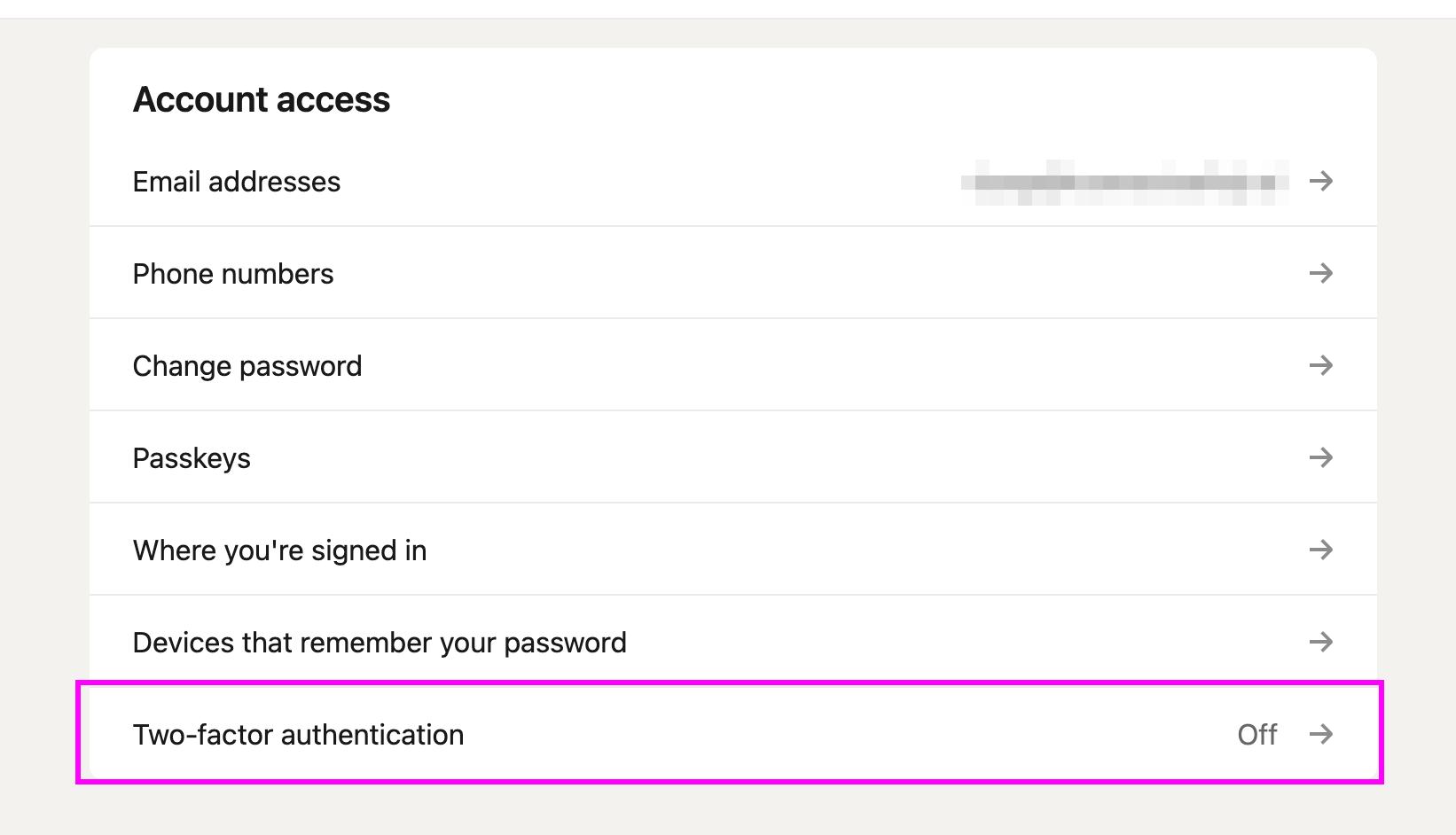
- Go to Sign in & security settings
- Find and click on "Two-factor authentication"
Step 2: Turn Off Current 2FA
- You'll see that two-step verification is currently enabled
- Click the "Turn off" button
- LinkedIn will ask you to verify this action - confirm by entering your password
- If prompted, enter your current 6-digit 2FA code from your authenticator app (or use a backup code if you don't have access to the app)
- Confirm that you want to turn off 2FA
🔒 Can't Access Your Authenticator App?
If you don't have access to your authenticator app and don't have backup codes:
- Look for an option that says "I can't access my authenticator"
- LinkedIn will guide you through account recovery using your email or phone number
- You may need to verify your identity through other means
- Follow LinkedIn's account recovery process
Step 3: Set Up 2FA Again
Now that 2FA is disabled, set it up fresh with a new secret key:
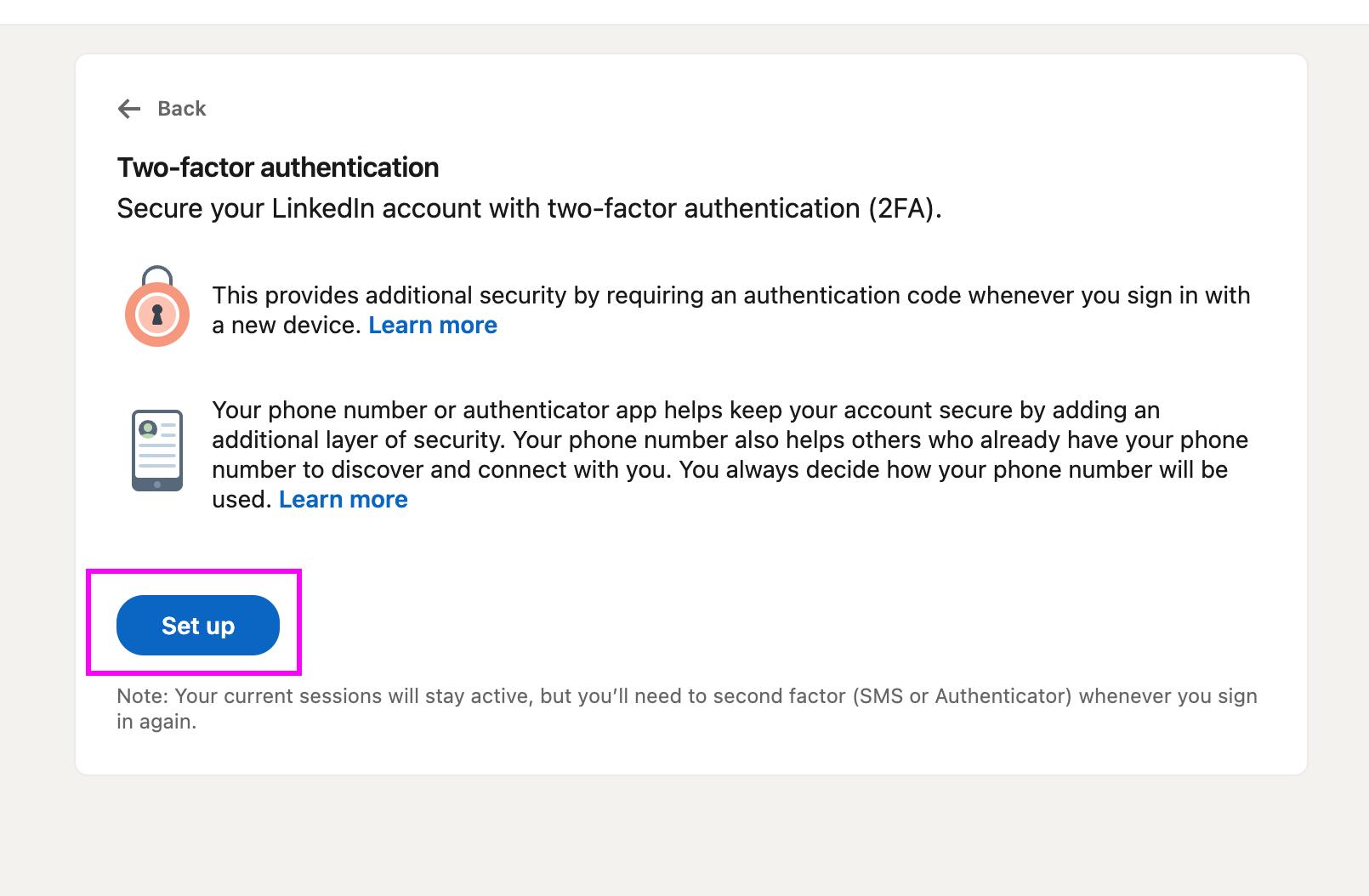
- Click "Set up" to begin
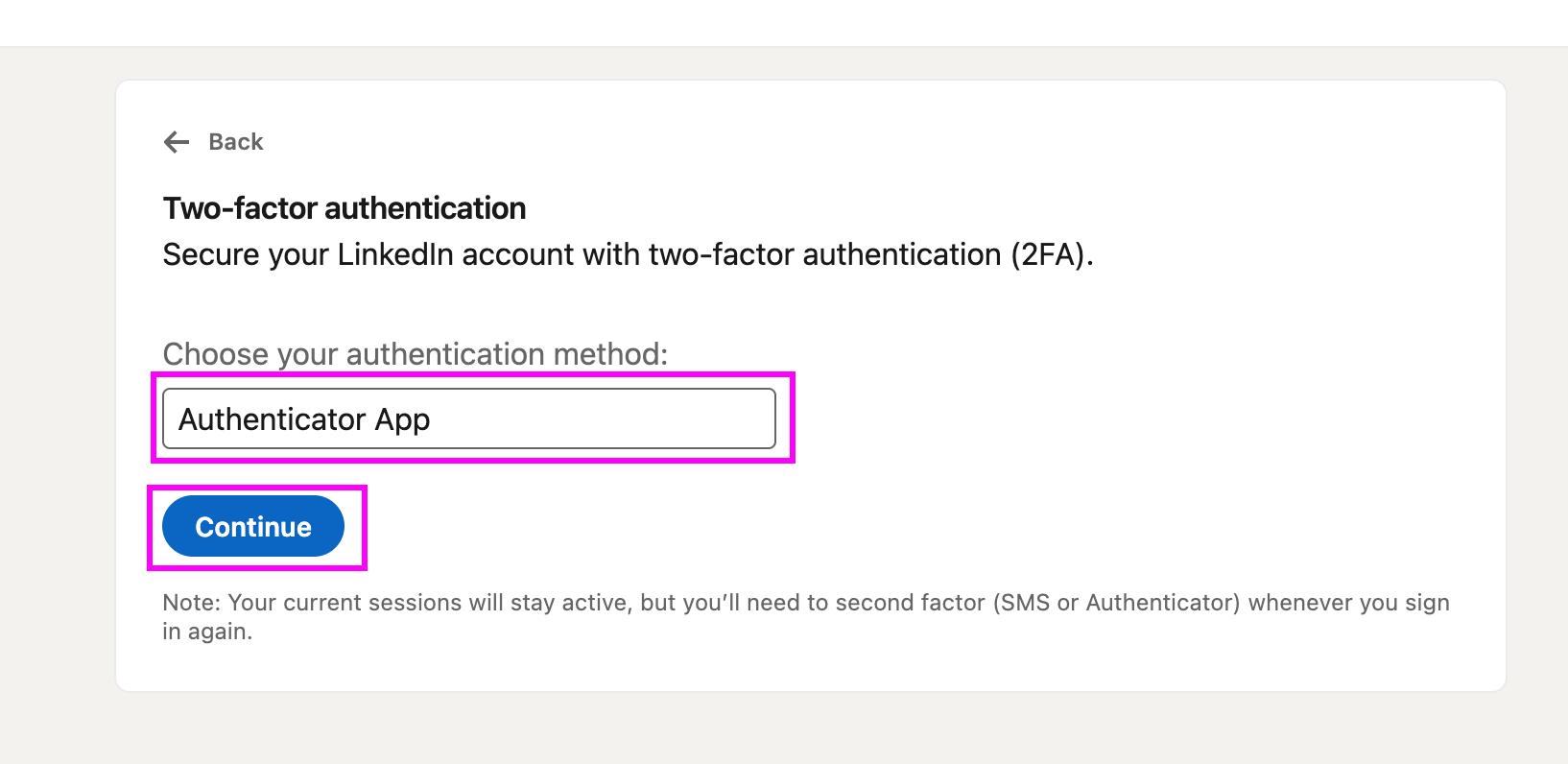
- Choose "Authenticator App" as your verification method (not SMS!)
- Click "Continue"
Step 4: Save Your NEW 2FA Secret Key
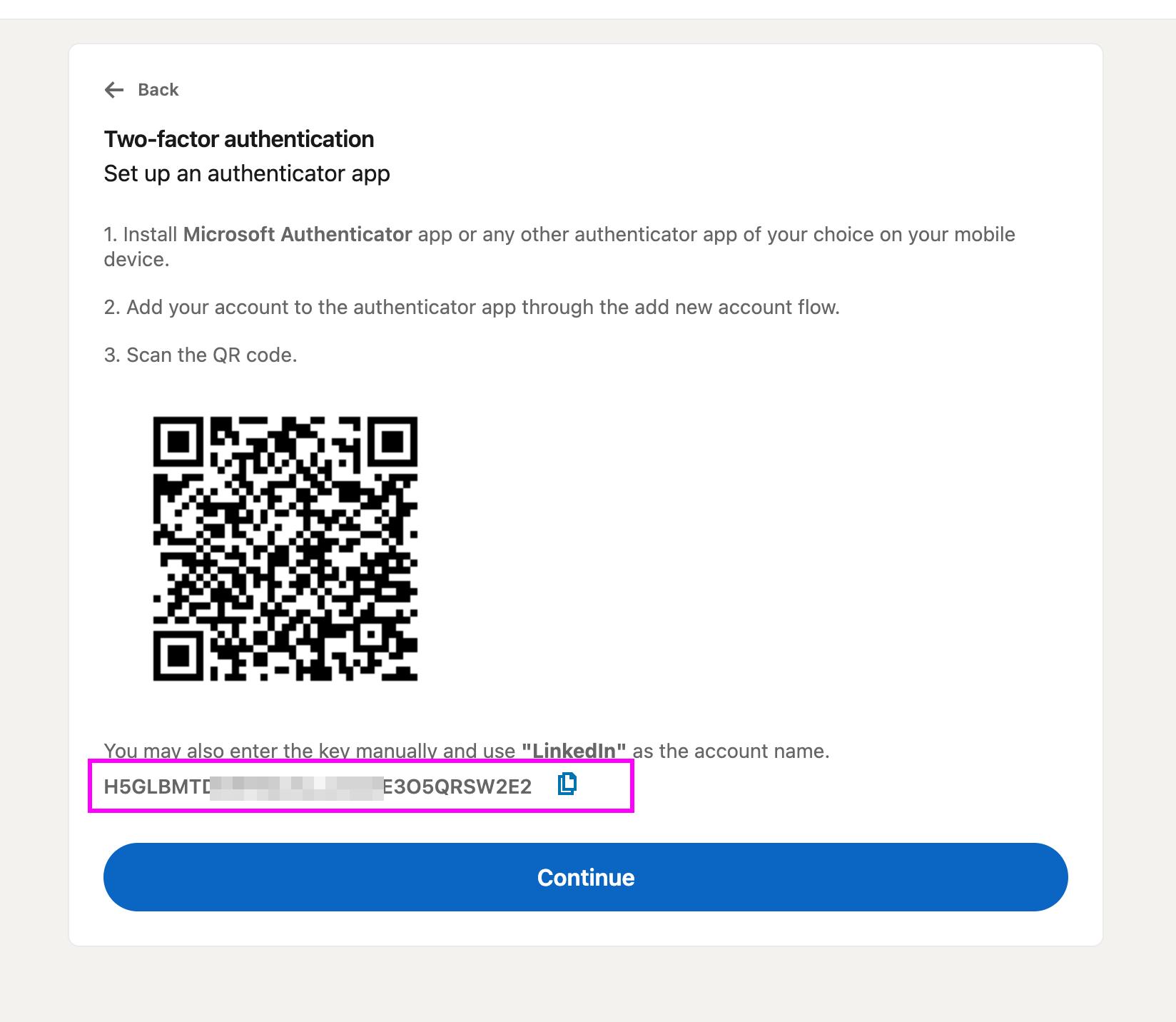
⚠️ IMPORTANT: This is your only chance to see the secret key! Copy and save it securely.
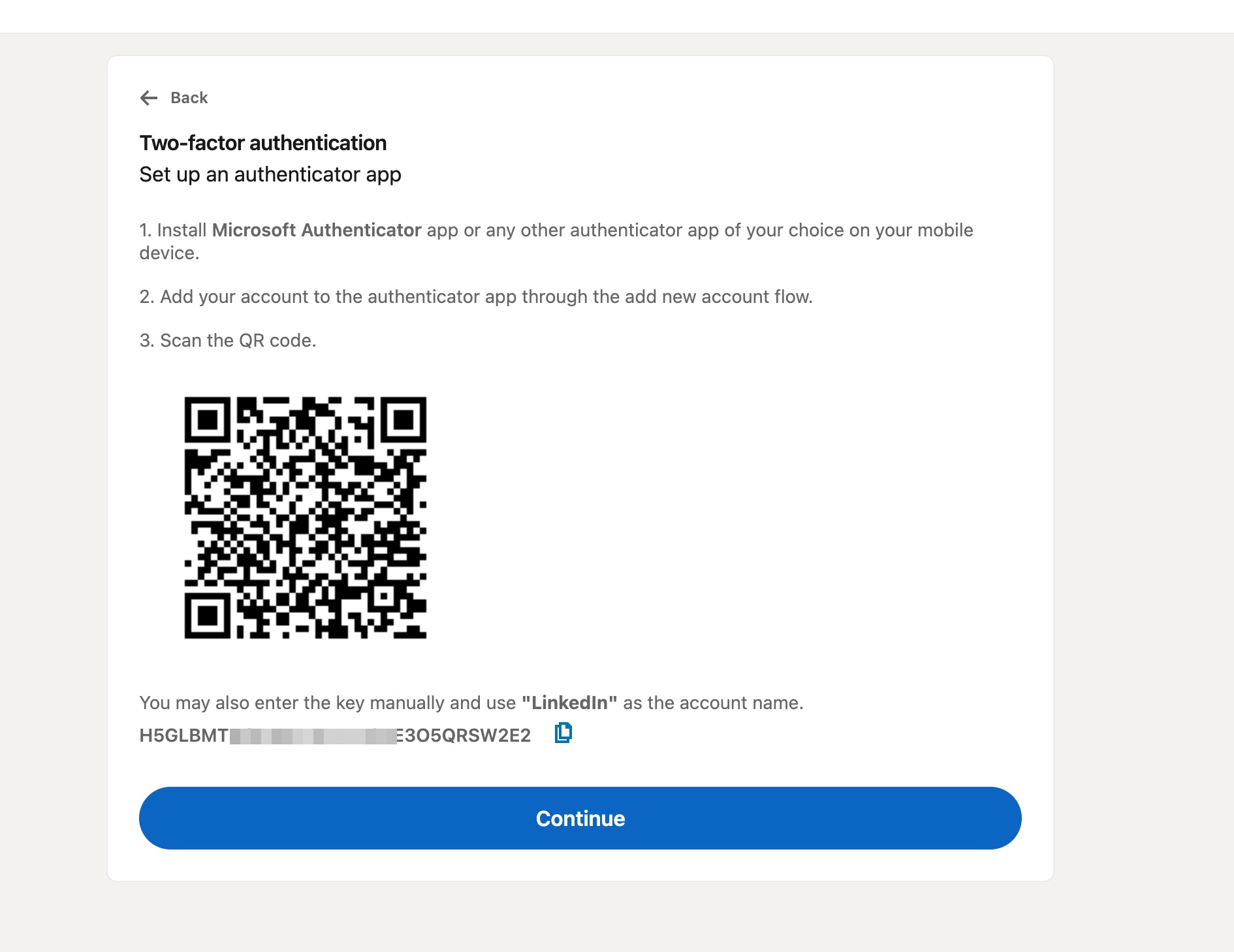
- You'll see a QR code and a secret key below it
- Copy the secret key and save it in a password manager
Step 5: Update Your Authenticator App
- Open your authenticator app
- If you have an old LinkedIn entry, delete it first
- Tap "+" or "Add account"
- Either:
- Scan the QR code shown on LinkedIn's screen, OR
- Choose "Enter key manually" and paste your new 2FA secret key
- Your authenticator will start generating new 6-digit codes for LinkedIn
Step 6: Verify the Setup
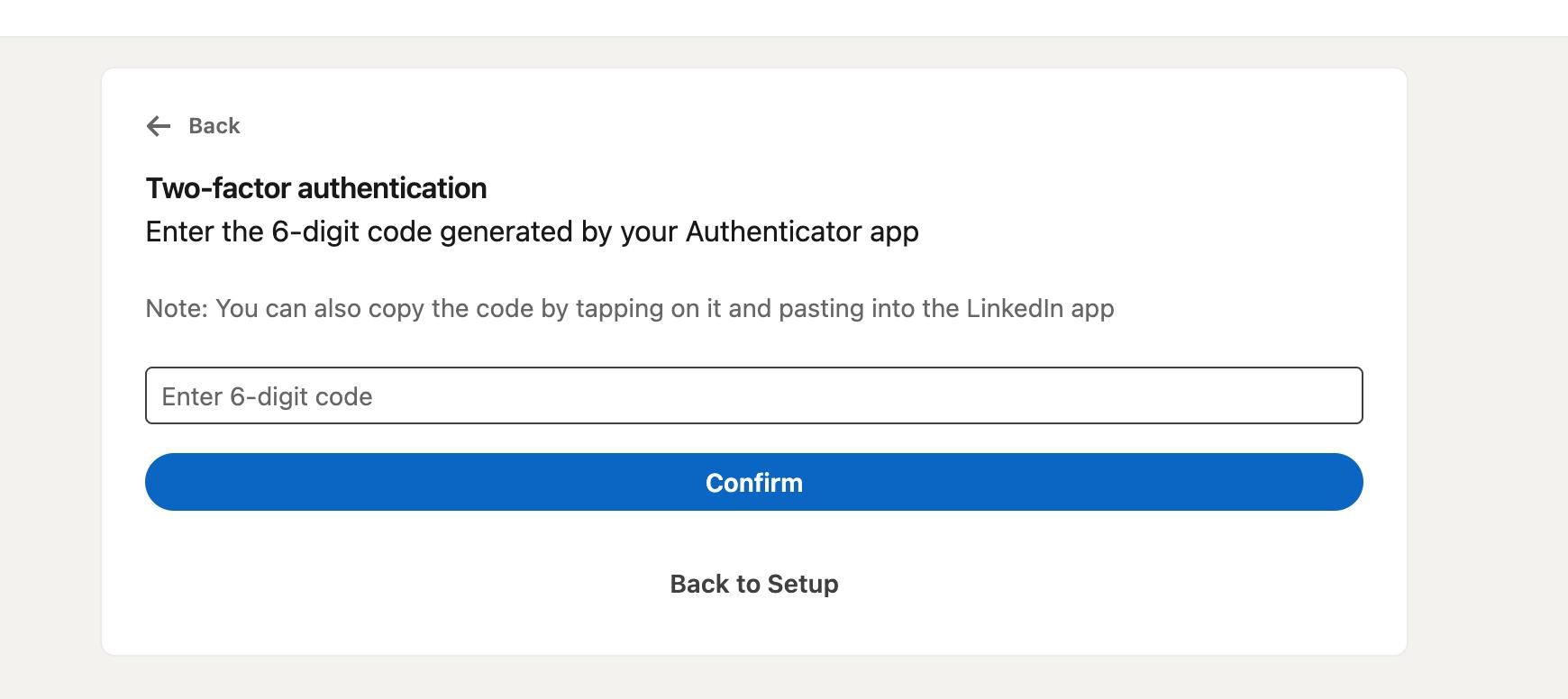
- Enter the 6-digit code from your authenticator app
- Click "Confirm"
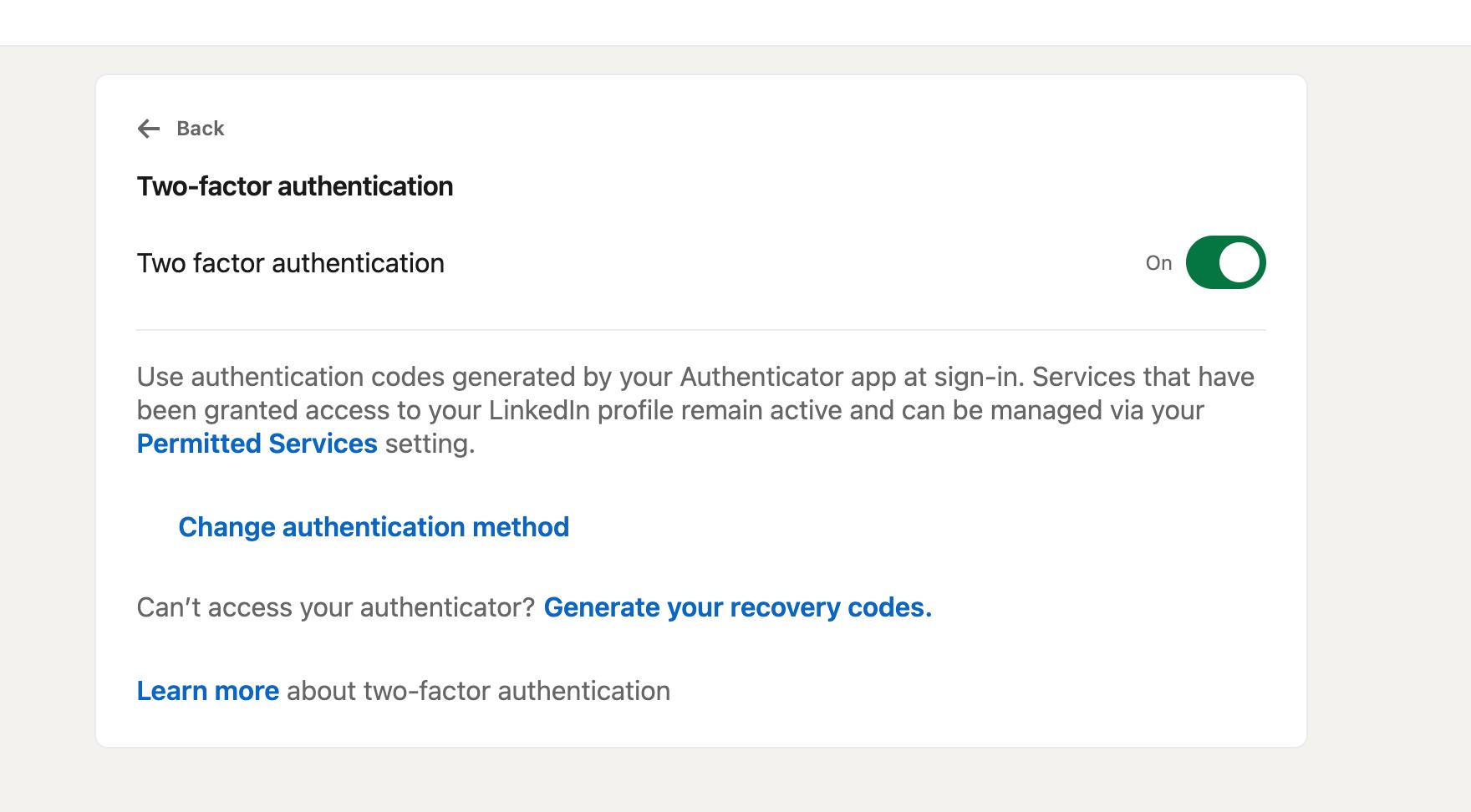
You'll see a confirmation that 2FA is now re-enabled:
Step 7: Save Backup Codes
LinkedIn will provide new backup codes:
- Download or copy these backup codes
- Store them with your 2FA secret key
- Each code works only once
- Keep them somewhere safe - you'll need them if you lose your phone
Step 8: Reconnect to ConnectSafely
If using Infinite Login, go to your dashboard → LinkedIn Accounts → click "Reconnect" → enter your email, password, and NEW 2FA secret key → click "Connect Account".
🎉 All Done! Your LinkedIn account is now reconnected with your new 2FA secret key.
Frequently Asked Questions
How do I reset my LinkedIn 2FA if I lost my phone?
Use your backup codes to log in, then follow this guide to disable and re-enable 2FA. If you don't have backup codes, use LinkedIn's account recovery process.
Can I use SMS instead of an authenticator app for LinkedIn 2FA?
Yes, LinkedIn supports SMS-based 2FA. However, for Infinite Login, you must use an authenticator app—SMS won't work with automated login.
Will resetting 2FA disconnect my LinkedIn account from ConnectSafely?
Yes. After resetting your 2FA, you'll need to reconnect your account with the new secret key. See our guide on connecting your LinkedIn account.