
Follow this easy guide to enable Two-Factor Authentication (2FA) on your LinkedIn account in just 60 seconds. This is required to use Infinite Login.
⚠️ Important Note
To use Infinite Login with ConnectSafely, you must enable 2FA using an Authenticator app (like Google Authenticator, Microsoft Authenticator, or Authy). SMS-based 2FA will not work with Infinite Login.
Step-by-Step Setup Guide
Step 1: Access LinkedIn Security Settings
- Log in to your LinkedIn account at linkedin.com
- Go to Sign in & security settings
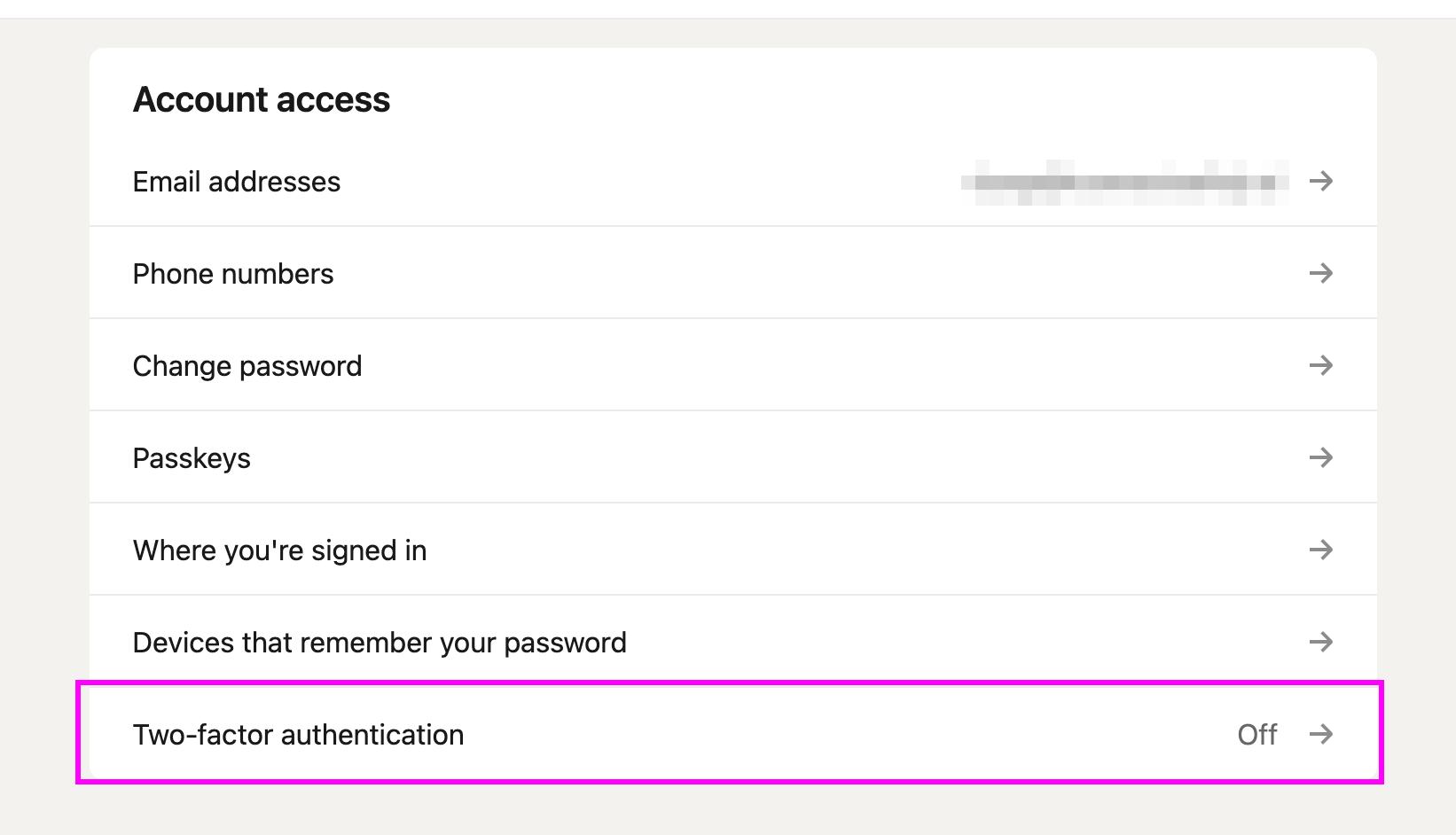
- Find and click on "Two-factor authentication"
Step 2: Start 2FA Setup
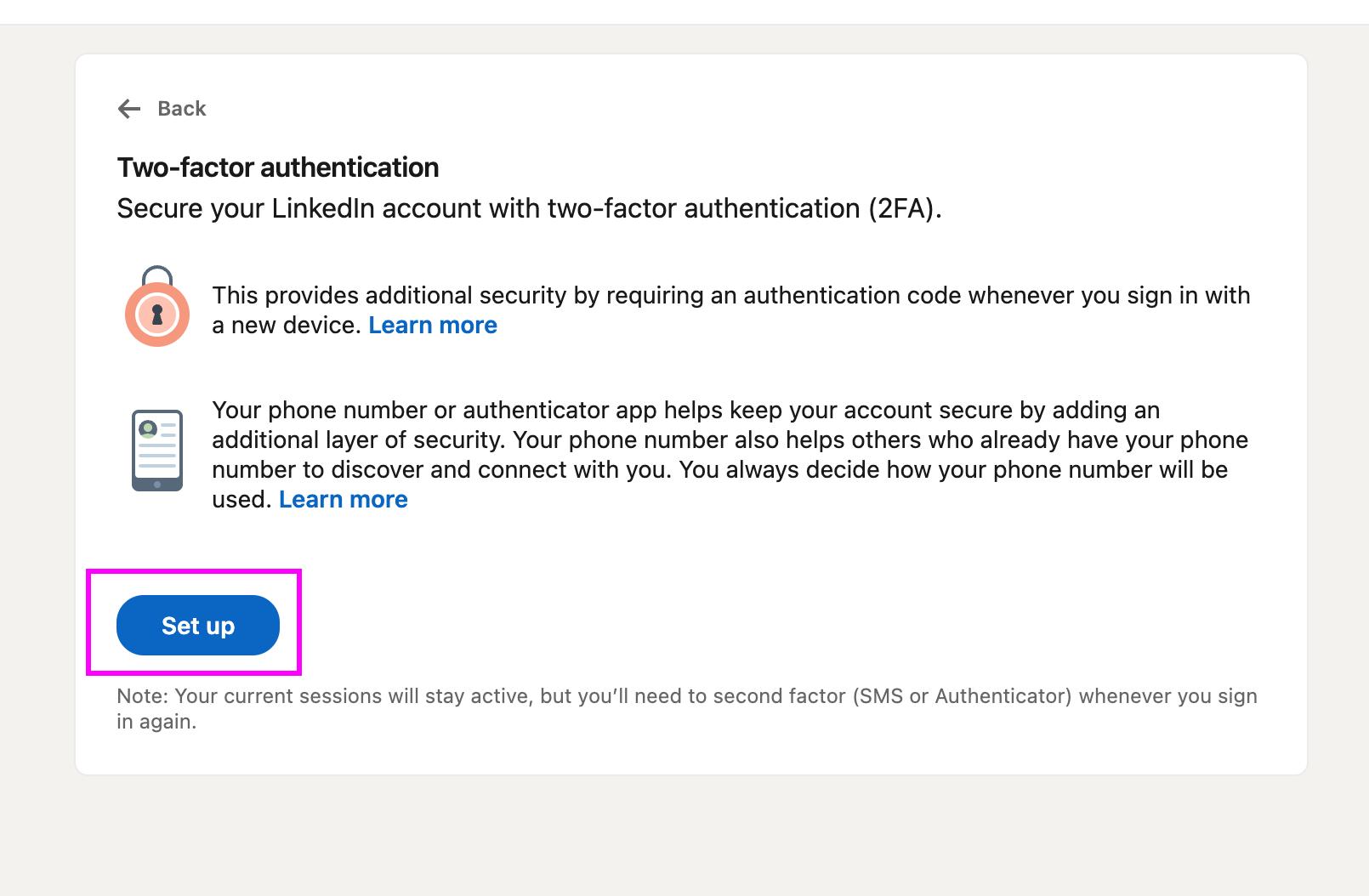
- Click the "Set up" button to begin the setup process
Step 3: Choose Authenticator App
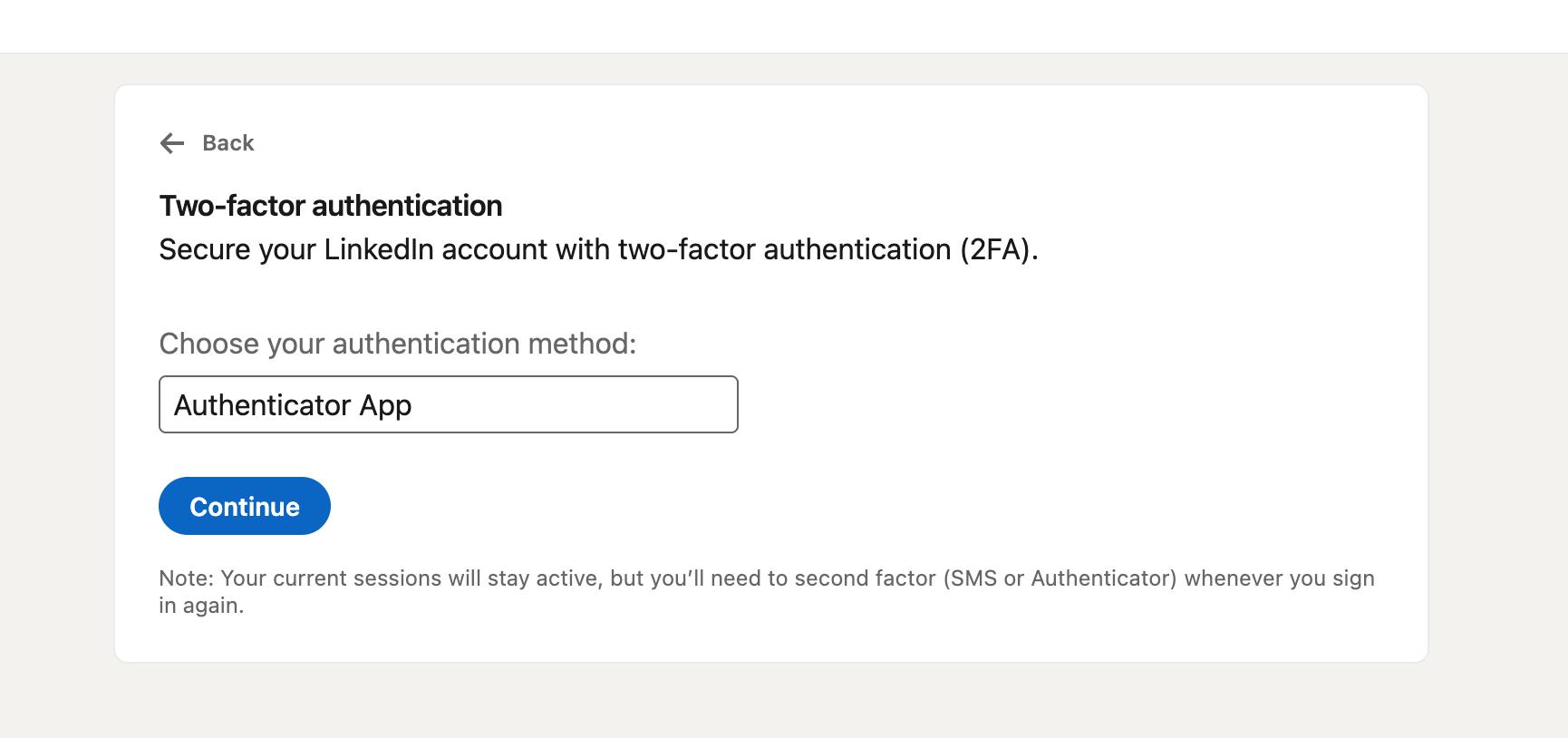
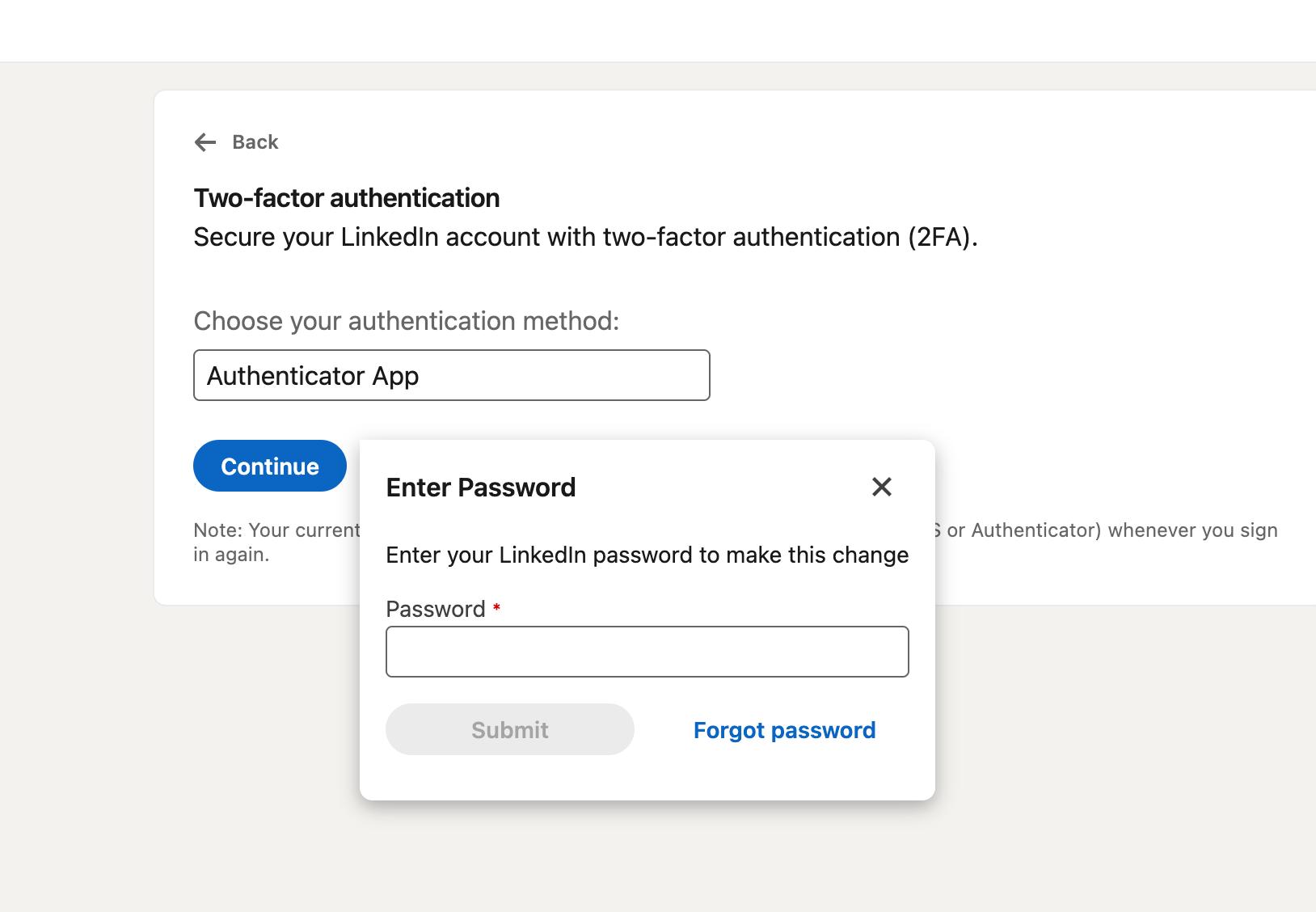
Critical: You must select "Authenticator App" as your verification method. Do NOT choose phone number/SMS verification - this won't work with Infinite Login.
- From the dropdown menu, select "Authenticator App"
- Click "Continue"

Step 4: Email Verification
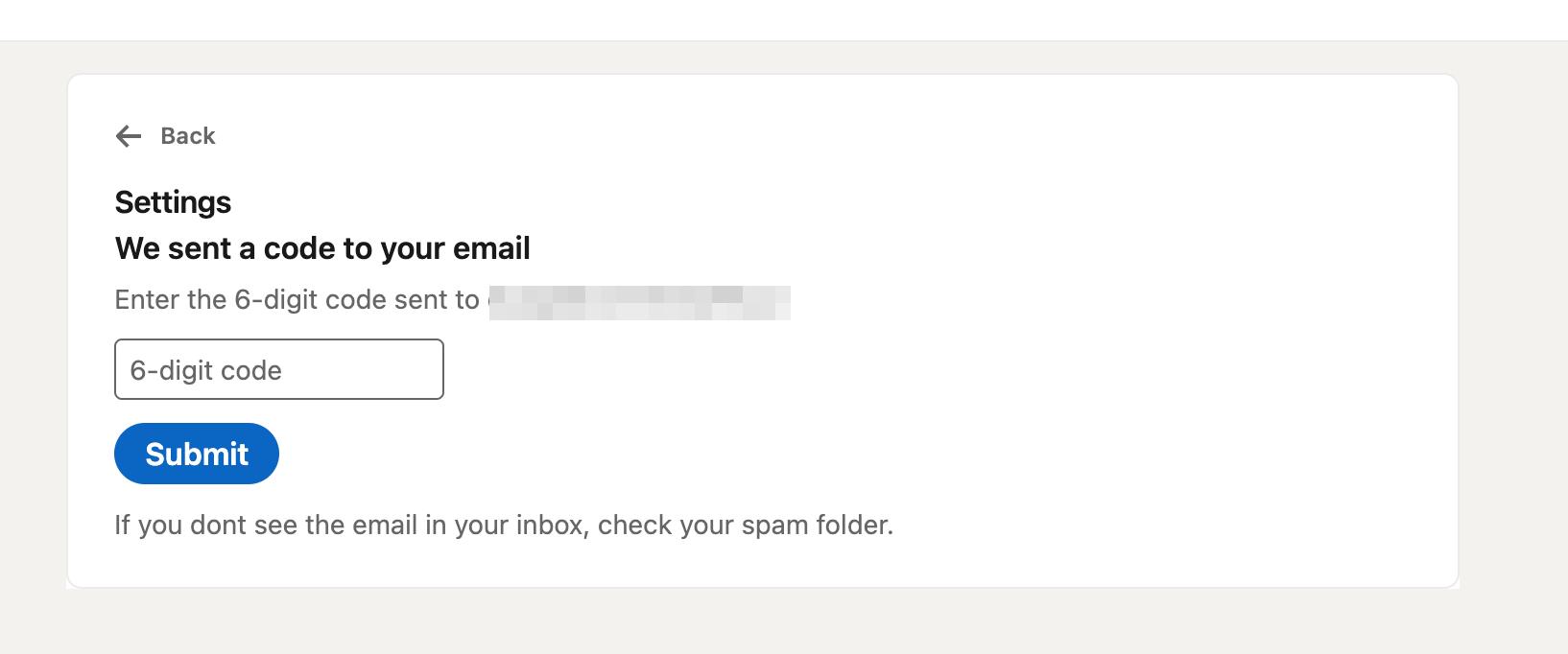
- LinkedIn will send a 6-digit code to your email
- Enter the code and click "Submit"
Step 5: Confirm Selection & Enter Password
- Confirm "Authenticator App" is selected and click "Continue"
- Enter your LinkedIn password when prompted and click "Submit"
Step 6: Save Your 2FA Secret Key
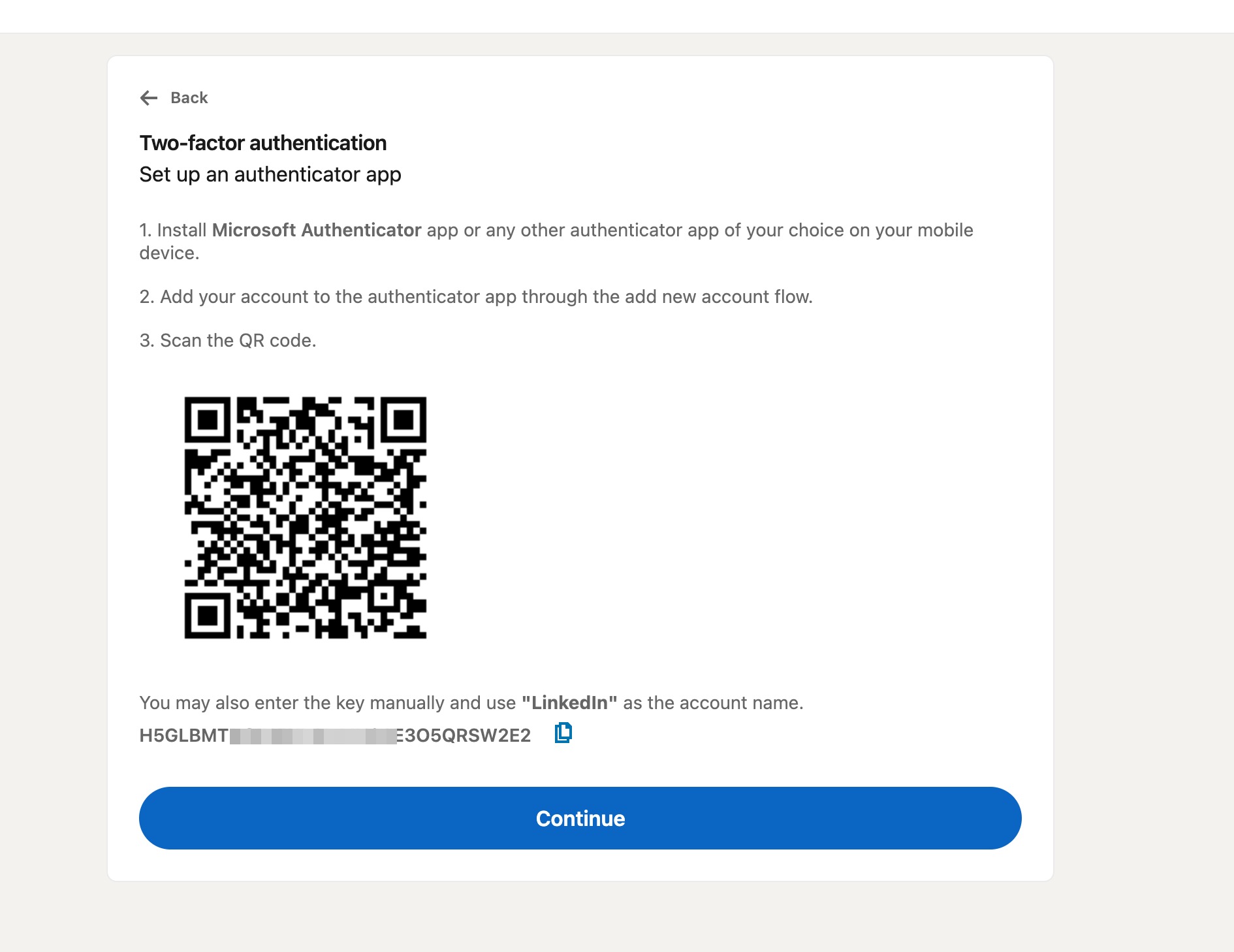
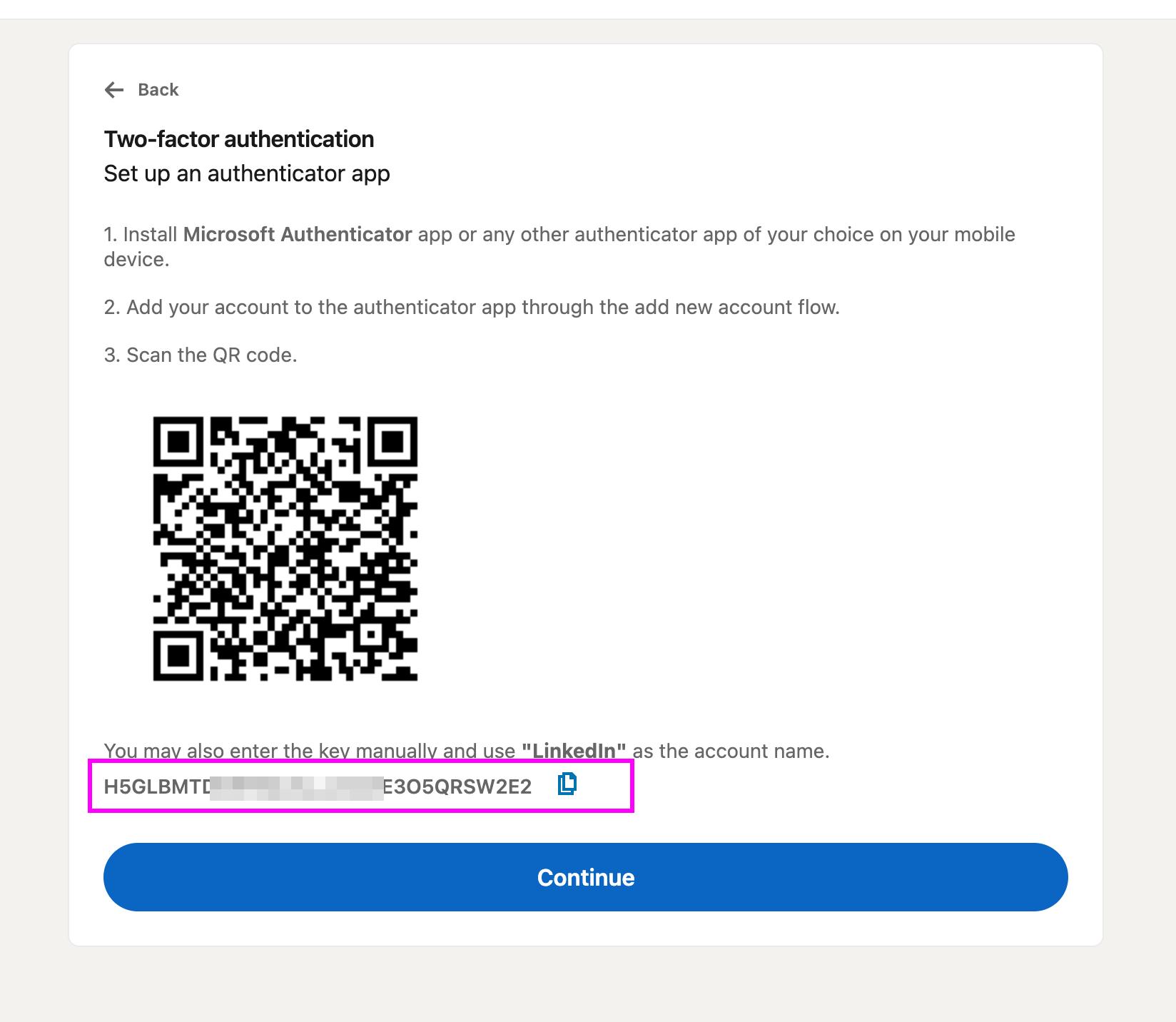
⚠️ VERY IMPORTANT: This is your only chance to see the 2FA secret key! LinkedIn will never show it to you again. If you lose it, you'll need to disable 2FA and set it up from scratch.
- You'll see a QR code and a secret key below it
- Copy the secret key and save it securely in a safe place
- You can also scan the QR code with your authenticator app
Step 7: Verify Your Setup
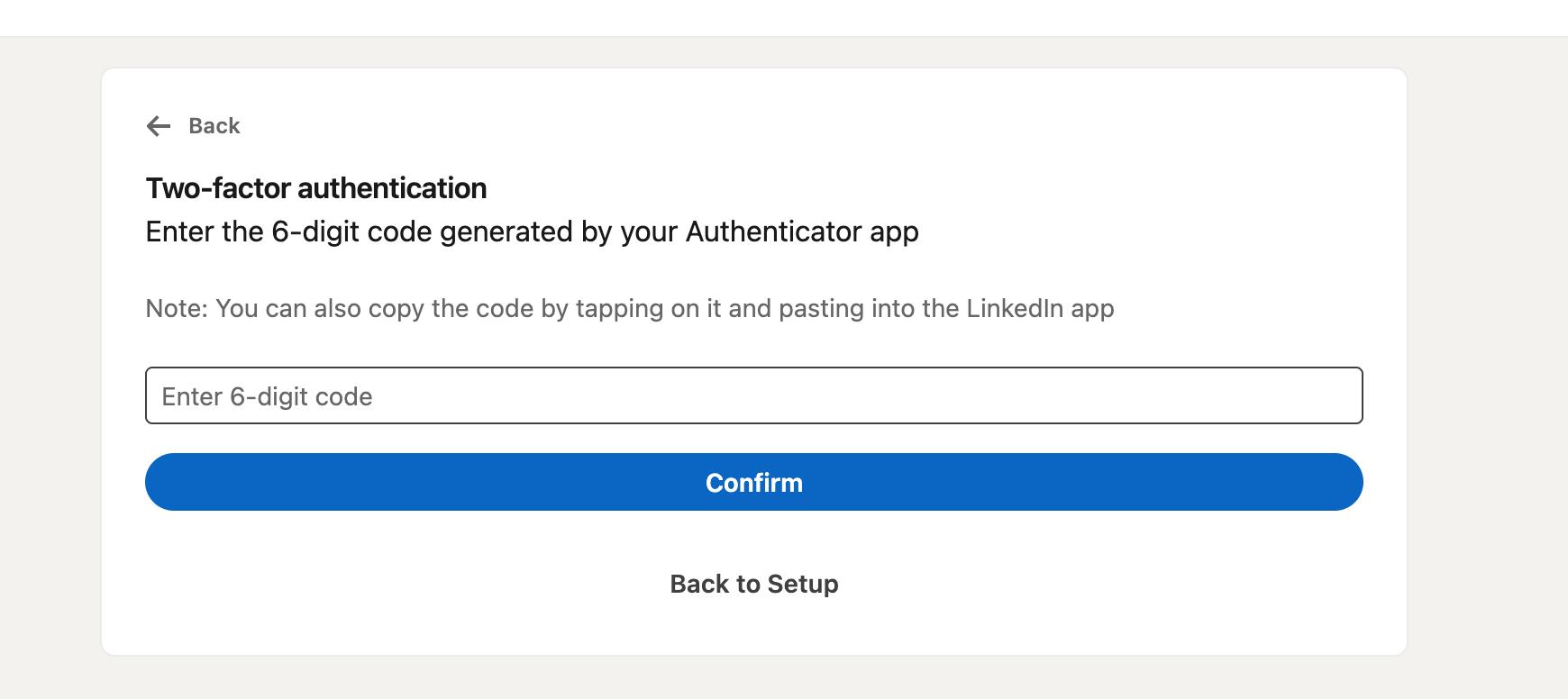
- Open your authenticator app and add the account (scan QR or enter key manually)
- Enter the 6-digit code from your authenticator app
- Click "Confirm"
Step 8: Setup Complete!
You'll see a confirmation that Two-factor authentication is now enabled.
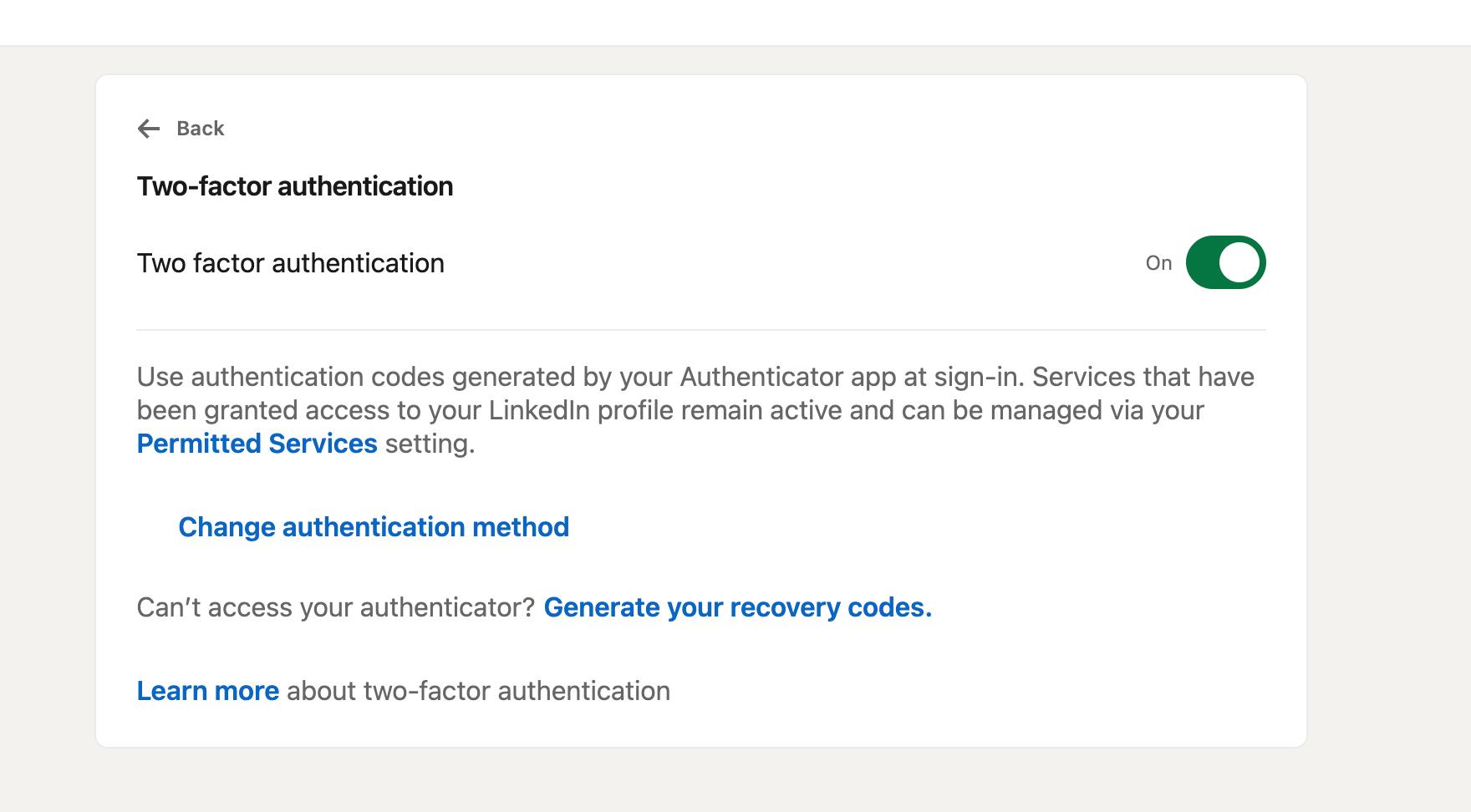
✅ Success!
Your LinkedIn account is now protected with Two-Factor Authentication. You're ready to use Infinite Login with ConnectSafely!
Next Steps
Now go to your ConnectSafely dashboard, click "Add LinkedIn Account", choose "Infinite Login", and enter your email, password, and the 2FA secret key you just saved.
Related: What is Infinite Login? | Reset 2FA Secret Key