
How to Delete a LinkedIn Account: Step-by-Step Guide
Learn how to delete your LinkedIn account permanently on desktop and mobile. A 2026 guide with screenshots, deactivation options, and what happens to your data.

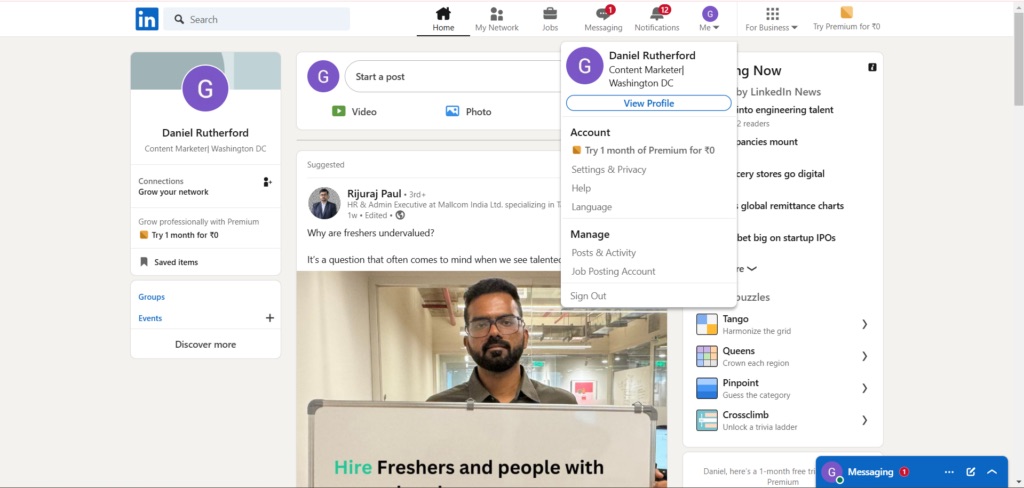
Want to delete your LinkedIn account? The process takes about 2 minutes: Go to Settings & Privacy → Account Preferences → Account Management → Close Account. This guide covers deletion on desktop and mobile with real screenshots, plus alternatives like hibernation if you're not ready for permanent deletion.
Key Takeaways
- Deletion is permanent after a 14-day grace period—all connections, messages, and data are erased
- Download your data first before closing your account (Settings → Data Privacy → Get a copy of your data)
- Cancel Premium subscriptions before deleting to avoid continued billing
- Hibernation is an alternative that temporarily hides your profile without losing data
- 14-day reactivation window lets you recover your account if you change your mind
Before You Delete: 5 Essential Steps
According to LinkedIn's official help documentation, take these steps before closing your account:
Want to Generate Consistent Inbound Leads from LinkedIn?
Get our complete LinkedIn Lead Generation Playbook used by B2B professionals to attract decision-makers without cold outreach.
No spam. Just proven strategies for B2B lead generation.
1. Download Your LinkedIn Data
Your connections, messages, and profile information will be permanently deleted. Save important data first:
- Go to Settings & Privacy
- Click Data Privacy
- Select Get a copy of your data
- Choose what to download and request your archive
LinkedIn will email you when your data export is ready (usually within 24-72 hours).
2. Cancel LinkedIn Premium (If Applicable)
If you have Premium, cancel it first to avoid being charged after deletion. See our complete guide on how to cancel LinkedIn Premium.
3. Inform Your Network
Let important connections know you're leaving and share alternative contact information. Once deleted, you cannot message them through LinkedIn.
4. Save Important Conversations
Export any critical messages or information from your LinkedIn inbox before deletion.
5. Remove Linked Apps
Disconnect any third-party apps or services that use LinkedIn for authentication.
How to Delete LinkedIn Account on Desktop
Follow these steps to permanently delete your LinkedIn account using a web browser:
Step 1: Click Your Profile Picture
Log in to LinkedIn and click your profile photo or the "Me" icon in the top-right corner of the navigation bar.
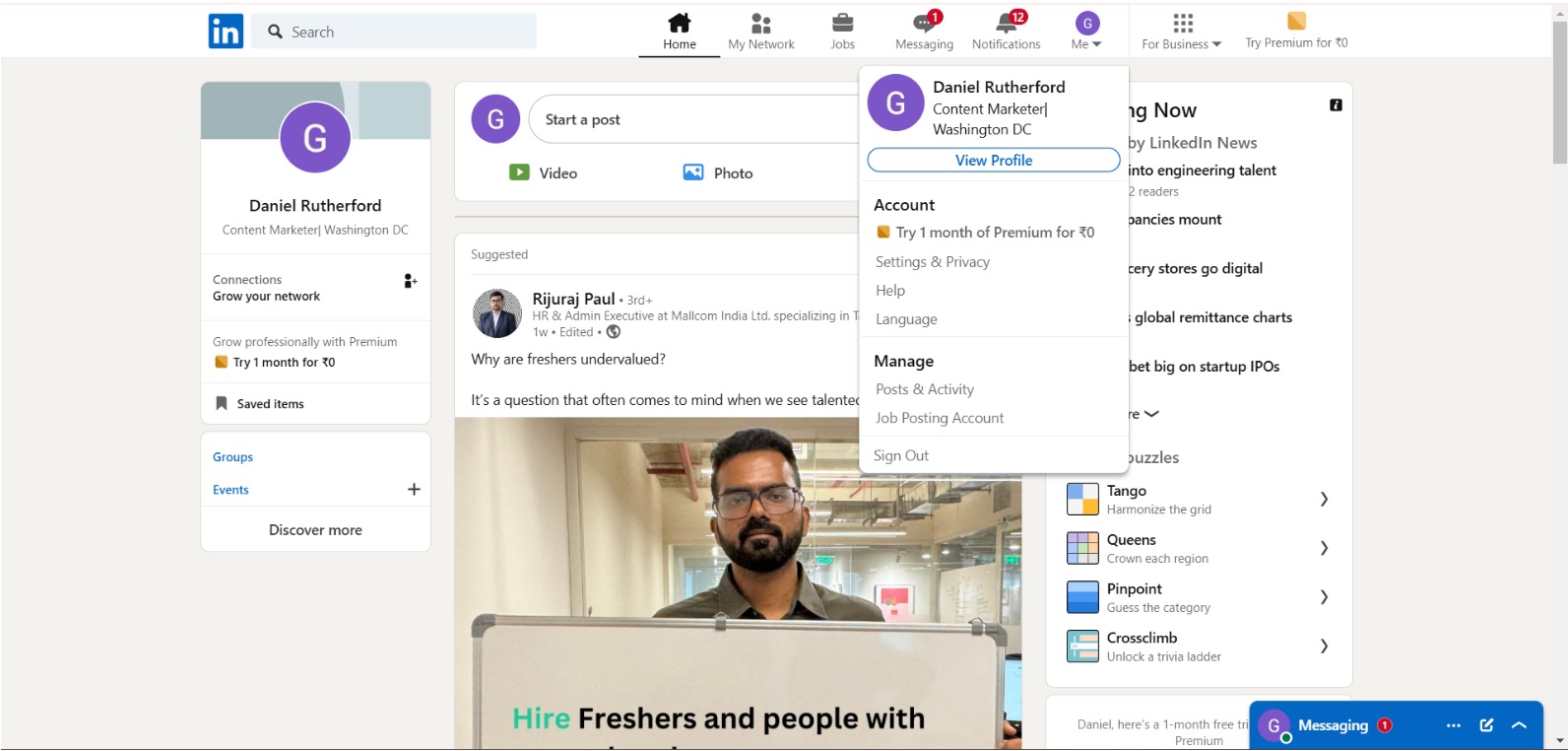
Step 2: Select Settings & Privacy
From the dropdown menu, select "Settings & Privacy" to access your account settings.
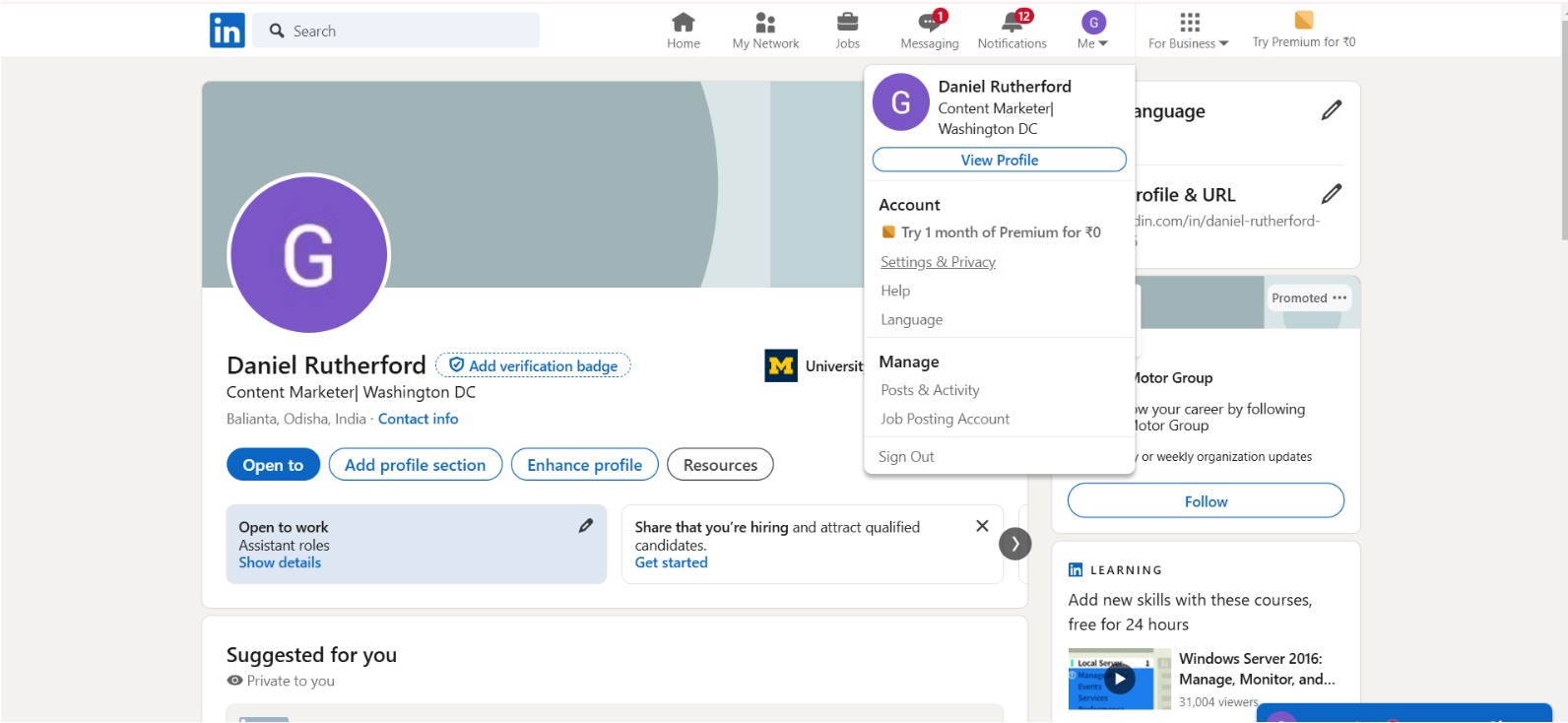
Step 3: Navigate to Account Management
In the left sidebar, click on "Account Preferences", then find and click on "Account Management".
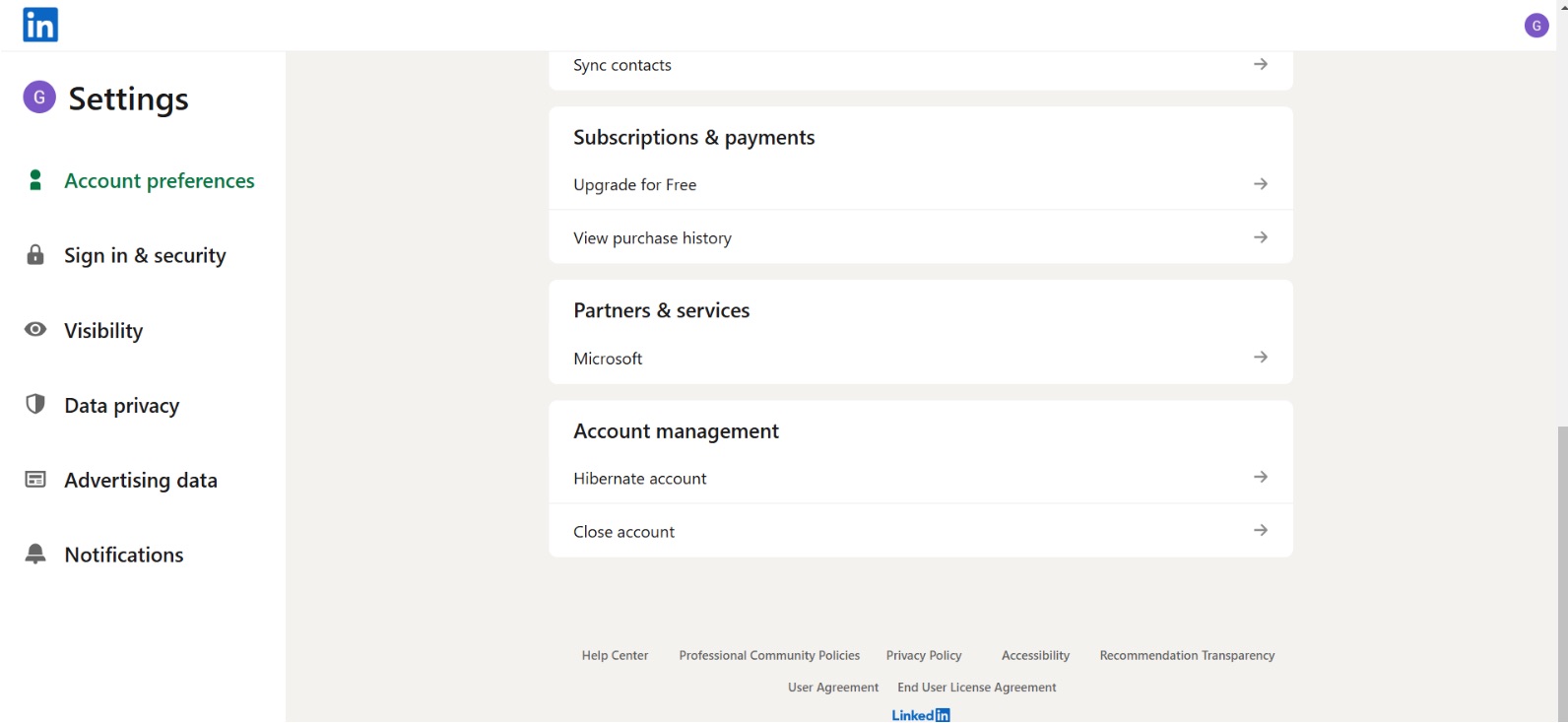
Step 4: Click Close Account
Scroll down and click "Close Account". LinkedIn will ask you to select a reason for leaving.
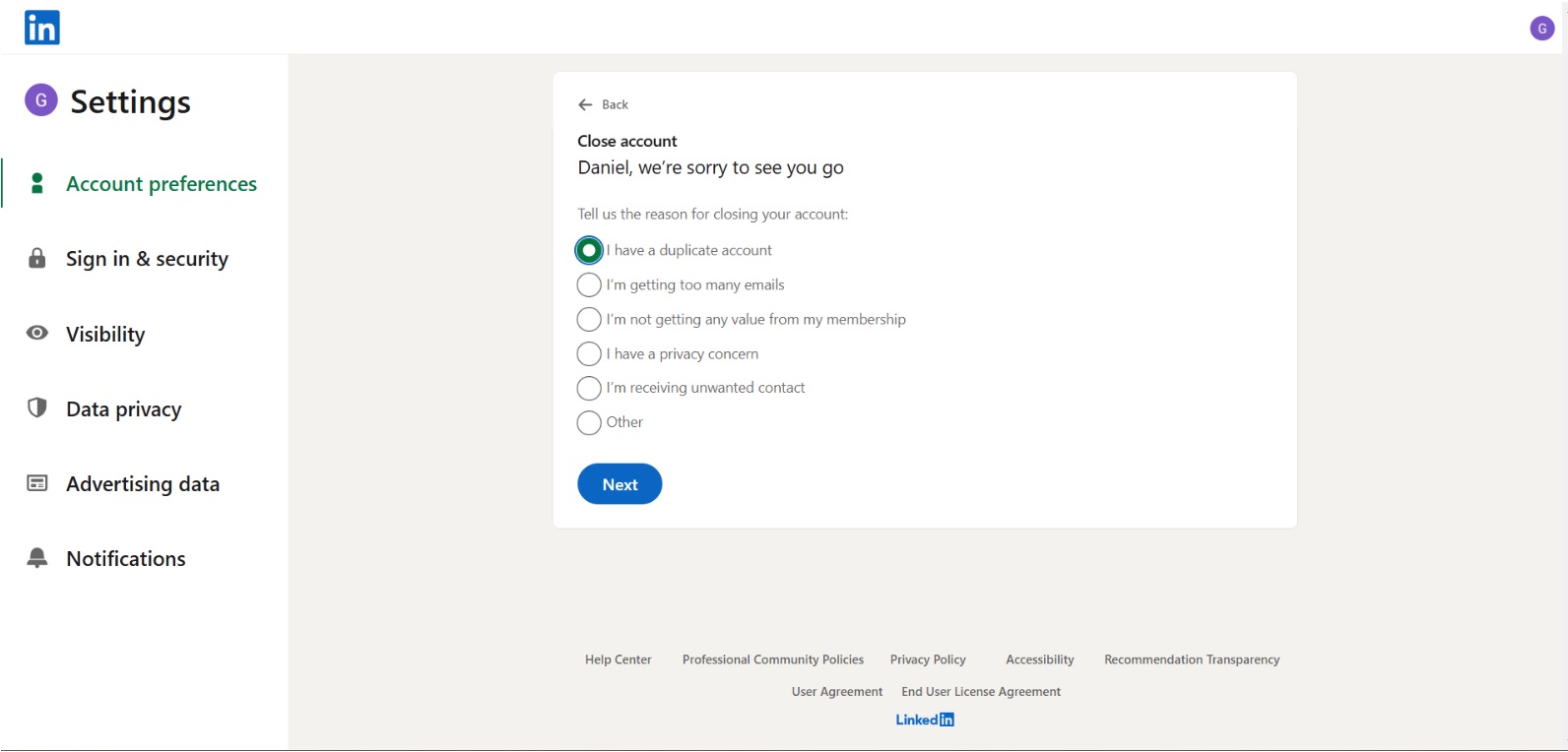
Step 5: Enter Password and Confirm
Enter your LinkedIn password to verify your identity, then click "Close Account" to finalize the deletion.
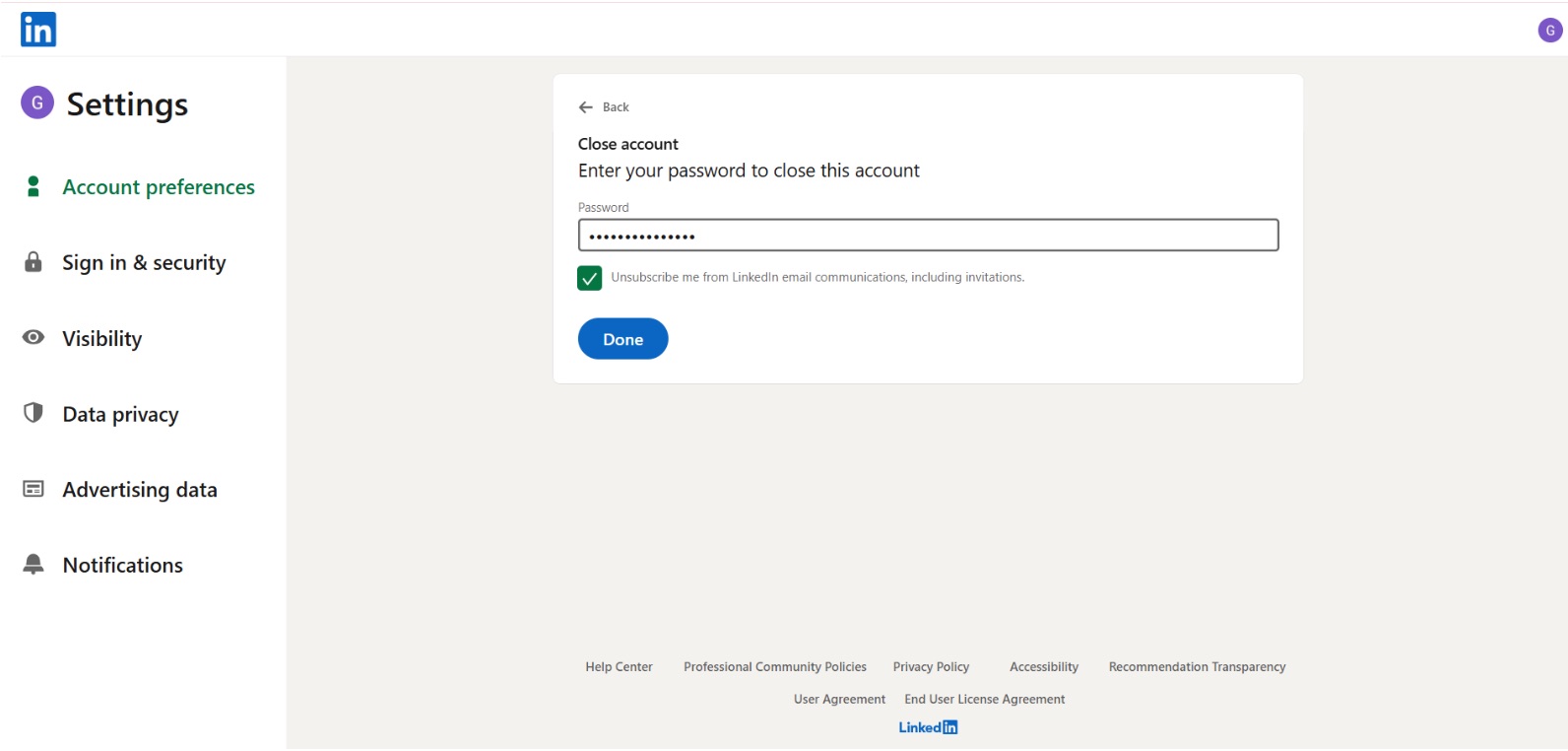
Important: Your account enters a 14-day deactivation period. You can reactivate during this time by logging back in.
How to Delete LinkedIn Account on Mobile (iOS & Android)
The mobile app process is similar but with slightly different navigation:
Step 1: Open LinkedIn and Tap Your Profile
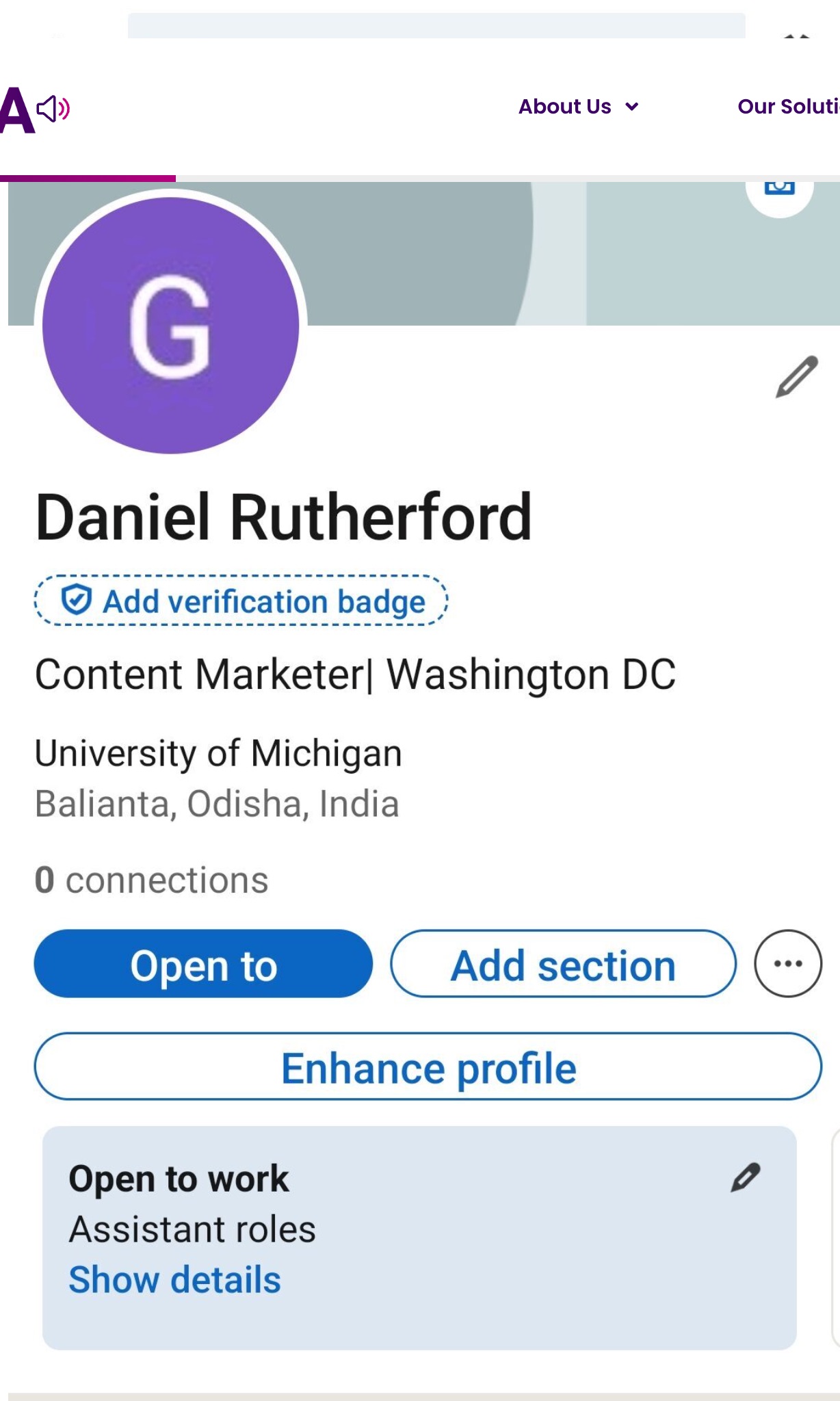
Open the LinkedIn app and tap your profile picture in the top-left corner to open the menu.
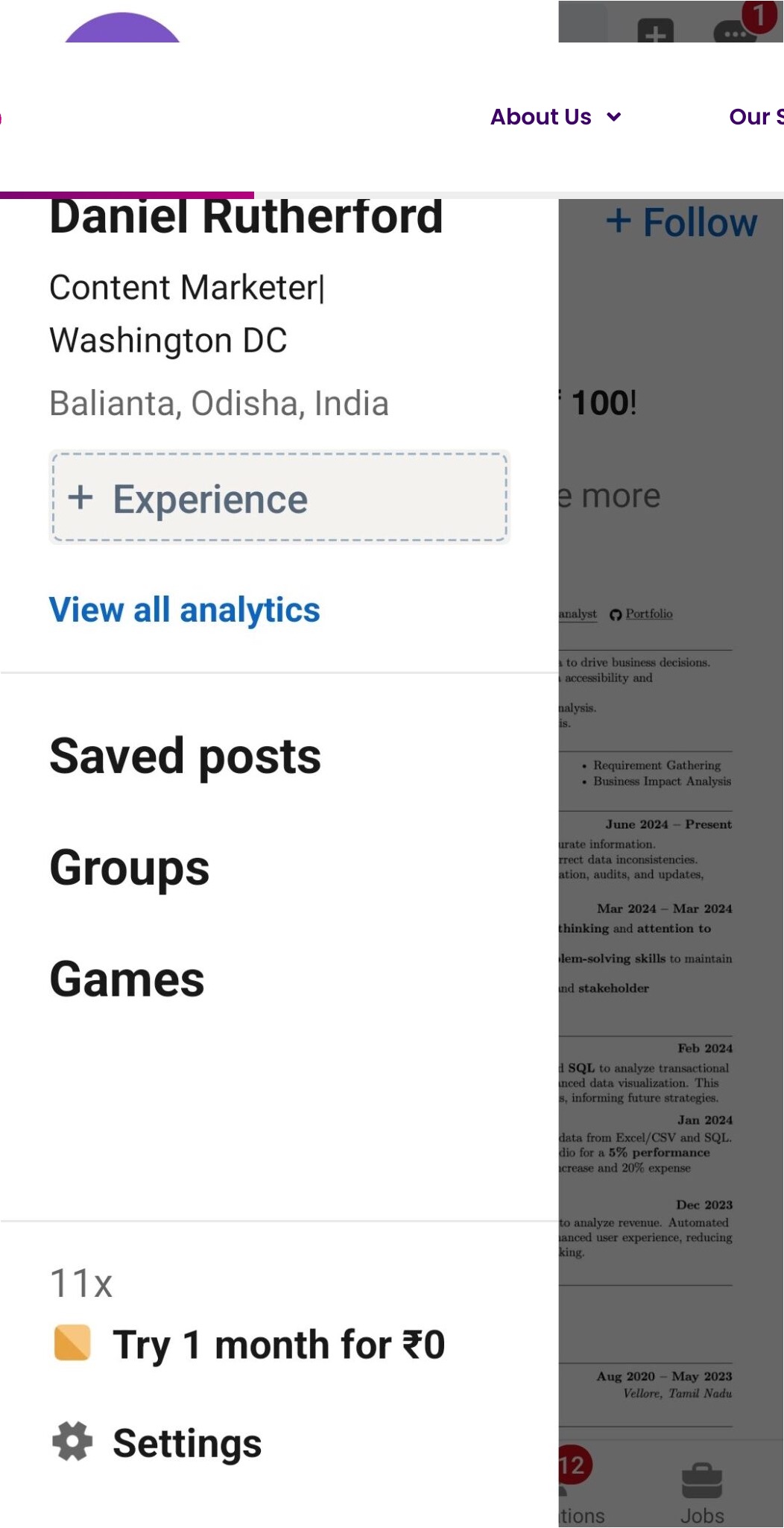
Step 2: Access Settings
Tap the gear icon (Settings) in the top-right corner of the menu to access your account settings.
Step 3: Go to Account Preferences
Scroll down and tap on "Account Preferences" to view account management options.
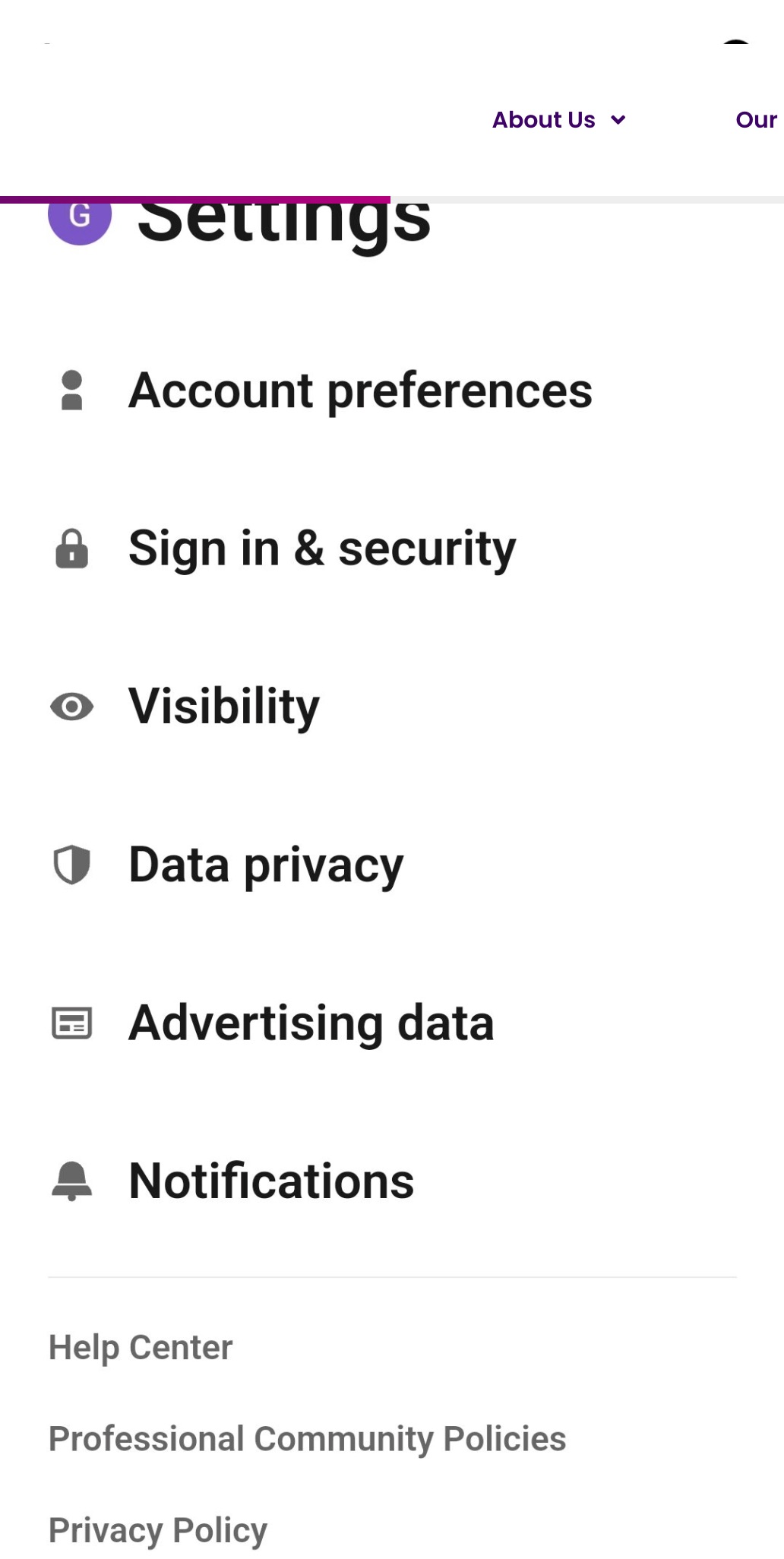
Step 4: Tap Close Account
In the Account Preferences section, scroll to the bottom and tap "Close Account".
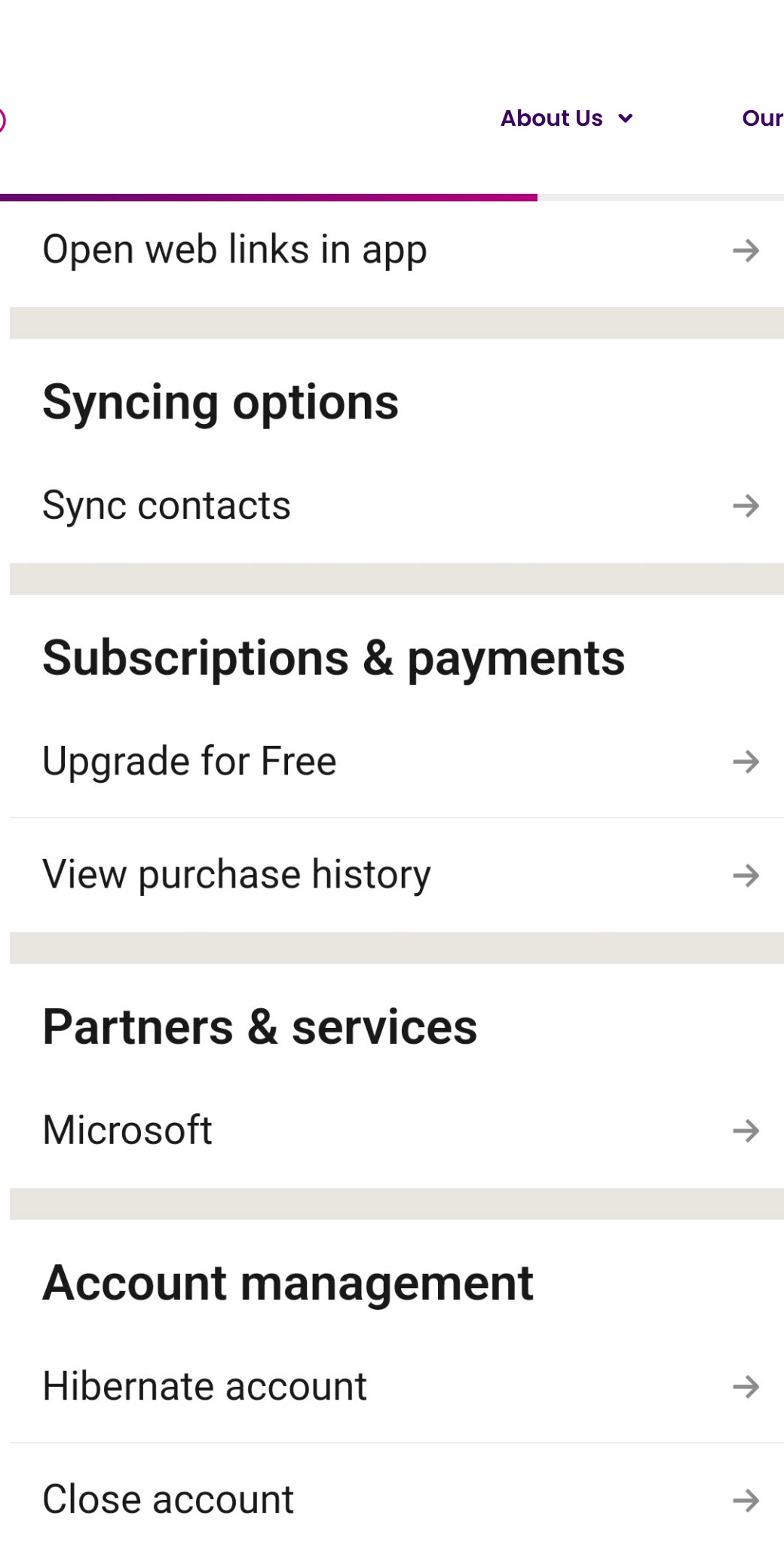
Step 5: Select a Reason
LinkedIn will ask why you're closing your account. Select a reason from the list and tap "Next".
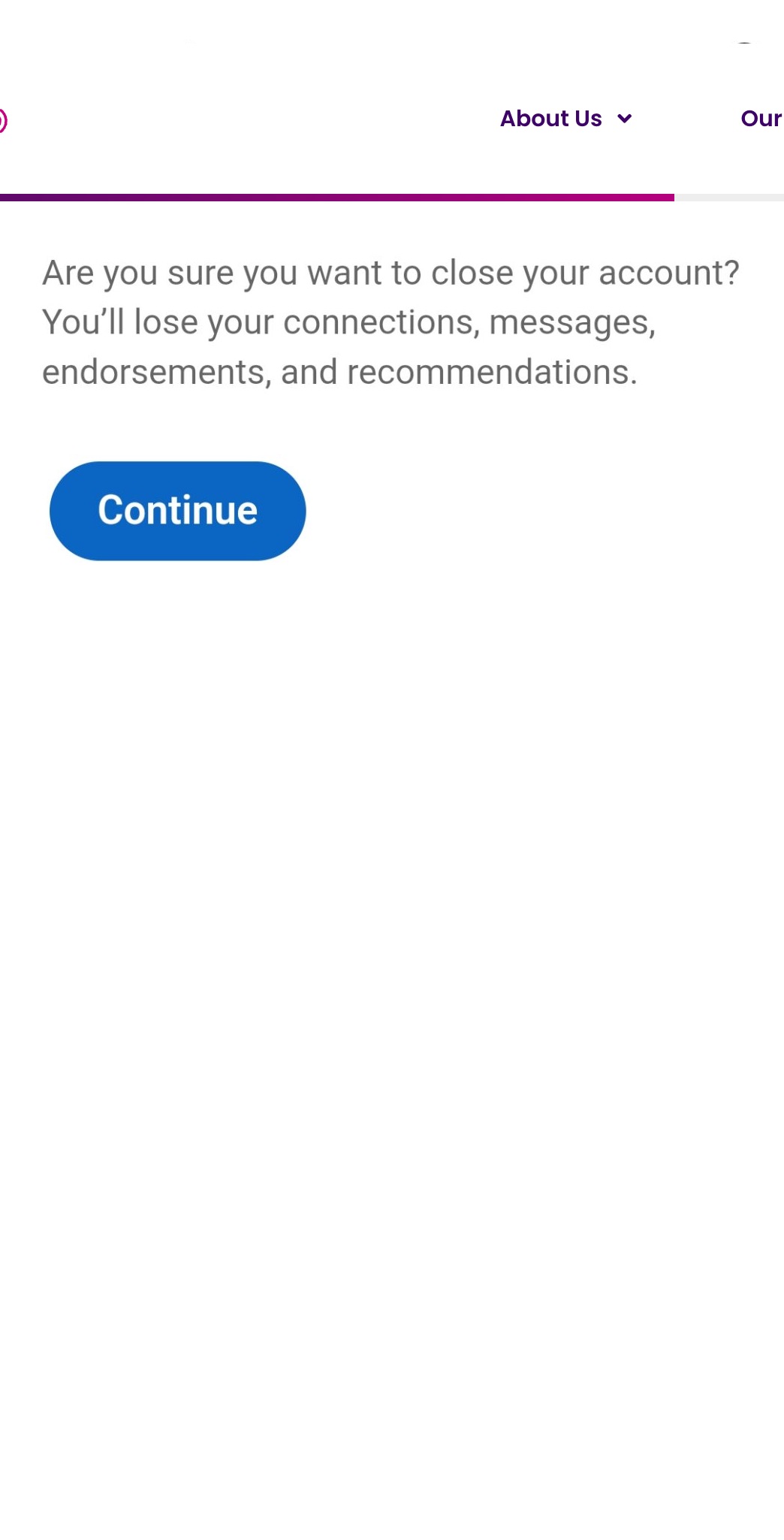
Step 6: Enter Password and Confirm
Enter your LinkedIn password when prompted and tap "Done" to finalize the deletion.
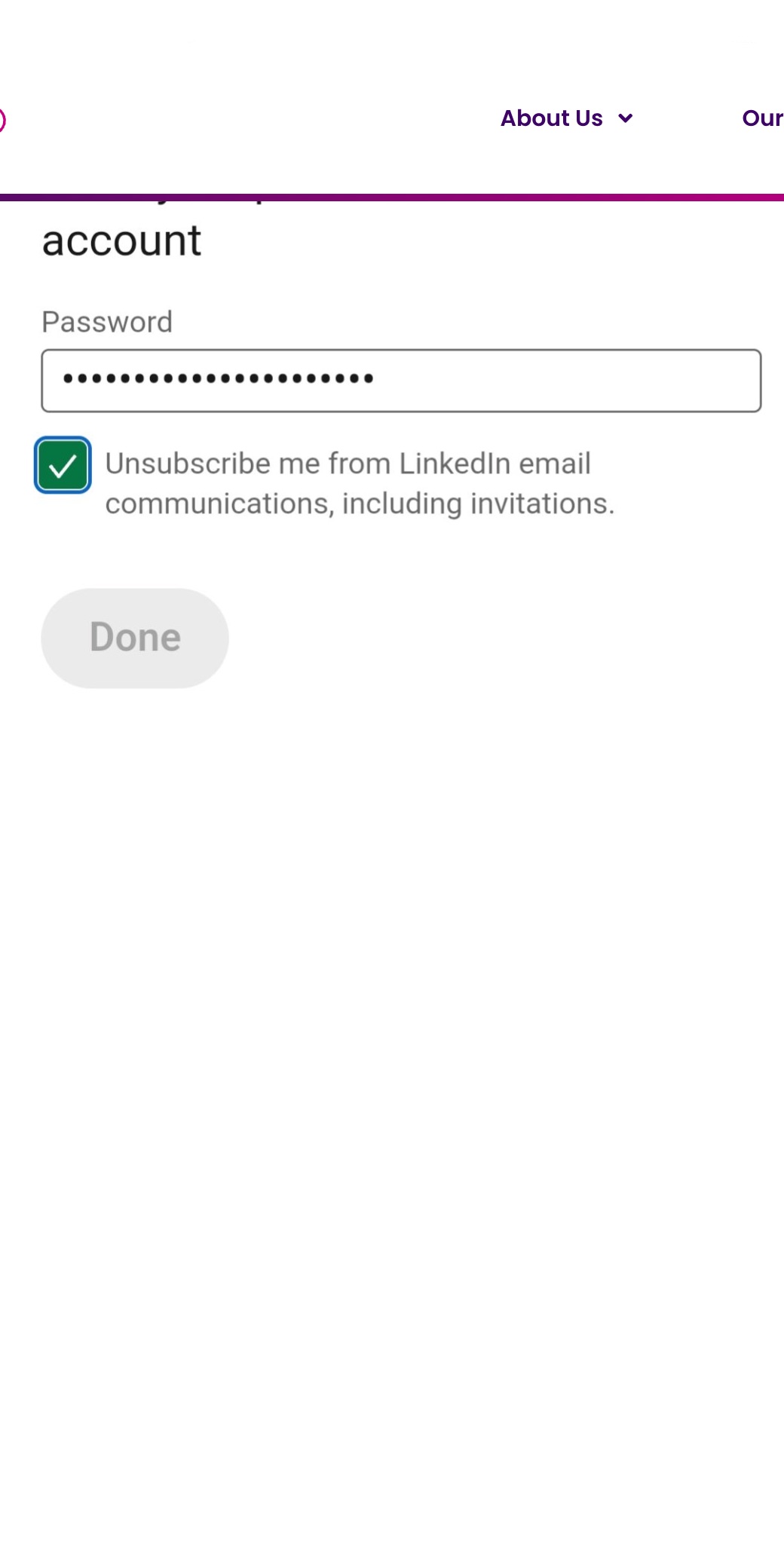
Your account is now scheduled for deletion with a 14-day grace period.
What Happens When You Delete Your LinkedIn Account?
According to LinkedIn's account closure policy, here's what to expect:
Immediately After Deletion
| What Happens | Details |
|---|---|
| Profile hidden | Your profile becomes invisible to other users |
| Search removal | You won't appear in LinkedIn search results |
| Connection loss | Connections can no longer see or contact you |
| Group removal | You're removed from all LinkedIn Groups |
After 14-Day Grace Period
| What's Deleted | Permanent? |
|---|---|
| Profile information | Yes - completely erased |
| Connections | Yes - all removed |
| Messages | Yes - inbox cleared |
| Endorsements & Recommendations | Yes - permanently lost |
| LinkedIn Learning progress | Yes - course history deleted |
| Job applications | Yes - application history removed |
What May Remain Temporarily
- Search engine cache: Google may still show your profile briefly until cache updates
- Other users' data: Messages you sent to others remain in their inbox
- Company page contributions: Content on company pages may persist
Alternative: How to Deactivate LinkedIn (Hibernate)
Not ready for permanent deletion? LinkedIn offers Hibernation Mode as a temporary solution.
What Is LinkedIn Hibernation?
Hibernation temporarily deactivates your account without deleting data:
| Feature | Hibernation | Deletion |
|---|---|---|
| Profile visibility | Hidden | Permanently removed |
| Data preservation | All data saved | All data deleted |
| Reactivation | Log in anytime | 14 days only |
| Connections | Preserved | Lost forever |
| Messages | Preserved | Deleted |
How to Hibernate Your LinkedIn Account
- Go to Settings & Privacy
- Click Account Preferences
- Select Account Management
- Click Hibernate Account
- Select a reason and confirm
To reactivate, simply log back into your account at any time.
When to Choose Hibernation Over Deletion
Choose Hibernation if you:
- Need a break from LinkedIn but may return
- Want to preserve your connections and history
- Are concerned about data security temporarily
- Plan to use LinkedIn again in the future
Choose Deletion if you:
- Are certain you won't use LinkedIn again
- Want all your data permanently removed
- Have privacy concerns requiring full erasure
- Are closing a duplicate account
How to Reactivate a Deleted LinkedIn Account
Changed your mind? You have 14 days to recover your account:
- Go to linkedin.com
- Sign in with your email and password
- LinkedIn will prompt you to reactivate
- Click "Reactivate" to restore your account
What's Restored:
- Your profile and connections
- Messages and conversation history
- Most account settings
What May Not Be Restored:
- Group memberships
- Some endorsements
- LinkedIn Learning progress
After 14 days, deletion is permanent and cannot be undone.
Deletion vs Deactivation vs Hibernation: Quick Comparison
| Action | Data Preserved | Reversible | Time to Reactivate | Best For |
|---|---|---|---|---|
| Hibernation | All data saved | Yes, anytime | Instant (log in) | Taking a break |
| Deactivation (Close Account) | 14-day grace period | Within 14 days | Instant (log in) | Unsure about leaving |
| GDPR Deletion | Nothing preserved | No | N/A (permanent) | EU users wanting full erasure |
| Permanent Deletion | Nothing after 14 days | No | N/A (permanent) | Leaving LinkedIn for good |
Managing Duplicate LinkedIn Accounts
Have multiple LinkedIn accounts? According to LinkedIn's Terms of Service, you can only have one account. Here's how to handle duplicates:
Option 1: Delete the Duplicate
Follow the deletion steps above for the account you want to remove.
Option 2: Merge Accounts
LinkedIn doesn't offer automatic merging, but you can:
- Decide which account to keep (usually the one with more connections)
- Export data from the duplicate account
- Manually add important connections to your primary account
- Delete the duplicate account
Why People Delete Their LinkedIn Accounts
Common reasons for account deletion include:
| Reason | Percentage |
|---|---|
| Privacy concerns | 35% |
| Too much spam/messages | 28% |
| Not using the platform | 22% |
| Career change/retirement | 10% |
| Platform fatigue | 5% |
Source: Industry surveys, 2025-2026
Privacy and Security Concerns
If privacy is your main concern, consider these alternatives before deletion:
- Adjust privacy settings to limit profile visibility
- Use LinkedIn Private Mode when browsing
- Remove sensitive information from your profile
- Disable contact sync to prevent data sharing
How to Delete LinkedIn Account Without Password or Email Access
Lost access to your LinkedIn account but still want to delete it? Here's how to handle the deletion process when you don't have your password or email access:
Reset Your Password First
If you've lost your password but still have access to your email or phone number:
- Go to linkedin.com and click "Forgot password?"
- Enter the email address or phone number associated with your account
- LinkedIn will send a verification code or reset link
- Create a new password and log in
- Follow the standard deletion steps above
Contact LinkedIn Support for Account Recovery
If you no longer have access to your email or phone number:
- Visit LinkedIn's Help Center
- Click "Contact Us" or search for "account access"
- Select "Account access issues" from the options
- Fill out the identity verification form with:
- Your full name as it appears on the account
- Previous email addresses associated with the account
- Phone numbers you've used
- Approximate account creation date
- Any other identifying information
Identity Verification Process
LinkedIn may require additional verification to confirm you own the account:
- Government-issued ID: Upload a photo of your driver's license or passport
- Selfie verification: Take a photo of yourself for facial recognition matching
- Security questions: Answer questions about your account activity
- Previous login locations: Verify locations where you've accessed LinkedIn
Alternative Recovery Options
If standard recovery methods don't work:
| Method | When to Use | Success Rate |
|---|---|---|
| Old email provider | Email forwarding still active | High |
| Phone carrier recovery | Changed numbers but same carrier | Medium |
| Backup email address | Added secondary email previously | High |
| Company email recovery | Account linked to work email | Medium |
Important: The verification process can take 3-7 business days. Once you regain access, immediately proceed with account deletion if that's your goal.
How to Delete a Deceased Person's LinkedIn Account
If a family member or loved one has passed away and you need to remove their LinkedIn profile, LinkedIn provides a specific process for handling deceased member accounts.
LinkedIn's Memorial Process
LinkedIn offers two options for deceased member accounts:
- Remove the account entirely
- Memorialize the account (keeps the profile visible as a tribute)
Steps to Request Account Removal
To request removal of a deceased person's LinkedIn account:
-
Fill out the required information:
- Your relationship to the deceased (family member, executor, etc.)
- Full name of the deceased as it appears on their profile
- LinkedIn profile URL (if you have it)
- Email address associated with their account
- Date of passing (approximate if exact date unknown)
- Your contact information for verification
-
Upload supporting documentation:
- Death certificate (recommended)
- Obituary or memorial notice
- Proof of your relationship to the deceased
- Legal documentation (if you're the estate executor)
What Information You'll Need
Gather these details before starting the removal request:
| Required Information | Where to Find It |
|---|---|
| LinkedIn profile URL | Search their name on LinkedIn or Google |
| Email address | Check their email accounts or devices |
| Full legal name | Death certificate or estate documents |
| Date of death | Death certificate or obituary |
| Proof of death | Death certificate, obituary, news article |
Memorialization as an Alternative
Instead of deletion, you can request to memorialize the account:
- The profile remains visible but marked as "In Memory"
- The account is secured (no one can log in)
- Connections and content are preserved
- The profile can serve as a digital memorial
To memorialize instead of delete, indicate your preference in the removal form.
Timeline for Processing
LinkedIn typically processes deceased member requests within:
- Initial response: 2-3 business days
- Account review: 5-10 business days
- Final removal or memorialization: 14 days
You'll receive email updates at each stage of the process.
Important Considerations
Privacy concerns: Before requesting removal, consider downloading any important data or information from the profile if you have access to their account credentials.
Professional legacy: Some families choose memorialization to preserve the deceased person's professional contributions and connections.
Multiple requests: If several family members submit requests, LinkedIn may require additional verification to determine authority.
GDPR Data Deletion Request (For EU Users)
If you're located in the European Union, European Economic Area, or UK, you have additional rights under the General Data Protection Regulation (GDPR) to request complete data deletion beyond standard account closure.
GDPR vs. Standard Account Deletion
Understanding the difference:
| Feature | Standard Deletion | GDPR Deletion |
|---|---|---|
| Data removal | Most data deleted after 14 days | Complete data erasure guaranteed |
| Backup systems | Data may persist in backups temporarily | Must be removed from all systems |
| Third-party sharing | May continue for legitimate interests | Must notify partners to delete |
| Timeline | 14-day grace period | Within 30 days (no grace period) |
| Right to confirmation | None | You can request deletion confirmation |
How to Submit a GDPR Data Deletion Request
Follow these steps to exercise your GDPR right to erasure:
Method 1: Through LinkedIn Settings
- Go to Settings & Privacy
- Click Data Privacy
- Scroll to "How LinkedIn uses your data"
- Click "Right to erasure" or "Request data deletion under GDPR"
- Verify your identity with your password
- Confirm your deletion request
Method 2: Contact LinkedIn's Data Protection Officer
For comprehensive GDPR requests:
-
Click "Submit a privacy request" or "Contact our Data Protection Officer"
-
Fill out the GDPR data subject request form:
- Select "Right to Erasure/Right to be Forgotten"
- Provide your LinkedIn profile URL
- Enter your registered email address
- Describe your deletion request
- Include your country/region to confirm EU jurisdiction
-
Submit supporting documentation if requested
What Data Gets Deleted Under GDPR
LinkedIn must delete or anonymize:
- Personal profile information (name, photo, contact details)
- Connection data (your network and relationship information)
- Communication history (messages, InMails, comments)
- Behavioral data (searches, profile views, content interactions)
- Inferred data (algorithm-generated insights about you)
- Shared data with partners (advertising partners, third-party integrations)
Exceptions to GDPR Deletion
LinkedIn may retain certain data if:
- Legal obligations require it (tax records, transaction history)
- Ongoing legal disputes involve your data
- Public interest purposes (rare cases only)
- Contractual obligations are still active
They must inform you of any exceptions and provide justification.
Timeline and Confirmation
Under GDPR, LinkedIn must:
- Acknowledge your request within 72 hours
- Complete deletion within 30 days (can extend to 60 days for complex requests)
- Provide confirmation that your data has been deleted
- Notify third parties they've shared your data with
Requesting Deletion Confirmation
You can request proof that your data was deleted:
- Wait 30 days after submitting your GDPR deletion request
- Submit a follow-up request asking for "Confirmation of Erasure"
- LinkedIn must provide documentation confirming:
- What data was deleted
- When it was deleted
- What third parties were notified
- Any data retained and why
GDPR Data Download Before Deletion
Before requesting GDPR deletion, download your complete data archive:
- Go to Settings & Privacy → Data Privacy
- Click "Get a copy of your data"
- Select "Download larger data archive" for GDPR-compliant comprehensive export
- LinkedIn provides data in machine-readable format (JSON, CSV)
- Archive includes all data categories GDPR requires
Important: Save this archive before deletion—once data is erased under GDPR, it cannot be recovered.
Your Rights After GDPR Deletion
After GDPR-compliant deletion:
- No grace period: Unlike standard deletion, GDPR erasure is immediate and cannot be reversed
- Cannot reactivate: You must create a new account if you want to return
- Right to complaint: If LinkedIn doesn't comply, you can file a complaint with your local Data Protection Authority
- Legal recourse: EU residents can pursue legal action for GDPR violations
How to File a Complaint
If LinkedIn doesn't comply with your GDPR deletion request:
- Document everything: Keep records of your requests and LinkedIn's responses
- Contact your local Data Protection Authority:
- Find your authority at edpb.europa.eu
- File a formal complaint with evidence
- LinkedIn's supervisory authority: Ireland's Data Protection Commission (as LinkedIn's EU headquarters is in Dublin)
LinkedIn Profil Törlése: Magyar Útmutató
Ha LinkedIn profilodat szeretnéd törölni, az alábbi lépéseket kell követned — akár böngészőből, akár a mobilalkalmazásból végzed el a folyamatot.
Lépésről lépésre (Böngésző / Desktop)
- Jelentkezz be a LinkedIn oldalán, majd kattints a jobb felső sarokban a profilképedre vagy az „Én" ikonra
- Válaszd a „Beállítások és adatvédelem" menüpontot
- A bal oldali menüben kattints a „Fiókbeállítások" elemre, majd görgess le a „Fiókkezelés" részhez
- Kattints a „Fiók bezárása" gombra
- Válaszd ki a törlés okát (kötelező lépés)
- Add meg a jelszavadat a megerősítéshez
- A LinkedIn visszaigazoló e-mailt küld — a fiókod törlésre kerül
Adatok sorsa törlés után
A LinkedIn szerint a személyes adataid általában 24 órán belül megszűnnek mások számára láthatóak lenni. Az adatok teljes törlése a háttérendszerekből LinkedIn dokumentációja alapján 30 napig tarthat — egyes adatok (pl. jogi kötelezettségekhez szükséges információk) ennél tovább is megmaradhatnak.
Fontos: A törlési idő kapcsán a LinkedIn saját dokumentációi eltérő értékeket adnak meg — a fiók-visszaállítási ablak 14 nap (bejelentkezéssel reaktiválható), míg az adatok teljes háttér-törlése 30 napot vehet igénybe.
Mielőtt törölnéd a fiókodat
- Töltsd le az adataidat: Beállítások → Adatvédelem → Adatok másolatának kérése
- Mondd le a LinkedIn Premium előfizetésedet, ha van — a fiók törlése nem állítja le automatikusan a számlázást
- Értesítsd a fontos kapcsolataidat, hogy alternatív elérhetőséget adj meg nekik
Ideiglenes alternatíva: Hibernálás (fiók szüneteltetése)
Ha nem biztos a döntésed, válaszd a Hibernálás lehetőséget a végleges törlés helyett:
- Beállítások → Fiókbeállítások → Fiókkezelés → Fiók hibernálása
- A profilod rejtett lesz, de az összes adatod, kapcsolatod és üzeneted megmarad
- Bármikor reaktiválhatod, egyszerűen bejelentkezéssel
A hibernálás ideális, ha csak átmenetileg szeretnél szünetet tartani a LinkedIn-en anélkül, hogy elveszítenéd az évek alatt felépített kapcsolathálózatodat.
Mit veszítesz véglegesen a törléskor?
- Összes kapcsolatod és üzeneted
- Kapott ajánlások és endorsementek
- LinkedIn Learning haladásod
- Csoporttagságaid
A törlés 14 napon belül visszavonható — egyszerűen jelentkezz be újra, és a LinkedIn felajánlja a reaktiválást. 14 nap után a törlés végleges és visszafordíthatatlan.
A Note on the 14-Day vs. 30-Day Grace Period
You may encounter conflicting information about how long LinkedIn keeps your data after account closure. According to LinkedIn's account closure documentation, the reactivation window is 14 days — log back in within this period and your account is restored. However, per LinkedIn's service terms, the complete deletion of your data from LinkedIn's backend systems (including backup servers) can take up to 30 days after the account closure is finalized. EU users submitting a GDPR erasure request receive a separate 30-day compliance deadline regardless of the standard closure timeline.
In practice: treat 14 days as your deadline to change your mind, and 30 days as the point at which your data is fully gone from LinkedIn's systems.
A Better Alternative: Strategic LinkedIn Management
Before deleting, consider whether you're leaving opportunities on the table. LinkedIn remains the #1 platform for professional networking, with over 1 billion users.
Instead of deletion, you might:
- Optimize your profile for better opportunities
- Set boundaries with messaging preferences
- Use automation wisely for engagement without burnout
- Build inbound authority so the right people come to you
How ConnectSafely.ai Can Help
If LinkedIn feels overwhelming but valuable, ConnectSafely.ai offers a middle ground:
- Strategic engagement without manual effort
- Authority building that attracts the right connections
- Platform-compliant automation that's safe and effective
- from USD $10/month to transform LinkedIn from a chore to an asset
Why LinkedIn Won't Let You Close Your Account: Common Blockers
If LinkedIn shows the message "We can't close your account yet," it's almost always because your account is linked to an enterprise product or an unresolved admin role. According to LinkedIn's official closure troubleshooting page, the most common blockers are a Recruiter, Sales Navigator, or LinkedIn Learning license provided by an organization, or administrative rights on a Company Page, Showcase Page, or Group. LinkedIn requires you to resolve these associations before it will process your closure request.
| Blocker | Why It Blocks Closure | How to Resolve It |
|---|---|---|
| Enterprise account association (Recruiter, Sales Navigator, or Learning license provided by an employer) | LinkedIn ties your personal profile to your organization's license | Ask your account administrator to remove you from the enterprise account, then retry closure |
| Recruiter Lite subscription | Only the purchasing admin can cancel it | Have the purchasing admin cancel it via LinkedIn's Recruiter Help center |
| Company Page, Showcase Page, or Group admin role | LinkedIn won't remove an admin without a replacement | Transfer admin rights to another team member before closing |
| LinkedIn Learning license (org-provided) | The license is tied to your personal account | Disconnect the license or transfer admin rights first |
| Outstanding advertising account balance | Unpaid balances must clear first | Settle the balance in Campaign Manager billing settings |
Once the blocker is resolved, return to Settings & Privacy → Account Management → Close Account and retry — LinkedIn re-checks eligibility each time you attempt closure.
Source: LinkedIn Help, "Next steps to close and delete a LinkedIn account", verified July 2026.
LinkedIn Account Closure Timeline: What Happens Day by Day
Closing a LinkedIn account isn't instant — it unfolds in stages. Per LinkedIn's account closure documentation, your profile is deactivated immediately, but LinkedIn keeps your data recoverable for 14 days before starting permanent removal.
| Stage | What Happens |
|---|---|
| Immediately | Profile disappears from search and connections' view; account enters closure status |
| Day 1–14 | Reactivation window — log in to cancel the closure and restore your account |
| Day 15 onward | LinkedIn begins permanently deleting profile data, connections, and messages from active systems |
| Up to 30 days | Data clears from backend backup systems; EU users under GDPR receive a separate 30-day compliance deadline regardless of this timeline |
This timeline applies to standard account closure. GDPR erasure requests (covered above) follow a stricter, grace-period-free 30-day deadline.
Data That's Lost Even If You Reactivate Within 14 Days
Reactivating within 14 days restores your profile and most content, but LinkedIn confirms some data doesn't come back even with a timely reactivation. According to LinkedIn's account closure page, the following are gone regardless of how quickly you reactivate:
| Not Restored on Reactivation | Notes |
|---|---|
| Pending or ignored connection invitations | You'll need to resend requests after reactivating |
| Company and Top Voice followings | You'll need to re-follow pages and influencers |
| Group memberships | You must rejoin any LinkedIn Groups manually |
| Endorsements and recommendations | Given and received endorsements/recommendations are not recovered |
Keep this in mind before closing your account even if you plan to reactivate quickly — some cleanup is required either way.
A Note on Hibernation and Premium Billing
You may encounter conflicting information about whether hibernating LinkedIn automatically cancels Premium billing. Per LinkedIn's official hibernation help page, hibernating your account does automatically cancel an active Premium subscription purchased directly through LinkedIn. The exception: subscriptions purchased through the Apple App Store must be cancelled directly with Apple, since LinkedIn cannot cancel Apple-billed subscriptions on your behalf. Sales Navigator and Recruiter licenses tied to an employer's enterprise account are not cancelled by hibernation and require an administrator to revoke access. To be safe, verify your subscription status under Settings & Privacy → Subscriptions & Payments after hibernating.
Frequently Asked Questions
How do I permanently delete my LinkedIn account?
Go to Settings & Privacy → Account Preferences → Account Management → Close Account. Enter your password to confirm. Your account enters a 14-day grace period before permanent deletion.
Can I reactivate my LinkedIn after deleting it?
Yes, within 14 days. Simply log back into your account and LinkedIn will prompt you to reactivate. After 14 days, deletion is permanent and cannot be undone.
What happens to my data when I delete LinkedIn?
All data is permanently deleted after the 14-day grace period, including your profile, connections, messages, endorsements, and LinkedIn Learning progress. Download your data before deleting.
How do I deactivate LinkedIn temporarily?
Use Hibernation Mode instead of deletion. Go to Settings & Privacy → Account Preferences → Account Management → Hibernate Account. Your data is preserved and you can reactivate anytime.
Can I delete my LinkedIn account on my phone?
Yes. Open the LinkedIn app → tap your profile picture → Settings → Account Preferences → Close Account. The process is similar to desktop with the same 14-day grace period.
Will deleting LinkedIn remove me from Google search?
Your profile will no longer be indexed by LinkedIn, but cached versions may appear in Google temporarily. Use Google's removal request tool if needed.
How do I delete a LinkedIn account without the password?
You'll need to reset your password first. Click "Forgot password" on the login page, verify your identity via email or phone, then proceed with account deletion.
Hogyan lehet törölni a LinkedIn fiókot? (LinkedIn profil törlése)
A LinkedIn fiók törléséhez: Beállítások és adatvédelem → Fiókbeállítások → Fiókkezelés → Fiók bezárása. Add meg a törlés okát, majd erősítsd meg a jelszavaddal. A fiókod 14 napon belül visszaállítható, utána a törlés végleges. Törlés előtt érdemes letölteni az adataidat és lemondani a Premium előfizetést.
Mi történik az adataimmal, ha törlöm a LinkedIn fiókomat?
A profil és a személyes adatok 24 órán belül láthatatlanná válnak mások számára. A teljes adattörlés a LinkedIn háttérrendszereiből akár 30 napot is igénybe vehet. EU-s felhasználók GDPR alapján kérhetik az összes adat azonnali és igazolt törlését.
Van lehetőség ideiglenes LinkedIn deaktiválásra?
Igen. A törlés helyett válaszd a Hibernálás opciót: Beállítások → Fiókbeállítások → Fiókkezelés → Fiók hibernálása. A profilod rejtett lesz, de az összes adatod megmarad, és bármikor visszaállíthatod egyszerű bejelentkezéssel — korlátlan ideig.
Why does LinkedIn say it can't close my account?
LinkedIn blocks closure when your account is tied to an enterprise product (Recruiter, Sales Navigator, or an organization-provided Learning license) or when you administer a Company Page, Showcase Page, or Group. Resolve the association — usually by having an admin remove you or by transferring admin rights — then retry closing your account.
Does hibernating my LinkedIn account cancel my Premium subscription automatically?
Yes, in most cases. According to LinkedIn's official hibernation help page, hibernating your account automatically cancels an active Premium subscription purchased directly through LinkedIn. The exception is subscriptions purchased through the Apple App Store, which you must cancel directly with Apple to stop billing.
What LinkedIn data is lost even if I reactivate within the 14-day window?
Pending or ignored connection invitations, your Company and Top Voice followings, Group memberships, and endorsements/recommendations are not restored even if you reactivate on time. You'll need to manually rebuild these after logging back in.
How long does it take for LinkedIn to fully delete my data after closure?
Your profile disappears from search and connections' view immediately. You have 14 days to reactivate before the closure becomes permanent. After that, LinkedIn begins permanently deleting your data from active systems, with full removal from backend backup systems taking up to 30 days.
Looking to optimize your LinkedIn presence instead of deleting it? Start your free trial and discover how strategic engagement builds authority without the overwhelm.
Edge Cases: Dealing with Legacy Accounts and Former Employees
When it comes to deleting a LinkedIn account, most guides focus on individual users who want to close their personal profiles. However, there are edge cases that require special consideration, such as legacy accounts and former employees. Legacy accounts refer to profiles that were created by someone who is no longer with the company or has passed away. In these cases, deleting the account can be a complex process, especially if the account is still linked to a company page or has connections with other users. For former employees, deleting their LinkedIn account can be a sensitive issue, especially if they had a strong professional presence on the platform. Companies may need to consider how to handle the deletion of former employees' accounts, including removing any company-related content and ensuring that the account is not still linked to the company page. It's essential to have a clear policy in place for handling these types of accounts to avoid any potential issues or conflicts. Additionally, companies should also consider the potential impact on their online reputation and ensure that any necessary steps are taken to maintain a positive presence on LinkedIn.
Advanced-Level: Using LinkedIn's API to Delete Accounts Programmatically
For advanced users and developers, LinkedIn provides an API that allows for programmatic deletion of accounts. This can be useful for companies that need to delete multiple accounts at once or for developers who want to integrate LinkedIn account deletion into their own applications. However, using the API requires a deep understanding of LinkedIn's API documentation and the necessary permissions to delete accounts. It's also important to note that using the API to delete accounts can be a complex process and requires careful consideration of the potential consequences, including the permanent deletion of all associated data. To use the API, developers will need to register for a LinkedIn developer account and obtain the necessary permissions to delete accounts. They will also need to ensure that they are complying with LinkedIn's terms of service and API usage policies. By using the API to delete accounts programmatically, developers can streamline the process and reduce the risk of errors or inconsistencies.
Myth vs Reality: Debunking Common Misconceptions About Deleting LinkedIn Accounts
There are several common misconceptions about deleting LinkedIn accounts that can lead to confusion and misunderstandings. One of the most prevalent myths is that deleting a LinkedIn account will automatically remove all associated data, including connections and messages. However, this is not entirely true. While deleting an account will remove the profile and associated data, it may not necessarily remove all connections and messages. In fact, LinkedIn's terms of service state that some data may be retained even after an account is deleted, including data that is necessary for legal or security purposes. Another myth is that deleting a LinkedIn account will prevent others from viewing the profile or associated content. However, this is not always the case, as cached versions of the profile may still be available through search engines or other online archives. By understanding the reality of deleting LinkedIn accounts, users can make informed decisions about their online presence and take necessary steps to protect their data and reputation.
The Impact of GDPR on LinkedIn Account Deletion
The General Data Protection Regulation (GDPR) has significant implications for LinkedIn account deletion, particularly for users located in the European Union. Under GDPR, users have the right to request the deletion of their personal data, including their LinkedIn profile and associated data. However, LinkedIn's account deletion process may not necessarily comply with GDPR requirements, particularly with regards to the retention of personal data. To ensure GDPR compliance, users may need to take additional steps, such as submitting a formal request for data deletion or contacting LinkedIn's data protection officer. Companies that operate in the EU may also need to ensure that their LinkedIn account deletion processes comply with GDPR requirements, including providing clear notice to users about data retention and deletion policies. By understanding the impact of GDPR on LinkedIn account deletion, users and companies can ensure that they are complying with relevant regulations and protecting user data.
It Depends: When Deleting LinkedIn Accounts Can Backfire
While deleting a LinkedIn account may seem like a straightforward process, there are situations where it can backfire. For example, deleting an account can lead to the loss of valuable connections and networking opportunities, particularly for professionals who rely on LinkedIn for business development or career advancement. Additionally, deleting an account can also lead to the loss of access to important data and content, including LinkedIn Learning courses or other resources. In some cases, deleting an account can even lead to unintended consequences, such as the removal of a company page or the loss of access to a LinkedIn group. To avoid these potential pitfalls, it's essential to carefully consider the potential consequences of deleting a LinkedIn account and to explore alternative options, such as hibernating the account or limiting visibility. By taking a nuanced approach to LinkedIn account deletion, users can minimize the risks and maximize the benefits of maintaining a professional online presence.
Deactivating LinkedIn Without Losing Your Data: The One-Minute Path
Most users asking "how do I deactivate LinkedIn?" actually want a pause, not a permanent goodbye. The good news is that LinkedIn's hibernation flow preserves every connection, message, recommendation, endorsement, and post on LinkedIn's servers for an indefinite period, with full reactivation requiring nothing more than logging back in. The entire flow takes about 60 seconds: open Settings and Privacy, navigate to Account Preferences, click Account Management, select Hibernate Account, pick a reason from the dropdown, enter your password, and confirm. Unlike deletion, no 14-day countdown begins, no scheduled erasure runs in the background, and no email warnings arrive. Your profile becomes invisible to searches and your name appears as "LinkedIn Member" on any past activity, but the underlying record stays intact. This is the option to choose when you need a digital detox, a focused job-search blackout, or simply a break from notifications without sacrificing the years of network capital you have built.
Download Your Data Before You Touch Anything
Before you click hibernate or delete, request a full data export—even if you plan to come back. LinkedIn provides this under Settings and Privacy, Data Privacy, Get a Copy of Your Data. Select "The works" for a complete archive (it takes up to 24 hours to compile and arrives by email). The export includes connections with contact details, message history, posts, recommendations, endorsements, search history, ad interactions, and your full profile content as a structured set of CSV files. Storing this archive locally protects you against three real risks: a forgotten password locking you out of reactivation, an unexpected LinkedIn account restriction, or the rare but documented case of data not surviving a hibernation-to-deletion conversion. Treat the data export as the universal first step, not an optional one.
Hibernation Versus Deactivation Versus Deletion: The Practical Distinctions
LinkedIn uses the terms hibernation and deactivation interchangeably in different parts of its help center, which creates confusion. In practice, there is only one reversible pause state—hibernation—and one permanent end state—account closure (deletion). Hibernation hides your profile but keeps the underlying data on LinkedIn's servers, with no time limit on reactivation. Deletion triggers a 14-day grace period during which logging back in cancels the deletion, after which the data enters a permanent erasure queue. There is no separate "deactivation" tier with different rules; the option labeled "deactivate" in some UI versions is the same as hibernation. When choosing between the two, the rule of thumb is simple: hibernate if there is any chance you will return, delete only if you are certain you will never use the account again or if you need to comply with a data-removal request under GDPR or CCPA.
Pre-Hibernation Checklist: Eight Things to Handle First
Before hibernating, take care of eight items that hibernation will lock you out of. Cancel any active LinkedIn Premium, Sales Navigator, or Recruiter subscription—hibernation does not stop billing on these. Download your data export and verify the email arrived. Save any LinkedIn Learning certificates you have earned (they remain attached to your account but become invisible to potential employers verifying them). Export any LinkedIn group conversations or content you contributed and want to preserve. Notify key collaborators who message you on LinkedIn so they switch to email. Transfer ownership of any LinkedIn company pages or showcase pages you administer to another team member, or those pages will lose their primary admin. Pause any ongoing job applications where LinkedIn is the contact channel. Finally, screenshot or note any active conversations with recruiters that may stall when your profile disappears. Skipping any of these can turn a one-minute deactivation into a multi-week recovery project.
See How It Works
Watch how people get more LinkedIn leads with ConnectSafely




Related Articles