
ConnectSafely uses a role-based access system to control what each team member can do within a workspace. Understanding these roles helps you manage your team effectively.
The Three Workspace Roles
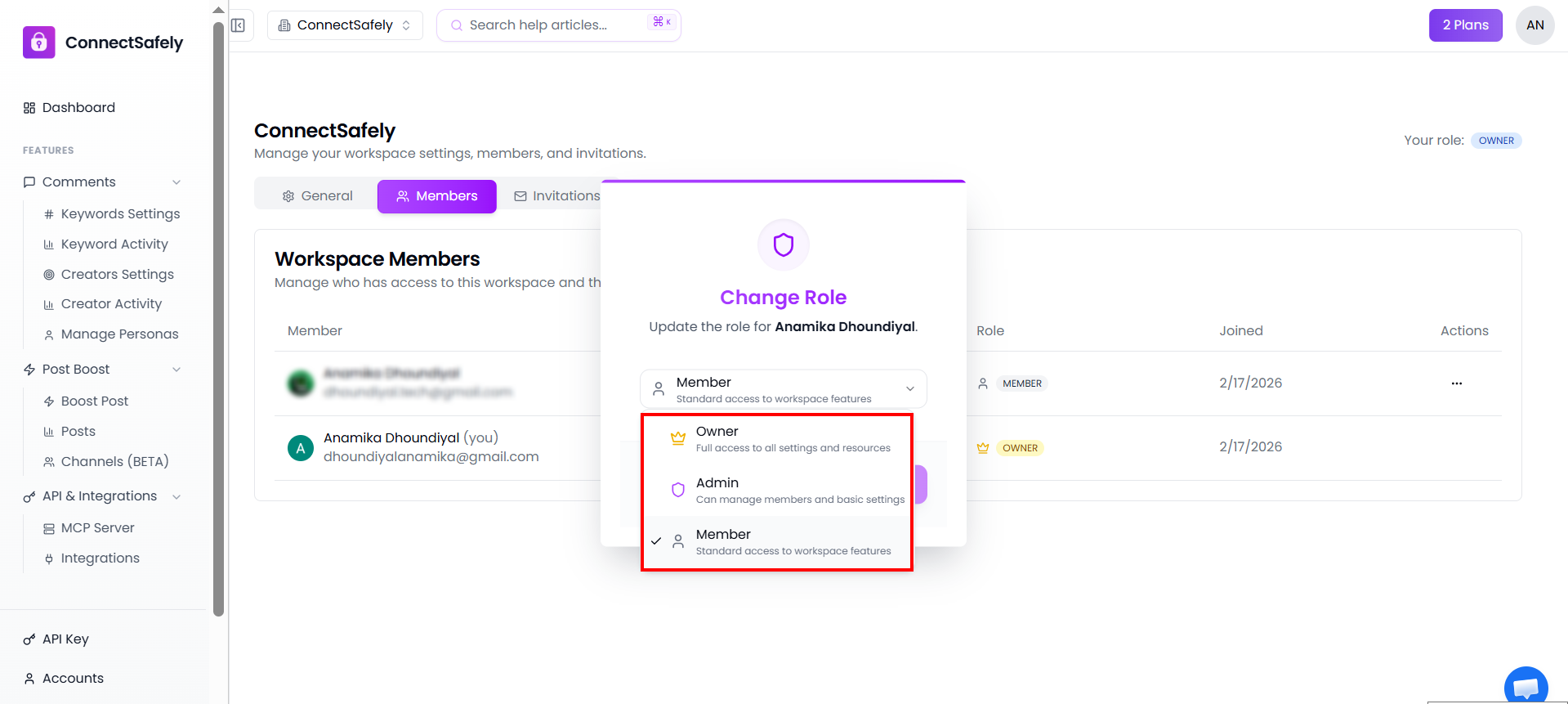
Each workspace member is assigned one of three roles: Owner, Admin, or Member.
Owner
The workspace creator is automatically the Owner. There can only be one Owner per workspace.
- Full control over all workspace settings
- Can connect and manage LinkedIn accounts
- Manages billing and subscription
- Can invite, remove, and change roles of all members
- Access to all features and data
Admin
Admins help manage the workspace but cannot access billing or connect new accounts.
- Can view and use connected LinkedIn accounts
- Can manage workspace settings
- Can invite new members (as Member or Admin)
- Can connect new LinkedIn accounts
- Cannot access billing or subscription settings
Member
Members have basic access to use the workspace's features and manage their own LinkedIn accounts.
- Can use automation features (comments, post boost, etc.)
- Can access workspace settings
- Can connect their own LinkedIn accounts to the workspace
- Can view only the accounts they have personally connected (not other members' accounts)
- Cannot invite other members
- Cannot access billing settings
Permissions Reference Table
Here's a complete breakdown of what each role can do:
| Feature / Action | Owner | Admin | Member |
|---|---|---|---|
| Use Automation Features | ✓ | ✓ | ✓ |
| View Dashboard | ✓ | ✓ | ✓ |
| Access Workspace Settings | ✓ | ✓ | ✓ |
| View Connected Accounts | ✓ All | ✓ All | Own only |
| Connect LinkedIn Accounts | ✓ | ✓ | ✓ |
| Invite Team Members | ✓ | ✓ | ✗ |
| Remove Team Members | ✓ | ✓ | ✗ |
| Change Member Roles | ✓ | ✗ | ✗ |
| Access Billing & Subscription | ✓ | ✗ | ✗ |
| View API Keys | ✓ | ✓ | ✓ |
| Regenerate API Keys | ✓ | ✗ | ✗ |
Note on Members and accounts: Members can connect their own LinkedIn accounts to the workspace and manage them. However, they can only see accounts they personally added — accounts connected by the Owner, Admins, or other Members are not visible to them.
Subscription Sharing
All workspace members (regardless of role) use the Owner's subscription plan. Members don't need their own subscription to use ConnectSafely features.
Changing Member Roles
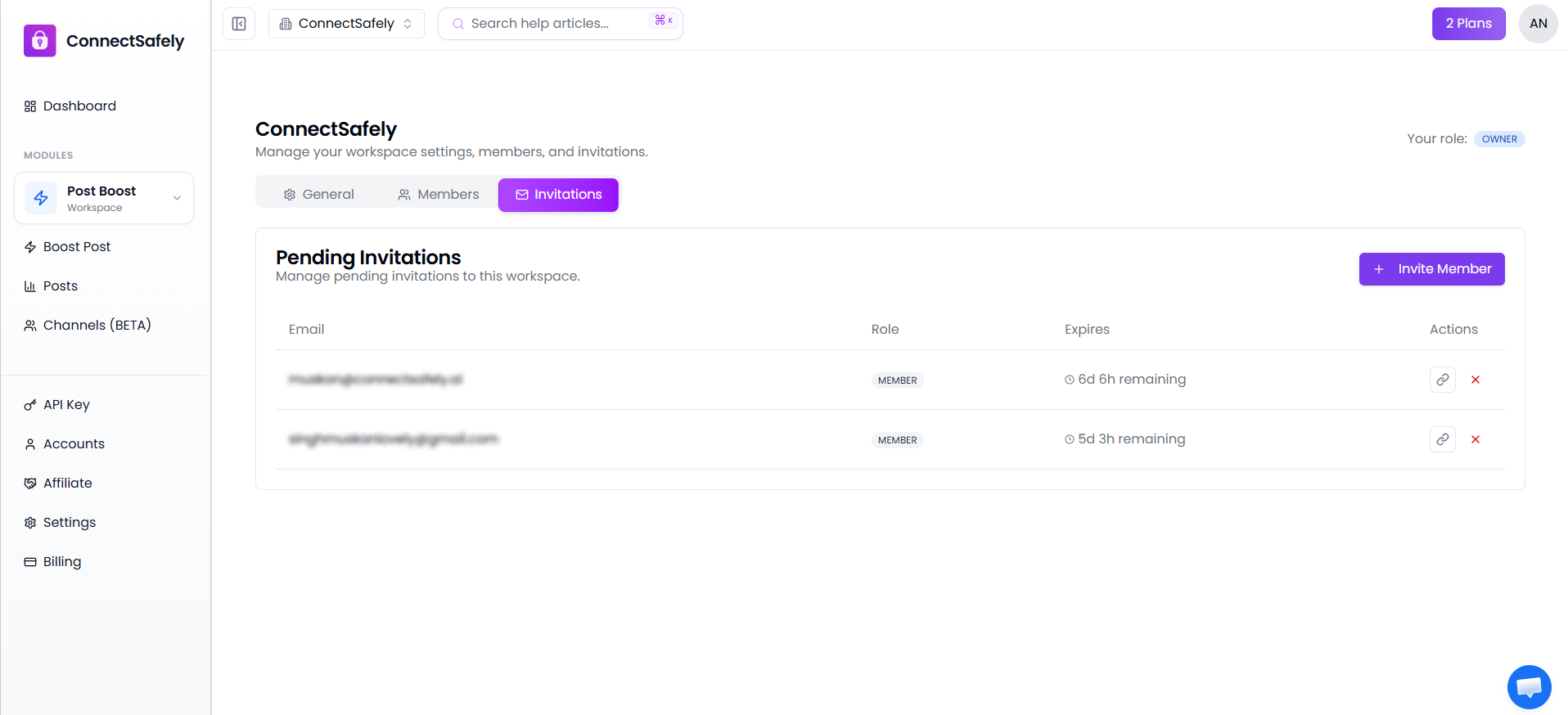
Only the workspace Owner can change member roles. To change a member's role:
- Go to Workspace Settings
- Click on the Team tab
- Find the member you want to update
- Click the role dropdown and select the new role
Related Articles