
Inviting team members to your workspace allows them to use ConnectSafely's features under your subscription. Here's how to send invitations and manage your team.
Who Can Send Invitations?
Both Owners and Admins can invite new members to the workspace. Members cannot send invitations.
How to Send an Invitation
Follow these steps to invite someone to your workspace:
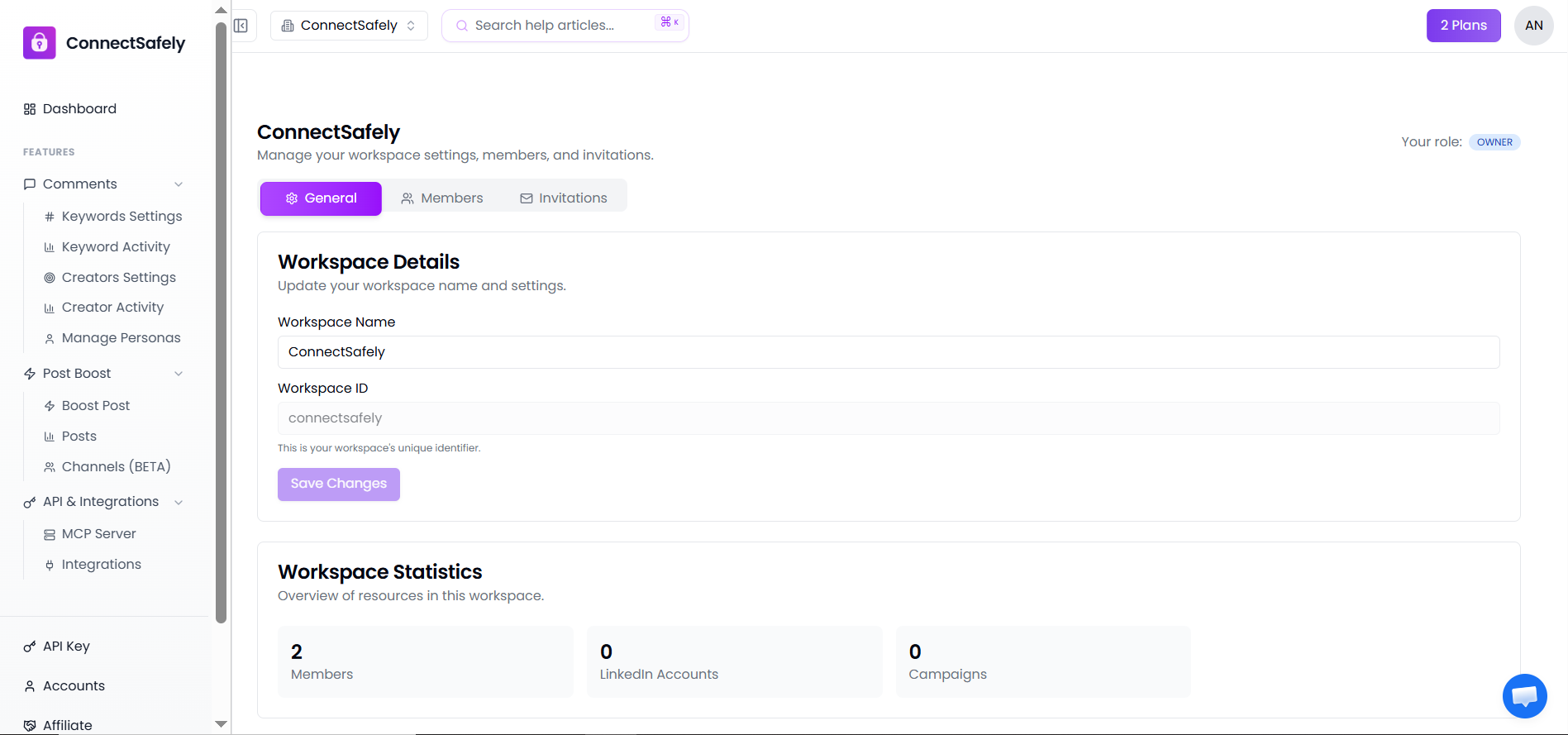
Go to Workspace Settings
Click on the settings icon or navigate to Settings → Workspace
Open the Team Tab
Select the "Team" or "Members" tab to see your current team
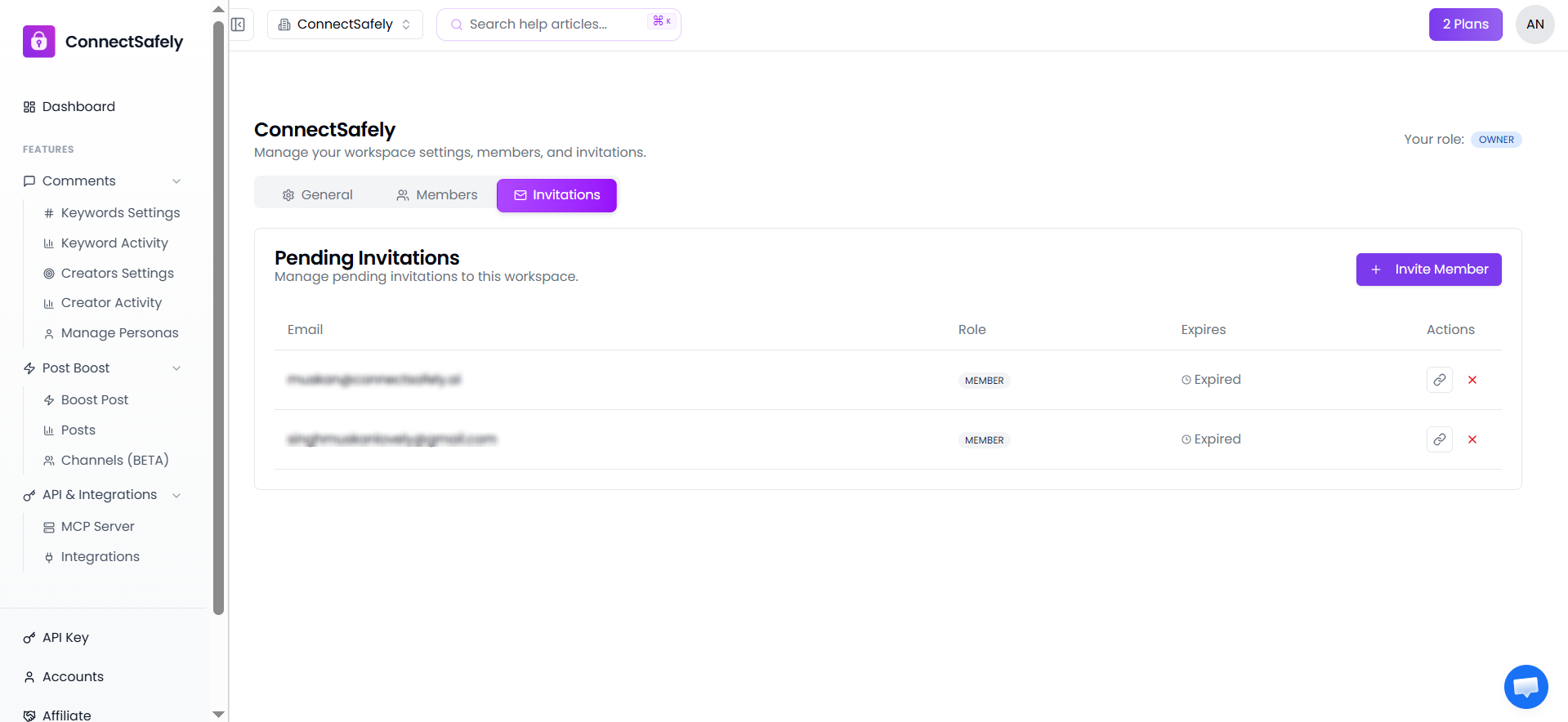
Click "Invite Member"
Look for the invite button at the top of the team list
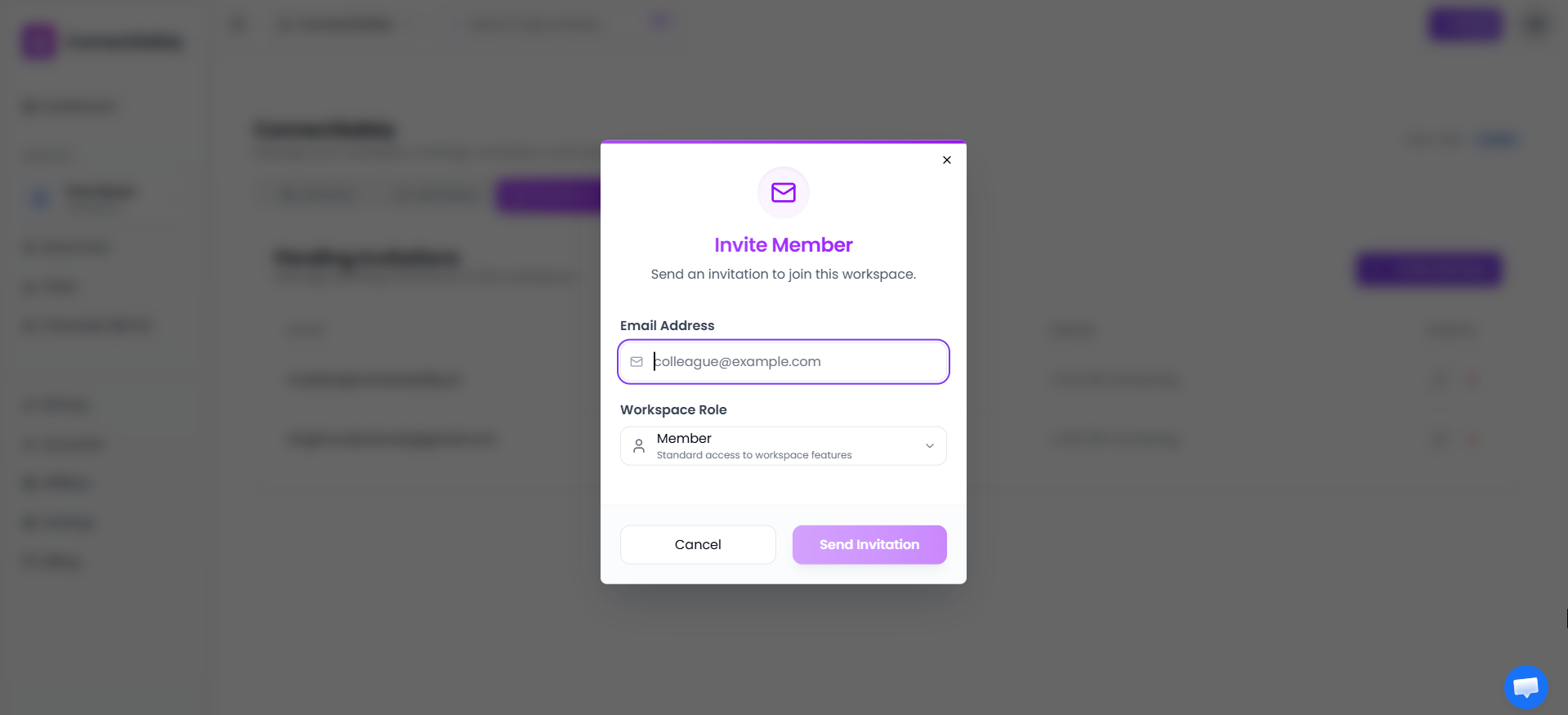
Enter Email and Select Role
Enter the person's email address and choose their role (Admin or Member)
Send the Invitation
Click "Send Invitation" - they'll receive an email with a link to join
How Invitations Are Accepted
When you send an invitation, the recipient will receive an email with a unique invitation link. Here's what happens next:
- Click on that invitation link in the email
- They see a preview of the workspace name and their assigned role
- If they don't have a ConnectSafely account, they'll need to sign up first
- They click "Accept Invitation" to join the workspace
- They're redirected to the workspace dashboard
Important Notes
- Invitations expire after 7 days
- The invitee must use the same email address the invitation was sent to
- Expired invitations can be resent from the pending invitations list
Managing Pending Invitations
You can view and manage pending invitations from the Team settings:
- Resend: Send a new email if the original was lost or expired
- Cancel: Revoke an invitation before it's accepted
- View Status: See if the invitation is pending, accepted, or expired
Removing Team Members
Owners and Admins can remove members from the workspace:
- Go to Workspace Settings → Team
- Find the member you want to remove
- Click the remove/delete button next to their name
- Click on the Confirm button
What Happens When a Member is Removed
- They immediately lose access to the workspace
- They can no longer use the workspace's LinkedIn accounts or features
- Their personal workspace (if they have one) is unaffected
Related Articles