
Learn how to configure your workspace settings, switch between workspaces, and manage your team's resources effectively.
Switching Between Workspaces
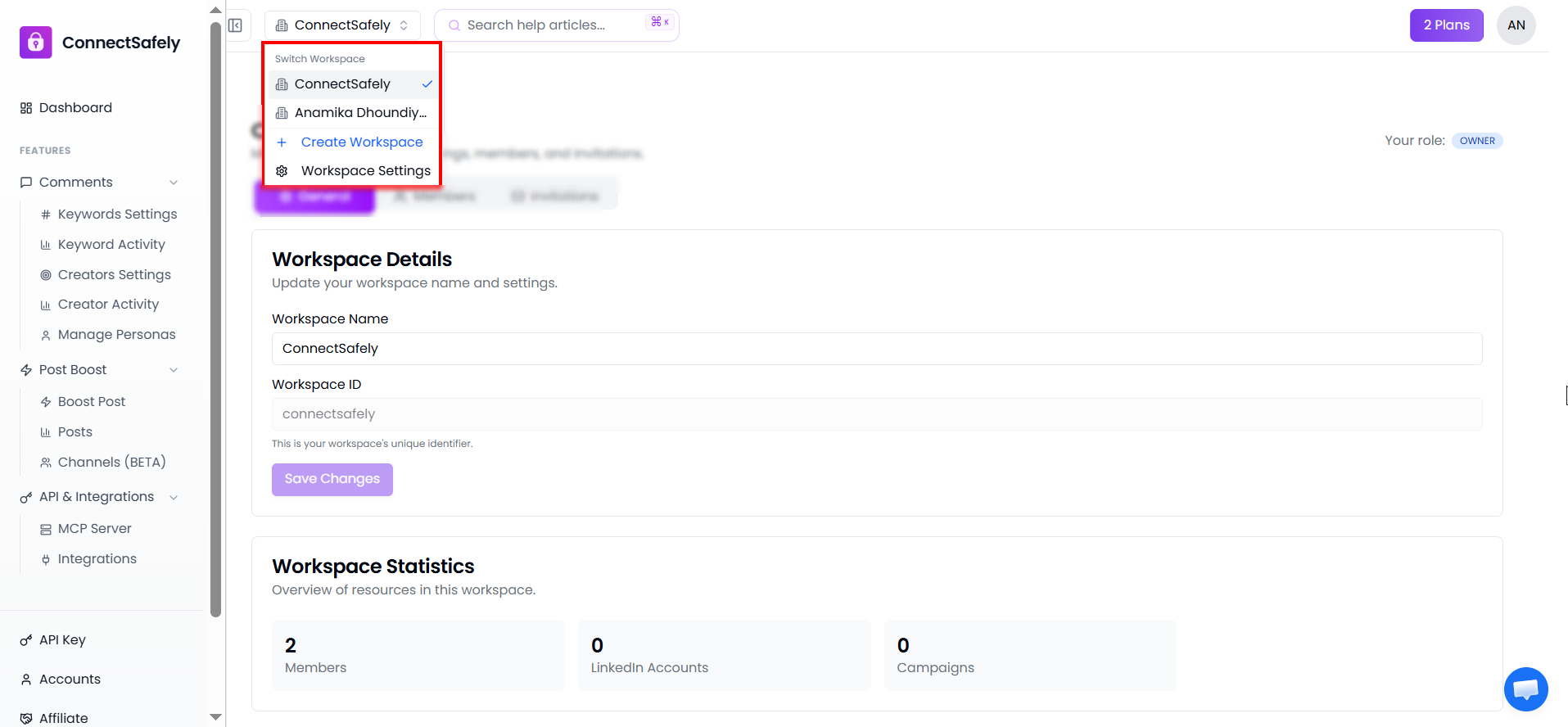
If you belong to multiple workspaces (your own and others you've been invited to), you can easily switch between them:
- Look for the workspace name in the header/sidebar
- Click on it to open the workspace switcher dropdown
- Select the workspace you want to switch to
- The dashboard will refresh with that workspace's data
Your Selection is Remembered
ConnectSafely remembers your last selected workspace. When you return, you'll automatically be in the same workspace you were using before.
Accessing Workspace Settings
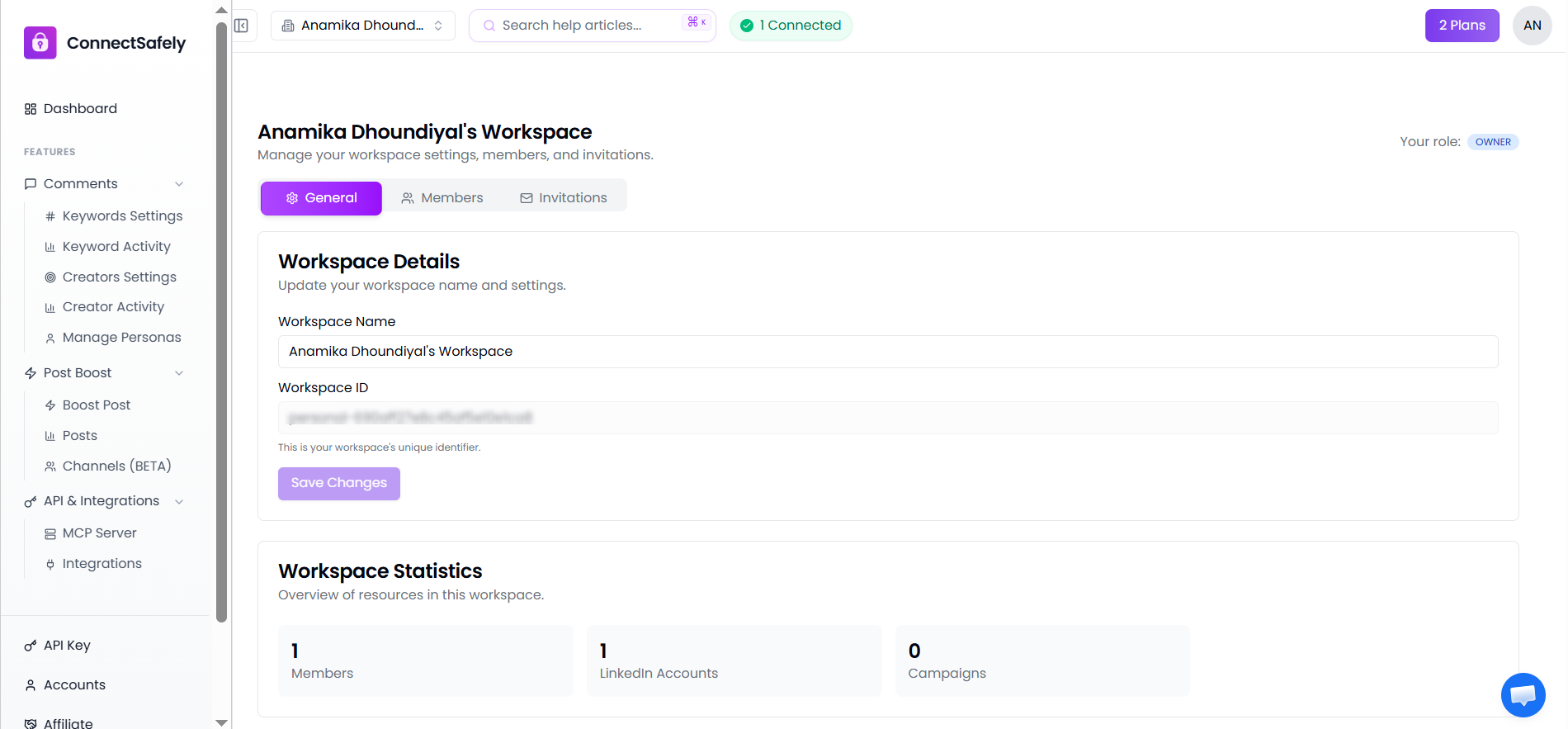
To access workspace settings:
- Click on Settings in the sidebar
- Select Workspace from the settings menu
- Here you can view workspace details and manage team members
What's Shared in a Workspace
When you're in a workspace, these resources are shared among all members:
LinkedIn Accounts
All connected LinkedIn accounts are accessible to Owners and Admins
Subscription Plan
All members use the workspace owner's subscription features
API Keys
Members can view (but not regenerate) the workspace API key
Activity Data
Dashboard shows combined activity for all workspace accounts
Sidebar Navigation by Role
The sidebar menu adapts based on your role in the current workspace:
| Menu Item | Owner | Admin | Member |
|---|---|---|---|
| Dashboard | ✓ | ✓ | ✓ |
| Accounts | ✓ | ✓ | Hidden |
| Billing | ✓ | Hidden | Hidden |
| Workspace Settings | ✓ | ✓ | ✓ |
Important: Deleting a Workspace
To delete a workspace, you must first remove all connected LinkedIn accounts. This safety measure ensures you don't accidentally lose access to account data or interrupt active campaigns. Additionally, you cannot delete your only owned workspace; you must always have at least one workspace where you are the Owner. Only the workspace Owner can delete a workspace.
Viewing Subscription Information
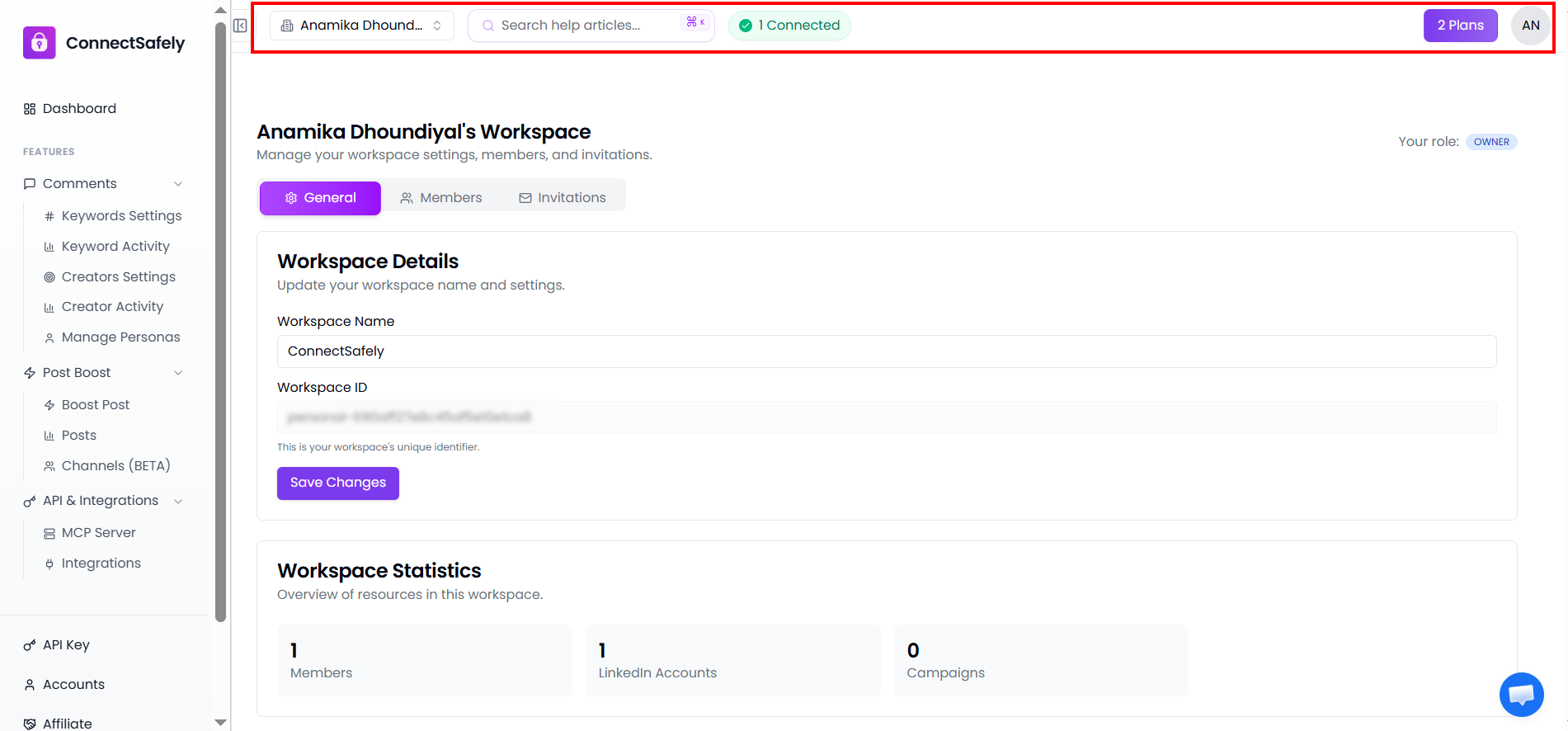
The workspace's subscription plan is displayed in the header next to the workspace name. This shows you which plan features are available to all workspace members.
Tip: Check Your Role
Not sure what role you have? Go to Workspace Settings → Team to see the member list with roles. Your name will show your current role in that workspace.
Related Articles