LinkedIn Activity Privacy: What Others Can See About You
Learn what LinkedIn activity others can see, from profile views to post engagement and job searches, with a complete privacy guide and step-by-step setup.

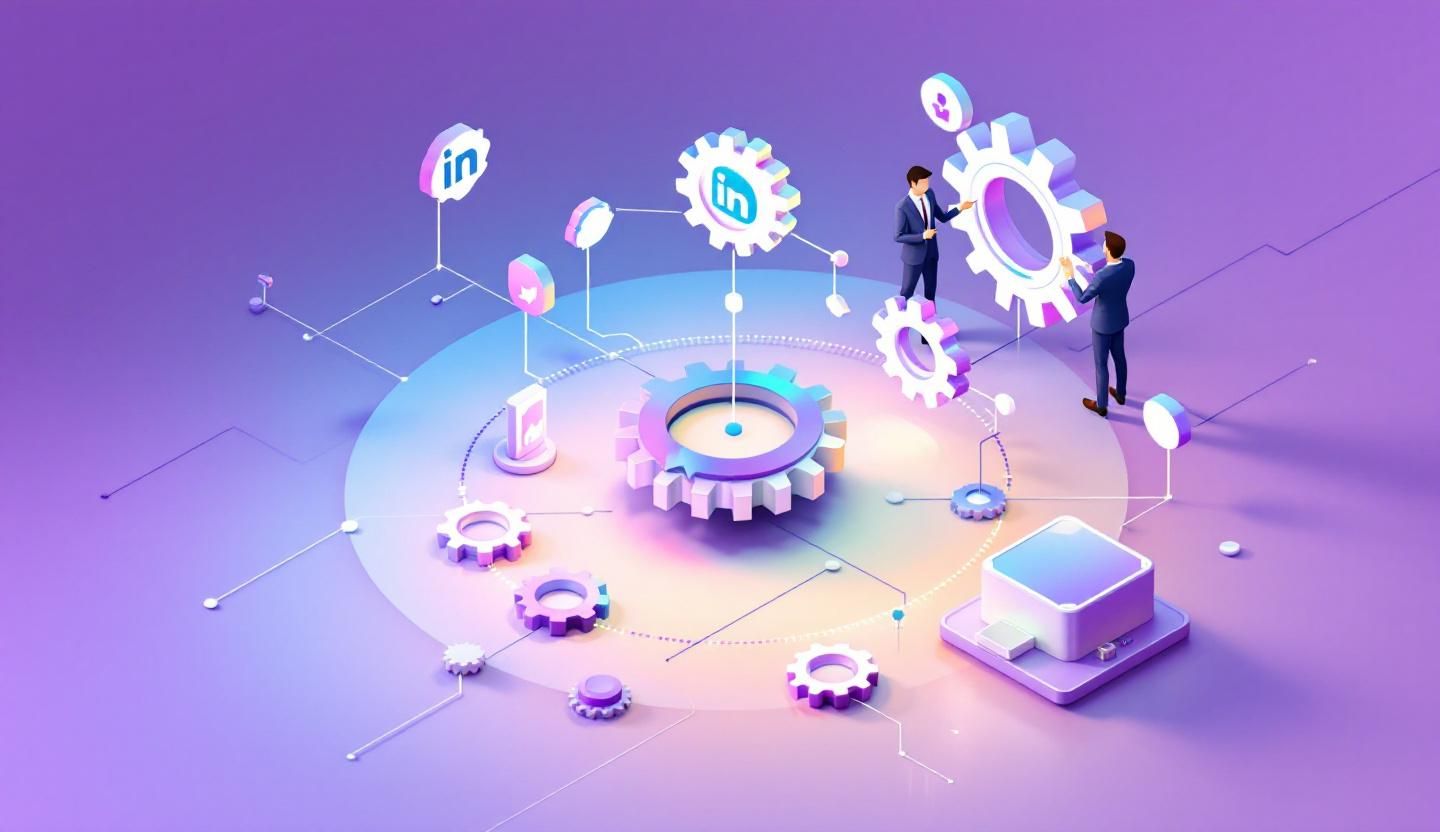
You liked a competitor's post while researching their strategy. You viewed a recruiter's profile. You commented on an industry article at 2 AM. Can others see this activity? LinkedIn's privacy settings are complex—and the defaults often expose more than you realize.
This guide explains exactly what's visible, to whom, and how to configure your settings for the privacy level you actually want.
Want to Generate Consistent Inbound Leads from LinkedIn?
Get our complete LinkedIn Lead Generation Playbook used by B2B professionals to attract decision-makers without cold outreach.
No spam. Just proven strategies for B2B lead generation.
Key Takeaways
- Profile views are visible by default—viewers see your name unless you enable private mode
- Likes and comments are public and appear in your network's feeds
- Job searches have dedicated privacy settings to hide from your employer
- Connection activity (who you connect with) is controllable but visible by default
- Premium users can sometimes see anonymous viewers depending on their subscription
What LinkedIn Activity Is Visible to Others
According to LinkedIn's Help Center, different types of activity have different visibility:
Activity Visibility Matrix
| Activity Type | Who Can See By Default | Can You Hide It? |
|---|---|---|
| Profile views | The person you viewed | Yes (private mode) |
| Post likes | Your connections + post author | No |
| Comments | Everyone (public posts) | Only by deleting |
| Post shares | Your connections | No |
| Job applications | Hiring team only | Yes (more controls available) |
| Job searches | Your employer (if using company email) | Yes |
| New connections | Your network | Yes |
| Work anniversary | Your network | Yes |
| Profile updates | Your network | Yes |
| Articles published | Everyone | No |
Profile View Privacy
When you view someone's profile, they receive a notification by default. According to LinkedIn's privacy documentation, you have three viewing modes:
Viewing Mode Options
| Mode | What They See | What You Lose |
|---|---|---|
| Full visibility | Your name, headline, and how you found them | Nothing |
| Private profile characteristics | Industry, job function (no name) | They won't know it's you |
| Private mode | "Anonymous LinkedIn Member" | You can't see who viewed your profile |
How to Change Your Viewing Mode
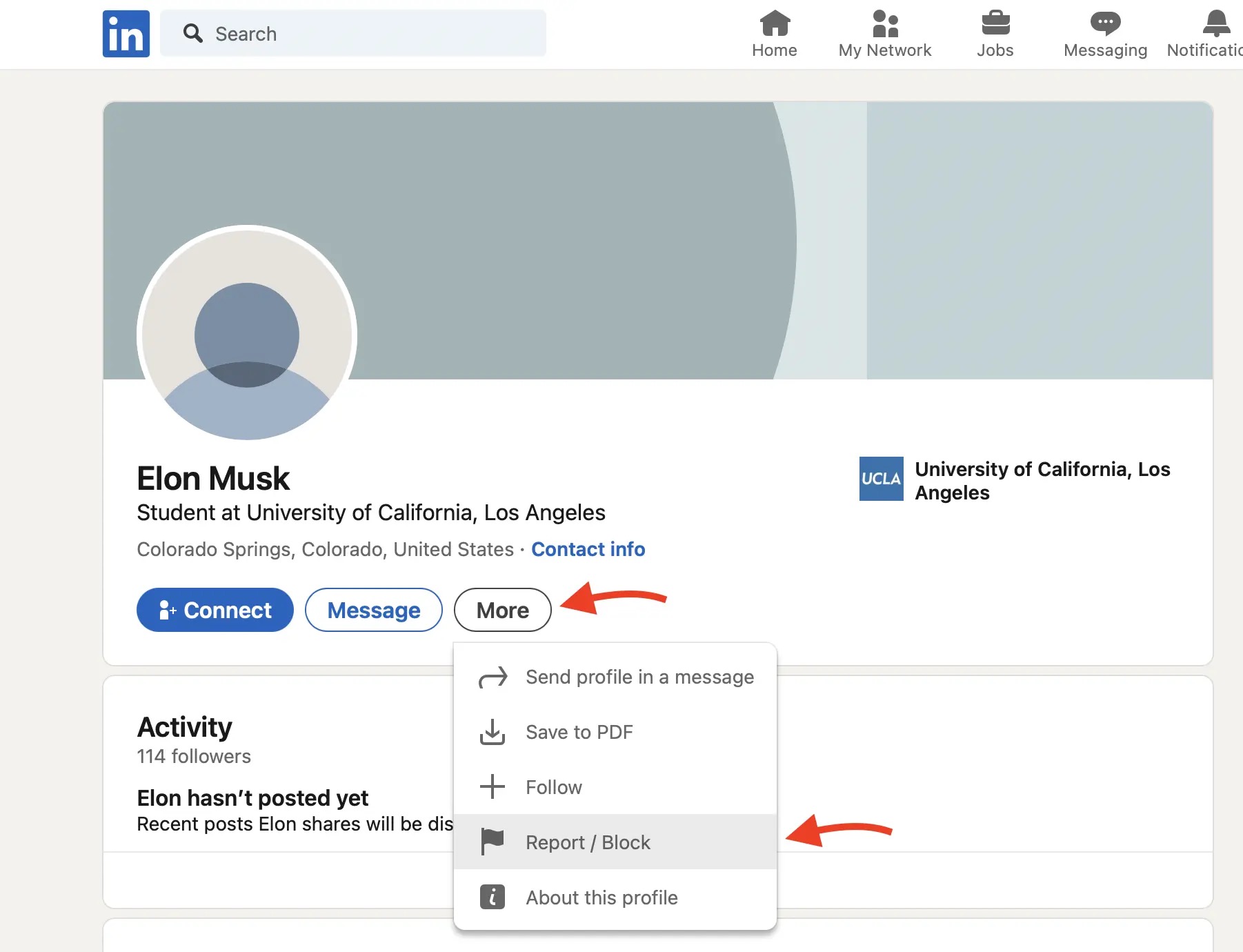
- Click your profile photo → Settings & Privacy
- Visibility → Profile viewing options
- Select your preferred mode
Important trade-off: If you use Private Mode, you lose access to "Who viewed your profile"—a valuable feature for identifying interested prospects.
Post Engagement Privacy
Likes, comments, and shares on LinkedIn are inherently public. There's no "private like" option.
What Happens When You Like a Post
- The post author sees your name in the likes list
- Your connections may see "[Your name] liked this" in their feed
- The like remains visible on the post indefinitely
What Happens When You Comment
- Your comment appears publicly on the post
- Your connections may see "[Your name] commented on this"
- Anyone viewing the post sees your comment
- Your comment may appear in search results
Strategic Implications
If you're researching competitors or exploring job opportunities, your engagement activity can reveal your intentions:
| Action | Who Sees | Risk Level |
|---|---|---|
| Liking competitor's content | Your boss, colleagues | Medium |
| Commenting on recruiter posts | Your employer | High |
| Engaging with job-related content | Anyone watching your activity | Medium |
| Following competing companies | Your network | Low |
No way to hide: Unlike profile views, there's no setting to make your likes and comments private.
Job Search Privacy
LinkedIn offers specific privacy settings for job seekers. According to LinkedIn's job seeker privacy guide, you can signal recruiters while hiding from your current employer.
Open to Work Privacy Options
| Setting | Recruiters See | Your Employer Sees | Your Network Sees |
|---|---|---|---|
| Recruiters only | Your "Open to Work" status | Nothing | Nothing |
| All LinkedIn members | Green badge on photo | Green badge on photo | Green badge on photo |
How to Enable Job Search Privacy
- Go to your profile
- Click "Open to" below your headline
- Select "Finding a new job"
- Choose "Recruiters only"
- LinkedIn will hide your status from your company's recruiters and HR team
Note: LinkedIn blocks your current company's recruiters based on company page association. If your employer uses third-party recruiting tools, the blocking may not be complete.
Connection Activity Privacy
By default, when you connect with someone, your network can see it:
- "[Your name] is now connected with [New connection]"
- Activity appears in network's feeds
How to Hide New Connections
- Settings & Privacy → Visibility
- Connections → Who can see your connections
- Select "Only you"
This hides your connections list from others but doesn't prevent "new connection" notifications from appearing in feeds when you connect.
Profile Update Notifications
LinkedIn notifies your network about certain profile changes:
| Update Type | Notification Sent | Can You Disable? |
|---|---|---|
| New job | Yes | Yes |
| Work anniversary | Yes | Yes |
| Profile photo change | Yes | Yes |
| Headline update | Sometimes | Yes |
| New education | Yes | Yes |
| New skills | No | N/A |
| About section edits | No | N/A |
How to Disable Update Notifications
- Settings & Privacy → Visibility
- Visibility of your LinkedIn activity
- Share profile updates with your network → Toggle off
Strategic use: Turn off notifications before making multiple profile edits, then re-enable when you want a single "announcement" moment.
What Most People Get Wrong About LinkedIn Privacy
Myth 1: "Private mode makes me completely invisible"
Wrong. Private mode only hides your identity from profile views. Your likes, comments, posts, and other engagement remain fully visible. You can still be found in search, and your content is still public.
Myth 2: "LinkedIn Premium users can always see anonymous viewers"
Partially true. Premium subscribers can see some anonymous viewers who use "Private profile characteristics" mode—they'll see job function and industry. But true Private Mode viewers appear only as "Anonymous LinkedIn Member" even to Premium users.
Myth 3: "Disabling notifications hides all my activity"
False. Disabling profile update notifications only stops the "John changed their job title" alerts. It doesn't hide your posts, comments, likes, or engagement activity from anyone.
Myth 4: "My activity is private if I don't post"
Incorrect. Even without posting, your likes, comments, profile views, and connections are visible to various audiences depending on settings.
Privacy Settings Quick Reference
Settings to Review
Navigate to Settings & Privacy and check these:
Visibility Section:
- Profile viewing options (decide on private mode trade-off)
- Who can see your connections
- Who can see your last name
- Profile visibility off LinkedIn
- Sharing profile edits
Data Privacy Section:
- How LinkedIn uses your data
- Job seeking preferences
- Salary data sharing
Communications Section:
- Who can send you invitations
- Who can message you
- Reply and tag notifications
The Privacy vs. Visibility Trade-Off for B2B Professionals
Here's the uncomfortable truth: complete privacy undermines LinkedIn's value for lead generation.
If you hide your profile views, you can't see who's viewing you—a key buying signal. If you never engage with content, you're invisible to prospects. If you lock down connections, you limit networking opportunities.
The ConnectSafely approach is intentional visibility: use LinkedIn to build authority, engage strategically, and attract inbound interest. Privacy settings protect you from unwanted exposure—but excessive privacy prevents the visibility that generates business.
Recommended settings for B2B professionals:
| Setting | Recommendation | Why |
|---|---|---|
| Profile viewing | Full visibility | See who views you; they see you viewed them |
| Connections | Visible | Mutual connections build trust |
| Profile updates | On selectively | Share intentional career milestones |
| Job search | Recruiters only | If applicable; hide from employer |
| Open to work badge | Case-by-case | Public badge for active seekers only |
Getting Started
- Audit your current settings using the checklist above
- Decide on profile view mode based on whether you value "who viewed" data
- Review job search settings if employed and exploring
- Be intentional about engagement knowing likes and comments are public
- Build visibility strategically rather than hiding by default
Start your ConnectSafely free trial to build strategic LinkedIn visibility that attracts the right attention.
Frequently Asked Questions
Can people see when I view their LinkedIn profile?
By default, yes. When you view someone's profile, they receive a notification with your name and headline. You can change this by enabling Private Mode in Settings & Privacy → Visibility → Profile viewing options. However, enabling Private Mode means you also lose access to seeing who viewed your own profile.
Can my employer see my LinkedIn activity?
Your employer cannot access your LinkedIn activity directly through LinkedIn. However, they can see: your public profile, any posts or comments you make, and who you're connected with (if visible). If you're job searching, enable "Open to recruiters only" to hide your job-seeking status from your company's recruiters.
Are my LinkedIn likes visible to everyone?
Yes. When you like a post, the post author sees your name in the likes list, and your connections may see "[Your name] liked this" in their feed. There is no private like option on LinkedIn—all engagement with posts is visible.
How do I hide my LinkedIn activity from my connections?
You can't fully hide your activity from connections. You can: hide your connections list (Settings → Visibility → Connections), disable profile update notifications, and use Private Mode for profile views. However, your likes, comments, posts, and shares remain visible to your network.
Can LinkedIn Premium users see who views their profile anonymously?
Partially. Premium users can see additional details about anonymous viewers who use "Private profile characteristics" mode—they'll see job function and industry. However, viewers using true "Private Mode" appear only as "Anonymous LinkedIn Member" even to Premium subscribers.
Ready to build strategic LinkedIn visibility that generates inbound leads? Start your free trial and turn attention into opportunities.
Edge Cases in Profile View Privacy
When it comes to profile view privacy, there are several edge cases that can catch users off guard. For instance, if you're using a company email address to log in to LinkedIn, your employer may be able to see your job searches, even if you've enabled private mode. This is because LinkedIn's privacy settings are tied to your email address, and company email addresses are often monitored by IT departments. Another edge case is when you're connected to someone who has a premium subscription. In this case, they may be able to see your profile views, even if you've enabled private mode, as part of their premium features. It's also worth noting that LinkedIn's private mode only applies to profile views, and not to other types of activity, such as likes and comments. This means that even if you've enabled private mode, your connections may still be able to see your engagement with their posts. To navigate these edge cases, it's essential to understand the nuances of LinkedIn's privacy settings and to be mindful of your activity on the platform.
The Hidden Dangers of Overly Restrictive Privacy Settings
While it's natural to want to protect your privacy on LinkedIn, overly restrictive settings can sometimes backfire. For example, if you've enabled private mode and restricted who can see your posts, you may inadvertently limit your visibility to potential employers or clients. This can be particularly problematic if you're using LinkedIn to job search or to promote your business. On the other hand, if you've made your posts too public, you may attract unwanted attention or spam comments. The key is to find a balance between privacy and visibility, and to be strategic about who you're connecting with and what you're sharing. It's also worth noting that LinkedIn's algorithm favors users who are actively engaging with others, so if you're too restrictive with your settings, you may find that your posts are being seen by fewer people. To avoid this, it's essential to monitor your analytics and adjust your settings accordingly.
Myth vs Reality: Common Misconceptions About LinkedIn Privacy
There are several common misconceptions about LinkedIn privacy that can lead to confusion and misunderstandings. One of the most prevalent myths is that enabling private mode will completely hide your activity from others. While private mode does restrict who can see your profile views, it doesn't apply to other types of activity, such as likes and comments. Another myth is that LinkedIn's premium features, such as InMail, are only available to paid subscribers. In reality, anyone can send InMail to someone who has opted-in to receive messages from others. Perhaps the most damaging myth, however, is that LinkedIn's privacy settings are foolproof. The reality is that no privacy setting can completely protect you from data breaches or other forms of cyber attacks. To protect yourself, it's essential to be vigilant about your online activity and to use strong passwords and two-factor authentication.
Advanced-Level: Using LinkedIn's Privacy Settings to Enhance Your Personal Brand
For advanced users, LinkedIn's privacy settings can be a powerful tool for enhancing your personal brand. By strategically controlling who can see your activity, you can create a curated online presence that showcases your expertise and thought leadership. For example, you can use LinkedIn's publishing platform to share in-depth articles on your area of specialty, and then restrict who can see your posts to ensure that you're only reaching your target audience. You can also use LinkedIn's private mode to research your competitors without alerting them to your interest. Additionally, by being mindful of your engagement with others, you can create a reputation as a thoughtful and insightful commentator in your industry. To take your personal branding to the next level, it's essential to have a deep understanding of LinkedIn's algorithm and to be able to leverage its features to your advantage.
The Unintended Consequences of LinkedIn's Algorithm on Privacy
LinkedIn's algorithm is designed to favor users who are actively engaging with others, but this can sometimes have unintended consequences for privacy. For example, if you're commenting on a lot of posts, you may find that your activity is being showcased in your connections' feeds, even if you've restricted who can see your posts. Similarly, if you're using LinkedIn's publishing platform to share articles, you may find that your posts are being shared by others, even if you've restricted who can see them. This can be particularly problematic if you're sharing sensitive or confidential information. To mitigate these risks, it's essential to have a deep understanding of how LinkedIn's algorithm works and to be mindful of your online activity. You should also regularly review your privacy settings and adjust them accordingly to ensure that you're only sharing information with those you intend to. By being proactive about your online presence, you can minimize the risks associated with LinkedIn's algorithm and protect your privacy.
See How It Works
Watch how people get more LinkedIn leads with ConnectSafely




Related Articles