LinkedIn Featured Section: Pin Only 3 (Here's Why)
The LinkedIn Featured section converts profile visitors when you pin exactly three items in the right order. The 3-slot strategy, OG image specs and the mobile trap.

The Featured section sits directly under About and is one of the highest-clicked surfaces on a LinkedIn profile — three full-size preview cards that LinkedIn gives you for free. Most profiles either leave it empty or treat it as an archive. Both waste it. The version that converts pins exactly three items, in a deliberate order, and refreshes them weekly.
Key Takeaways
- Three items, not more and not fewer: mobile shows only the first two without a swipe, and a four-card strip dilutes the "here are the three things about me" signal
- The order is a strategy: slot 1 is social proof, slot 2 is a "start here" resource, slot 3 is your booking link
- Featured items render as preview cards: an image plus title plus first line, taking roughly 3× the vertical space of the same post in the feed
- External links inherit their OpenGraph tags: a weak
og:imageon the destination produces an ugly card, and LinkedIn caches it for weeks - Featuring an old post does not resurface it: Featured affects the profile surface only, never feed impressions
Video Guide
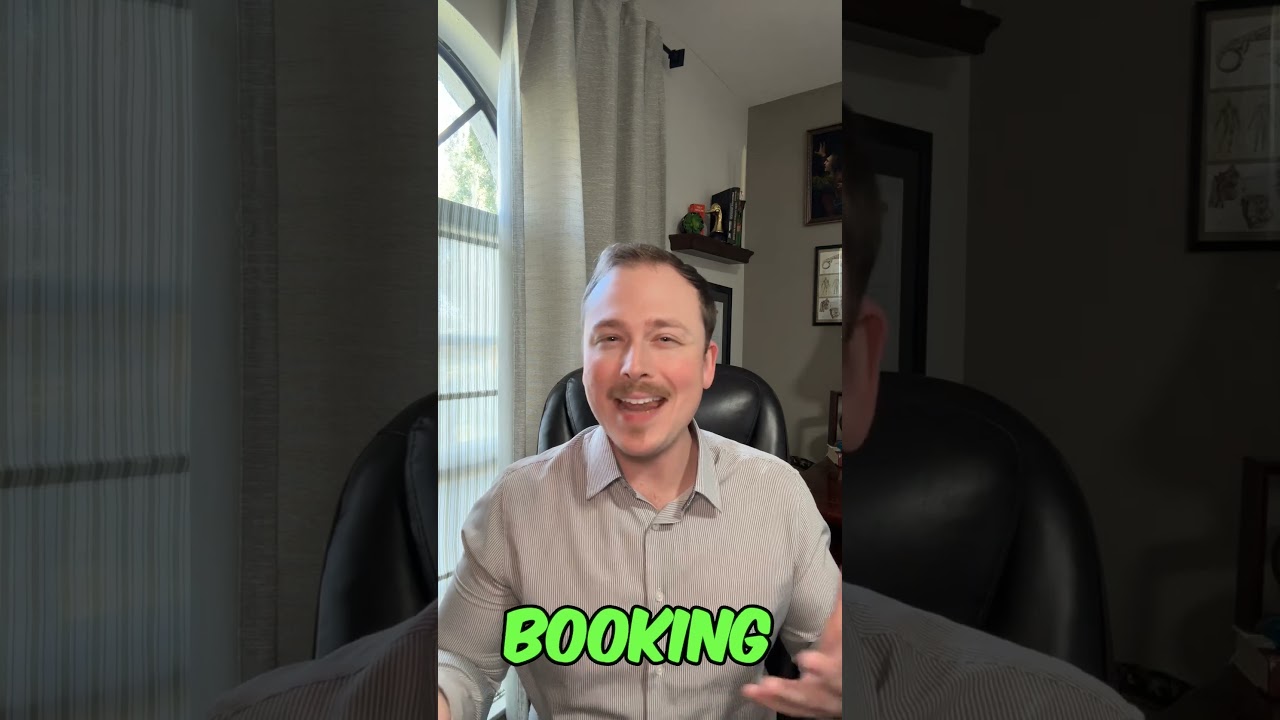
The Featured section works best as a curated three, not an archive. This shows how to sort your posts by 90-day views, feature only the top three, and refresh the picks weekly:
Why the Featured Section Punches Above Its Weight
Four things compound here, and most profiles capture none of them.
Placement. On desktop, Featured is the second section after About — often above the fold on a tall monitor. On mobile it is third, still ahead of Experience. That is premium real estate you did not have to earn.
Card format. Every pinned item renders as an image, a title and a first line of body. A pinned post occupies roughly three times the vertical space of the same post scrolled past in the feed. Three pinned items is effectively three full-size ad units on your own profile.
It serves cold and warm visitors at once. Cold visitors — arriving from search, a comment, a shared link — do not know you and want proof plus a starting point. Warm visitors, sent by a DM or a referral, already trust you and want the booking link. The three-slot layout serves both without you having to guess which one is looking.
Want to Generate Consistent Inbound Leads from LinkedIn?
Get our complete LinkedIn Lead Generation Playbook used by B2B professionals to attract decision-makers without cold outreach.
No spam. Just proven strategies for B2B lead generation.
Order is deterministic. LinkedIn renders Featured items in the exact order you pin them, left to right. Mobile shows only the first two without a horizontal swipe, and most visitors never swipe. Slots 1 and 2 are your highest-leverage pixels.
What Most Guides Get Wrong About the Featured Section
Wrong: "pin everything good you have made." Completeness is the enemy here. A six-item Featured strip reads as an archive, and archives get skimmed rather than clicked. Three items read as a curated argument. The discipline is the feature.
Wrong: "featuring a post gives it another push in the feed." It does not. Pinning affects the profile surface only. Featuring a strong post from six months ago will not resurface it to your network, and expecting an impressions bump from it will lead you to feature the wrong things.
Wrong: "the preview card will look after itself." For external links it will not. LinkedIn builds the card from the destination page's OpenGraph tags, and then caches the result for anywhere from a week to a month. Paste a Calendly link with no cover image and you get a generic card that stays generic long after you fix the underlying page.
The 3-Slot Strategy
Slot 1 — Best-performing post (social proof)
Pick the single post from the last twelve months with the highest impressions, or the highest ratio of comments to reactions. Comments signal credibility more strongly than reactions. It does not need to be about your offer — it needs to prove you can write something that makes people stop and reply.
Slot 2 — "Start here" case study or resource
The one asset you would send a curious buyer who DMs "tell me more." A case study, a detailed post, a video walkthrough, a public doc. Not a sales page — a demonstration. In practice this is the slot that converts to real intent signals: DMs, connection requests, replies.
Slot 3 — Booking link or lead magnet
A scheduling page, or a download worth an email address. This is the conversion slot, but remember it sits behind a swipe on mobile. Treat it as a desktop optimiser and make sure slot 2's copy also mentions how to reach you, so mobile visitors are not stranded.
Do not pin a fourth. The visual weight of a four-card strip dilutes the signal you are trying to send.
How to Pin Items: Step by Step
Step 1: Confirm Featured is enabled
Featured is on by default for most profiles but rolled out unevenly. If you do not see it under About, go to Add profile section → Recommended → Add Featured. It stays permanent after the first add.
Step 2: Know what the four content types do
| Type | What it is | Preview card behaviour |
|---|---|---|
| Post | Any of your own LinkedIn posts | Pulls the first image or video thumbnail, plus the first line of body |
| Article | A LinkedIn-native long-form article | Pulls the cover image and title |
| Link | Any external URL | Pulls the destination's og:image, og:title and og:description |
| Media | Direct upload (PDF, image, doc) | The file becomes a viewer card |
Post and Link cover roughly 90% of real use.
Step 3: Pin a post from the post itself
Open the post, click the ··· menu at the top right of the post card, and choose Feature on top of profile. LinkedIn confirms and pins it immediately.
Step 4: Force a decent preview image on link slots
This is the highest-value technique in the whole section. Design a 1200×627 image (1.91:1, LinkedIn's preferred OpenGraph size), keeping the important content inside a centre-safe 1000×500 zone. Then set the tags on the destination page:
<meta property="og:title" content="Book a 20-min intro — Jane Doe" />
<meta property="og:description" content="B2B founders: book meetings without ads." />
<meta property="og:image" content="https://yourdomain.com/og/booking-1200x627.png" />
<meta property="og:url" content="https://yourdomain.com/book" />
<meta property="og:type" content="website" />
Then refresh LinkedIn's cache with the LinkedIn Post Inspector — paste the URL and click Inspect. Skip this and your card stays broken for weeks after you fix the page. The cache is per-URL, not per-domain, so inspect every link you feature.
For pages you do not control: Calendly derives its og:image from the event cover image, Notion from the page cover, and Substack from the publication logo plus post title. If none of those work, host a redirect page on your own domain with proper tags and 302 to the destination.
Step 5: Upload PDFs rather than images for media slots
A PDF renders as an in-line viewer that lets visitors flip through pages without leaving your profile. A PNG opens in a lightbox and feels thinner. Name the file deliberately — LinkedIn uses the filename as the card title, so case-study-acme-3x-pipeline.pdf beats Untitled-v4-FINAL.pdf.
Step 6: Set the order, then check it on a phone
Click the pencil on the Featured section and drag to reorder. Then open your profile in the mobile app: you should see the first two cards fully and the third peeking at the right edge as a swipe hint. If the order looks wrong, LinkedIn has cached an old version — kill the app and reopen.
Step 7: Add tracking to slot 3
Because slot 3 is the conversion slot, measure it independently:
https://calendly.com/yourname/intro?utm_source=linkedin&utm_medium=featured&utm_campaign=slot3
Most booking tools pass UTMs through to their analytics.
Designing Cards That Get Clicked
Featured cards live or die on the preview image. A few rules that hold up:
- Contrast of at least 4.5:1 between headline text and background — anything less reads as corporate filler
- One idea per card. A headline plus tagline plus logo plus URL plus illustration has zero legible ideas at thumbnail size
- Text at 60pt or larger on the 1200×627 canvas, or it becomes a smudge on mobile
- Left-align the headline — centred text fights LinkedIn's own card chrome
- Vary the three cards. If all three share the same colour and composition they blur into one offer instead of three
Our LinkedIn Billboard Generator builds correctly-sized preview images without a Figma round trip, and the Carousel Generator produces the slot 2 PDF.
Gotchas
- The post preview strips URLs from the body. If your pinned post says "sign up at yourdomain.com" halfway down, the card cuts it. Put the URL in the first line if it needs to be visible.
- Videos autoplay muted. Design for muted playback, and trim anything over two or three minutes — nobody commits to a twenty-minute video on a profile scroll.
- Deleting a featured post leaves a broken card. Removing the underlying post does not clear the pin; remove it from Featured too.
- Mobile shows two items. Never put your only call to action in slot 3.
- LinkedIn sometimes reorders Featured after UI experiments. Check the order during your weekly review.
- Some domains get no preview at all. Link shorteners with poor reputations and URL-cloaking tools come back blank. Test with Post Inspector before you commit the slot.
The Weekly Refresh
Five minutes, once a week:
- Is slot 1 still your best post from the last 90 days? If a newer one outperformed it, swap. A two-year-old top post reads as "peaked early."
- Does slot 2's link still work, and is the number in it still true?
- Is slot 3's preview image current?
Once a month, look at your profile analytics. If Featured click-through is flat, rotate the whole strategy rather than tweaking cards — swap the slot 2 case study for a video walkthrough, or trade the slot 3 booking link for a lead magnet, and see whether visitors want to consume before they book.
Where Featured Sits in the Profile
Featured is the third-most-important profile asset after the banner and the About section, and it should be built after both. The banner makes a promise; About survives the "see more" cut and explains it; Featured proves it. If your Featured strip and your About section are telling different stories, visitors believe neither.
On desktop you can also move Featured above About entirely — see our guide to reordering LinkedIn profile sections for when that is worth doing.
Frequently Asked Questions
How do I add the Featured section to my LinkedIn profile?
Go to Add profile section → Recommended → Add Featured on your own profile. Once added it stays permanently. To pin a post, open the post, click the ··· menu and choose "Feature on top of profile."
How many items should I pin to LinkedIn Featured?
Three. Mobile displays only the first two without a horizontal swipe, and a longer strip reads as an archive rather than a curated argument. Pin social proof first, a "start here" resource second, and your booking link third.
Why does my LinkedIn Featured link show the wrong image?
LinkedIn builds the card from the destination page's OpenGraph tags and caches the result for one to four weeks. Fix the og:image on the destination, then paste the URL into the LinkedIn Post Inspector to force a re-fetch.
Does featuring a post boost it in the LinkedIn feed?
No. Featuring affects your profile surface only. It will not resurface the post to your network or generate new impressions, so choose featured posts for what they prove to a visitor, not for reach.
What size should a LinkedIn Featured image be?
1200×627 pixels, a 1.91:1 ratio. Smaller images get upscaled and look fuzzy; larger ones downscale cleanly but crop unpredictably. Keep critical content inside a centred 1000×500 safe zone.
Building the rest of the profile that Featured sits on? ConnectSafely's 22 free LinkedIn tools cover the banner, the headline and the carousel — no signup.
See How It Works
Watch how people get more LinkedIn leads with ConnectSafely

Related Articles