LinkedIn Name Pronunciation: The 10-Second Audio Hack
LinkedIn name pronunciation is a 10-second audio clip beside your name. Mobile-only, free, and almost nobody uses it. Here's the setup and the script.


LinkedIn's name pronunciation field records a clip of up to 10 seconds that sits as a small speaker icon directly beside your name — above your headline, above your About section, above everything else on the page. You record it in the LinkedIn mobile app (it cannot be recorded on desktop), and anyone viewing your profile on any device can tap it and hear you. It is free, it takes about a minute to set up, and it is the only element of a LinkedIn profile that makes a sound. This guide covers the exact four-step setup, a 10-second script framework built for professionals who want inbound conversations rather than just correct pronunciation, the privacy controls, the troubleshooting steps for when the option doesn't appear, and an honest assessment of what this field can and cannot do for you. For the wider profile strategy this sits inside, start with our LinkedIn profile optimization guide.
Key Takeaways
- The mechanics: Up to 10 seconds of audio, recorded only in the LinkedIn iOS or Android app, played back on any device, per LinkedIn's official help documentation.
- The placement is the point: The speaker icon renders in your introduction card, next to your name — the single most-viewed element of any profile.
- The setup: Profile photo → View Profile → Edit icon on your intro card → Record name pronunciation → press and hold → Use → Save.
- Visibility is yours to control: You can restrict playback to your 1st-degree connections or open it to all LinkedIn members.
- The rarity claim is unverified: LinkedIn has never published an adoption figure for this field, and no analytics surface tells you how often it is played. Treat every "only X% of profiles have it" statistic — including the ones in our own YouTube video description — as an estimate, not data.
- The real business case is documented: A 2021 NameCoach survey found 44% of respondents had their name mispronounced in an interview and 10% said a mispronunciation cost them a sales opportunity.
- Voice changes perception: Research published in Psychological Science found that hearing a person speak, rather than reading the same words, makes them seem more thoughtful and more human (Schroeder, Kardas & Epley, 2017).
- It is a profile detail, not a growth strategy: Pronunciation audio improves the experience of people already on your profile. Getting them there is a separate problem — that's the part ConnectSafely automates, from $10/month, without the ban risk of connection-request automation.
Video Guide
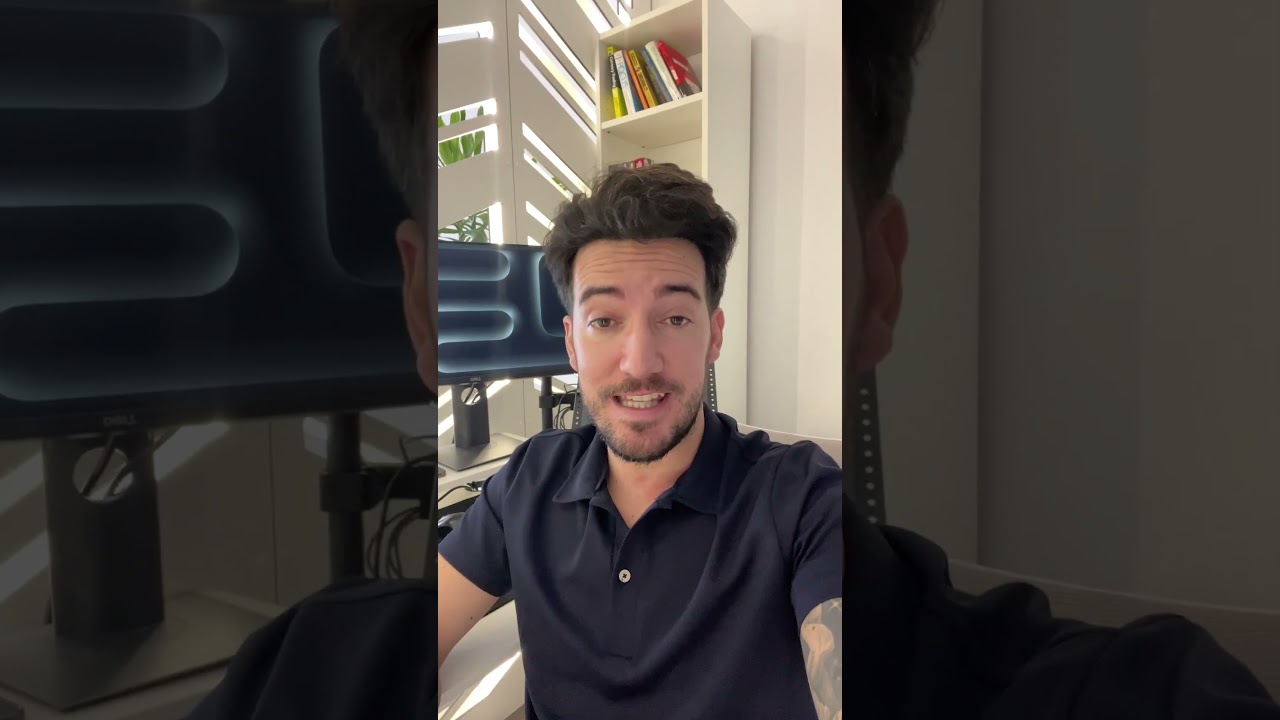
The recording flow is mobile-only and takes under a minute. This shows where it hides on the intro card and what ten seconds of audio should actually contain:
What Is LinkedIn Name Pronunciation?
Name pronunciation is a LinkedIn profile field that stores a short audio recording of you saying your own name. When it is set, a small speaker icon appears next to your name in your profile's introduction card. Anyone with permission to hear it can tap the icon and play the clip.
LinkedIn rolled the feature out broadly in mid-2020, as Search Engine Journal reported at the time. Its stated purpose is straightforward: help people say your name correctly. That purpose matters, and this guide takes it seriously in the accessibility section below.
But the field has a second property that most profile guides ignore. It is the only audio element on a LinkedIn profile, and it sits in the most valuable position on the page.
Want to Generate Consistent Inbound Leads from LinkedIn?
Get our complete LinkedIn Lead Generation Playbook used by B2B professionals to attract decision-makers without cold outreach.
No spam. Just proven strategies for B2B lead generation.
Where the Speaker Icon Appears
The icon renders in your introduction card — the block at the top of your profile containing your photo, name, headline, location, and contact info. That is the region every profile visitor sees first, regardless of whether they scroll.
Playback works on both mobile and desktop. Recording does not. LinkedIn's help documentation states plainly: "You currently can't record or edit your name pronunciation on the LinkedIn desktop site. It can only be done on the LinkedIn iOS/Android mobile app."
That asymmetry — record on mobile, hear it everywhere — is the single most misunderstood fact about this field, and it is the reason so many people conclude the feature doesn't exist. They look for it on desktop, find nothing, and move on.
What It Is Not
To set expectations accurately before you spend a minute on this:
- It is not a video. LinkedIn retired the Cover Story profile video on December 14, 2023, and its help page now lists the feature as no longer available. Name pronunciation audio survived that cull.
- It is not a voice message. LinkedIn voice notes are a messaging feature and behave completely differently — see our guide to LinkedIn voice notes for desktop.
- It is not a ranking factor. There is no evidence, and no LinkedIn statement, that recording pronunciation audio affects search visibility. If you want profile-level search improvements, that comes from keyword placement across your profile, not from audio.
- It is not measurable. LinkedIn's analytics do not report plays. Nobody — including LinkedIn's own users — can see how many times their clip has been tapped.
Why Almost Nobody Uses It
Walk through fifty profiles in your feed and count the speaker icons. Most people who try this exercise find very few. That observation is worth understanding, but it is worth being precise about what it is: an observation, not a statistic.
LinkedIn has never published adoption numbers for this field. Every "under 5% of profiles have it" figure circulating online — including the one in our own video description above — is an estimate derived from someone's informal count. We are flagging that explicitly because our editorial standard is to label derived numbers as derived. If you want a number you can trust, count your own next fifty profile visitors and you will have a sample that is at least relevant to your market.
What we can explain with confidence is why adoption is low. Four structural reasons:
1. It Is Invisible on Desktop
You cannot add it from the desktop site, and the desktop profile editor gives no prompt suggesting the field exists. Since a large share of LinkedIn sessions happen on desktop — one 2026 device-share analysis puts desktop at roughly 69% of LinkedIn traffic — most people editing their profile never encounter the option at all.
2. Profile Editing Is a One-Time Event
Most professionals edit their LinkedIn profile when they change jobs. The pronunciation field launched in 2020; anyone who last edited their profile before then, or who edits exclusively on desktop, has simply never seen it.
3. The Framing Suggests It Isn't For You
The field is named and documented as an accessibility and inclusion feature — help people pronounce difficult names. Professionals with names they consider "easy" read that framing and self-select out. This is the largest single reason for low adoption, and it rests on a false premise: the value of the clip is not limited to phonetics.
4. Recording Your Own Voice Feels Awkward
It does. Everyone hates the first take. This is a real barrier and the answer is mechanical rather than psychological — write the line down first, then read it. The script framework below exists for exactly this reason.
How to Add Name Pronunciation on LinkedIn (Step by Step)
The whole process takes under two minutes, including re-records. You need the LinkedIn mobile app on iOS or Android, updated to a current version.
Step 1: Open Your Profile in the Mobile App
Open the LinkedIn app and tap your profile photo in the top-left corner, then tap View Profile. You must be on your own profile page, not the feed and not the settings menu.
Step 2: Tap the Edit Icon on Your Introduction Card
Your introduction card is the top block containing your photo, name, and headline. Tap the pencil/edit icon on that card. This opens the Edit intro screen, which contains your first name, last name, additional name, pronouns, headline, and — scrolling down — the name pronunciation control.
Step 3: Tap "Record Name Pronunciation" and Hold to Record
Scroll to the Name section and tap + Record name pronunciation. Press and hold the record button while you speak. A countdown from 10 seconds displays as you record, so you can see your remaining time.
LinkedIn's own recording guidance, from its help page, is worth following literally:
- Hold the phone about four inches from your mouth
- Speak slowly and pronounce each syllable clearly
- Record somewhere with minimal background noise
Step 4: Preview, Tap Use, Then Save
Play the recording back before you commit. If it is not right, record again — there is no limit on retakes, and the new take replaces the old one. When you are satisfied, tap Use, then tap Save to write the change to your profile.
Note the two-tap commit: Use accepts the take, Save commits the profile edit. Leaving the screen after Use but before Save is the most common reason people report that their recording "didn't stick."
Step 5: Set Who Can Hear It
Within the same edit screen, the visibility control (a small eye icon) lets you choose the audience for the clip:
| Setting | Who can play your clip | When to choose it |
|---|---|---|
| All LinkedIn members | Anyone viewing your profile, including people outside your network | Default choice for anyone using LinkedIn for business development, hiring, or visibility |
| 1st-degree connections only | Only people you are directly connected to | Choose if you keep a deliberately private profile or you are in a role where broad audio exposure is not appropriate |
If your last name display is restricted to connections only, LinkedIn shows a "Name display restriction" notice during setup — your pronunciation audience cannot be broader than your name visibility.
How to Delete or Re-Record It
To replace the clip, repeat steps 1–4 on mobile; the new recording overwrites the previous one. Deletion is the one operation you can perform on desktop — LinkedIn permits removing the recording from the desktop site, but not recording or editing it there.

The 10-Second Script Framework: Three Beats
Ten seconds sounds short. At a natural professional speaking pace of roughly 150 words per minute, ten seconds is about 24–26 words. That is enough for three distinct beats and not one word more.
We call this the Three-Beat Clip, and it is the framework we use with every ConnectSafely user who asks what to say:
Beat 1 — Your name, said the way you say it. Not spelled out phonetically, not slowed to a crawl. Said the way you would say it if you walked into a room and introduced yourself.
Beat 2 — One line on who you help and how. Not a job title. A sentence someone could repeat to a colleague.
Beat 3 — A specific next step, ideally with a trigger word. A trigger word is a single word you ask people to send you in a DM. It matters for a reason covered in the attribution section below: it is the only way you will ever know the clip did anything.
The Framework in Practice
"Hi, I'm Anandi — Uh-NUN-dee. I help B2B consultants get clients from LinkedIn without cold outreach. Send me the word 'playbook' and I'll share the system."
That is 26 words and lands at roughly nine seconds when read at a natural pace. Beat 1 gives the pronunciation the field was designed for. Beat 2 gives the visitor a reason to keep reading. Beat 3 gives them something to do.
Eight Scripts by Role
Adapt these rather than copying them — a script that sounds like someone else reading a template defeats the entire purpose of putting your actual voice on your profile.
Founder / CEO
"Hey, I'm Marcus Oyelaran — Oh-yeh-LAH-ran. I build software for mid-market logistics teams. If you're drowning in spreadsheets, send me 'demo' and I'll show you ours."
Independent consultant
"I'm Priya Raghunathan — RAH-goo-NAH-than. I help SaaS teams fix their onboarding so trials actually convert. Message me 'audit' for a free teardown of yours."
Fractional executive
"Hi, I'm Tom Behr — rhymes with 'bear.' I run finance for three startups at a time as a fractional CFO. Send 'runway' if you want to talk numbers."
Sales professional
"I'm Danielle Okonjo — Oh-KON-joh. I sell warehouse robotics to operations leaders. If you're evaluating automation this year, message me 'compare' and I'll send our buyer's guide."
Recruiter
"Hi, I'm Sam Kaur — 'Kaur' rhymes with 'more.' I place senior backend engineers in fintech. Send me 'roles' and I'll share what's live this week."
Agency owner
"I'm Nikhil Desai — NIK-hil dess-EYE. My agency runs paid search for e-commerce brands doing seven figures. Message 'audit' and we'll review your account free."
Coach
"Hey, I'm Elena Marchetti — mar-KET-tee. I coach first-time managers through their first ninety days. Send me 'ninety' and I'll share the framework."
Engineer or technical specialist
"Hi, I'm Wei Zhang — 'Way Jahng.' I build data pipelines for teams that outgrew their warehouse. If you're mid-migration, send 'pipeline' and let's compare notes."
Timing Your Script Before You Record
Read your script aloud with a stopwatch before you open the app. If it runs past nine seconds, cut Beat 2 — never cut Beat 1 or Beat 3. A clip that gets truncated mid-sentence at the 10-second wall reads as sloppy in a way that a shorter clip never does.
What to Say — and What Never to Say
| Do | Don't |
|---|---|
| Say your name at conversational speed, the way you actually say it | Spell your name out letter by letter — that is not pronunciation |
| Use a phonetic hint only if your name is genuinely misread ("Kaur — rhymes with 'more'") | Over-enunciate to the point of sounding robotic |
| Describe who you help in plain language | Read your headline verbatim — the visitor can already see it |
| Give one specific next step | List three ways to contact you |
| Sound like a person leaving a voicemail for a colleague | Sound like a radio ad |
| Record in one continuous take | Stitch together multiple takes with obvious edits |
| Keep it under nine seconds | Race to fit fourteen seconds into ten |
The single biggest failure mode is tone. A clip that sounds like a commercial reads as a commercial, and visitors respond to it the way they respond to every other commercial on the internet. The clip works because it is a human voice in a text-only environment. Strip the humanity out of it and there is nothing left worth tapping.
Recording Quality: The Five-Minute Setup
You do not need equipment. You need to remove the four things that make phone audio sound bad.
Room. Record in a room with soft furnishings — a bedroom beats a kitchen, a car interior beats an office with hard walls. Bathrooms and stairwells produce audible reverb.
Distance. LinkedIn specifies about four inches from your mouth. Closer produces plosive pops on "p" and "b" sounds; further picks up room noise.
Background. Air conditioning, traffic, laptop fans, and open windows are all audible at four inches. Turn what you can off and wait out what you can't.
Angle. Speak across the microphone rather than directly into it. On most phones the microphone is at the bottom edge — hold the phone with the bottom edge slightly below your mouth rather than pointed straight at it.
Record three takes and keep the third. The first is stiff, the second is over-corrected, and the third is usually the one that sounds like you.
What Most Guides Get Wrong About Name Pronunciation
Three claims about this field circulate widely and none of them survive scrutiny.
Wrong Claim 1: "It's Only For People With Difficult Names"
This is the most common framing and the reason adoption is low. It rests on the assumption that the field's only function is phonetic correction.
The field's stated purpose is pronunciation. Its effect is that a visitor hears your voice. Those are different things, and the second one applies to a person named John Smith exactly as much as it applies to a person named Oyinkansola Adebayo.
That said — and this matters — if your name is routinely mispronounced, the phonetic function is not a secondary benefit. It is the point, and the data on why is in the business case section below.
Wrong Claim 2: "It's a Growth Hack That Multiplies Your DMs"
You will see specific multipliers quoted for this field. Ignore all of them, including estimates in our own video description.
Here is the problem: LinkedIn does not report plays of the pronunciation clip. Not in profile analytics, not in creator analytics, not anywhere. Nobody has a play count. Any claim of the form "X% of viewers tap it" is either extrapolated from something else or invented.
The trigger word in Beat 3 exists precisely because of this gap. If someone DMs you the word "playbook," that DM is attributable to the clip — nothing else on your profile told them to send it. That is a real measurement, and it is one you can only get by building it in deliberately.
Wrong Claim 3: "It's Against LinkedIn's Rules to Use It This Way"
It is not against the rules, but it is off-label, and the honest framing matters. LinkedIn's help documentation describes the field as being "only to record your preferred professional name pronunciation." Using nine seconds to say your name plus a sentence about your work is not a violation of anything, and we have seen no enforcement of any kind against it.
What we would not do is drop the name entirely and use all ten seconds as an ad read. That inverts the field's purpose, it reads badly to human visitors, and it is the version most likely to age poorly if LinkedIn ever tightens the field's definition.
The Business Case: What the Research Actually Shows
Two bodies of evidence support this field, and neither of them is a LinkedIn engagement statistic.
Mispronunciation Has a Measurable Professional Cost
A survey of U.S. workers conducted by NameCoach in July 2021 quantified something most people experience but rarely measure:
| Finding | Share of respondents |
|---|---|
| Had their name mispronounced in an interview | 44% |
| Had their name mispronounced in a customer meeting | 41% |
| Hispanic respondents whose name was mispronounced in an interview | 59% |
| Admitted avoiding conversations with a colleague for fear of mispronouncing their name | 16% |
| Avoided calling on someone in a meeting for the same reason | 13% |
| Said a mispronunciation cost them a sales opportunity | 10% |
Read the last three rows together and the mechanism becomes clear. The cost is not embarrassment — it is avoidance. People who are unsure how to say your name talk to you less. That is a direct, compounding professional penalty, and a ten-second recording removes the uncertainty entirely.
Sustained mispronunciation is also documented as a form of workplace microaggression, with effects on belonging and inclusion that go well beyond convenience — Boundless summarizes the research on this well.
Voice Changes How Your Words Land
The second body of evidence is academic and, for anyone selling or hiring on LinkedIn, more interesting.
In "The Humanizing Voice: Speech Reveals, and Text Conceals, a More Thoughtful Mind in the Midst of Disagreement," published in Psychological Science, Schroeder, Kardas and Epley found across three experiments that hearing a person explain a position made them seem more mentally capable and more human than reading the identical words. The full paper is available from Berkeley Haas.
An earlier study by Schroeder and Epley, "The Sound of Intellect", found the same medium effect in a hiring context: evaluators rated candidates as more intelligent, thoughtful, and hireable when they heard a pitch rather than read the same pitch.
Neither study is about LinkedIn. Both describe a mechanism that applies exactly: a LinkedIn profile is a text artifact being evaluated by a stranger who is deciding whether you are worth talking to. Adding voice to that artifact is the intervention both studies measured.
Where It Shows Up and Who Hears It
The clip renders in your introduction card. That means it is present wherever LinkedIn draws your intro card, and it is the first profile element in reading order after your photo and name.
A few practical notes on reach:
- Desktop visitors can play it. Recording is mobile-only; playback is universal. This is the point most people get backwards.
- Recruiters and hiring managers see it. If you are job-searching, this is where the phonetic function pays off directly — the person about to call you can check how to say your name first.
- It persists. Unlike a post, which decays out of the feed within days, the clip is a permanent profile asset, the same way your custom profile URL or your profile CTA button is permanent.
- Verify it yourself. After saving, view your profile as others see it to confirm the speaker icon renders for your chosen audience.
Accessibility: The Part That Isn't a Marketing Tactic
LinkedIn documents screen reader support for recording name pronunciation as a separate help article, which tells you the feature was built with assistive technology in mind rather than retrofitted.
Two things follow from that, and they are worth stating plainly in an article that otherwise talks about lead generation:
First, this field does real work for real people. For anyone whose name is consistently mangled — which the NameCoach data suggests is a large share of professionals with names outside the Anglo-American mainstream — the clip removes a daily friction that colleagues never see. That is worth doing for its own sake, with no business justification attached.
Second, the accessibility framing has a failure mode. Teams sometimes treat "everyone record your name pronunciation" as a diversity initiative to be announced, tracked, and reported. That turns a personal choice into a compliance exercise and singles out exactly the people the feature is supposed to help. Make it available, explain how it works, and let people opt in silently.
Name Pronunciation vs Every Other Audio or Video Option on LinkedIn
LinkedIn's audio and video surface has narrowed considerably. Here is what actually exists in 2026:
| Feature | Where it lives | Status in 2026 | Best use |
|---|---|---|---|
| Name pronunciation | Profile intro card | Live, mobile-record only | Permanent 10-second voice presence on your profile |
| Cover Story profile video | Profile photo ring | Retired December 2023 | No longer available |
| Voice notes in messaging | DM thread | Live, mobile-record | 1:1 follow-ups and warm replies — see our voice notes guide |
| Native video posts | Feed | Live | Reach and distribution — covered in our LinkedIn video best practices guide |
| LinkedIn Live / audio events | Events tab | Live, page and eligible member access | Scheduled sessions, not always-on presence |
The distinction that matters: name pronunciation is the only always-on, profile-level audio. Everything else is either a moment (a post, a live event) or a private exchange (a voice note). This is the one that greets every visitor, forever, without you doing anything again.

Troubleshooting: When the Option Doesn't Appear
Five failure modes account for nearly every "I can't find it" report.
"I don't see the record option anywhere"
You are almost certainly on desktop. The field exists only in the iOS and Android apps. If you are already in the app, confirm you are on your own profile (tap your photo → View Profile) and editing the intro card, not a section further down the page.
"I found it, recorded it, and it vanished"
You tapped Use but not Save. Use accepts the take; Save writes it to your profile. Repeat and confirm you see the profile page reload after saving.
"The recording cuts off mid-sentence"
You exceeded 10 seconds. Time your script aloud before recording — if it runs past nine seconds, cut a clause from Beat 2.
"It sounds terrible"
Almost always distance or room. Move to a soft-furnished room, hold the phone four inches away, speak across the microphone rather than into it, and re-record. There is no retake limit.
"A 'name display restriction' notice appeared"
Your last name visibility is set to connections-only, which caps who can hear the clip. Either accept the narrower audience or change your name display setting first, then re-check the pronunciation audience.
"I want it gone"
Delete works from the desktop site as well as mobile. Recording and editing do not.
How to Test Whether It Does Anything
Since LinkedIn reports no play data, testing requires you to build your own measurement. This takes thirty seconds of setup and gives you a real answer instead of an assumed one.
- Pick a trigger word that appears nowhere else on your profile. Not your product name, not a word in your headline. Something arbitrary — "playbook," "runway," "ninety."
- Put it in Beat 3 of your clip only. Never in your About section, your featured section, or your posts. Exclusivity is what makes it attributable.
- Log every DM containing that word, with the date and the sender's role.
- Run it for 30 days, then check the count against your baseline inbound DM volume.
- If the number is zero, the clip is not driving conversations for your audience. Keep it for the pronunciation value and stop investing effort in the offer beat.
We are describing a test rather than reporting a result, deliberately. We have not run this at a sample size that would justify publishing a lift number, and we would rather say that than quote one.
What we can report from our own use: the clip generates a specific, recurring reaction in DMs — people mention having listened to it, unprompted, in first messages. That is a qualitative observation across a small number of accounts, not a metric, and you should treat it as exactly that. It is also the reason we bothered making a video about the feature in the first place.
Rolling This Out Across a Team Without Making It Weird
If you run a sales team, an agency, or a company page and you want this adopted broadly, three rules keep it from backfiring:
Make it optional and say so first. Some people have privacy reasons for keeping their voice off a public profile. Some are self-conscious about their accent, which is precisely the anxiety the feature is meant to relieve but can also amplify if adoption is mandatory.
Do not standardize the script. Twelve team members reading identical copy in identical cadence is the fastest way to make a human feature sound synthetic. Give people the Three-Beat framework, not a fill-in-the-blank template.
Do not track completion. The moment it becomes a checklist item with a manager's name attached, it stops being a personal introduction and becomes corporate signage.
For teams, the highest-value use case is usually the pre-call check — before a discovery call, the rep listens to the prospect's clip if they have one, and says the name correctly on the first try. That is a small thing that prospects notice and remember.
Where This Sits in a Complete Profile
Name pronunciation is a detail. Details compound, but only on top of fundamentals that are already in place. In rough order of impact for an inbound-focused profile:
- A current, professional photo — a complete profile generates 21x more profile views and 36x more messages according to Cognism's research roundup. Start at our profile picture guide if yours is out of date.
- A headline that states who you help, not your job title.
- An About section written in first person that opens with the reader's problem.
- A custom profile URL and a CTA button pointing somewhere specific.
- Keyword coverage across headline, About, skills, and experience — see the profile SEO guide.
- Name pronunciation audio.
If items 1–5 are incomplete, do those first. A voice clip on a profile with a blurry photo and an empty About section does not fix the profile — it just makes the gaps more noticeable. Our full 15-point profile checklist covers the sequence in detail.
Real Talk: What This Field Can and Cannot Do
What it can do: remove pronunciation uncertainty permanently. Give a stranger evaluating your profile a moment of human contact that text cannot provide. Differentiate you on a surface where almost nobody has anything to differentiate with. Create one attributable conversation channel via a trigger word.
What it cannot do: bring people to your profile. That is the actual constraint on most LinkedIn strategies, and no profile element solves it. A perfect profile that nobody visits produces nothing.
We are stating this plainly because the honest version of this advice is: profile optimization is the cheap half of the problem. Distribution is the expensive half.
How ConnectSafely Fits
ConnectSafely.ai handles the half that profile tweaks can't: getting the right people onto your profile in the first place.
Instead of connection-request automation — the approach that gets accounts restricted — ConnectSafely builds inbound visibility through AI-assisted engagement on the posts your prospects are already reading, consistent content assistance, and the kind of sustained presence that puts your name in front of the same buyers repeatedly. When those people click through to your profile, everything covered in this guide is what greets them.
The economics are the argument. Inbound leads close at materially higher rates than cold outreach — the widely cited benchmark is 14.6% for inbound versus 1.7% for outbound — because a prospect who found you has already decided you are worth talking to. Plans start at $10/month, with no connection-request automation and no ban risk attached to your account.
ConnectSafely is a fit for consultants, founders, fractional executives, and B2B sales professionals with an established profile and a clear offer. If you are brand new to LinkedIn with a thin network and no positioning, fix the profile fundamentals first — the profile optimization pillar guide is the place to start, and it costs nothing.
Getting Started: A 30-Day Sequence
Today (10 minutes) Write your Three-Beat script. Time it aloud. Record it on the LinkedIn mobile app. Set visibility to all members. Save.
Day 1 (5 minutes) View your profile as a logged-out visitor to confirm the speaker icon renders. Play it back on desktop to check audio quality on laptop speakers, which is how most people will hear it.
Week 1 Start logging any DM containing your trigger word. Also start listening to prospects' pronunciation clips before calls — the reciprocal habit is the one that produces the most obvious immediate return.
Week 2–3 Fix anything above name pronunciation in the profile priority list. Audio is the last 5% of a profile, not the first.
Day 30 Count trigger-word DMs. Adjust Beat 3 if the count is zero — a different next step, or a clearer one. Re-record takes two minutes.
Then leave it alone. This is a set-and-forget asset; the only reason to revisit it is a name change, a role change, or a new offer.
Frequently Asked Questions
How do I add name pronunciation to my LinkedIn profile?
Open the LinkedIn mobile app, tap your profile photo, tap View Profile, tap the edit (pencil) icon on your intro card, scroll to Name, tap "Record name pronunciation," press and hold to record up to 10 seconds, tap Use, then tap Save. It cannot be recorded on the desktop site — LinkedIn's help documentation confirms the mobile-only restriction.
How long can LinkedIn name pronunciation audio be?
Ten seconds maximum. Write for 24–26 words at a natural speaking pace and time it aloud before you record, because LinkedIn cuts the recording at the limit rather than warning you first.
Can I add name pronunciation on LinkedIn desktop?
No. Recording and editing are available only in the LinkedIn iOS and Android apps. Playback works everywhere, and deletion is possible from desktop — but if you want to add or change the clip, you need the phone app.
Why can't I find the name pronunciation option on LinkedIn?
Three reasons, in order of likelihood: you are on the desktop site (it doesn't exist there), you are editing a section other than the intro card, or your app version is outdated. Update the app, tap your profile photo → View Profile → the pencil icon on the top card, then scroll to the Name section.
Who can hear my LinkedIn name pronunciation recording?
You choose: all LinkedIn members, or your 1st-degree connections only. The setting sits behind the eye icon in the same edit screen. If your last name is restricted to connections, LinkedIn caps the pronunciation audience to match.
Is it weird to say more than my name in the pronunciation clip?
No, but keep your name first. The field is documented for pronunciation, so leading with your name keeps you within its intended use. Using the remaining seconds for one sentence about who you help and one next step is common practice and not a policy violation — just don't turn it into an ad read.
Does LinkedIn name pronunciation help with SEO or profile ranking?
There is no evidence that it does, and LinkedIn has never claimed it. For profile search visibility, keyword placement across your headline, About section, and skills is what matters. Treat pronunciation audio as a conversion element for people already on your profile, not a discovery element.
How do I know if anyone actually listens to my name pronunciation?
You can't, directly — LinkedIn reports no play count anywhere in its analytics. The only reliable method is to include a unique trigger word in the clip that appears nowhere else on your profile, then count the DMs containing it. Any published "tap rate" statistic for this field is an estimate, not measured data.
Should everyone on my team record one?
Offer it, don't mandate it. The feature works because it is a personal introduction; tracking completion turns it into corporate signage and singles out the people it was designed to help. The higher-value team habit is listening to prospects' clips before calls so names are said correctly on the first try.
Your profile is the easy half. Getting the right people to it is the hard half — start with ConnectSafely from $10/month, or try our 22 free LinkedIn tools with no signup required.
See How It Works
Watch how people get more LinkedIn leads with ConnectSafely

Related Articles