Fix LinkedIn Notification Fatigue in 2026 (Keep Leads)
Interrupted every 2 minutes? Beat LinkedIn notification fatigue with a triage system that mutes noise, keeps warm inbound leads, and sets up in 10 minutes.

Updated July 2, 2026 — Notification settings verified against LinkedIn Help (July 2026). Productivity data reviewed from Microsoft's Work Trend Index, Gloria Mark's UC Irvine research, and HubSpot marketing statistics. Reviewed by the ConnectSafely.ai editorial team.
You open LinkedIn to reply to one message and 40 red dots pull you in every direction. Someone liked a post from three days ago. A person you met once "started a new position." A poll you don't remember voting on ended. Somewhere in that pile is a buyer who just checked out your profile — and you'll probably scroll right past them.
Want to Generate Consistent Inbound Leads from LinkedIn?
Get our complete LinkedIn Lead Generation Playbook used by B2B professionals to attract decision-makers without cold outreach.
No spam. Just proven strategies for B2B lead generation.
That's LinkedIn notification fatigue: so much low-value noise that your brain stops trusting the red dot entirely. The fix is not to mute everything and hope. Turn off the notification categories that never signal buying intent, keep the three that do, and run a two-minute daily triage instead of reacting all day. You can configure this in about 10 minutes.
Why it matters: the warm signals buried in your notifications are your highest-converting pipeline. HubSpot reports inbound leads close at roughly 14.6% versus just 1.7% for outbound. Muting the noise isn't about doing less on LinkedIn — it's about not drowning the 1.7%-to-14.6% upgrade in a sea of "someone celebrated a work anniversary."
Key Takeaways
- Notification fatigue is a signal-to-noise problem, not a volume problem. The goal is fewer alerts and zero missed inbound — not silence.
- Only three notification types reliably signal inbound intent: profile views, direct messages, and comments/replies on your own content. Almost everything else is noise you can mute.
- You manage LinkedIn notifications in Settings & Privacy → Notifications on desktop, or from your profile picture → Settings on mobile — plus per-notification "Turn off" and "Mute" via the "..." menu (LinkedIn Help).
- Interruptions are expensive: Microsoft's 2025 Work Trend Index found employees are interrupted roughly every two minutes, and it takes an average of 23 minutes to fully refocus.
- A triage routine beats real-time reacting. Batch your inbox into two short daily passes so warm leads get a fast human reply and everything else waits.
- ConnectSafely.ai surfaces the engagement that actually signals inbound — from USD $10/month, with zero LinkedIn ban risk.
What Causes LinkedIn Notification Fatigue
Notification fatigue is what happens when alerts lose their meaning. When 95% of your red dots are irrelevant, your brain learns to ignore all of them — including the 5% that matter. Psychologists call it alert habituation. On LinkedIn, it shows up as anxiety plus avoidance: you feel behind, so you stop opening the tab at all.
The noise comes from a few predictable places:
- Engagement echoes: likes, reactions, and "X and 12 others reacted" pile up on posts you've moved on from.
- Network life events: work anniversaries, job changes, birthdays, and "in the news" alerts for loose connections.
- Suggested content: trending posts, news digests, "people you may know," and topics LinkedIn thinks you'll like.
- Broadcast noise: every post from creators and pages you follow, plus groups and events.
None of that is inbound intent. And the scale is the problem. Microsoft's 2025 Work Trend Index found knowledge workers are interrupted roughly every two minutes — about 275 times a day — across meetings, email, and chat. LinkedIn is one more firehose stacked on that. And per UC Irvine researcher Gloria Mark, it takes about 23 minutes to fully regain focus after a single interruption. A dozen pointless LinkedIn pings can quietly eat your entire morning.
The instinct is to mute everything. That's the trap — because a small number of notifications are the most valuable signals you get all week.
Which Notifications Actually Signal Inbound Leads
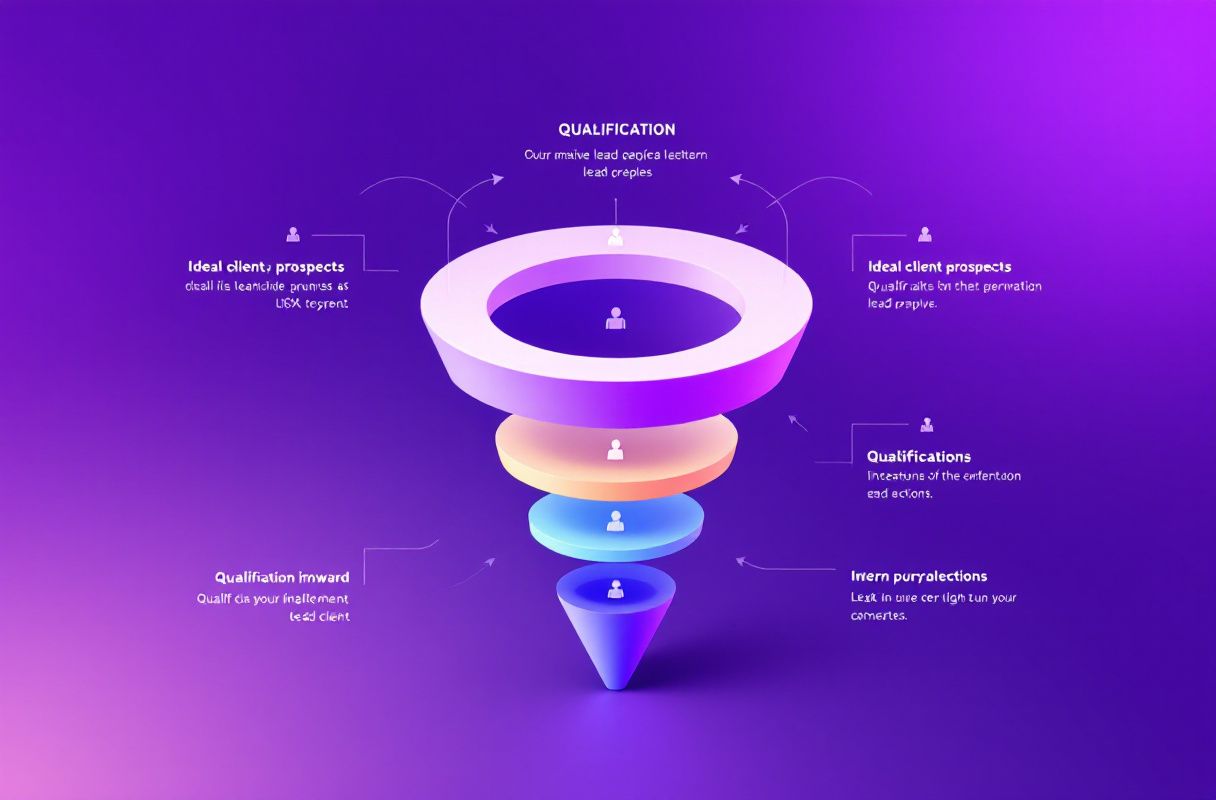
Here's the reframe that fixes fatigue: sort every notification type by whether it indicates someone might buy. Three categories carry real inbound intent. The rest are noise you can safely silence.
The three that signal intent:
- Profile views — someone deliberately clicked to learn more about you. That's curiosity, and curiosity from the right title is a warm lead.
- Direct messages — the most explicit signal there is. A reply here can start a deal.
- Comments and replies on your content — a public, effortful signal. People who comment are self-identifying as interested in your topic.
Everything else — likes, follows, anniversaries, "in the news," suggested posts, group activity — is vanity or noise. It feels like momentum, but it rarely maps to pipeline.
| Notification type | Signal for inbound? | Action |
|---|---|---|
| Someone viewed your profile | Strong (curiosity) | Keep |
| New direct message | Strong (explicit) | Keep |
| Comment/reply on your post | Strong (effort) | Keep |
| Mention of you (@) | Medium | Keep |
| Reactions/likes on your post | Weak (vanity) | Mute / batch |
| Work anniversaries & job changes | Weak | Mute |
| "In the news" / birthdays | None | Mute |
| Suggested posts & trending news | None | Mute |
| Every post from people you follow | None | Mute |
| Group and event activity | None | Mute |
Notice the pattern: the "keep" list is short. That's the point. You're not trying to stay on top of everything — you're trying to never miss the handful of alerts that mean a real person is interested in you.
How to Configure Your LinkedIn Notification Settings (Step by Step)
These steps are verified against LinkedIn Help as of July 2026. LinkedIn organizes notifications into categories (such as Jobs, My Network, Posts, and News), and you toggle each type on or off inside them.
On desktop:
- Click your profile picture (Me) at the top of your LinkedIn homepage.
- Select Settings & Privacy.
- In the left sidebar, click Notifications.
- Open each category and toggle off the notification types you don't want.
On mobile (iOS/Android app):
- Tap your profile picture in the top-left corner.
- Tap Settings.
- Tap Notifications and turn off the alerts you don't want.
To mute or turn off a single notification quickly:
- Click the Notifications icon (the bell) at the top of your feed.
- Click the "..." (More) icon on the top-right of any individual notification.
- Choose Delete, Mute, or Turn off to stop that type of update (LinkedIn Help).
To control email and push versus in-app: LinkedIn lets you set delivery per channel — in-app, email, and push — separately. Turning a category off in-app can be done independently of email and mobile push in notification delivery settings. A good default is to keep the three intent signals as push, route weak signals to a weekly email digest, and turn the pure noise off entirely.
Here's a starting configuration that kills fatigue without hiding leads:
| Category | In-app | Push | |
|---|---|---|---|
| Profile views | On | On | Off |
| Messaging | On | On | Off |
| Comments/mentions on your posts | On | On | Off |
| Reactions/likes on your posts | On | Off | Weekly digest |
| My Network (anniversaries, job changes) | Off | Off | Off |
| News, trending, suggested posts | Off | Off | Off |
| Groups & events | Off | Off | Off |
Adjust to taste — but the principle holds: push is reserved for intent, everything weak becomes a digest, and pure noise is off.
A Triage System for Your LinkedIn Inbox
Turning off noise solves half the problem. The other half is LinkedIn inbox overwhelm — the growing pile of DMs, connection notes, and comment threads you feel guilty about. The fix is to stop reacting in real time and start batching. Two short passes a day beats being interrupted 30 times.
Use a simple three-bucket sort. When you open a message or comment, it goes into exactly one bucket:
- Hot (reply now): a warm inbound lead — someone asking about your work, replying to your content, or a strong profile view who messaged. These get a human reply within hours, not days.
- Warm (nurture): a real person, no immediate intent. React, reply briefly, or note them to follow up later. No urgency.
- Noise (archive/ignore): pitches, spam, mass outreach, automation. Archive without guilt.
The mistake most people make is treating all three buckets with the same urgency. Hot leads deserve a fast, personal, no-template reply. Everything else can wait for your next batch. For the language that turns a warm reply into a conversation, see our LinkedIn messaging tips guide, and for building better inbox habits overall, the inbox habits playbook.
| Bucket | What lands here | Response time | Goal |
|---|---|---|---|
| Hot | Warm inbound, buying questions, engaged profile views | Within hours | Book the conversation |
| Warm | Real people, no intent yet | Same day or batch | Stay top of mind |
| Noise | Cold pitches, spam, automation | Never | Archive, move on |
Building a Routine So You Never Miss Warm Inbound
Fatigue returns the moment you go back to checking LinkedIn "whenever." Replace impulse-checking with a fixed rhythm. Here's a daily routine that takes under 20 minutes total and still catches every warm lead fast.
| Time block | Duration | What you do |
|---|---|---|
| Morning pass | 8 min | Scan the bell for the 3 intent signals. Reply to Hot. Sort the rest. |
| Midday micro-pass | 2 min | Check DMs and post comments only. Reply to anything Hot. |
| Afternoon pass | 8 min | Clear new Hot/Warm, engage on 5–10 target accounts' posts. |
| Evening | 0 min | Notifications off. The digest catches anything weak. |
A few rules make it stick:
- Turn off push outside your passes. Use LinkedIn's Do Not Disturb window or your phone's Focus mode so pings don't pull you in.
- Trust the digest. Weak signals roll up into your weekly email. You're not missing anything that converts.
- Protect a golden hour after you post. Comments in the first 60 minutes are both intent signals and algorithm fuel — this is the one time real-time attention pays off.
- Log your Hot leads somewhere. A simple note or CRM row so a warm profile view doesn't evaporate.
This routine is the operational side of an inbound strategy. If you're building the whole system, start with the 5 pillars of LinkedIn lead generation and the philosophy of attracting instead of chasing.
What Most Productivity Guides Get Wrong
Most "manage your notifications" advice stops at "turn them off." That's incomplete and, for anyone generating inbound, actively harmful. Here's where the generic guidance fails:
-
"Mute everything" throws away your best leads. A profile view from a VP at your ideal-customer account is not noise — it's the warmest signal LinkedIn gives you for free. Blanket muting treats a buyer and a birthday reminder identically. The skill is triage, not silence.
-
They optimize for inbox zero, not for pipeline. Clearing every notification feels productive but measures the wrong thing. You don't win by reacting to 40 alerts; you win by catching the 2 that convert and ignoring the 38 that don't. Speed to a warm lead beats a clean bell icon every time.
-
They ignore the source of the noise. If your notifications are 95% low-value engagement, the deeper issue is often what you're doing on LinkedIn — chasing vanity reactions instead of authority. Fatigue is frequently a symptom of a broadcast-and-hope strategy, not a settings problem.
-
They treat all engagement as equal. A like and a thoughtful comment are not the same signal. Guides that tell you to "batch all engagement" miss that comments and DMs carry intent while likes rarely do. The channel matters more than the count.
The reframe: notification management isn't a hygiene chore. It's how you make sure the highest-converting moments on LinkedIn — the warm ones — never slip through while you tune out the rest.
Real Results: How We Cut One Founder's LinkedIn Pings by 80%
The following is drawn from ConnectSafely.ai's own onboarding experience with a customer. Details are anonymized.
A B2B consultant on ConnectSafely came to us with a familiar complaint: he was checking LinkedIn constantly, felt permanently behind, and had recently missed a DM from a qualified buyer that sat unread for four days. His bell was averaging well over 100 notifications a day.
We ran the exact playbook in this article. We turned off My Network life events, news, suggested posts, and group activity; kept profile views, messaging, and post comments on push; and routed reactions to a weekly digest. Then we replaced his all-day checking with two 8-minute passes and one 2-minute midday check.
Inside two weeks, his daily notification count dropped by roughly 80% — from 100-plus to under 20 that he actually read. More importantly, his median reply time to a warm inbound message went from over a day to under three hours. Same LinkedIn presence, a fraction of the anxiety, and no more four-day-old leads. The takeaway wasn't that he used LinkedIn less — it's that he finally saw the signals that mattered.
How ConnectSafely Helps You Focus on Real Inbound
Settings and routines control the noise. The deeper fix is generating the right notifications in the first place — the profile views, comments, and DMs that come from being seen as an authority, not from broadcasting into the void.
That's what ConnectSafely.ai is built for. Instead of adding another automation firehose to your day, it helps you show up consistently where your buyers are, engage in ways that earn genuine attention, and surface the engagement signals that indicate real inbound interest — so your notifications start meaning something again.
- Inbound authority, not broadcast noise. You build a presence that attracts qualified buyers, so more of your alerts are warm leads and fewer are vanity.
- Zero LinkedIn ban risk. No aggressive automation, no gray-area tactics that put your account in jeopardy.
- From USD $10/month. Authority-building that costs less than most productivity apps you're already paying for.
See ConnectSafely.ai pricing to get started. It's the difference between managing notification chaos and never generating the chaos in the first place.
Frequently Asked Questions
How do I stop getting so many LinkedIn notifications?
Go to Settings & Privacy → Notifications on desktop (or your profile picture → Settings on mobile) and turn off the categories that don't signal intent — work anniversaries, job changes, news, suggested posts, and group activity. Keep profile views, messaging, and comments on your posts turned on. You can also mute an individual notification via the "..." menu next to it (LinkedIn Help).
Which LinkedIn notifications should I actually keep on?
Keep the three that indicate someone might buy: profile views (curiosity), direct messages (explicit interest), and comments or mentions on your content (effort). These are your warmest inbound signals. Route weak signals like reactions to a weekly email digest, and turn everything else off entirely.
Will muting LinkedIn notifications make me miss leads?
Not if you mute selectively. Blanket-muting everything is risky, but muting only the no-intent categories — anniversaries, news, suggested content — keeps every buying signal intact. The point of triage is to make warm leads more visible by removing the noise around them, not to go silent.
How often should I check LinkedIn to stay on top of my inbox?
Two focused passes a day plus one quick midday check is enough for almost everyone — around 18 minutes total. Real-time checking is what causes fatigue and, per UC Irvine research, each interruption costs about 23 minutes of focus to recover. Batching lets you still reply to hot leads within hours without living in the app.
What's the difference between muting and turning off a LinkedIn notification?
Muting stops updates on a specific item (like one post's activity) while leaving that notification type on elsewhere. Turning off stops an entire notification type — like all likes or all job-change alerts — going forward. Use mute for one noisy thread and turn-off for whole categories you never want (LinkedIn Help).
Notification fatigue is usually a symptom of a broadcast-first LinkedIn strategy. Fix the root cause: build inbound authority so qualified buyers come to you. Compare your options in the best LinkedIn automation tools guide, or see ConnectSafely.ai pricing — from USD $10/month, zero ban risk.
See How It Works
Watch how people get more LinkedIn leads with ConnectSafely




Related Articles