Article Type: Configuration Guide | Audience: Action-oriented users, administrators | Goal: Walk through connecting and configuring accounts
Managing Connected Accounts (Configuration Guide)
Introduction
This guide walks you through connecting LinkedIn accounts to ConnectSafely, configuring settings, and managing your connected accounts for optimal automation performance.
Before You Begin
Ensure you have:
- A ConnectSafely account with available account slots
- Access to the LinkedIn profile you want to connect
- Admin permissions in your ConnectSafely workspace
How to Connect a New Account
Follow these steps to add a LinkedIn profile:
- Navigate to Connected Accounts in your dashboard
- Click Connect Account
- Complete the secure authentication process
- Confirm the connection
Once connected, the account is added to your workspace.
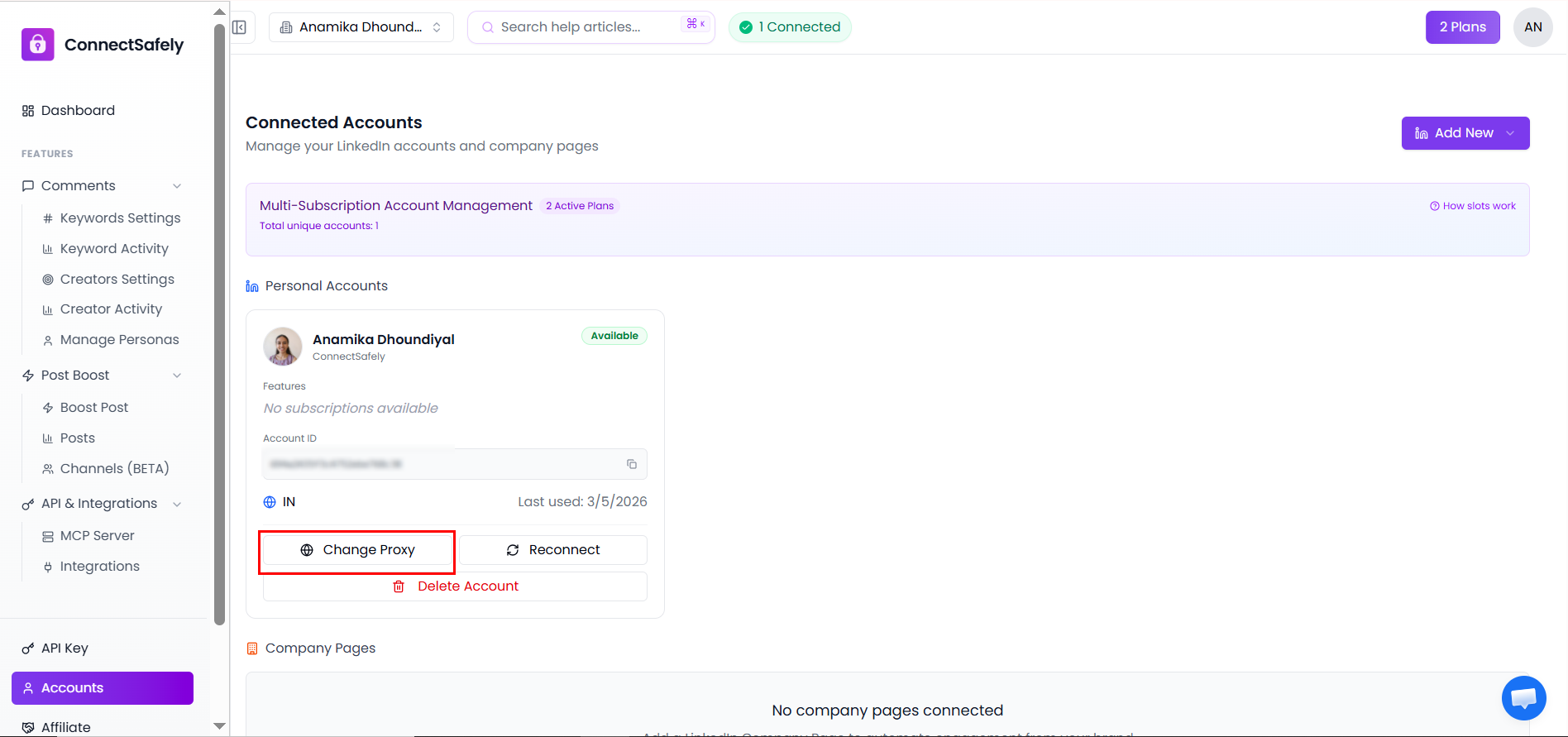
Understanding Account Details
Each connected account displays key information, including:
- Account name - The LinkedIn profile name
- Unique account ID - Internal identifier
- Current status - Active, paused, or disconnected
- Proxy location - Geographic location for the account
- Usage metrics - Activity statistics and limits
Account Configuration Options
Configure your accounts for optimal performance:
- Working hours - Set when the account can send messages
- Connection limits - Daily connection request limits
- Message limits - Daily message sending limits
- Proxy settings - Geographic location configuration
- Safety settings - Automation speed and safety controls
Account Status Management
Monitor and control your account status:
- Active - Account is ready for automation
- Paused - Temporarily stop all activities
- Disconnected - Account needs reconnection
- Under review - Account being monitored
Best Practices for Account Management
- Start with conservative limits and gradually increase
- Monitor account health regularly
- Use appropriate proxy locations for your target audience
- Keep accounts under daily safety limits
- Test new accounts with small campaigns first
Troubleshooting Common Issues
Connection Failed:
- Check your LinkedIn credentials
- Ensure two-factor authentication is properly configured
- Verify your ConnectSafely account has available slots
Account Disconnected:
- LinkedIn may have requested re-authentication
- Check for LinkedIn security notifications
- Reconnect through the ConnectSafely dashboard
Low Engagement:
- Review your targeting settings
- Check message content and personalization
- Verify account activity limits aren't too restrictive
Next Steps
Once your accounts are connected and configured:
- Configure your keyword settings
- Set up your personas
- Monitor performance metrics
- Scale successful campaigns
Related Articles
External Resources