Ready to supercharge your LinkedIn growth? Follow this complete guide to managing engagement pods directly from your dashboard.
1. Navigating to Engagement Pods
In your left sidebar menu, look under the Post Boost section and click on Engagement Pods. If you haven't created any pods yet, you'll see a clean empty state pushing you to create your first one.
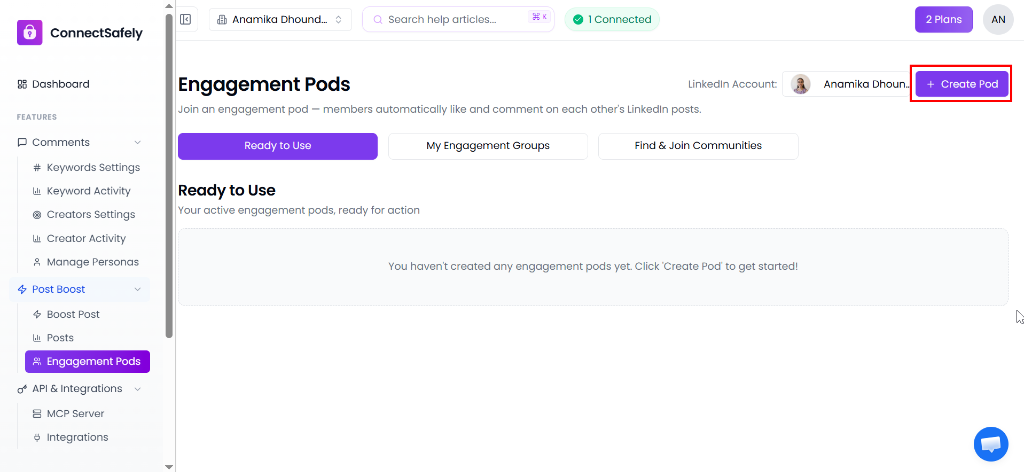
Click the + Create Pod button in the top right to get started.
2. Creating a New Pod
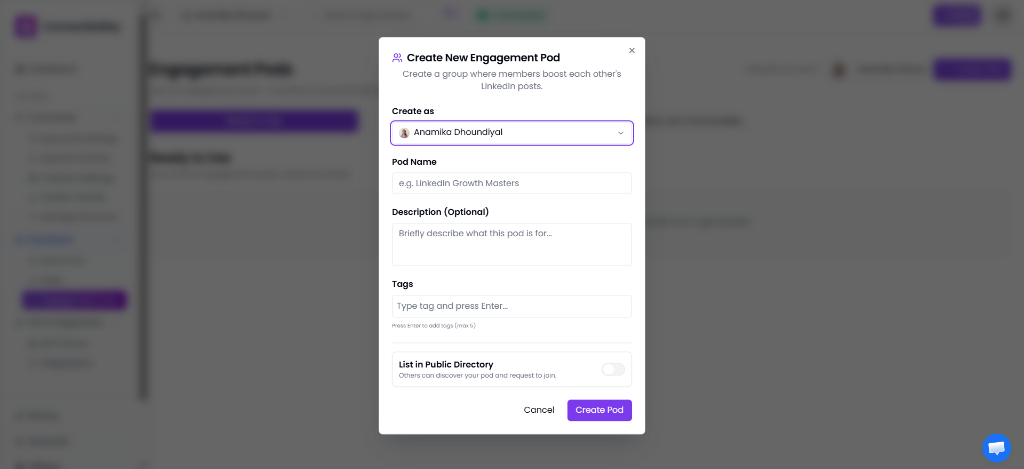
A creation modal will appear. Here you can configure the identity of your new pod:
- Pod Name: Something descriptive (e.g., "SaaS Founders Network").
- Description: Let potential joiners know what your pod focuses on.
- Tags: Help others find your pod by adding niche tags (e.g., #b2b, #sales).
- List in Public Directory: Toggle this on if you want anyone to search for and request to join your pod. Leave it off for an invite-only private pod.
3. Viewing Ready-to-Use Pods
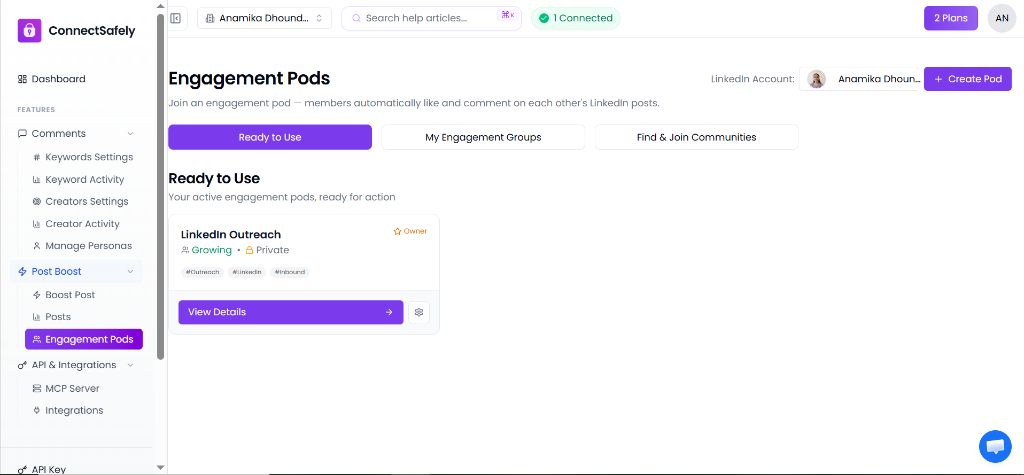
Once created, your pod will appear under the Ready to Use tab. This tab gives you a quick overview of active pods you are an owner of or have successfully joined. Clicking View Details allows you to manage it directly.
4. Managing Pod Details & Inviting Users
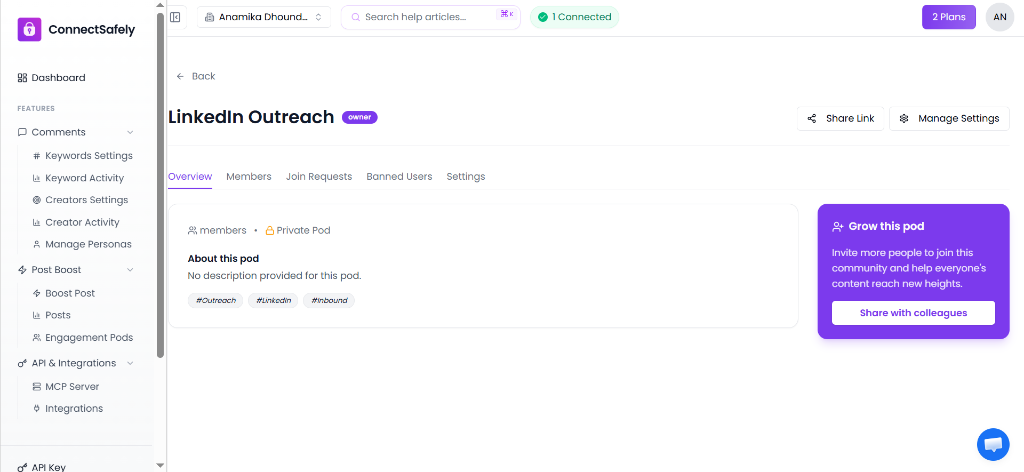
Inside the pod detail view, you have full control over the community. As an owner, you can manage settings, review join requests, and handle banned users.
Use the Share Link or Share with colleagues buttons to send a direct invite link to co-workers and friends!
5. Your Engagement Groups Profile
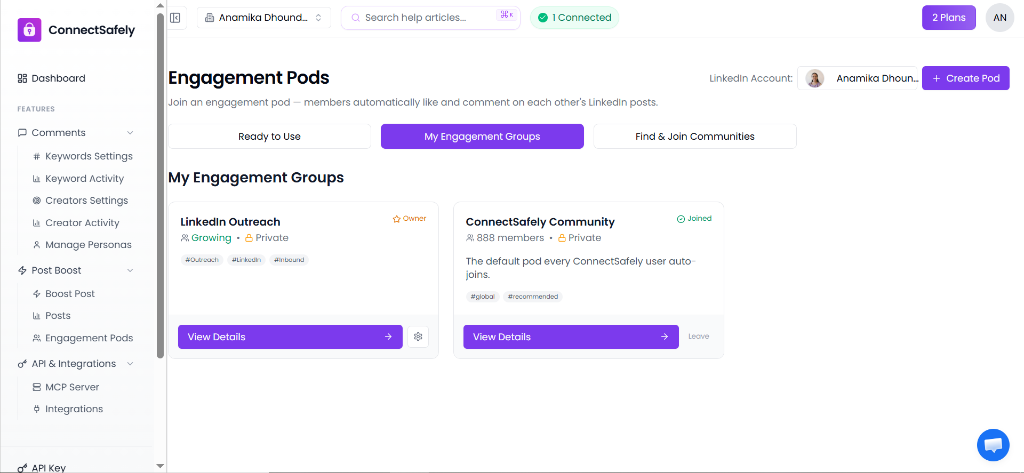
Under the My Engagement Groups tab, you can view the complete list of pods you belong to. Notice that you'll automatically be part of the global ConnectSafely Community pod—which acts as your main reach network. You can configure individual participation right from this page.
6. Find & Join Communities
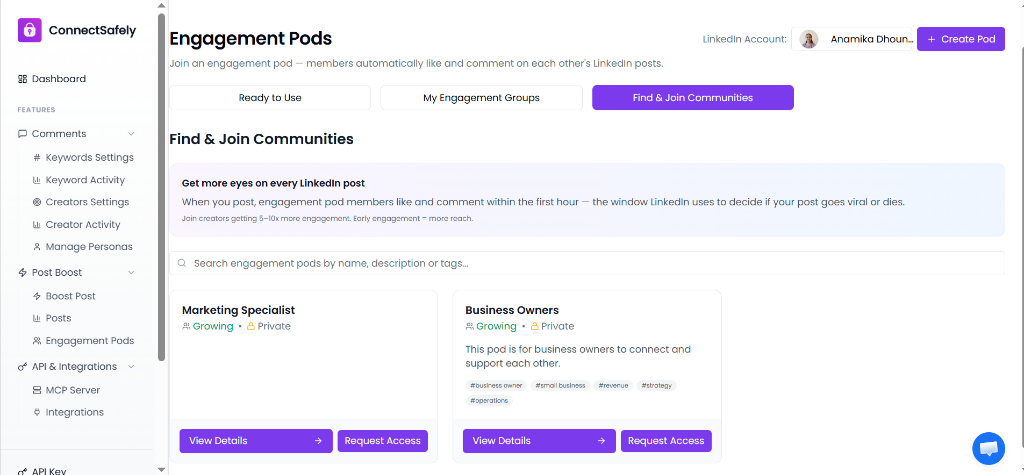
If you don't want to create your own pod, you can browse existing Public Pods by clicking the Find & Join Communities tab. Use the search bar to find pods by name, description, or tags (e.g., #businessowner, #marketing). Simply review their stats and click Request Access to join!
7. Managing Pod Settings
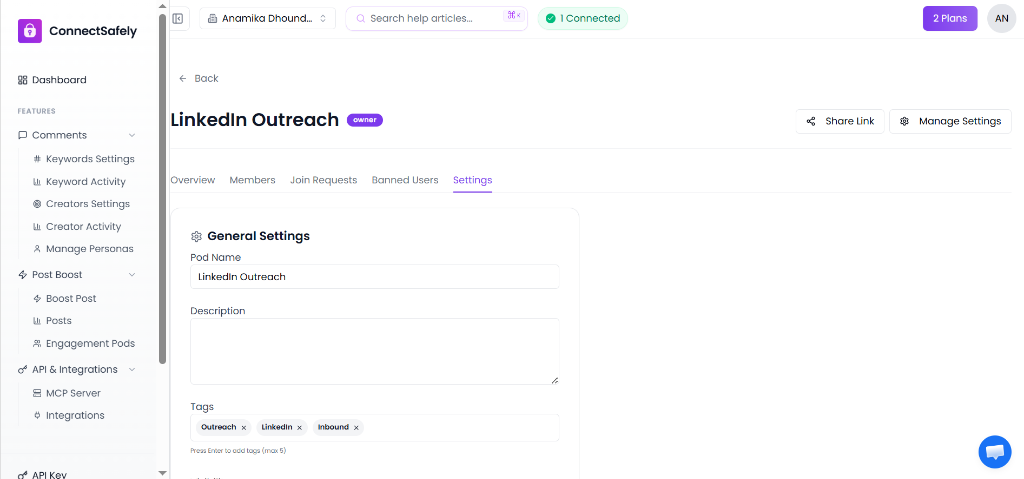
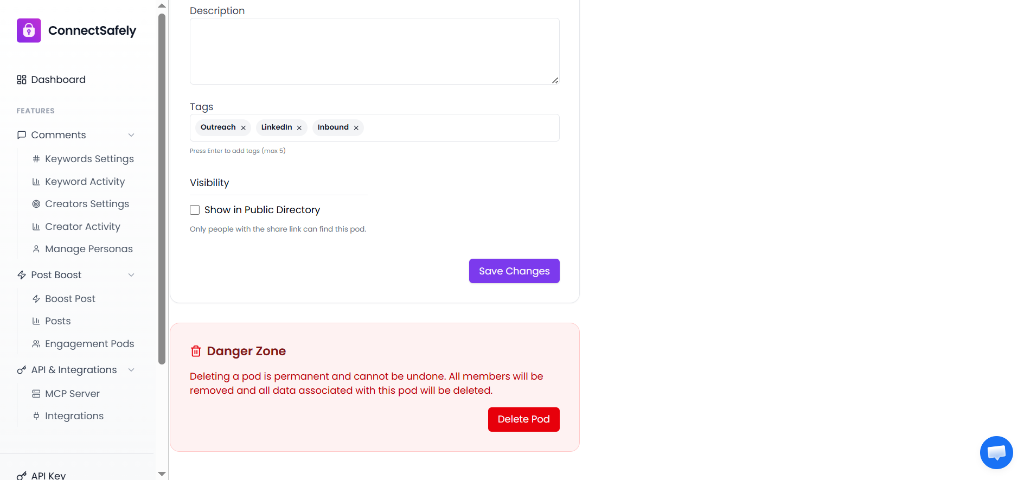
As a Pod owner, you can edit your pod's configuration at any time from the Settings tab. You can easily update the Name, Description, Tags, or change the Visibility setting to toggle it out of the Public Directory.
If you ever need to completely remove a pod, scroll down to the Danger Zone. Clicking Delete Pod will permanently remove all associated members and data.
Next Step: Boost Your Post
Now that you are a member of standard and private pods, you're ready to submit a post for engagement!
Read the Boost Post Guide →