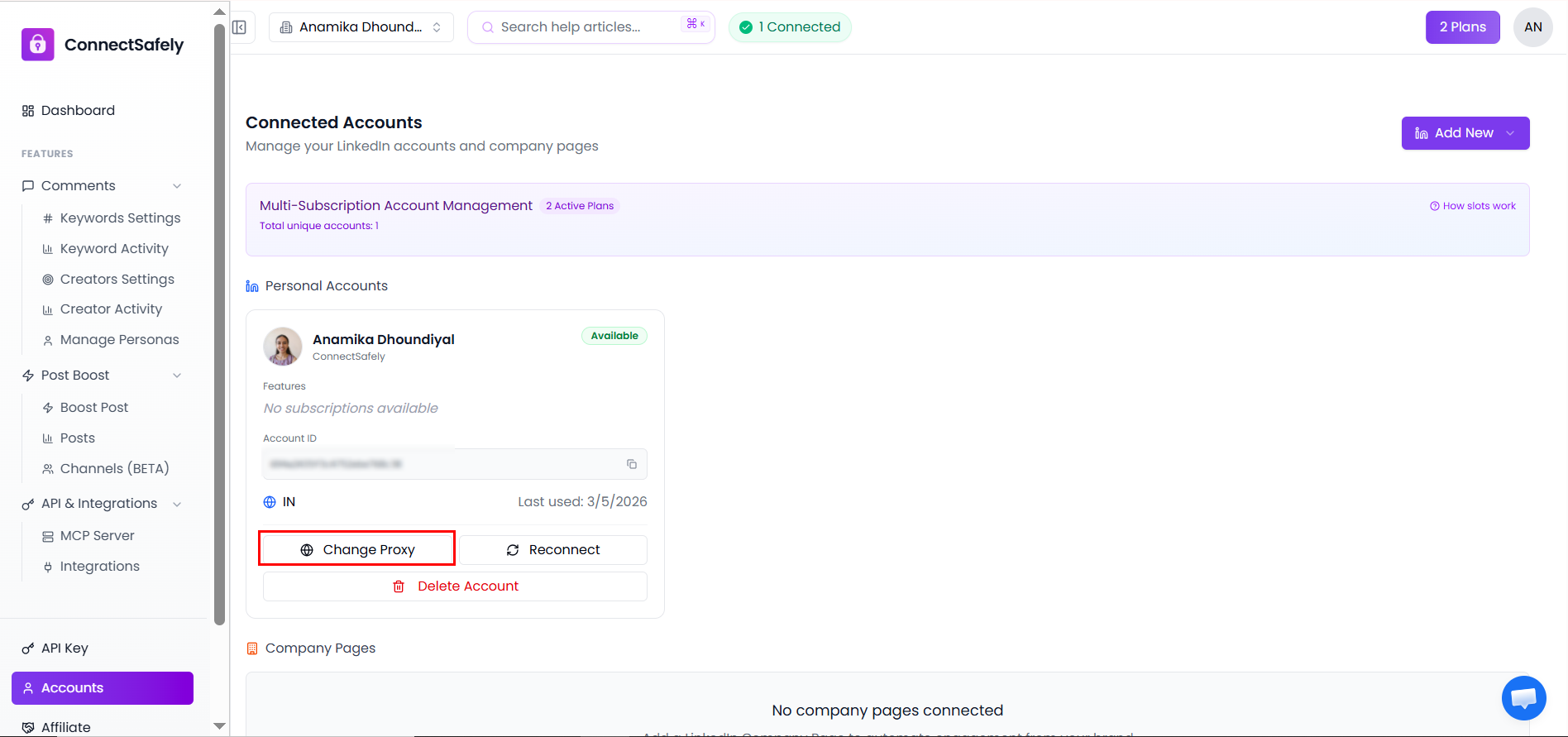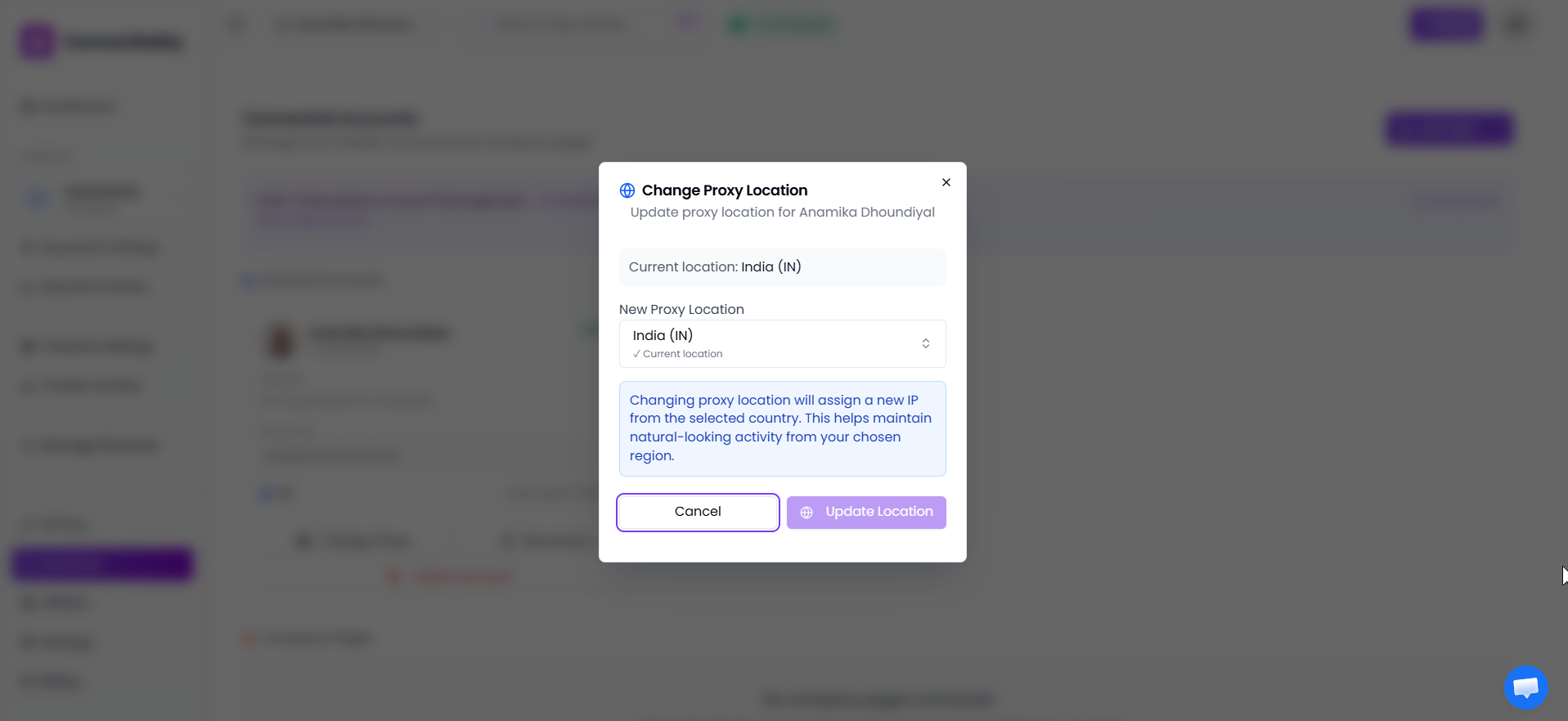
How to configure my Custom Proxy if already connected to ConnectSafely
🚀 Configuring a custom proxy for an existing LinkedIn connection allows you to route your LinkedIn traffic through a specific proxy server, providing enhanced privacy, security, and geographic flexibility 🚀. This guide walks you through updating your proxy settings without disrupting your existing connection.
Custom Proxy Configuration Process
Proxy server setup and connection routing
Understanding Custom Proxy Configuration
Custom proxy configuration allows you to route your LinkedIn account traffic through a specific proxy server, providing enhanced privacy, geographic flexibility, and security. This is particularly useful for managing multiple accounts or accessing LinkedIn from different locations.
🔧 Proxy Configuration Benefits
- Enhanced privacy and anonymity
- Geographic location flexibility
- Multiple account management
- Network security improvements
- Bypass regional restrictions
- Consistent connection reliability
✅ When to Configure Custom Proxy
- Managing multiple LinkedIn accounts
- Accessing from different geographic locations
- Enhancing account security and privacy
- Bypassing network restrictions
- Improving connection reliability
- Meeting compliance requirements
Prerequisites for Proxy Configuration
Before configuring a custom proxy, ensure you have the necessary information and understand the requirements for successful proxy setup.
📋 Required Proxy Information
- Proxy server IP address or hostname
- Proxy server port number
- Proxy authentication credentials (if required)
- Proxy type (HTTP, HTTPS, SOCKS5)
- Geographic location of proxy server
- Proxy provider reliability information
🔒 Proxy Security Considerations
- Use reputable proxy providers
- Ensure proxy server security protocols
- Verify proxy server location and jurisdiction
- Check proxy server uptime and reliability
- Confirm proxy server speed and performance
- Test proxy server compatibility with LinkedIn
Step-by-Step Proxy Configuration
Configuring a custom proxy for an existing LinkedIn connection involves updating your account settings while maintaining the connection integrity.
⚙️ Configuration Steps
- Navigate to your LinkedIn Accounts section
- Select the account to configure proxy for
- Click on "Account Settings" or "Proxy Settings"
- Choose "Custom Proxy" option
- Enter proxy server details (IP, port, type)
- Add authentication credentials if required
- Test the proxy connection
- Save the configuration settings
Proxy Testing Process
After entering your proxy details, always test the connection to ensure it's working properly before saving the configuration.
Test Connection Checklist
- Proxy server responds to connection requests
- LinkedIn can be accessed through the proxy
- Connection speed is acceptable
- No authentication errors occur
- Geographic location matches expectations
- Account functionality remains intact
Proxy Authentication and Security
Proper authentication and security measures are crucial when configuring custom proxies to protect your LinkedIn account and ensure reliable connections.
🔐 Authentication Methods
- Username and password authentication
- IP address whitelisting
- Token-based authentication
- Certificate-based authentication
- API key authentication
- Multi-factor authentication (if supported)
Security Best Practices
- Use strong, unique passwords for proxy authentication
- Enable encryption for proxy connections (HTTPS/SOCKS5)
- Regularly rotate proxy authentication credentials
- Monitor proxy server security updates
- Use reputable proxy providers with security certifications
- Avoid free or untrusted proxy services
Geographic Location and Proxy Selection
The geographic location of your proxy server can impact your LinkedIn experience and account performance. Choose proxy locations strategically based on your needs.
🌍 Location Considerations
- Choose proxy location matching your target audience
- Consider LinkedIn regional restrictions
- Account for time zone differences
- Evaluate connection speed from proxy location
- Consider local LinkedIn features and limitations
- Account for regional compliance requirements
📍 Recommended Proxy Locations
- United States: For North American audiences
- United Kingdom: For European audiences
- Canada: For North American compliance
- Australia: For Asia-Pacific audiences
- Germany: For European Union compliance
- Singapore: For Asian markets
Troubleshooting Proxy Issues
Common proxy configuration issues and their solutions to ensure your custom proxy works effectively with your LinkedIn account.
🚨 Common Proxy Problems
- Connection timeout or failure
- Authentication errors
- Slow connection speeds
- LinkedIn access blocked
- Geographic location mismatch
- Proxy server unavailability
🔧 Troubleshooting Steps
- Verify proxy server is online and accessible
- Check proxy server credentials and authentication
- Test proxy connection speed and reliability
- Confirm LinkedIn accessibility through proxy
- Verify proxy server geographic location
- Check for proxy server IP blocking
- Test with different proxy server if available
- Contact proxy provider for support if needed
Verifying Proxy Configuration Success
After configuring your custom proxy, it's important to verify that the configuration is working correctly and providing the expected benefits.
✅ Success Verification
- Account connects successfully through proxy
- LinkedIn functionality remains intact
- Geographic location matches proxy server
- Connection speed is acceptable
- No authentication errors occur
- Account status shows "Available" or current status
Post-Configuration Monitoring
- Monitor account connection stability
- Check LinkedIn functionality regularly
- Verify proxy server performance
- Monitor for any connection issues
- Keep proxy credentials secure and updated
- Document configuration changes for future reference
Custom Proxy Configuration Complete
Secure proxy connection established and verified
Configuration Complete
Your custom proxy has been successfully configured for your LinkedIn account connection. The proxy is now routing your LinkedIn traffic, providing enhanced privacy, security, and geographic flexibility. Your account connection remains stable while benefiting from the custom proxy configuration.