
ConnectSafely allows you to connect your LinkedIn account while using a proxy location. This is useful when you want your automation activity to appear from a specific region or to maintain consistency with your typical working location.
What Is a Proxy and Why It Matters
A proxy location determines the region from which your LinkedIn automation activity originates. Using a proxy can help:
- Maintain natural activity aligned with your region — automation runs from a consistent, expected location
- Reduce the risk of location mismatch flags — LinkedIn's systems are less likely to flag behaviour from a consistent region
- Improve credibility when targeting region-specific audiences — appear local to the markets you engage with
- Generate more authentic engagement — regional consistency adds trust to your outreach
Step-by-Step: Connect LinkedIn With a Custom Proxy
Step 1 — Open the Accounts Section
From the left sidebar in ConnectSafely, click Accounts. This page shows all currently connected LinkedIn profiles and associated company pages.
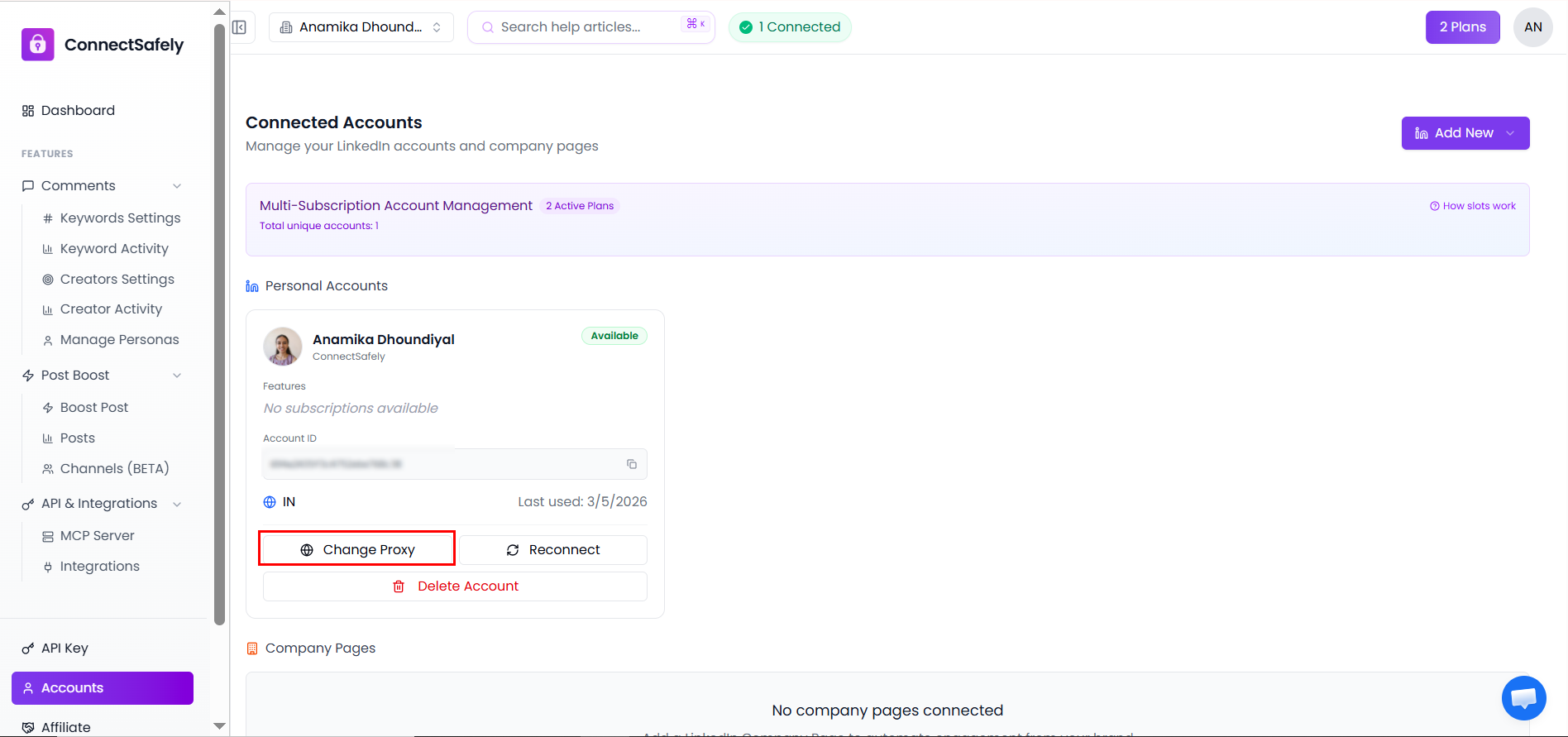
The Accounts page showing connected LinkedIn profiles and company pages.
Step 2 — Click Add New
On the Accounts page, click the Add New button in the top right. From the dropdown, choose Connect LinkedIn Account.
Step 3 — Enter LinkedIn Credentials
A window will open prompting you to log in to LinkedIn. Enter your LinkedIn username and password to initiate the connection.
⚠️ Important: Ensure you use the correct LinkedIn account credentials before proceeding.
Step 4 — Choose a Proxy Location
Before completing the login, you'll see an option to set your Proxy Location. Select your desired country — this will be the region used for all future automation activity on this account.
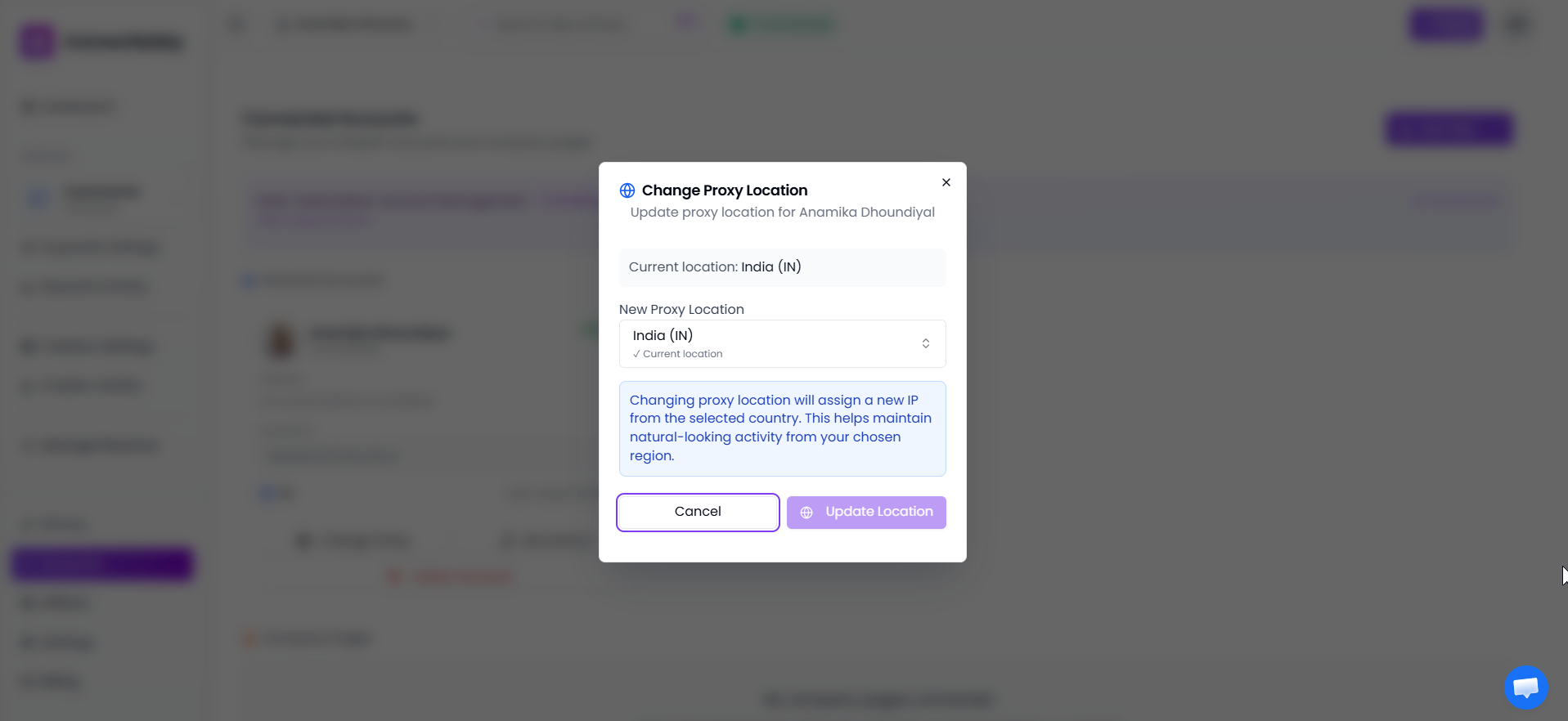
The proxy location selector — choose the region that matches where you normally operate or where your audience is located.
📍 Recommended Proxy Locations
- United States — For North American audiences
- United Kingdom — For European audiences
- Canada — For North American compliance
- Australia — For Asia-Pacific audiences
- Germany — For European Union compliance
- Singapore — For Asian markets
Step 5 — Confirm & Connect
After selecting your proxy and completing the login, click Connect Account. Your LinkedIn account will now be connected to ConnectSafely using the chosen proxy location. Once connected:
- Your account will appear under Connected Accounts — visible on the main Accounts page
- You will see the proxy location displayed — confirming which region is assigned to this account
💡 Helpful Tips
- • If you want to change your proxy later, use the Change Proxy button on the Accounts page — see the Configure Custom Proxy guide.
- • Make sure your proxy closely matches the region you usually post from to prevent suspicious activity flags from LinkedIn.
- • Proxy settings only affect automation behaviours within ConnectSafely — they do not alter your LinkedIn login location or account settings.