 n8n
n8nAuto-Connect with Commenters | n8n
Send automated connection requests to LinkedIn post commenters. Get 3-5x higher acceptance rates by connecting with engaged users.
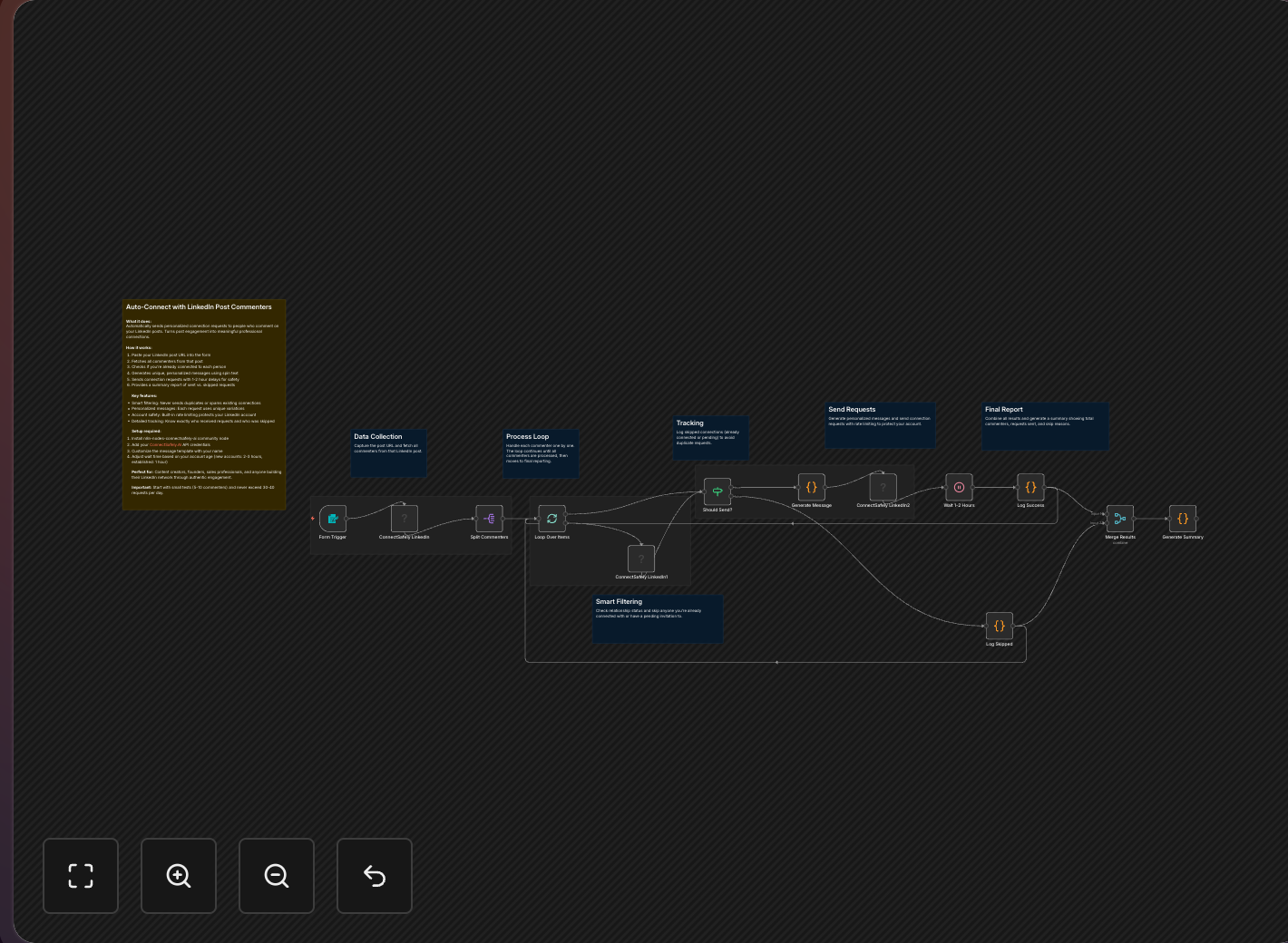
Turn every post comment into a new connection automatically. This n8n workflow sends personalized connection requests to people who engage with your content, achieving 3-5x higher acceptance rates than cold outreach.
Key Takeaways
- 3-5x higher acceptance rates than cold connection requests because commenters are already engaged with your content
- Automated personalization references the commenter's specific comment for relevance
- Smart deduplication prevents sending requests to existing connections or pending requests
- Platform-safe with built-in rate limiting to protect your account
Why This Strategy Works
When someone comments on your LinkedIn post, they're telling you:
- They found your content valuable
- They're interested in your expertise
- They're open to professional conversations
According to LinkedIn's engagement research, commenters are 3x more likely to respond to follow-up outreach than cold contacts.
Sending a connection request at this moment has a 3-5x higher acceptance rate than cold outreach because you have immediate context and relevance. This approach aligns with inbound lead generation principles - attracting interested prospects rather than chasing cold leads.
Workflow Overview
The Flow
Post gets comments → Check if connected → Send request if not → Log to sheet
Key Features
Smart Connection Checking
Before sending any request, the workflow verifies:
- Not already a 1st-degree connection
- No pending request already sent
- Not in your "ignore" list
Personalized Messages
Reference their comment in your connection note:
"Hey [Name], loved your take on [topic from their comment]. Would love to connect and continue the conversation!"
Learn more about effective LinkedIn messaging strategies.
Rate Limiting Built-In
Following LinkedIn's platform guidelines:
- Maximum 20-30 requests per day
- Random delays between requests (2-5 minutes)
- Automatic pause after hitting daily limits
Full Tracking
Every action logged to Google Sheets:
- Commenter profile
- Comment content
- Request status
- Timestamp
Setup Instructions
1. Prepare Your Tracking Sheet
Create a Google Sheet with columns:
| Column | Purpose |
|---|---|
| Profile URL | LinkedIn profile link |
| Name | Full name |
| Comment | What they said |
| Post URL | Which post they commented on |
| Request Sent | Date/time of request |
| Status | Pending/Accepted/Declined |
2. Configure the Workflow
Trigger Node: Schedule every 4-6 hours
Get Comments Node:
- Post URL: Your LinkedIn post
- Limit: 50 comments per run
Check Connection Node:
- For each commenter, verify connection status
IF Node:
- Condition:
connectionDegreenot equals1
Send Request Node:
- Message: Personalized template
- Use comment content for relevance
Google Sheets Node:
- Append each action to your tracking sheet
Get your API credentials from the ConnectSafely dashboard.
3. Craft Your Connection Message
Keep it short, relevant, and friendly:
Hi {{firstName}},

Your comment on my post about {{postTopic}} really resonated with me, especially the point about {{commentHighlight}}.

Would love to connect and hear more of your thoughts on this!
Best Practices
Post Quality Matters
According to LinkedIn's content algorithm research:
- Create content that sparks discussion
- Ask questions to encourage comments
- Respond to comments to boost engagement
Be Selective
Not every commenter is worth connecting with:
- Filter by job title relevance to your ideal customer profile
- Prioritize industry alignment
- Skip obvious spam accounts
Follow Up After Acceptance
Don't let new connections go cold:
- Send a thank-you message within 24 hours
- Share relevant content
- Look for collaboration opportunities
See our LinkedIn DM automation for automated follow-ups.
Compliance & Safety
This workflow is designed with LinkedIn's guidelines in mind:
- Natural pacing: Random delays mimic human behavior
- Daily limits: Stay well under LinkedIn's thresholds
- Personalization: Each request feels genuine
- Relevance: Comment context makes requests appropriate
Use ConnectSafely's safe automation features for additional protection.
Measuring Success
Track these metrics in your Google Sheet:
| Metric | Target | Why It Matters |
|---|---|---|
| Acceptance Rate | 40%+ | vs 10-15% for cold requests |
| Response Rate | 20%+ | New connections who message back |
| Network Growth | 50+/week | Sustainable growth rate |
| Content Attribution | Track | Which posts drive most connections |
Frequently Asked Questions
How do I automatically send connection requests to LinkedIn post commenters?
Use n8n with ConnectSafely.ai to monitor your posts for new comments, verify each commenter isn't already connected, and send personalized connection requests. The workflow includes smart deduplication to avoid double-sending. According to LinkedIn's engagement data, commenters are 3x more likely to respond to outreach. See the n8n integration guide for setup.
What message should I send when connecting with post commenters on LinkedIn?
Reference their specific comment for relevance: "Your insight about [topic] was spot-on. Would love to connect and continue the conversation!" Keep messages under 300 characters (LinkedIn's limit). Avoid sales pitches on first contact. See our LinkedIn messaging guide for more templates.
What's the safe daily limit for automated LinkedIn connection requests?
20-30 personalized requests maximum per day. LinkedIn allows approximately 100 connection requests per week, and the platform monitors for unusual patterns. ConnectSafely's rate limiting enforces safe limits automatically with human-like delays between requests.
Can I get banned from LinkedIn for automating connection requests?
Not with proper methods. Use ConnectSafely's compliant automation with built-in rate limiting, random delays, and genuine personalization. According to LinkedIn's User Agreement, the key is mimicking natural human behavior rather than bulk automation.
Should I connect with everyone who comments on my LinkedIn posts?
No, be selective for quality over quantity. Focus on commenters matching your ideal customer profile—filter by job title, industry, and company size. Skip obvious spam accounts and irrelevant profiles. Quality connections who engage with your content provide more value than network size alone.
Related Workflows
- Add Commenters to HubSpot CRM - Turn commenters into CRM leads
- Auto-Send DMs to Keyword Commenters - Engage with specific triggers
- AI-Powered Connection Requests - Add Gemini AI personalization
Turn your content engagement into network growth. Start your ConnectSafely free trial and automate your connection building today.
Prerequisites
- n8n instance (self-hosted or cloud)
- ConnectSafely.ai account with API key
- LinkedIn account connected to ConnectSafely
- Google Sheets for tracking
Required Integrations
n8n ConnectSafely
 LinkedIn
 Google Sheets
Use Cases
- Grow your network from engaged post commenters
- Convert content engagement into connections
- Build relationships with interested audiences
- Automate post-engagement follow-up
- Scale personal branding efforts
Ready to get started?
Download this workflow template and customize it for your needs.
Related Templates
LinkedIn Commenters to HubSpot | n8n
Capture LinkedIn post commenters and sync them to HubSpot CRM automatically. Enrich contacts with email and company data using Apify.
View TemplateKeyword Comment to DM | n8n LinkedIn
Automate 'comment X to get Y' on LinkedIn with n8n. Send DMs to keyword commenters automatically and deliver lead magnets at scale.
View Template