 n8n
n8nKeyword Comment to DM | n8n LinkedIn
Automate 'comment X to get Y' on LinkedIn with n8n. Send DMs to keyword commenters automatically and deliver lead magnets at scale.
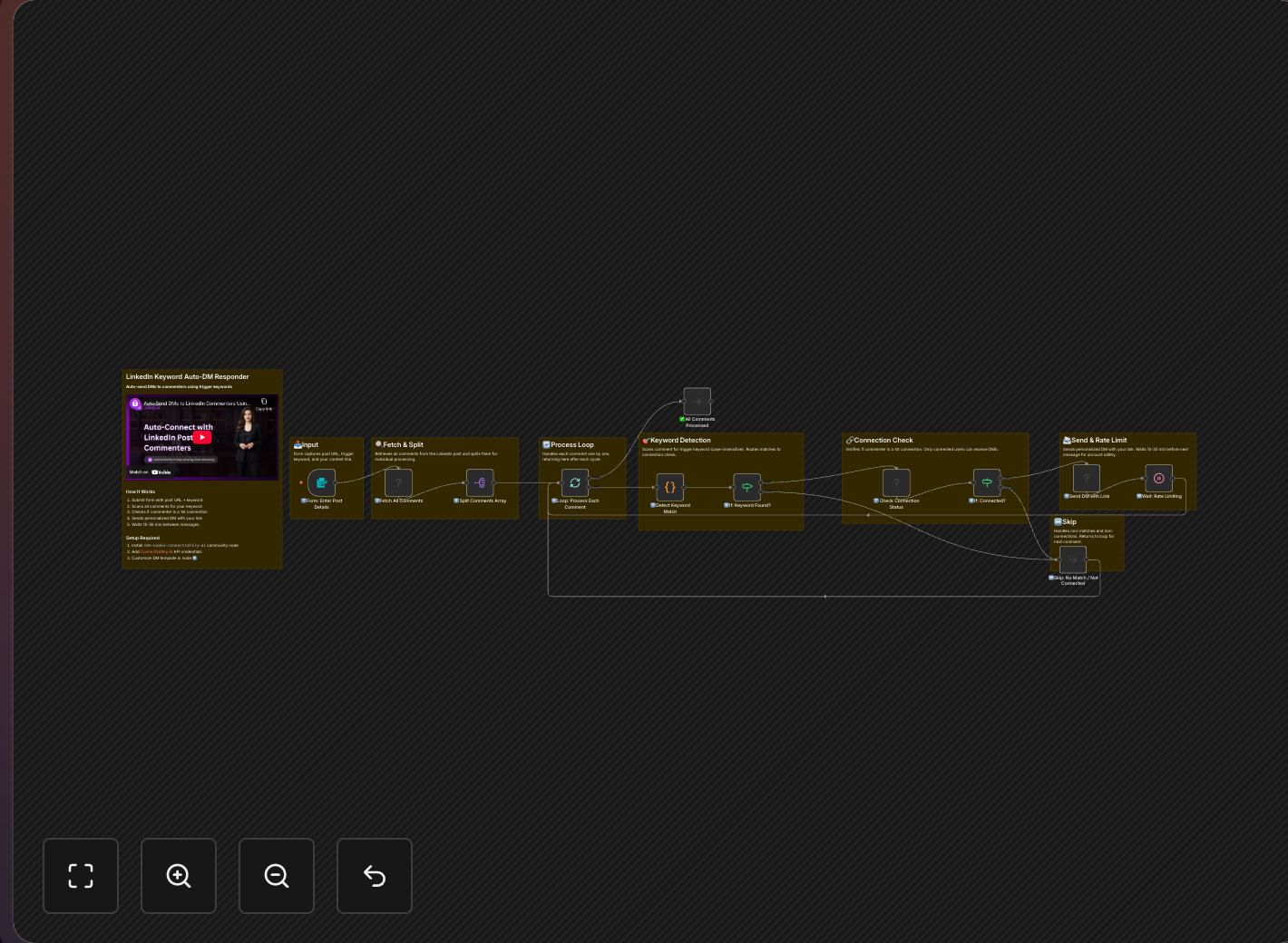
Implement the viral "Comment X to get Y" strategy on autopilot. This n8n workflow detects trigger keywords in comments and automatically sends DMs with your lead magnet or content.
Key Takeaways
- Automate the viral "comment to get" strategy that drives massive engagement on LinkedIn
- Multiple keyword triggers can deliver different content (guides, templates, videos)
- Smart connection checking ensures DMs only go to connected users (LinkedIn requirement)
- Platform-safe delivery using ConnectSafely's compliant automation
The "Comment for Link" Strategy
According to LinkedIn's algorithm research, comments are the highest-weighted engagement signal. You've seen posts like these blow up:
"I created a free guide on LinkedIn automation. Comment 'GUIDE' and I'll send it to you!"
This strategy works because it:
- Boosts engagement (comments = algorithm love)
- Creates urgency (fear of missing out)
- Generates leads (capture interested prospects)
- Feels exclusive (personal delivery via DM)
But manually sending DMs to every commenter? That doesn't scale. This workflow automates the entire process while maintaining a personal touch. Learn more about LinkedIn engagement strategies.
Workflow Overview
The Automation Flow
Comment detected → Keyword matched → Connection checked → DM sent → Logged
Setting Up Your Trigger Keywords
Single Keyword
Keyword: GUIDE
Response: "Here's your free LinkedIn automation guide: [link]"
Multiple Keywords
Configure different triggers for different content:
| Keyword | Content Delivered | Use Case |
|---|---|---|
| GUIDE | LinkedIn Automation Guide PDF | Lead magnet delivery |
| TEMPLATE | n8n Workflow Template JSON | Developer resources |
| CHECKLIST | Daily LinkedIn Checklist | Quick-win content |
| VIDEO | Tutorial Video Link | Multimedia content |
Workflow Configuration
Node 1: Schedule Trigger
Following HubSpot's research on response time:
- Run every 30-60 minutes
- Catches new comments quickly
- Balances speed vs API usage
Node 2: Get Post Comments
{
  "postUrl": "https://linkedin.com/posts/yourpost",
  "limit": 100,
  "sortBy": "recent"
}
Get your API credentials from the ConnectSafely dashboard.
Node 3: Filter by Keyword
// Filter condition
{{$json.commentText.toUpperCase().includes('GUIDE')}}
Node 4: Check Connection Status
Before sending a DM, verify:
- User is a 1st-degree connection (LinkedIn DMs require this)
- Haven't already received this content
Node 5: Send the DM
{
  "recipientUrn": "{{$json.commenterUrn}}",
  "message": "Hey {{$json.firstName}}!\n\nThanks for your interest! Here's the LinkedIn automation guide I promised:\n\n[Your Guide Link]\n\nLet me know if you have any questions!"
}
Node 6: Log Delivery
Track in Google Sheets:
- Commenter profile
- Keyword used
- DM sent timestamp
- Delivery status
Handling Non-Connections
When someone comments but isn't connected:
Option A: Send Connection Request First
- Send connection request with note
- Wait for acceptance
- Then send the DM
Use our connection request automation for this.
Option B: Reply in Comments Post a public reply with the link (less personal but works)
Option C: Use InMail If you have LinkedIn Premium or Sales Navigator
Video Tutorial
Best Practices
Make It Obvious
In your post, clearly state:
- The exact keyword to comment
- What they'll receive
- How they'll receive it (DM)
Deliver Fast
According to Drift's research on response time:
- Run the workflow frequently
- People expect quick delivery
- Longer waits = more complaints
Keep Messages Natural
Avoid:
- Generic copy-paste feels
- Overly promotional language
- Multiple CTAs in one message
See our LinkedIn messaging best practices guide.
Track Everything
Monitor:
- Comments per post
- Keyword match rate
- DM delivery success
- Click-through rate on links
Content Ideas for Keyword Triggers
Lead Magnets
- PDF guides and ebooks
- Checklists and templates
- Swipe files and examples
Exclusive Content
- Early access to features
- Beta invitations
- Discount codes
Educational Resources
- Tutorial videos
- Course previews
- Webinar recordings
Tools & Templates
- Spreadsheet templates
- n8n workflow JSON files
- Notion templates
Compliance Notes
Following LinkedIn's platform guidelines:
- Only DM 1st-degree connections
- Respect LinkedIn's messaging limits
- Don't spam the same person
- Provide genuine value
Use ConnectSafely's rate limiting for automatic protection.
Conversion Metrics
| Metric | Industry Average | Optimized |
|---|---|---|
| Keyword comment rate | 5-10% | 15-25% |
| DM delivery rate | 70% | 95%+ |
| Link click rate | 40% | 60%+ |
| Lead conversion | 5% | 15%+ |
Frequently Asked Questions
How do I set up LinkedIn comment to DM automation with n8n?
Use n8n with ConnectSafely.ai to monitor your posts for keyword comments (like "GUIDE" or "TEMPLATE") and auto-send DMs to 1st-degree connections. According to Second Brain Labs, keyword-based DM systems can achieve 72% acceptance rates. The workflow runs every 30-60 minutes to catch comments quickly. See the n8n integration guide for setup.
Can I use multiple trigger keywords on one LinkedIn post?
Yes, add multiple filter branches in n8n—each keyword triggers different content. For example, "GUIDE" sends a PDF, "TEMPLATE" sends a workflow file, "VIDEO" sends a video link. Use separate Send Message nodes to handle each content type with customized delivery messages.
What happens if someone comments the keyword but isn't connected to me?
LinkedIn only allows DMs to 1st-degree connections. For non-connections, you have three options: (1) auto-send a connection request first using our connection template then DM after acceptance, (2) reply publicly in the comments with the link, or (3) use InMail with LinkedIn Premium.
How often should LinkedIn keyword DM automation run?
Every 30-60 minutes for fast delivery. According to HubSpot's lead response research, responding within 5 minutes increases conversion 9x. Users who comment with trigger keywords expect quick delivery—longer waits lead to complaints and lower engagement.
Is automated LinkedIn DM sending against LinkedIn's terms of service?
LinkedIn's User Agreement technically restricts automation, but compliant tools like ConnectSafely respect rate limits (20-40 DMs per day) and only message willing recipients who explicitly requested content via keyword comments. This is value delivery, not spam. Focus on providing genuine value and following LinkedIn's guidelines.
Related Workflows
- Send Connection Requests to Commenters - Grow your network from engagement
- AI-Personalized Connection Requests - Add AI personalization to outreach
- DM Profile Visitors - Scale your follow-up messaging
Automate your "comment to get" strategy. Start your ConnectSafely free trial and deliver content automatically today.
Prerequisites
- n8n instance (self-hosted or cloud)
- ConnectSafely.ai account with API key
- LinkedIn account connected to ConnectSafely
Required Integrations
n8n ConnectSafely
 LinkedIn
Use Cases
- Deliver lead magnets to engaged commenters automatically
- Share code samples or templates via keyword triggers
- Distribute course previews to interested audiences
- Scale the 'comment for link' engagement strategy
- Build email lists through content giveaways
Ready to get started?
Download this workflow template and customize it for your needs.
Related Templates
Auto-Connect with Commenters | n8n
Send automated connection requests to LinkedIn post commenters. Get 3-5x higher acceptance rates by connecting with engaged users.
View TemplateAI LinkedIn Connections with n8n + Gemini
Send AI-personalized LinkedIn connection requests at scale using n8n and Google Gemini. Achieve 40-60% acceptance rates with automated personalization.
View Template