
 n8n
n8nLinkedIn Commenters to HubSpot | n8n
Capture LinkedIn post commenters and sync them to HubSpot CRM automatically. Enrich contacts with email and company data using Apify.
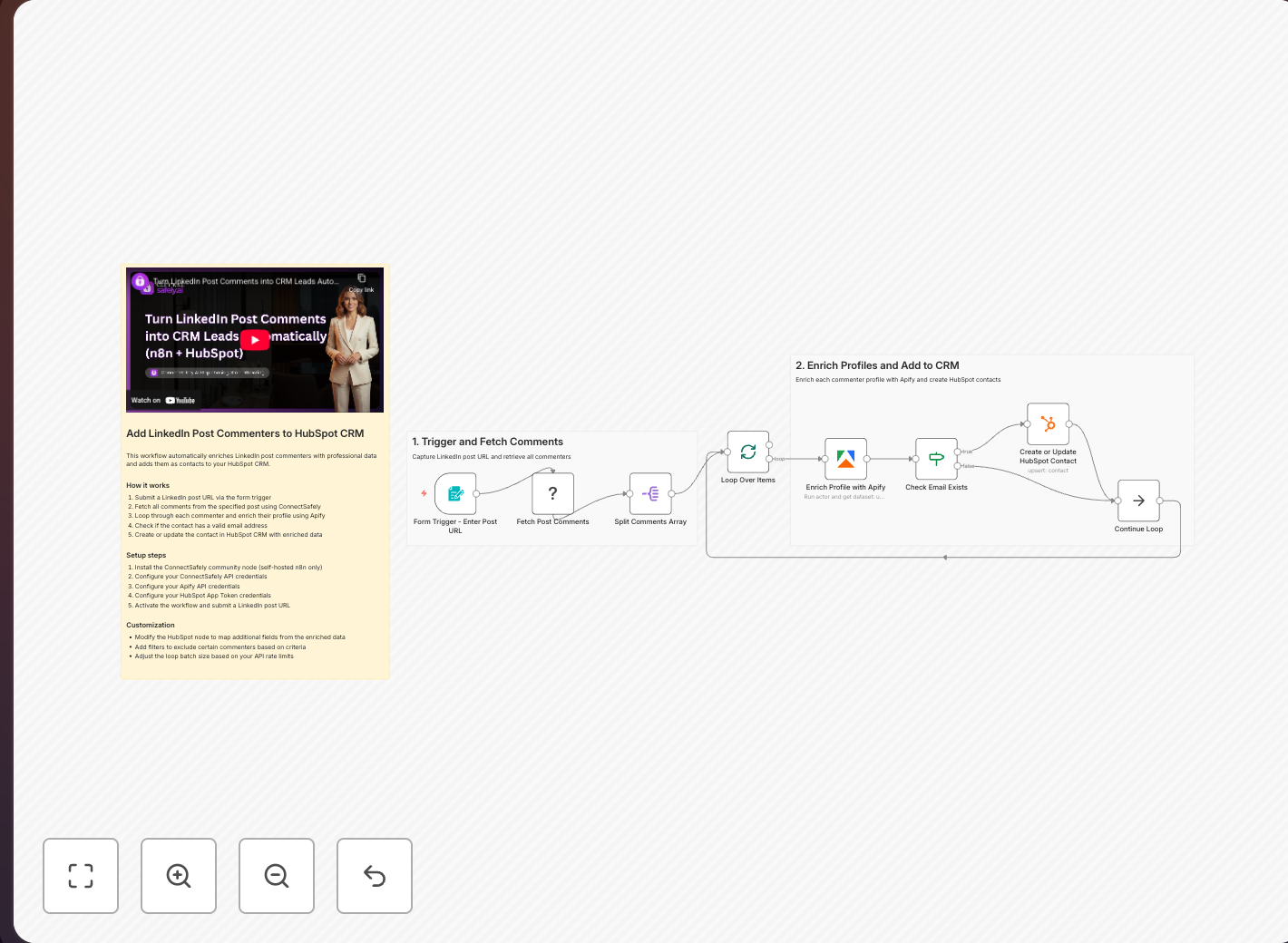
Transform LinkedIn content engagement into a lead generation engine. This n8n workflow automatically captures everyone who comments on your posts and syncs them as enriched contacts in HubSpot CRM with email and company data.
Key Takeaways
- Commenters are 10x more likely to convert than cold prospects according to HubSpot's engagement research
- Automated enrichment captures email, company, job title, and more for each commenter
- Real-time CRM sync ensures your sales team can follow up while engagement is fresh
- Inbound-first approach aligns with ConnectSafely's lead generation philosophy - attract, don't chase
Why This Workflow Matters
When someone takes the time to comment on your LinkedIn post, they're signaling genuine interest in your content and expertise. According to LinkedIn's own research, users who engage with content are 3x more likely to become customers.
These engaged users are warm leads who are far more likely to convert than cold prospects. However, manually tracking commenters and adding them to your CRM is tedious and time-consuming.
This automation solves that problem:
- Capturing every commenter - No more missing potential leads
- Enriching profiles automatically - Get email, company, job title, and more
- Syncing to HubSpot in real-time - Leads ready for your sales team instantly
Workflow Overview
The workflow consists of four main stages:
1. Trigger Configuration
Choose between:
- Schedule Trigger: Run automatically every hour/day to capture new commenters
- Manual Trigger: Run on-demand when you want to process a specific post
2. Fetch LinkedIn Commenters
The ConnectSafely.ai node connects to LinkedIn and retrieves:
- Commenter's LinkedIn profile URL
- Name and headline
- Comment text and timestamp
- Connection degree (1st, 2nd, 3rd)
3. Profile Enrichment with Apify
For each commenter, Apify's LinkedIn scraper fetches:
- Verified email address (when available)
- Current company and job title
- Location and industry
- Profile summary and skills
- Connection count and mutual connections
4. HubSpot Contact Creation
The enriched data flows into HubSpot where each commenter becomes a contact with:
- Full contact details populated
- Source tagged as "LinkedIn Comment"
- Original comment captured in notes
- Post URL linked for context
Data Flow Comparison
| Data Point | Without Automation | With This Workflow |
|---|---|---|
| Commenter capture | Manual screenshot/copy | Automatic, real-time |
| Email discovery | Manual research | Automated via Apify |
| CRM entry | Manual data entry | Instant sync |
| Time per lead | 5-10 minutes | 0 minutes (automated) |
| Leads missed | 30-50% estimated | 0% |
Setup Instructions
Step 1: Install Required Nodes
In your n8n instance, ensure you have the ConnectSafely.ai community node installed. See the n8n integration guide for detailed instructions.
Step 2: Configure Credentials
You'll need to set up three credential sets:
1. ConnectSafely.ai API
- Get your API key from ConnectSafely dashboard
- Add your LinkedIn Account ID
2. Apify API
- Create an Apify account at apify.com
- Generate an API token from Settings > Integrations
3. HubSpot API
- Go to HubSpot > Settings > Integrations > Private Apps
- Create a new private app with contact creation permissions
- Copy the access token
Step 3: Build the Workflow
- Add a Schedule Trigger node (e.g., every 6 hours)
- Add ConnectSafely.ai node > Select "Get Post Comments"
- Add Apify node > Configure LinkedIn scraper
- Add HubSpot node > Select "Create/Update Contact"
- Connect the nodes in sequence
Step 4: Test and Activate
- Run the workflow manually with a test post URL
- Verify contacts appear in HubSpot with correct data
- Enable the schedule trigger for automated operation
Best Practices
Rate Limiting
According to LinkedIn's terms of service, respect platform guidelines:
- Keep requests under 100/hour
- Use ConnectSafely's safe automation for built-in protection
Deduplication
Add a check for existing contacts before creating duplicates. HubSpot's API allows searching by email or LinkedIn URL before insert.
Tagging Strategy
Use HubSpot lists to segment leads by:
- Content topic they engaged with
- Engagement type (comment vs. reaction)
- Connection degree
Follow-up Automation
Set up HubSpot workflows to automatically engage new contacts:
- Send personalized follow-up within 24 hours
- Add to relevant nurture sequences
- Assign to sales reps based on criteria
Learn more about building effective follow-up sequences.
Video Tutorial
Watch the complete setup walkthrough:
Frequently Asked Questions
How do I automatically add LinkedIn post commenters to HubSpot CRM?
Use n8n with ConnectSafely.ai and Apify. The workflow fetches commenters from your posts, enriches their profiles with email and company data via Apify's LinkedIn scraper, then creates contacts in HubSpot automatically. Setup takes about 30 minutes. See our n8n integration guide for step-by-step instructions.
Can I get email addresses from LinkedIn commenters automatically?
Yes, Apify's enrichment discovers professional emails when publicly available, with typical match rates of 40-60% depending on industry. For higher rates, supplement with Hunter.io or Apollo.io. The workflow handles the enrichment automatically before syncing to HubSpot.
Is it safe to scrape LinkedIn post comments for CRM import?
Yes, with proper methods. ConnectSafely's compliant approach respects rate limits and uses platform-safe patterns. Keep requests under 100 per hour. This workflow is designed for capturing engagement on your own posts, not mass scraping competitor content.
How quickly should I follow up with LinkedIn commenters in HubSpot?
Within 24 hours while engagement is fresh. According to HubSpot's lead response research, responding within 5 minutes increases conversion 9x. Use HubSpot workflows for personalized outreach that references their specific comment.
How do I prevent duplicate contacts when syncing LinkedIn to HubSpot?
Add a "Search Contact" step before creating records—search by LinkedIn URL or email. If found, update the existing record instead of creating duplicates. HubSpot's built-in deduplication tools can also merge records post-import if needed.
Related Workflows
- Sync LinkedIn Profile Visitors to HubSpot CRM - Capture anonymous profile viewers
- Extract LinkedIn Group Members to Google Sheets - Build prospect lists from groups
- AI-Powered LinkedIn Connection Requests - Follow up with personalized connections
Turn every LinkedIn comment into a CRM contact. Start your ConnectSafely free trial and automate your inbound lead capture today.
Prerequisites
- n8n instance (self-hosted or cloud)
- ConnectSafely.ai account with API key
- HubSpot account with API access
- Apify account for LinkedIn enrichment
- LinkedIn account connected to ConnectSafely
Required Integrations
n8n ConnectSafely
 LinkedIn
 HubSpot
 Apify
ApifyUse Cases
- Capture LinkedIn post commenters as CRM leads automatically
- Enrich contact data with full LinkedIn profile information
- Build sales pipelines from engaged LinkedIn audiences
- Track engagement-to-lead conversion metrics
- Automate lead generation from content marketing
Ready to get started?
Download this workflow template and customize it for your needs.
Related Templates
LinkedIn Visitors to HubSpot | n8n
Auto-sync LinkedIn profile visitors to HubSpot CRM with n8n. Enrich leads with email and company data using Apify.
View TemplateLinkedIn Group Members to Sheets | n8n
Extract LinkedIn group members to Google Sheets with n8n. Filter for premium members and export prospect lists automatically.
View Template