 Make
MakeAI-Powered LinkedIn Outreach: Make.com Scenario
Automate personalized LinkedIn outreach at scale with Make.com, Google Sheets, Gemini AI, and ConnectSafely.ai. Build a complete AI-powered lead gen scenario.
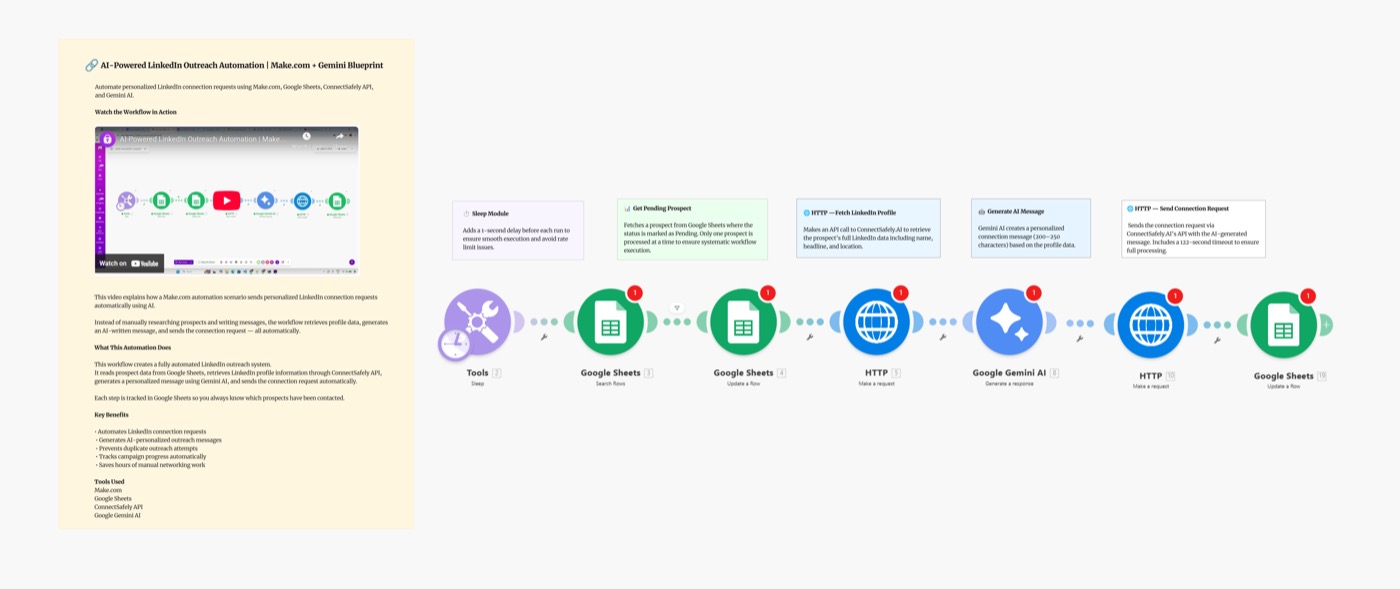
Build a powerful AI-powered LinkedIn automation system using Make.com, Google Sheets, Gemini AI, and ConnectSafely.ai. This scenario automates personalized LinkedIn outreach at scale — without the copy-paste fatigue or robotic messages that get ignored.
Scenario Overview
Video Tutorial
What You'll Build
A fully automated Make.com scenario that:
- Pulls prospects from a Google Sheet
- Fetches LinkedIn profile data via the ConnectSafely API
- Generates a personalized message using Google Gemini AI
- Sends the connection request through ConnectSafely safely
- Updates your sheet with the send status and timestamp
Google Sheets → ConnectSafely (Profile) → Gemini AI → ConnectSafely (Send) → Google Sheets (Log)
Key Takeaways
- AI personalization dramatically improves acceptance rates — 40-60% vs 15-20% for generic messages
- Make.com's visual interface makes it easy to build and debug the scenario without code
- Gemini AI generates natural-sounding messages based on each prospect's profile
- ConnectSafely's safe automation handles rate limiting and human-like behavior patterns automatically
Why Make.com for LinkedIn Automation?
Make.com (formerly Integromat) is ideal for this workflow because:
- Visual scenario designer — see every data flow in real-time
- Powerful branching and filters — only contact qualified prospects
- Built-in error handling — gracefully skip failed runs
- Cost-effective — far more operations per dollar than alternatives
- 1,500+ app integrations — plug into your existing CRM, email, or enrichment tools
Setting Up the Blueprint
Step 1: Prepare Your Google Sheet
Create a Google Sheet with these columns:
| Column | Description |
|---|---|
| LinkedIn URL | Full profile URL of the prospect |
| Name | Prospect's name (for reference) |
| Status | Pending / Sent / Error |
| AI Message | Generated by Gemini (filled automatically) |
| Sent Date | Timestamp added by Make |
| Notes | Optional manual notes |
Step 2: Get Your ConnectSafely API Key
- Log in to ConnectSafely.ai
- Go to Settings → API Key
- Copy your API key — you'll add it to Make as an HTTP header
Step 3: Set Up Your Gemini API Key
- Visit Google AI Studio
- Create a new API key
- Save it to use in Make's HTTP module
Step 4: Build the Make Scenario
Module 1: Google Sheets — Watch Rows
- Trigger: New rows where
Status = Pending - Sheet: Your prospect spreadsheet
- Limit: 20-30 rows per run (respects LinkedIn's safe limits)
Module 2: ConnectSafely — Get Profile
Use Make's HTTP module with:
GET https://api.connectsafely.ai/v1/profile
Headers: Authorization: Bearer YOUR_API_KEY
Body: { "linkedinUrl": "{{LinkedInURL}}" }
This returns profile data like headline, recent posts, company, and job title.
Module 3: Google Gemini — Generate Message
Use Make's HTTP module to call Gemini:
POST https://generativelanguage.googleapis.com/v1beta/models/gemini-pro:generateContent
With this prompt template:
You are helping me write a short LinkedIn connection request message.

Person's profile:
- Name: {{Name}}
- Headline: {{Headline}}
- Company: {{Company}}
- Recent activity: {{RecentPosts}}

Write a connection note that:
1. Is under 280 characters
2. References something specific from their profile
3. Sounds genuine and peer-to-peer
4. Does NOT use: "I'd like to pick your brain", "synergy", "circle back"
5. Ends with a natural reason to connect

My context: [Your role and what you do]
Module 4: ConnectSafely — Send Connection Request
POST https://api.connectsafely.ai/v1/connections/send
Headers: Authorization: Bearer YOUR_API_KEY
Body: {
  "linkedinUrl": "{{LinkedInURL}}",
  "message": "{{GeminiOutput}}"
}
Module 5: Google Sheets — Update Row
- Update the
Statuscolumn toSent - Set
Sent Dateto{{now}} - Store the
AI Messagegenerated by Gemini
Step 5: Configure Rate Limiting
Add a Sleep module between each connection send:
- Random delay: 30–90 seconds
- This mimics human behavior and protects your LinkedIn account
Also use a Router to handle errors gracefully — if the API returns an error, update the row with Status = Error and continue.
Optimizing Your AI Messages
Prompt Engineering Tips
Be specific about tone:
Tone: friendly, peer-to-peer, genuinely curious
Avoid: corporate speak, excessive praise, sales pitches
Include: specific observations, shared context, clear reason to connect
Add your context:
I'm a [your role] at [company]. I help [target audience] with [specific problem].
I'm reaching out to [type of prospect] because [genuine reason].
Enforce constraints:
- Maximum 280 characters (hard LinkedIn limit)
- One clear, specific reference to their profile
- No emojis in the first message
- Soft close, not a hard call-to-action
A/B Testing in Make
Use a Router to split traffic between two prompt variations and track acceptance rates in your sheet. After 50+ sends, compare which style wins.
Best Practices
Daily Limits
- 20–25 connection requests per day (safe range for most accounts)
- Random delays of 30–90 seconds between sends
- Human-like timing — don't run at 3AM every night
Quality Control
- Spot-check Gemini's output in your sheet before sends
- Add a Filter in Make to skip profiles with missing data
- Review acceptance rates weekly — target 35%+
Respect Profile Data
- Only use publicly available profile information
- Keep messages professional and relevant
- Honor opt-outs immediately
Learn more about staying within LinkedIn's limits safely.
Common Issues & Fixes
| Issue | Solution |
|---|---|
| Gemini messages too generic | Add more profile fields to the prompt (recent posts, job change) |
| Messages exceed 280 characters | Add a strict character limit instruction to the prompt |
| API returns 429 (rate limit) | Increase Sleep module delay to 60–120 seconds |
| Sheet not updating | Check Make module permissions for Google Sheets |
| Connection sends failing | Verify LinkedIn account is connected in ConnectSafely |
Frequently Asked Questions
How do I automate LinkedIn outreach with Make.com?
Build a Make scenario that connects Google Sheets (prospect list) → ConnectSafely API (get profile data) → Google Gemini (generate message) → ConnectSafely API (send request) → Google Sheets (log status). See the ConnectSafely Make integration guide for setup details. Get started by connecting both API keys.
Is Make.com better than n8n for LinkedIn automation?
Make.com is better for visual, no-code users — its drag-and-drop scenario builder requires no programming. n8n offers more flexibility for self-hosted setups and complex data transformations. Both work equally well with ConnectSafely. Choose Make if you prefer a visual interface; choose n8n if you want more control.
How many LinkedIn connections can I send per day with automation?
Safely send 20–25 connection requests per day using ConnectSafely's built-in rate limiting. Add random delays of 30–90 seconds between sends in your Make scenario. According to LinkedIn's usage policies, quality engagement is prioritized over volume.
What acceptance rate should I expect from AI-personalized LinkedIn requests?
AI-personalized messages from this blueprint typically achieve 35–55% acceptance rates, compared to 10–15% for generic requests. The key is referencing specific profile details — recent posts, job changes, or shared interests — rather than generic compliments.
Do I need a paid Make.com plan for this blueprint?
Make's free plan includes 1,000 operations per month — enough to test with 100–200 prospects. For regular use (1,000+ prospects/month), Make's Core plan ($9/month) is sufficient. ConnectSafely requires a Pro plan or higher for API access.
Related Workflows
- Turn LinkedIn Commenters into Connections - Automatically connect with people who comment on posts
- n8n AI LinkedIn Connection Requests with Gemini - Same workflow, built on n8n
- LinkedIn Commenters to HubSpot - Sync engaged commenters to your CRM
Ready to build your AI-powered LinkedIn outreach system? Start your ConnectSafely free trial to get started in minutes.
Prerequisites
- Make.com account (free tier works for testing)
- ConnectSafely.ai account with API key
- Google Sheets account
- Google Gemini API key (from Google AI Studio)
- LinkedIn account connected to ConnectSafely
Required Integrations
Make.com ConnectSafely
 LinkedIn
 Google Sheets
 Google Gemini
Use Cases
- Automate personalized LinkedIn connection requests using AI
- Scale outbound sales prospecting without sounding robotic
- Build LinkedIn lead pipelines with Make.com visual scenarios
- Send AI-crafted messages to targeted prospects from a Google Sheet
- Track outreach status automatically back in your spreadsheet
Ready to get started?
Download this workflow template and customize it for your needs.
Related Templates
Turn LinkedIn Commenters into Connections: Make.com Scenario
Automatically send LinkedIn connection requests to people who comment on posts. Stop manually following up — let Make.com and ConnectSafely do it for you.
View TemplateAI LinkedIn Connections with n8n + Gemini
Send AI-personalized LinkedIn connection requests at scale using n8n and Google Gemini. Achieve 40-60% acceptance rates with automated personalization.
View TemplateLinkedIn Commenters to HubSpot | n8n
Capture LinkedIn post commenters and sync them to HubSpot CRM automatically. Enrich contacts with email and company data using Apify.
View Template