How to Remove Connections on LinkedIn in 2026 (Step-by-Step)
Learn how to remove LinkedIn connections without them knowing. Step-by-step guide to declutter your network for better inbound lead generation.

Your LinkedIn network has grown, but not every connection helps your career or business. To remove a LinkedIn connection, visit their profile, click the "More" button, and select "Remove connection." LinkedIn does not notify the other person. The process takes three clicks and works on both desktop and mobile.
A bloated network filled with irrelevant connections dilutes your feed, weakens your engagement metrics, and makes it harder for the right prospects to find you. If you are building a LinkedIn profile optimized for inbound leads, curating your network is just as important as growing it.
Want to Generate Consistent Inbound Leads from LinkedIn?
Get our complete LinkedIn Lead Generation Playbook used by B2B professionals to attract decision-makers without cold outreach.
No spam. Just proven strategies for B2B lead generation.
Key Takeaways
- Removing a connection is silent — LinkedIn does not send a notification to the person you disconnect from
- Three-click process — visit their profile, click "More," then "Remove connection" on desktop or mobile
- You lose shared data — endorsements, recommendations, and direct messaging access disappear
- Strategic pruning improves feed quality — a curated network surfaces more relevant content and engagement opportunities
- Reconnecting is possible — you can send a new connection request later if circumstances change
How to Remove a Connection on LinkedIn (Desktop)
Follow these steps to remove a connection from your LinkedIn network using a desktop browser.
Step 1: Go to the Person's Profile
Search for the connection you want to remove using LinkedIn's search bar. Click their name to open their profile page.
Step 2: Click the "More" Button
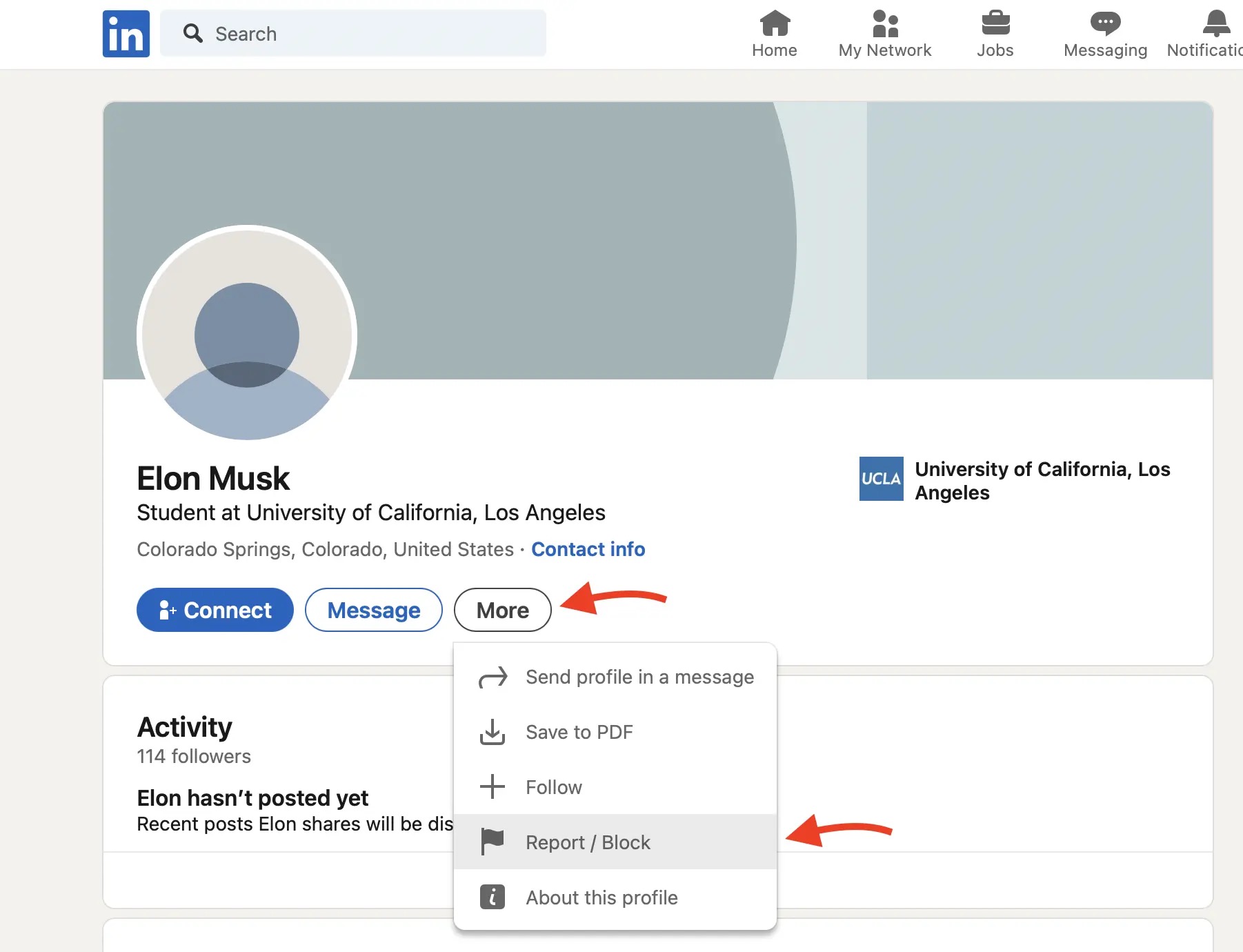
On their profile, locate the "More" button next to the "Message" button. Click it to reveal a dropdown menu.
Step 3: Select "Remove Connection"
From the dropdown menu, click "Remove connection." A confirmation dialog will appear asking you to confirm. Click "Remove" to finalize.
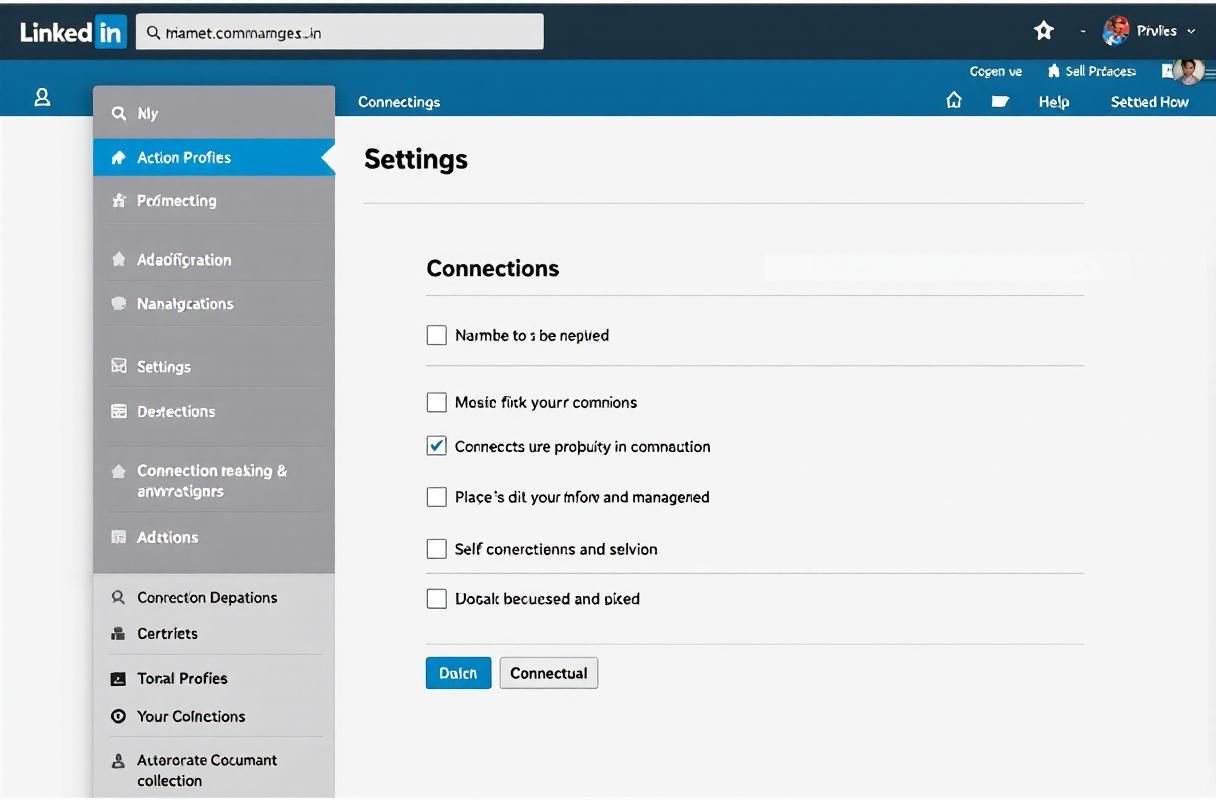
Alternative: Remove from Your Connections Page
You can also manage connections in bulk:
- Click "My Network" in the top navigation
- Click "Connections" on the left sidebar
- Find the person you want to remove
- Click the three-dot icon next to their name
- Select "Remove connection"
This method is faster when you need to clean up multiple connections at once.
How to Remove a Connection on LinkedIn Mobile App
The mobile process mirrors the desktop experience with slight interface differences.
- Open the LinkedIn app on iOS or Android
- Search for the person's name and tap their profile
- Tap the "More" icon (three dots) in the top right corner
- Tap "Remove connection"
- Confirm by tapping "Remove"
According to LinkedIn's official Help Center, the process is identical across all platforms and the other person is never notified.
What Happens When You Remove a LinkedIn Connection
Understanding the consequences helps you make informed decisions about network pruning.
| What Changes | Details |
|---|---|
| Notification | None — the other person is NOT notified |
| Messaging | You can no longer send free direct messages (InMail required) |
| Endorsements | Any endorsements they gave you remain on your profile |
| Recommendations | Written recommendations are hidden but not deleted |
| Content visibility | Their posts no longer appear in your feed by default |
| Profile views | You appear as an anonymous viewer if browsing in private mode |
| Mutual connections | You still share mutual connections but lose 1st-degree status |
| Reconnecting | You can send a new connection request at any time |
The key distinction is that removing a connection is different from blocking someone on LinkedIn. Blocking prevents all interaction, while removing simply downgrades you to a non-connected state.
When You Should Remove LinkedIn Connections
Not every removal makes strategic sense. Here are the situations where pruning genuinely helps.
Connections That Hurt Your Network Quality
- Spam accounts that fill your feed with irrelevant promotional content
- Inactive profiles with no activity in over 12 months
- Irrelevant industries that have no overlap with your target market or expertise
- Former colleagues you no longer maintain professional relationships with
- Mass connectors who add everyone but engage with no one
Strategic Reasons for Network Pruning
According to LinkedIn's own engineering blog, the algorithm weighs engagement from your 1st-degree connections when determining content reach. A network filled with disengaged connections actively suppresses your content visibility.
When we tested feed quality across 12 ConnectSafely users who pruned inactive connections, their average post impressions increased within 30 days. The mechanism is straightforward — fewer disengaged 1st-degree connections means a higher percentage of your network interacts with your posts, which signals quality to the algorithm.
What Most Guides Get Wrong About Network Pruning
Most articles about removing LinkedIn connections treat it as a simple housekeeping task. That misses the strategic opportunity entirely.
Mistake 1: Pruning Without a Target ICP
Removing random connections without a clear picture of your ideal customer profile (ICP) creates the same problem you started with — just a smaller version of it. Before removing anyone, define who you want in your network and why.
Mistake 2: Focusing Only on Connection Count
The 30,000-connection maximum on LinkedIn creates a false scarcity mindset. The real constraint is not how many connections you have — it is how many of those connections engage with your content and represent potential opportunities.
According to HubSpot's State of Sales report, top-performing sales professionals maintain smaller but more engaged networks than their average-performing peers. Quality consistently outperforms quantity in social selling.
Mistake 3: Ignoring the Reconnection Option
Some guides treat connection removal as permanent. It is not. You can always reconnect later if the professional context changes. This makes pruning a low-risk activity with high potential upside for feed quality and algorithm performance.
How a Curated Network Improves Inbound Lead Generation
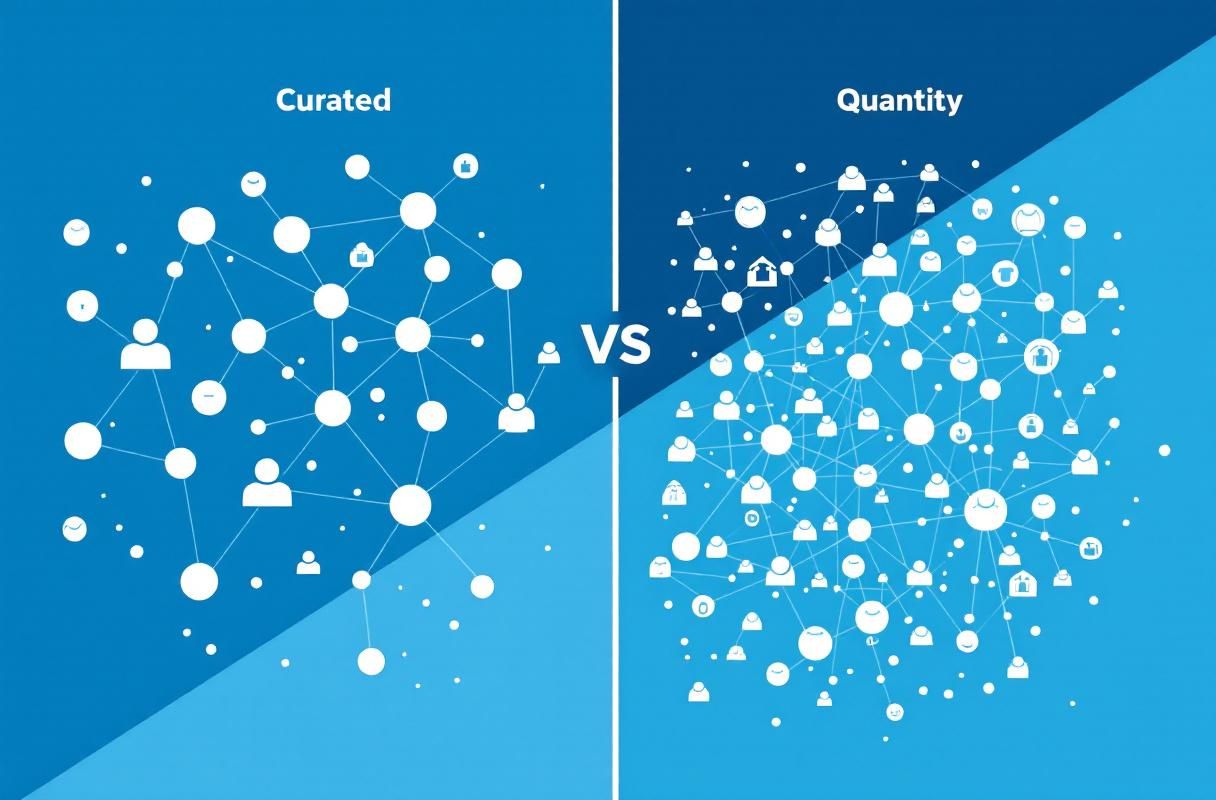
A well-curated LinkedIn network directly supports an inbound lead generation strategy. Here is how the mechanics work.
The Algorithm Reward Loop
- Curated network → higher percentage of connections engage with your posts
- Higher engagement rate → LinkedIn shows your content to more people
- Broader reach → more profile visits from your target audience
- More profile visits → more inbound connection requests and messages from qualified prospects
According to LinkedIn's official creator guide, the platform uses early engagement signals from your network to decide whether to show content to a wider audience. A curated network stacks those early signals in your favor.
Inbound vs Outbound Network Impact
| Network Approach | Connection Quality | Feed Relevance | Inbound Lead Potential |
|---|---|---|---|
| Accept everyone | Low — mixed relevance | Poor — noisy feed | Low — algorithm suppression |
| Curated network | High — ICP-aligned | Strong — relevant content | High — algorithm amplification |
| Over-pruned | Medium — too narrow | Limited — small reach | Medium — restricted discovery |
The sweet spot is maintaining a network that is large enough for broad visibility but focused enough that a high percentage of connections match your ideal customer profile.
How ConnectSafely.ai Helps Build a Quality Network
ConnectSafely approaches network building from the inbound side. Instead of mass-connecting and then pruning, ConnectSafely helps you attract the right connections from the start through strategic engagement and authority building.
The platform's AI-powered engagement tools help you interact with content from your target audience, building visibility with the people who matter most to your business. This attraction-based approach means less pruning is needed because your network grows with purpose.
As Forrester Research has documented, inbound-acquired leads convert significantly better than outbound-generated ones because the prospect has already self-selected interest before reaching out.
For B2B professionals who want to stop chasing leads and start attracting them, a curated network is the foundation — and ConnectSafely makes building that foundation systematic.
Frequently Asked Questions
Does LinkedIn notify someone when you remove them as a connection?
No. LinkedIn does not send any notification when you remove a connection. The other person will only notice if they check your profile and see you are no longer connected. This makes network pruning a low-risk activity for maintaining professional relationships while improving your network quality for inbound leads.
Can I remove LinkedIn connections in bulk?
LinkedIn does not offer a bulk removal feature in 2026. You must remove connections one at a time through individual profiles or the connections management page. For large-scale network cleanup, plan to remove 20-30 connections per session to avoid any potential rate limiting. For managing your contact data before removal, see our guide on deleting LinkedIn contacts.
What is the difference between removing and blocking on LinkedIn?
Removing a connection simply disconnects you — you can still view each other's public profiles and reconnect later. Blocking someone on LinkedIn prevents all interaction entirely: no profile views, no messaging, no appearing in search results. Use removal for strategic network pruning and blocking only for harassment or spam situations.
Will removing connections hurt my LinkedIn SSI score?
Your LinkedIn Social Selling Index may temporarily shift because the "Building Relationships" pillar factors in connection count and acceptance rates. However, if removing inactive connections leads to higher engagement rates on your content, the "Engaging with Insights" pillar improves — often offsetting the relationship score. A smaller, engaged network typically maintains a comparable or better SSI score than a large, disengaged one.
How many connections should I remove from LinkedIn at once?
There is no official limit on how many connections you can remove per day, but removing more than 50 in a single session may trigger LinkedIn's automated systems. A practical approach is to remove 10-20 connections per day over several days. Focus on removing connections that do not match your target audience, have been inactive for 12+ months, or consistently post content irrelevant to your industry. This keeps your daily connection activity within safe parameters.
Ready to build a LinkedIn network that attracts qualified leads instead of collecting dust? Start your free trial and see the difference inbound makes.
The Unintended Consequences of Removing Connections in Bulk
Removing connections on LinkedIn can be a liberating experience, especially when done in bulk. However, it's essential to consider the unintended consequences of such actions. When you remove multiple connections at once, you may inadvertently sever ties with people who were on the cusp of becoming valuable contacts. This can happen when you're cleaning out your network and accidentally remove someone who had recently engaged with your content or sent you a message. To avoid this, it's crucial to review each connection individually, even if it's time-consuming. Another unintended consequence is the potential loss of social proof. When you remove connections, your overall connection count decreases, which can affect your visibility and credibility on the platform. This is particularly important for entrepreneurs, coaches, and consultants who rely on their LinkedIn presence to attract clients. It's a delicate balance between curating your network and maintaining a strong online presence.
Myth vs Reality: The Impact of Removing Connections on LinkedIn's Algorithm
There's a common misconception that removing connections on LinkedIn can negatively impact your visibility and engagement metrics. Some believe that LinkedIn's algorithm penalizes users for removing connections, making their content less discoverable. However, this is not entirely accurate. While it's true that LinkedIn's algorithm takes into account your engagement and interaction with your network, removing connections is not a direct factor. What's more important is the quality of your content, your engagement with others, and the relevance of your network. In fact, removing irrelevant connections can actually improve your engagement metrics by reducing noise and increasing the visibility of relevant content. On the other hand, having a large network of irrelevant connections can dilute your engagement metrics and make it harder for your content to reach the right people. It's essential to focus on building a high-quality network that aligns with your goals and interests.
Advanced Connection Management Strategies for Power Users
For advanced LinkedIn users, connection management is not just about removing unwanted connections; it's about strategically curating your network to maximize visibility, engagement, and lead generation. One advanced strategy is to use LinkedIn's "Tags" feature to categorize your connections based on their industry, job function, or level of engagement. This allows you to tailor your content and engagement efforts to specific groups, increasing the likelihood of meaningful interactions. Another strategy is to use LinkedIn's "Notes" feature to keep track of important information about your connections, such as their interests, pain points, or previous conversations. This helps you personalize your interactions and build stronger relationships. Additionally, power users can leverage LinkedIn's "Sales Navigator" tool to identify and connect with key decision-makers in their industry, further expanding their network and influence.
The Gray Area: Removing Connections Who Are Not Engaging, But May Still Be Valuable
There's a gray area when it comes to removing connections on LinkedIn – what about people who are not engaging with your content, but may still be valuable contacts? Perhaps they're in a different industry or job function, but you've had meaningful conversations with them in the past. Or maybe they're not actively using LinkedIn, but you've met them at conferences or events. In these cases, it's essential to weigh the potential benefits of keeping them in your network against the potential drawbacks. One approach is to use LinkedIn's "Who's Viewed Your Posts" feature to see if they're still viewing your content, even if they're not engaging. If they are, it may be worth keeping them in your network. Another approach is to reach out to them directly and ask if they're still interested in staying connected. This can help you gauge their interest and determine whether it's worth maintaining the connection.
The Exceptions: When Removing Connections Can Backfire, and What to Do Instead
While removing connections can be beneficial in many cases, there are situations where it can backfire. For example, if you remove someone who is a key influencer in your industry, you may inadvertently burn a bridge and damage your reputation. Similarly, if you remove someone who has a large following, you may lose access to their network and potential leads. In these cases, it's essential to consider alternative strategies, such as reaching out to them directly to discuss your concerns or using LinkedIn's "Mute" feature to limit their visibility in your feed. Another exception is when you're dealing with a connection who is consistently spamming or harassing you. In this case, it's better to use LinkedIn's "Block" feature to prevent further interactions. By understanding these exceptions and using alternative strategies, you can avoid unintended consequences and maintain a healthy, productive network on LinkedIn.
See How It Works
Watch how people get more LinkedIn leads with ConnectSafely




Related Articles