
 Make
MakeTurn LinkedIn Commenters into HubSpot Leads: Make.com Scenario
Stop letting LinkedIn engagement disappear. This Make.com scenario automatically captures LinkedIn post commenters, enriches data, and pushes them to HubSpot.
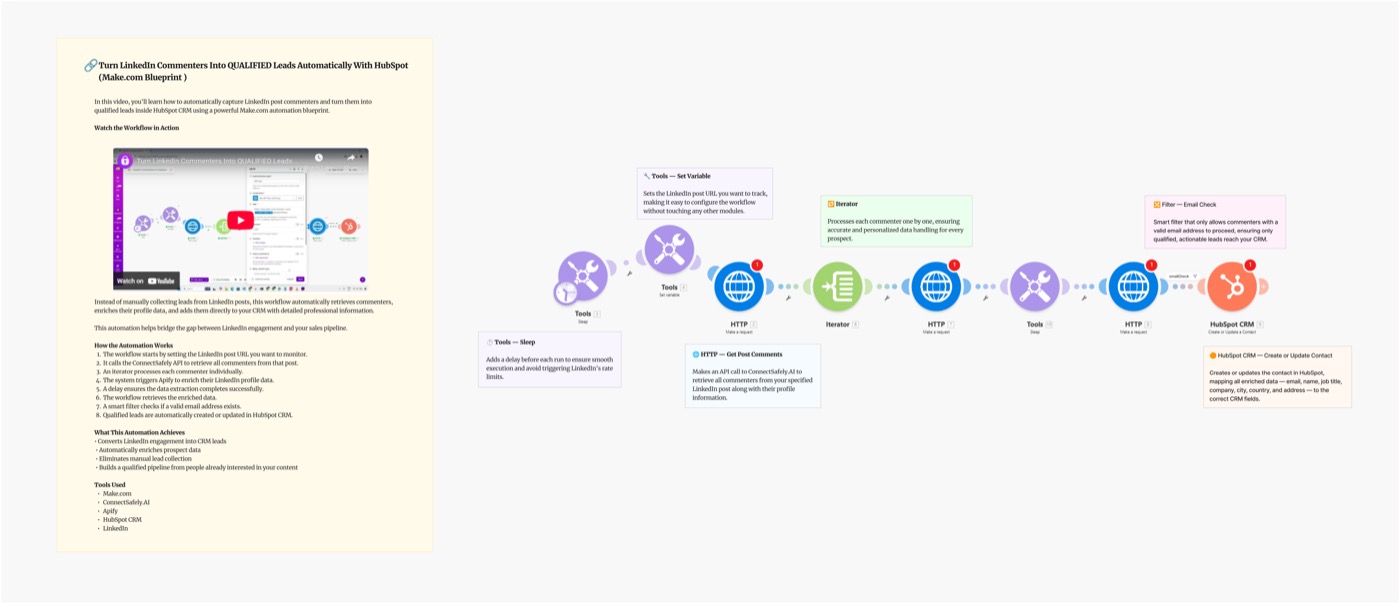
Stop letting LinkedIn engagement disappear into the void. This Make.com scenario automatically captures LinkedIn post commenters, enriches their professional data via ConnectSafely, and pushes them directly into HubSpot as qualified, source-tracked leads.
Video Tutorial
Why LinkedIn Commenters Are Your Best Leads
Post commenters are the highest-intent leads in your LinkedIn funnel:
- Active, not passive — they took action on your content
- Already aware of you — no cold introduction needed
- Topic-qualified — commenting on your content = interested in your niche
- Enriched data — ConnectSafely pulls job title, company, headline automatically
Without automation, these leads evaporate. With this blueprint, every commenter becomes a tracked, workable contact in your CRM.
Scenario Overview
What You'll Build
A fully automated Make.com scenario that:
- Fetches commenters from your LinkedIn posts on a schedule
- Enriches profiles via ConnectSafely API (job title, company, headline)
- Checks HubSpot to avoid creating duplicates
- Creates or updates the contact with LinkedIn source data
- Optionally enrolls them in a HubSpot sequence for follow-up
Schedule → Fetch Commenters → Enrich Profile → HubSpot Check → Create/Update Contact → Enroll Sequence
Setting Up the Blueprint
Step 1: Connect Your API Keys
ConnectSafely:
- Go to ConnectSafely.ai → Settings → API Key
- Add to Make's HTTP module:
Authorization: Bearer YOUR_API_KEY
HubSpot:
- Go to HubSpot → Settings → Integrations → Private Apps
- Create a private app with Contacts read/write scope
- Copy the access token into Make's HubSpot module
Step 2: Configure the Modules
Module 1: Schedule Trigger
- Run: Every 4–8 hours (captures comments faster)
- Or once daily for lower-volume posts
Module 2: ConnectSafely — Get Post Commenters
GET https://api.connectsafely.ai/v1/posts/commenters
Headers: Authorization: Bearer YOUR_API_KEY
Body: { "postUrl": "YOUR_LINKEDIN_POST_URL" }
Module 3: Iterator
- Loop through each commenter
Module 4: ConnectSafely — Get Profile Data
GET https://api.connectsafely.ai/v1/profile
Headers: Authorization: Bearer YOUR_API_KEY
Body: { "linkedinUrl": "{{commenter.linkedinUrl}}" }
Returns: name, email (if available), job title, company, headline.
Module 5: HubSpot — Search Contact
- Search by LinkedIn URL or email to check for duplicates
Module 6: Router
- Route A: Contact exists → Update properties
- Route B: Contact doesn't exist → Create new contact
Module 7a/7b: HubSpot — Create or Update Contact
Properties to set:
| HubSpot Property | Value |
|---|---|
| First Name | {{profile.firstName}} |
| Last Name | {{profile.lastName}} |
| Job Title | {{profile.headline}} |
| Company | {{profile.company}} |
| LinkedIn URL | {{commenter.linkedinUrl}} |
| Lead Source | "LinkedIn - Post Commenter" |
| Source Post | {{postUrl}} |
Module 8: HubSpot — Enroll in Sequence (Optional)
- Enroll new contacts in a tailored LinkedIn outreach sequence
- Trigger only if email is available
Step 3: Configure HubSpot Properties
Create these custom properties in HubSpot (Settings → Properties):
linkedin_url— Textlinkedin_source_post— Textlinkedin_engagement_type— Dropdown: Commenter / Visitor / Connector
This lets you filter and report on leads by LinkedIn source.
CRM Pipeline Strategy
Once contacts are in HubSpot, the follow-up workflow:
1. Immediate (automated):
- Tag as "LinkedIn Commenter"
- Assign to owner based on company size or territory
2. Within 24 hours (manual or sequence):
- Personalized LinkedIn DM referencing the post
- Or email if available
3. Day 3–5:
- LinkedIn connection request (use the Commenters to Connections blueprint)
4. Day 7+:
- Sales sequence or nurture workflow in HubSpot
Best Practices
Data Quality
- Filter out commenters with no headline (likely spam accounts)
- Add a Company Name filter to target enterprise vs. SMB separately
- Deduplicate by LinkedIn URL rather than email (more reliable on LinkedIn)
Post Selection
Target posts with:
- High comment volume (50+ comments)
- Topic directly related to your product/service
- Your own posts for highest relevance
HubSpot List Segmentation
Create smart lists for:
- "LinkedIn Commenters — Last 30 Days"
- "LinkedIn Commenters — No Email (Needs Enrichment)"
- "LinkedIn Commenters — Enrolled in Sequence"
Common Issues & Fixes
| Issue | Solution |
|---|---|
| Duplicate contacts created | Use HubSpot Search before Create — check LinkedIn URL |
| No email on LinkedIn profiles | Use email enrichment (Clearbit, Apollo) as an additional step |
| HubSpot API rate limit | Add a 1-second delay between API calls in Make |
| Missing profile data | Some profiles are private or limited — add null checks |
Frequently Asked Questions
How do I send LinkedIn commenters to HubSpot automatically?
This Make.com scenario fetches commenters from your post via ConnectSafely's API, enriches their profile data, then creates or updates a HubSpot contact with LinkedIn source tracking. Get started by connecting both API keys.
What data from LinkedIn goes into HubSpot?
Name, job title, company, LinkedIn URL, headline, and the source post URL. Email is captured when available on the public profile. You can enrich missing emails with tools like Clearbit or Apollo as an additional step.
Can I trigger a HubSpot sequence automatically for LinkedIn leads?
Yes — Module 8 in this blueprint enrolls new contacts in a HubSpot sequence automatically. You'll need a HubSpot Sales Hub Professional plan or higher to use sequences.
Related Workflows
- LinkedIn Profile Visitors to HubSpot CRM - Push profile visitors (not just commenters) to HubSpot
- Turn Commenters into Connections - Connect with commenters on LinkedIn first
- n8n: LinkedIn Commenters to HubSpot - Same workflow built on n8n
Stop losing LinkedIn leads to manual processes. Start your ConnectSafely free trial and start filling your HubSpot pipeline from LinkedIn today.
Prerequisites
- Make.com account (free tier works for testing)
- ConnectSafely.ai account with API key
- LinkedIn account connected to ConnectSafely
- HubSpot account with API access
Required Integrations
Make.com ConnectSafely
 LinkedIn
 HubSpot
Use Cases
- Automatically capture LinkedIn post commenters as HubSpot contacts
- Enrich commenter profiles with professional data before CRM entry
- Build qualified lead pipelines from LinkedIn content automatically
- Trigger HubSpot sequences when someone comments on your posts
- Track LinkedIn content ROI by linking engagement to pipeline revenue
Ready to get started?
Download this workflow template and customize it for your needs.
Related Templates
Turn LinkedIn Commenters into Connections: Make.com Scenario
Automatically send LinkedIn connection requests to people who comment on posts. Stop manually following up — let Make.com and ConnectSafely do it for you.
View TemplateTurn LinkedIn Profile Visitors into HubSpot Leads: Make.com Scenario
Most people let LinkedIn profile visitors disappear. This Make.com scenario automatically captures your LinkedIn profile visitors and pushes them to HubSpot.
View TemplateLinkedIn Commenters to HubSpot | n8n
Capture LinkedIn post commenters and sync them to HubSpot CRM automatically. Enrich contacts with email and company data using Apify.
View Template