
 Make
MakeTurn LinkedIn Profile Visitors into HubSpot Leads: Make.com Scenario
Most people let LinkedIn profile visitors disappear. This Make.com scenario automatically captures your LinkedIn profile visitors and pushes them to HubSpot.
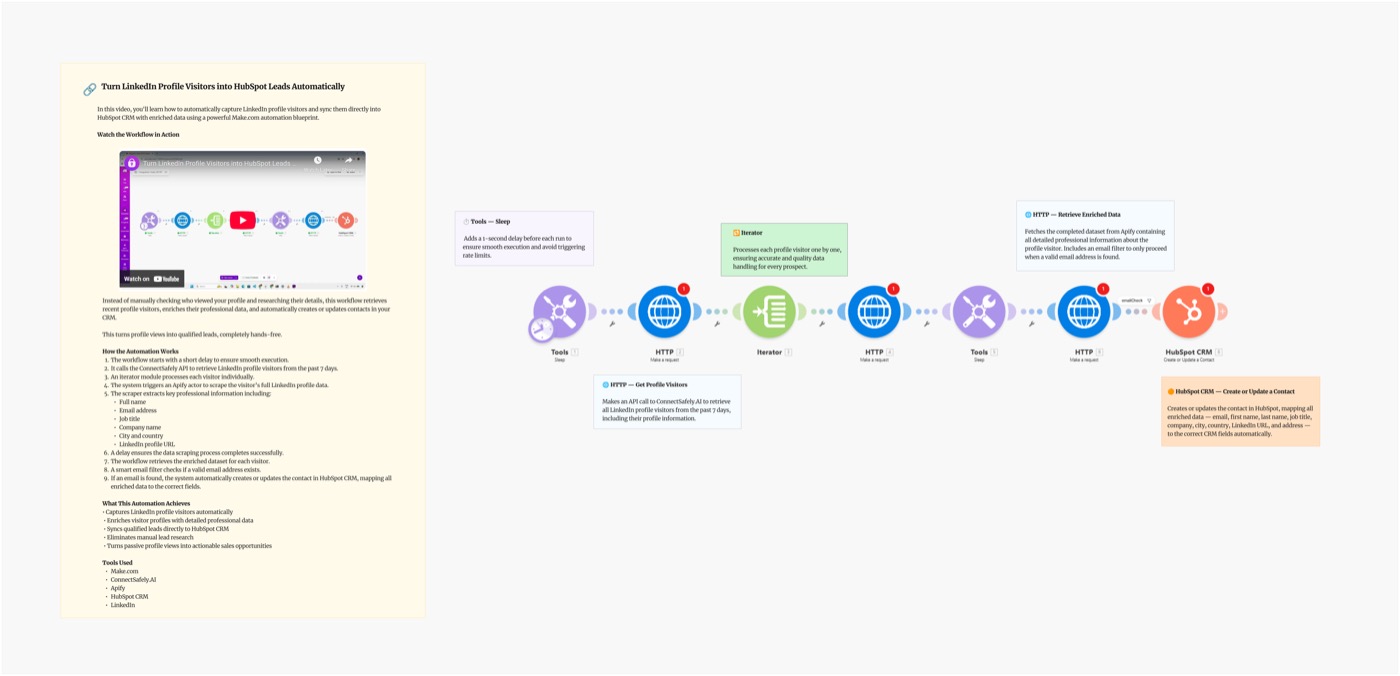
Most people let LinkedIn profile visitors disappear without taking action. This Make.com scenario automatically captures everyone who views your LinkedIn profile, enriches their professional data via ConnectSafely, and pushes them into HubSpot as source-tracked leads — ready for follow-up.
Video Tutorial
Why LinkedIn Profile Visitors Are Your Best Hidden Leads
Profile visitors are one of the most overlooked lead signals in B2B:
- Self-qualified — they searched for you or found you organically
- High intent — browsing your profile = considering you for something
- No cold introduction — they already know who you are
- Time-sensitive — outreach within 24–48 hours sees 3–5x better response
Without automation, these leads check you out and disappear forever. This blueprint captures every one of them automatically.
Scenario Overview
What You'll Build
A Make.com scenario that runs daily and:
- Fetches profile visitors from the last 24 hours via ConnectSafely API
- Enriches each visitor's profile (title, company, headline)
- Checks HubSpot to avoid creating duplicate contacts
- Creates or updates the contact with LinkedIn visitor source tracking
- Triggers an automated follow-up workflow
Schedule → Fetch Visitors → Enrich Profile → HubSpot Check → Create/Update Contact → Trigger Sequence
Setting Up the Blueprint
Step 1: Authenticate Your Services
ConnectSafely:
- Go to ConnectSafely.ai → Settings → API Key
- Add to Make HTTP module:
Authorization: Bearer YOUR_API_KEY
HubSpot:
- HubSpot → Settings → Integrations → Private Apps
- Create a private app with
crm.objects.contacts.writeandcrm.objects.contacts.readscopes - Copy access token into Make's HubSpot module
Step 2: Configure the Modules
Module 1: Schedule Trigger
- Run: Once daily at 8 AM
- Captures visitors from the previous 24 hours
Module 2: ConnectSafely — Get Profile Visitors
GET https://api.connectsafely.ai/v1/profile/visitors
Headers: Authorization: Bearer YOUR_API_KEY
Params: { "since": "24h" }
Module 3: Iterator
- Loop through each visitor returned
Module 4: ConnectSafely — Enrich Profile
GET https://api.connectsafely.ai/v1/profile
Headers: Authorization: Bearer YOUR_API_KEY
Body: { "linkedinUrl": "{{visitor.linkedinUrl}}" }
Returns: full name, headline, current company, location.
Module 5: HubSpot — Search Contact
- Search by LinkedIn URL
- Use
linkedin_urlcustom property (create this in HubSpot first)
Module 6: Router
- Route A: Contact exists → Update with latest visitor date
- Route B: New → Create contact
Module 7a: HubSpot — Update Contact (Route A) Update properties:
linkedin_last_visit_date={{now}}linkedin_visit_count={{current + 1}}
Module 7b: HubSpot — Create Contact (Route B)
| HubSpot Property | Value |
|---|---|
| First Name | {{profile.firstName}} |
| Last Name | {{profile.lastName}} |
| Job Title | {{profile.headline}} |
| Company | {{profile.company}} |
| LinkedIn URL | {{visitor.linkedinUrl}} |
| Lead Source | "LinkedIn - Profile Visitor" |
| First Visit Date | {{now}} |
Module 8: HubSpot — Enroll in Sequence (Optional)
- Enroll new contacts in a "LinkedIn Visitor Nurture" sequence
- Only if email is available on profile
Step 3: Set Up HubSpot Custom Properties
Create these in HubSpot (Settings → Properties → Contacts):
| Property Name | Type | Purpose |
|---|---|---|
linkedin_url | Text | Deduplication key |
linkedin_lead_source | Text | Track visitor vs commenter vs connector |
linkedin_first_visit_date | Date | When they first visited |
linkedin_last_visit_date | Date | Most recent visit |
linkedin_visit_count | Number | Total visits tracked |
Step 4: Build a Follow-Up Workflow in HubSpot
Create a HubSpot Workflow triggered when linkedin_lead_source = "LinkedIn - Profile Visitor":
Branch 1: Has Email
- Day 1: Send personalized email
- Day 3: LinkedIn connection request (use Profile Visitor Messaging Blueprint)
Branch 2: No Email
- Day 1: LinkedIn DM via Profile Visitor Messaging Blueprint
- Assign to sales rep for manual follow-up
Pipeline Tracking & ROI
With visitors flowing into HubSpot, you can now report:
- LinkedIn-sourced leads — contacts where
linkedin_lead_sourceis set - Profile view → Deal conversion rate — filter deals by LinkedIn source
- Best visitor segments — which job titles visit most frequently
- Campaign attribution — did posting content drive more profile views?
Best Practices
Visitor Quality Filtering
Not every visitor deserves follow-up. Filter for:
- Job title contains your target personas (VP, Director, Head of)
- Company size matches your ICP (add company enrichment if needed)
- Location within your target market
Outreach Timing
- DM within 24 hours — best response rates while you're top of mind
- Reference the visit (subtly): "Looks like you came across my profile recently — happy to connect!"
- Don't be creepy — don't say "I saw you visited 3 times" if they've visited multiple times
Repeat Visitors
Track linkedin_visit_count — someone who visits 3+ times without connecting is a very hot lead. Surface these to your sales team for priority follow-up.
Common Issues & Fixes
| Issue | Solution |
|---|---|
| No visitors returned | LinkedIn Premium required for full visitor data |
| Duplicate HubSpot contacts | Verify dedup by LinkedIn URL before creating |
| Missing profile data | Some profiles are private — add null checks for empty fields |
| HubSpot API rate limit | Add 1s delay between each HubSpot call |
Frequently Asked Questions
How do I push LinkedIn profile visitors to HubSpot automatically?
Use this Make.com blueprint with ConnectSafely's API. The scenario runs daily, fetches your LinkedIn visitors, enriches their profiles, and creates or updates HubSpot contacts automatically with source tracking.
Do I need LinkedIn Premium to see who visited my profile?
For the full visitor list (past 90 days), LinkedIn Premium is recommended. Free accounts see a limited, anonymized subset. ConnectSafely's API captures whatever LinkedIn makes available for your account type.
Can I automatically email LinkedIn profile visitors?
Yes — once visitors are in HubSpot as contacts, you can trigger email sequences automatically through HubSpot Workflows. Emails require a known email address, which ConnectSafely returns when it's available on the public profile. Use LinkedIn DMs for visitors without email addresses.
Related Workflows
- Auto-Message Profile Visitors on LinkedIn - DM visitors directly on LinkedIn
- LinkedIn Commenters to HubSpot - Same CRM pipeline from post engagement
- n8n: Profile Visitors to HubSpot - Same workflow built on n8n
Stop letting warm leads slip through the cracks. Start your ConnectSafely free trial and start capturing LinkedIn leads into HubSpot today.
Prerequisites
- Make.com account (free tier works for testing)
- ConnectSafely.ai account with API key
- LinkedIn account connected to ConnectSafely
- HubSpot account with Contacts API access
Required Integrations
Make.com ConnectSafely
 LinkedIn
 HubSpot
Use Cases
- Automatically capture LinkedIn profile visitors as HubSpot contacts
- Never miss a hot lead who viewed your profile and left without connecting
- Build a pipeline of warm LinkedIn leads in your CRM automatically
- Trigger HubSpot follow-up workflows for profile visitors
- Track which outreach campaigns drive LinkedIn profile views
Ready to get started?
Download this workflow template and customize it for your needs.
Related Templates
Auto-Message LinkedIn Profile Visitors: Make.com Scenario
Stop letting LinkedIn profile visitors leave without a conversation. This Make.com scenario automatically messages everyone who views your LinkedIn profile.
View TemplateTurn LinkedIn Commenters into HubSpot Leads: Make.com Scenario
Stop letting LinkedIn engagement disappear. This Make.com scenario automatically captures LinkedIn post commenters, enriches data, and pushes them to HubSpot.
View TemplateLinkedIn Visitors to HubSpot | n8n
Auto-sync LinkedIn profile visitors to HubSpot CRM with n8n. Enrich leads with email and company data using Apify.
View Template