
Send the client report on LinkedIn, using one prompt
Last updated 2026-10-16 · Tested on a real LinkedIn account
Short answer
Produce the client report from real numbers, every month, without touching it. You ask in plain English. Your AI assistant runs the LinkedIn CLI for you, so you never type a command yourself.
What do I actually type?
This one sentence. That is the whole thing.
“For the Snowflake account, pull this month's posts and their engagement, follower change, connection growth and SSI. Compare against last month's file at `reports/snowflake/2026-07.md` and write the deltas at the top — three lines above the fold, one paragraph below, the raw numbers as an appendix. Save the file to `reports/snowflake/2026-08.md`.”
How does it work, step by step?
Paste these one at a time. Each one is written in normal English — no command names, no flags.
We gave these exact prompts to a real AI assistant and wrote down every command it ran. It chose 2 commands: list-linkedin-accounts, get-organizations. Nobody told it which ones to use.
“For the Snowflake account, pull this month's posts and their engagement, follower change, connection growth and SSI. Compare against last month's file at `reports/snowflake/2026-07.md` and write the deltas at the top — three lines above the fold, one paragraph below, the raw numbers as an appendix. Save the file to `reports/snowflake/2026-08.md`.”
Underneath, the assistant works out that the job means calling the creator dashboard, then the follower analytics, then the SSI score, then reading last month's file, then diffing, then writing markdown. It calls something different for each of those steps. You did not pick a command and you did not look anything up.
your assistant picks thisWhat it printed when we ran it
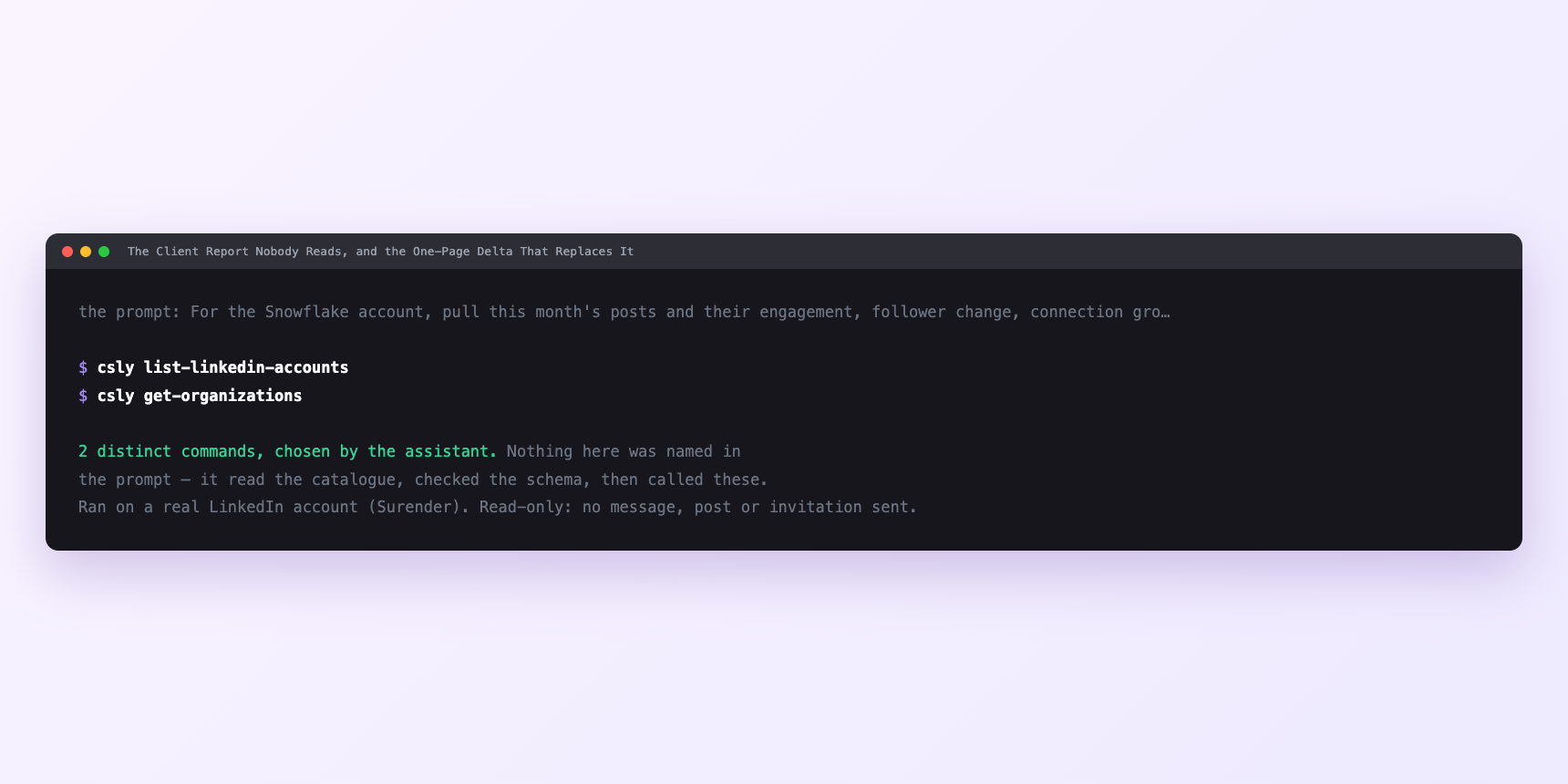
Not a mock-up. This is the actual run: the assistant was given the prompts above and nothing else, and these are the 2 distinct commands it chose from the catalogue. It ran read-only on a real LinkedIn account — nothing was sent, posted or invited.
Can I make it run on its own?
Yes. Add one more sentence and it keeps happening without you. This is the part a chat window cannot do — a saved job runs on the days you are busy.
“Do this for every account in `clients.txt` on the first working day of each month, and drop the files in `reports/`. If last month's file is missing for any account, skip that one and tell me which.”
How many LinkedIn actions does this use?
LinkedIn limits how much any account can do in a day. These are the real numbers, and your assistant checks what is left before it starts.
- This is the cheapest workflow in the set, and it is worth being precise about why.
- One client account's report is about ten tool calls, all reads. It spends no profile views, no connection requests, no messages, no comments — none of the capped action budgets that shape almost everything else. The two limits that decide most workflows — profile views at 120 a day, connection requests at 90 a week — are untouched here.
- The tightest thing this touches is a velocity class. Account reads are capped at 10 a minute, the lowest of any class, deliberately, because nothing legitimate polls account analytics faster. Ten calls per account means a run sits at about a minute of that budget, and the server paces calls two to five seconds apart anyway, so you cannot breach it by accident.
- Then the arithmetic that matters for an agency. That cap is per LinkedIn account. Twelve clients is not 120 calls against one budget — it is twelve accounts with ten calls each, none stressed. Whatever makes multi-account work expensive elsewhere does not apply here, because reading each account's own analytics is the only shape LinkedIn allows.
- The constraint is not the caps. It is whether every client account is connected in its own right, and whether last month's file exists.
Watch it instead
4 minutes
Common questions
- What if a dashboard came back thin or empty?
- Creator mode is off on that account. Followers, connections and SSI still work; post-level analytics do not. The Creator mode guide is the right thing to send at onboarding rather than on reporting day.
- What if a whole account failed at once?
- Session, not signal. Ask the assistant to check the account's status before assuming the tool broke. A session that needs reconnecting fails quietly mid-run, and on reporting day that reads as a client who stopped posting.
- What if the numbers do not match what the client sees?
- Date ranges. LinkedIn's dashboard defaults to rolling windows rather than calendar months, so state the range you used and keep it identical every month. Half the "these figures are wrong" emails are this.
- What if last month's file is missing?
- The report says so. "No comparison available for this period" is a sentence clients accept once. An invented comparison is one they never find out about until it matters.
- How many LinkedIn actions does send the client report use up?
- This is the cheapest workflow in the set, and it is worth being precise about why.
How do I set this up?
Once, and it takes about four minutes. After this you only write sentences.
$ npm install -g @connectsafely/cli$ export CONNECTSAFELY_API_KEY=...$ csly list-linkedin-accounts$ export CONNECTSAFELY_ACCOUNT_ID=...$ csly skill installThe package is @connectsafely/cli on npm. You need Node 20 or newer.
Then start your chat with this line, so your assistant uses the CLI instead of trying to open LinkedIn itself and hitting a login page:
“Use the ConnectSafely CLI (csly) for anything that touches LinkedIn. Run csly commands to see what exists, and csly schema before calling one. Don't guess a command name.”
Other things you can do
Try this on your own LinkedIn account
From $10 a month, on the LinkedIn account you already use, with zero ban risk.
What the CLI actually is— 86 commands, same plan, no extra cost.