
Build your own agent on LinkedIn, using one prompt
Last updated 2026-10-16 · Tested on a real LinkedIn account
Short answer
Build an agent that runs your LinkedIn account while you sleep. You ask in plain English. Your AI assistant runs the LinkedIn CLI for you, so you never type a command yourself.
What do I actually type?
This one sentence. That is the whole thing.
“Anyone in the team channel types a name; return the profile summary — headline, current role, recent activity, connection degree. Cache each answer for a day. Fall back across our three accounts by remaining quota.”
How does it work, step by step?
Paste these one at a time. Each one is written in normal English — no command names, no flags.
We gave these exact prompts to a real AI assistant and wrote down every command it ran. It chose 9 commands: list-linkedin-accounts, get-account-quota, get-profile, check-relationship, get-latest-posts, get-profile-visitors, get-received-invitations, get-creator-dashboard, get-connection-count. Nobody told it which ones to use.
“Anyone in the team channel types a name; return the profile summary — headline, current role, recent activity, connection degree. Cache each answer for a day. Fall back across our three accounts by remaining quota.”
One tool call — fetch-profile — with the routing rule sitting next to the prompt. The interesting part is the second sentence, not the first: your team will look up the same person twice in one afternoon, and the second call is a wasted read against a real cap.
your assistant picks this“Once a morning, check new profile visitors and new invitations. Diff against yesterday's file. Post what changed in Slack. Save today's file for tomorrow.”
Two tool calls plus a local diff. The MCP server tells you who visited today; only the file on disk tells you who is new. Write the file explicitly rather than leaving it implicit, because the file is the memory and the diff is the value.
your assistant picks this“List our team's LinkedIn accounts. For each, show connection growth, post engagement and remaining quota. Refresh every hour. Post to a channel if any account is under twenty on any budget.”
Three tool calls — list-linkedin-accounts, get-creator-dashboard, get-account-quota per account. Routing stops being an abstract concern here; the dashboard exists to make routing decisions.
your assistant picks thisWhat it printed when we ran it
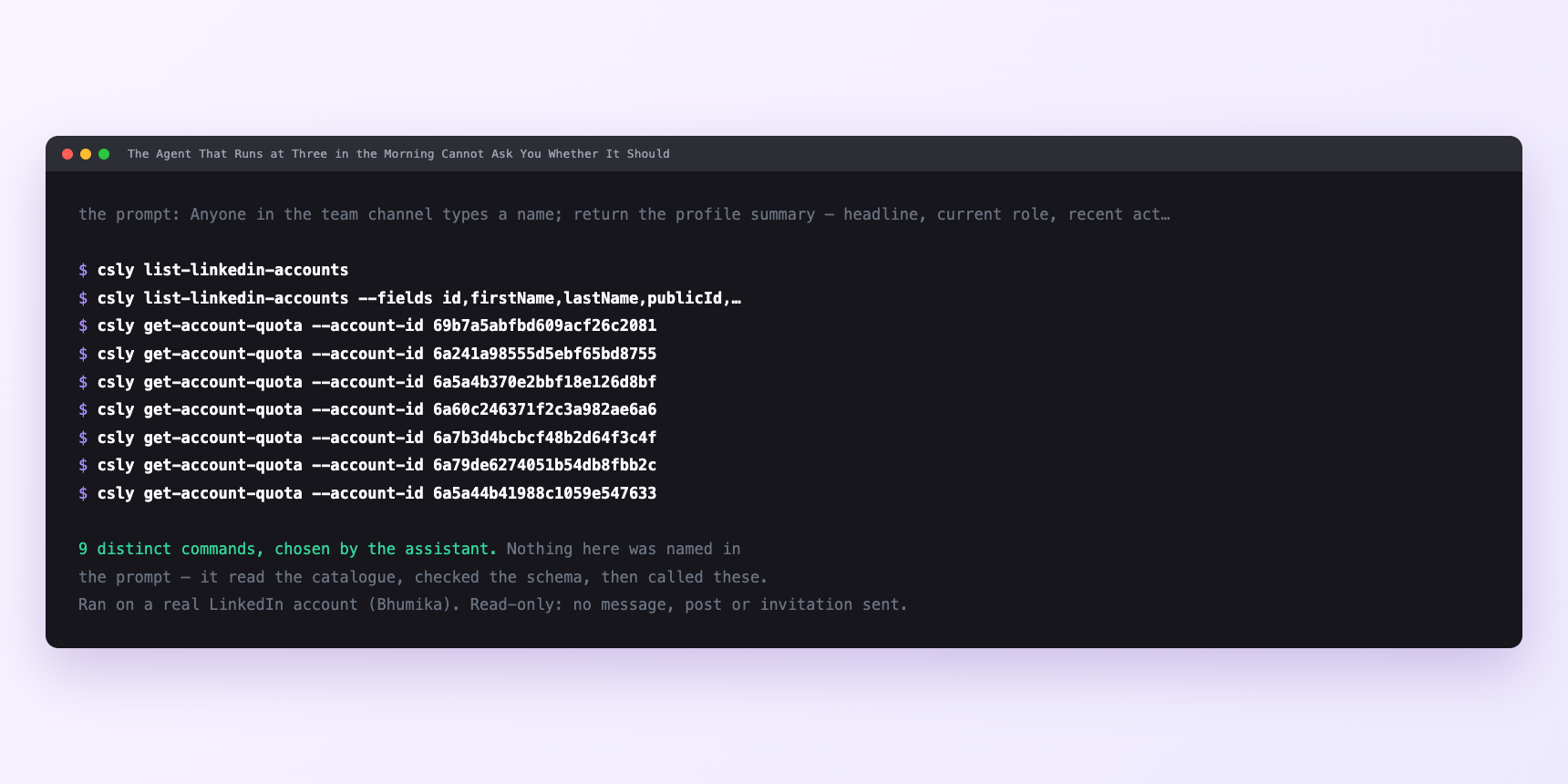
Not a mock-up. This is the actual run: the assistant was given the prompts above and nothing else, and these are the 9 distinct commands it chose from the catalogue. It ran read-only on a real LinkedIn account — nothing was sent, posted or invited.
Can I make it run on its own?
Yes. Add one more sentence and it keeps happening without you. This is the part a chat window cannot do — a saved job runs on the days you are busy.
“What is my quota — how many profile views, messages and connection requests are left today on each account, and when do they reset?”
How many LinkedIn actions does this use?
LinkedIn limits how much any account can do in a day. These are the real numbers, and your assistant checks what is left before it starts.
- Profile views: 120 a day. The Slack lookup at a team of five, four profiles each per working day, is roughly a hundred reads a week per account. Fine on one account. At a team of forty it is two hundred a day, one and a half times the daily budget on any single account. The routing rule earns its keep — spread the reads across three accounts and the cap moves from binding to comfortable. Or cache more aggressively. Or accept some stale answers and mark them as such.
- Messages: 150 a day. Connection requests: 90 a week. The write extension of the digest is "send a thank-you to profile visitors". A digest that fires thirty auto-generated notes back-to-back is inside the daily cap, near the 15-a-minute velocity cap, and indistinguishable from a script to anyone who receives one. So writes never share a run with reads. They queue during the digest, drip out through the day in groups of three or four with gaps of forty-five seconds to two minutes, stop well below the cap, and each one waits for a person to approve it from the queue. Sixty is the working target on a week where ninety is the ceiling. The rest is in the automation limits guide.
- Relationship checks: 150 a day. Previously uncapped. It got capped because an account doing roughly two hundred was disabled.
Watch it instead
4 minutes
Common questions
- What if a tool call fails?
- A session on one account can need reconnecting; the tool returns a clear error. Bubble it up in whatever interface the operator watches.
- What if the same profile is read twice on one page load?
- Cache reads in your own layer.
- What if the digest went out but the write did not?
- LinkedIn sometimes accepts a write and quietly does not create it, especially near a velocity cap. The server puts a short hold on that action; wait for it to lift rather than routing around it.
- What if a batch stopped part-way?
- Ask what the agent actually completed rather than what it planned. Log completed rows to disk before starting the next, so recovery is a resume rather than a retry.
- How many LinkedIn actions does build your own agent use up?
- Profile views: 120 a day. The Slack lookup at a team of five, four profiles each per working day, is roughly a hundred reads a week per account. Fine on one account. At a team of forty it is two hundred a day, one and a half times the daily budget on any single account. The routing rule earns its keep — spread the reads across three accounts and the cap moves from binding to comfortable. Or cache more aggressively. Or accept some stale answers and mark them as such.
How do I set this up?
Once, and it takes about four minutes. After this you only write sentences.
$ npm install -g @connectsafely/cli$ export CONNECTSAFELY_API_KEY=...$ csly list-linkedin-accounts$ export CONNECTSAFELY_ACCOUNT_ID=...$ csly skill installThe package is @connectsafely/cli on npm. You need Node 20 or newer.
Then start your chat with this line, so your assistant uses the CLI instead of trying to open LinkedIn itself and hitting a login page:
“Use the ConnectSafely CLI (csly) for anything that touches LinkedIn. Run csly commands to see what exists, and csly schema before calling one. Don't guess a command name.”
Other things you can do
Try this on your own LinkedIn account
From $10 a month, on the LinkedIn account you already use, with zero ban risk.
What the CLI actually is— 86 commands, same plan, no extra cost.