
Check what roles pay on LinkedIn, using one prompt
Last updated 2026-10-16 · Tested on a real LinkedIn account
Short answer
Track what roles and salaries are moving in your market, monthly. You ask in plain English. Your AI assistant runs the LinkedIn CLI for you, so you never type a command yourself.
What do I actually type?
This one sentence. That is the whole thing.
“Once a month, take the twenty companies in `watchlist.txt`. Pull every open role at each in the last ninety days. For each role write down required years, seniority label, listed compensation where the posting shows one, remote policy in days-in-office, and the exact wording of any benefit beyond base and equity. Dedupe by company and title. Save the whole thing to `market-YYYY-MM.csv`. Compare against last month's file and give me the delta rows only — companies whose posting rate, listed bands or benefits language actually moved.”
How does it work, step by step?
Paste these one at a time. Each one is written in normal English — no command names, no flags.
We gave these exact prompts to a real AI assistant and wrote down every command it ran. It chose 8 commands: list-linkedin-accounts, get-account-status, get-account-quota, search-companies, search-jobs, get-company-details, get-job-details, search-geo-locations. Nobody told it which ones to use.
“What's my remaining quota — jobs searches and company reads left today?”
First, always. The monthly sweep is the largest read this workflow runs against LinkedIn's own allowance, and knowing what is left decides whether to run it in one sitting or split it.
your assistant picks this“For each company in `watchlist.txt`, pull every role posted in the last ninety days. Dedupe by title. Give me company, title, posting age string, listed years, listed comp where the posting shows one, remote policy, and every benefit clause verbatim.”
Twenty companies, four to eight roles each, one row per surviving role. The verbatim benefits clause matters. A summary loses the wording, and the wording is what compares month to month.
your assistant picks this“Match each company to its headcount bracket — under a hundred, one hundred to a thousand, one thousand to ten thousand, above. Group the summary by bracket.”
Otherwise a small fast-growing company will look like it is paying below the incumbent, when in fact it is paying above every other company at its size. Bracket does the correcting the raw numbers cannot.
your assistant picks this“Compare this run to `market-YYYY-MM.csv` from last month. Show me only the delta rows — companies whose posting rate moved more than twenty per cent, whose listed bands shifted more than five per cent, or whose benefits language now includes a clause that appears in more than three other companies this month.”
The whole month distilled to the rows you actually act on.
your assistant picks thisWhat it printed when we ran it
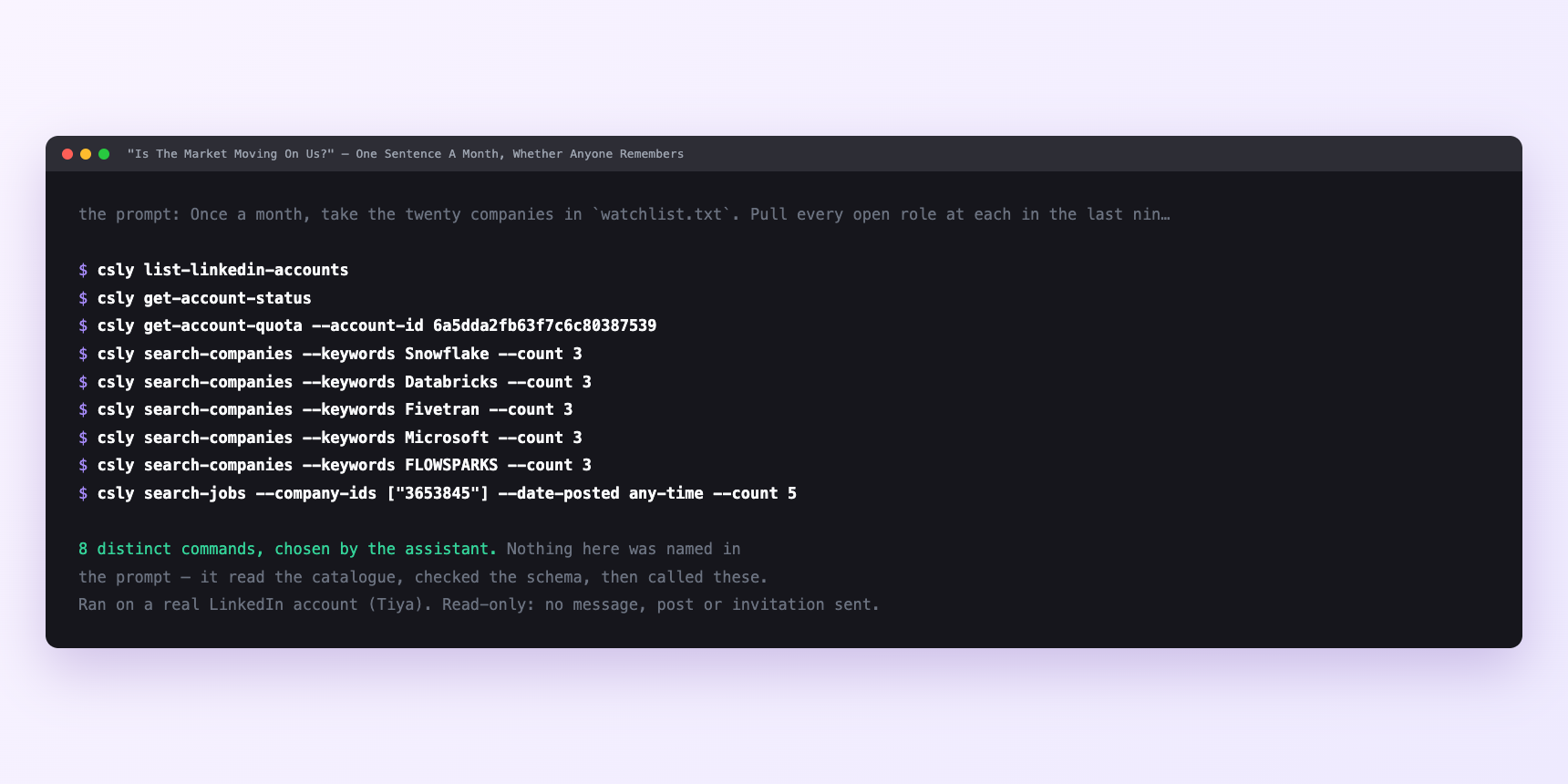
Not a mock-up. This is the actual run: the assistant was given the prompts above and nothing else, and these are the 8 distinct commands it chose from the catalogue. It ran read-only on a real LinkedIn account — nothing was sent, posted or invited.
How many LinkedIn actions does this use?
LinkedIn limits how much any account can do in a day. These are the real numbers, and your assistant checks what is left before it starts.
- Job searches: 1,000 calls a day, per search type, billed per page fetched. Twenty companies at one search each plus pagination is well under one per cent of a day. Effectively never binds.
- Content reads: 30 a minute. get-job-details is a content read. Twenty companies × six roles is a hundred and twenty descriptions, at half a second each with server-side pacing — under three minutes wall clock. search-companies shares the ceiling and adds twenty calls.
- Zero profile views. Profile views at 120 a day are the tightest budget most LinkedIn work touches, and this workflow does not touch it. The monthly sweep costs nothing on the budget you actually care about for outreach.
Watch it instead
5 minutes
Common questions
- What if the run stopped halfway?
- Almost always LinkedIn's monthly search allowance on a free account. Ask what it actually completed, keep the partial CSV. the diff still works on what is there. and finish on a Premium seat or after the reset.
- What if half the companies come back with nothing?
- Not every company posts on LinkedIn, and some post only to their careers site. A thin row for one you know is hiring means the watch-list is right and the platform is the wrong window. Add those to a separate list you skim manually.
- What if the delta report says nothing changed and something clearly did?
- Check the previous month's CSV was actually written. A missed run leaves the assistant comparing this month to the month before last, and slow-moving deltas will read as no change.
- What if the output contradicts a survey you paid for?
- Believe the CSV about relative movement and the survey about absolute level. Not in conflict. they measure different things.
- How many LinkedIn actions does check what roles pay use up?
- Job searches: 1,000 calls a day, per search type, billed per page fetched. Twenty companies at one search each plus pagination is well under one per cent of a day. Effectively never binds.
How do I set this up?
Once, and it takes about four minutes. After this you only write sentences.
$ npm install -g @connectsafely/cli$ export CONNECTSAFELY_API_KEY=...$ csly list-linkedin-accounts$ export CONNECTSAFELY_ACCOUNT_ID=...$ csly skill installThe package is @connectsafely/cli on npm. You need Node 20 or newer.
Then start your chat with this line, so your assistant uses the CLI instead of trying to open LinkedIn itself and hitting a login page:
“Use the ConnectSafely CLI (csly) for anything that touches LinkedIn. Run csly commands to see what exists, and csly schema before calling one. Don't guess a command name.”
Other things you can do
Try this on your own LinkedIn account
From $10 a month, on the LinkedIn account you already use, with zero ban risk.
What the CLI actually is— 86 commands, same plan, no extra cost.