
Reopen deals you lost on LinkedIn, using one prompt
Last updated 2026-10-16 · Tested on a real LinkedIn account
Short answer
Find which closed-lost deals are worth reopening because something changed. You ask in plain English. Your AI assistant runs the LinkedIn CLI for you, so you never type a command yourself.
What do I actually type?
This one sentence. That is the whole thing.
“Go through the 25 contacts in `closed-lost/timing.csv`, `closed-lost/relationship.csv` and `closed-lost/incumbent.csv`. Tell me which contacts changed company or title since the loss date, which of their old blockers have left the seat, and whether any of the accounts posted a new hire into my function this month. Draft a first message for anyone with a fresh signal. Don't send anything.”
How does it work, step by step?
Paste these one at a time. Each one is written in normal English — no command names, no flags.
We gave these exact prompts to a real AI assistant and wrote down every command it ran. It chose 5 commands: get-account-quota, list-linkedin-accounts, get-account-status, fetch-profile, search-people. Nobody told it which ones to use.
“What's my quota — profile views, connection requests and searches left, and when do they reset?”
First, always. It reports what is actually left on this account today, which beats any number in any article. For this job the caps almost never bind, and knowing that lets the assistant skip anxious pacing.
your assistant picks this“Read the 25 in `closed-lost/timing.csv`. For each account, check whether the company posted a new hire into my function in the last month, and whether a new VP or director has arrived. Return only rows where either fired.”
The timing column — fiscal-boundary and mandate-arrival signals against the profile and company data.
your assistant picks this“Read the 25 in `closed-lost/relationship.csv`. Tell me which contacts changed company or title since the loss date. For anyone still in the same seat, search the company for the role of the person who blocked us and tell me who holds it now. An empty seat counts.”
The relationship column — champion-moved and blocker-moved signals.
your assistant picks this“Read the 25 in `closed-lost/incumbent.csv`. Check the incumbent vendor's page for negative comments this month, and check the account for a re-org — a new head of the function whose predecessor left. Return rows where either fired.”
The incumbent column, the cheapest of the three, because a public complaint on a competitor's own page is data you were never using.
your assistant picks this“Draft a different first message per contact, referencing the signal that actually fired. No pitch, under four lines. Show me before anything sends.”
The last five words are the important ones, and they are also the default — the skills tell the assistant to draft rather than send, and any batch can be rehearsed with nothing leaving the machine.
your assistant picks thisWhat it printed when we ran it
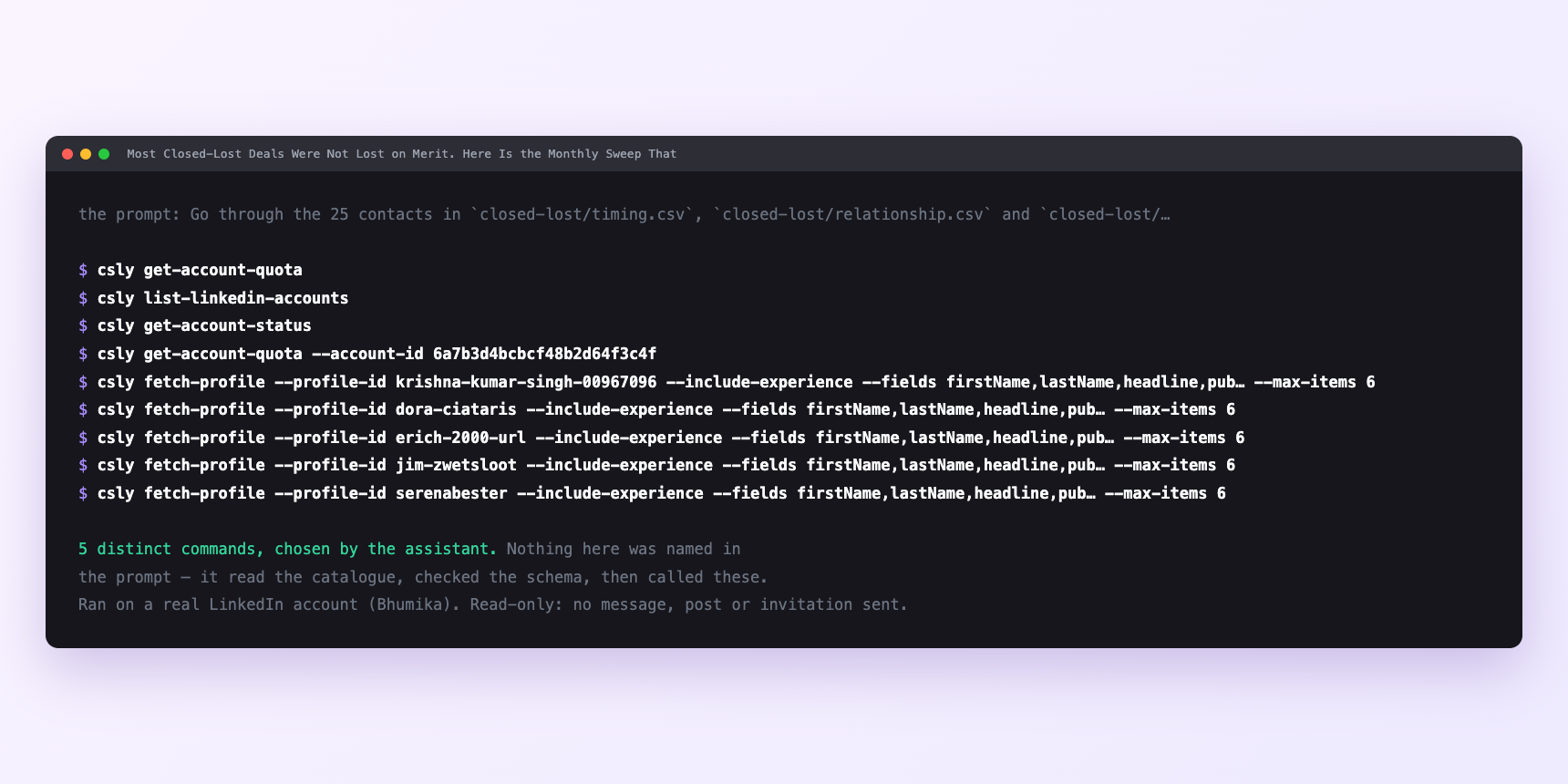
Not a mock-up. This is the actual run: the assistant was given the prompts above and nothing else, and these are the 5 distinct commands it chose from the catalogue. It ran read-only on a real LinkedIn account — nothing was sent, posted or invited.
How many LinkedIn actions does this use?
LinkedIn limits how much any account can do in a day. These are the real numbers, and your assistant checks what is left before it starts.
- Profile views: 120 a day, reset midnight UTC. Seventy-five profile reads across three files is a big monthly ask against the daily budget, so the assistant splits the run across two or three mornings if it has to. Ask for all seventy-five at once and the run stops partway, which is worse than not starting.
- Connection requests: 90 a week, reset Monday. The only weekly limit. Barely touched here — you might send five invitations in a month if you are lucky enough for five to be new-company movers.
- Messages: 150 a day. You will send perhaps three or four in a good month, dripped across a week.
- Searches: 1,000 calls a day per search type. The role-search per blocker uses maybe fifteen. Nowhere near.
Watch it instead
4 minutes
Common questions
- What if the run stopped halfway?
- You asked for more than one day's budget. Ask what it actually completed, not what it planned, and resume tomorrow.
- What if a profile came back empty?
- The account was deleted or the person restricted their visibility. Record it as unknown rather than a departure. a message written on "they left" that they did not is a bad first impression.
- What if the search for the blocker returned nobody?
- Either the title was renamed or the seat is genuinely vacant. A vacancy is the better trigger.
- What if the incumbent-complaint check returned nothing believable?
- LinkedIn comments are noisy. If the only "complaint" is somebody asking a support question, do not act on it.
- How many LinkedIn actions does reopen deals you lost use up?
- Profile views: 120 a day, reset midnight UTC. Seventy-five profile reads across three files is a big monthly ask against the daily budget, so the assistant splits the run across two or three mornings if it has to. Ask for all seventy-five at once and the run stops partway, which is worse than not starting.
How do I set this up?
Once, and it takes about four minutes. After this you only write sentences.
$ npm install -g @connectsafely/cli$ export CONNECTSAFELY_API_KEY=...$ csly list-linkedin-accounts$ export CONNECTSAFELY_ACCOUNT_ID=...$ csly skill installThe package is @connectsafely/cli on npm. You need Node 20 or newer.
Then start your chat with this line, so your assistant uses the CLI instead of trying to open LinkedIn itself and hitting a login page:
“Use the ConnectSafely CLI (csly) for anything that touches LinkedIn. Run csly commands to see what exists, and csly schema before calling one. Don't guess a command name.”
Other things you can do
Try this on your own LinkedIn account
From $10 a month, on the LinkedIn account you already use, with zero ban risk.
What the CLI actually is— 86 commands, same plan, no extra cost.