Write connection notes that land on LinkedIn, using one prompt
Last updated 2026-10-16 · Tested on a real LinkedIn account
Short answer
Write a connection note that references something the person actually wrote. You ask in plain English. Your AI assistant runs the LinkedIn CLI for you, so you never type a command yourself.
What do I actually type?
This one sentence. That is the whole thing.
“Every morning, take the next fifteen people from `warm-list.txt`. Skip anyone I'm already connected to or have a pending invite with. For everyone left, read the profile and the most recent post or comment, then draft a connection note under 250 characters that quotes something they actually wrote about themselves. If you cannot find one specific thing they wrote, leave the note blank. Show me all of them with a one-line reason each, wait for approval, and drip the approved ones in threes across the afternoon with varied gaps. Stop for the week at sixty.”
How does it work, step by step?
Paste these one at a time. Each one is written in normal English — no command names, no flags.
We gave these exact prompts to a real AI assistant and wrote down every command it ran. It chose 5 commands: get-account-quota, get-sent-invitations, check-relationship, get-profile, get-latest-posts. Nobody told it which ones to use.
“What's my quota — how many connection requests do I have left this week?”
First, always. It reports what is actually left on your account today, which beats any number in any article, this one included. A fresh batch of fifteen on a week with four invitations left is fourteen wasted drafts.
your assistant picks this“Skip anyone I'm already connected to or have a pending invite with, before drafting anything.”
Drafting for somebody already in your network wastes the draft, and sending wastes one of ninety weekly actions on a person who cannot accept it. Pending invitations are easier to forget — you invited them three months ago, they never responded, and the assistant has no memory of three months ago.
your assistant picks this“For everyone left, read the profile and the most recent post or comment, then draft a note under 250 characters that quotes something they wrote. If you cannot find one specific thing they wrote, leave the note blank rather than inventing one.”
The negative instruction is not decoration. An assistant asked for twelve notes will produce twelve, and the ones it fills in when the material is thin are the flattery ones. An empty draft is the correct answer for a bare profile.
your assistant picks thisWhat it printed when we ran it
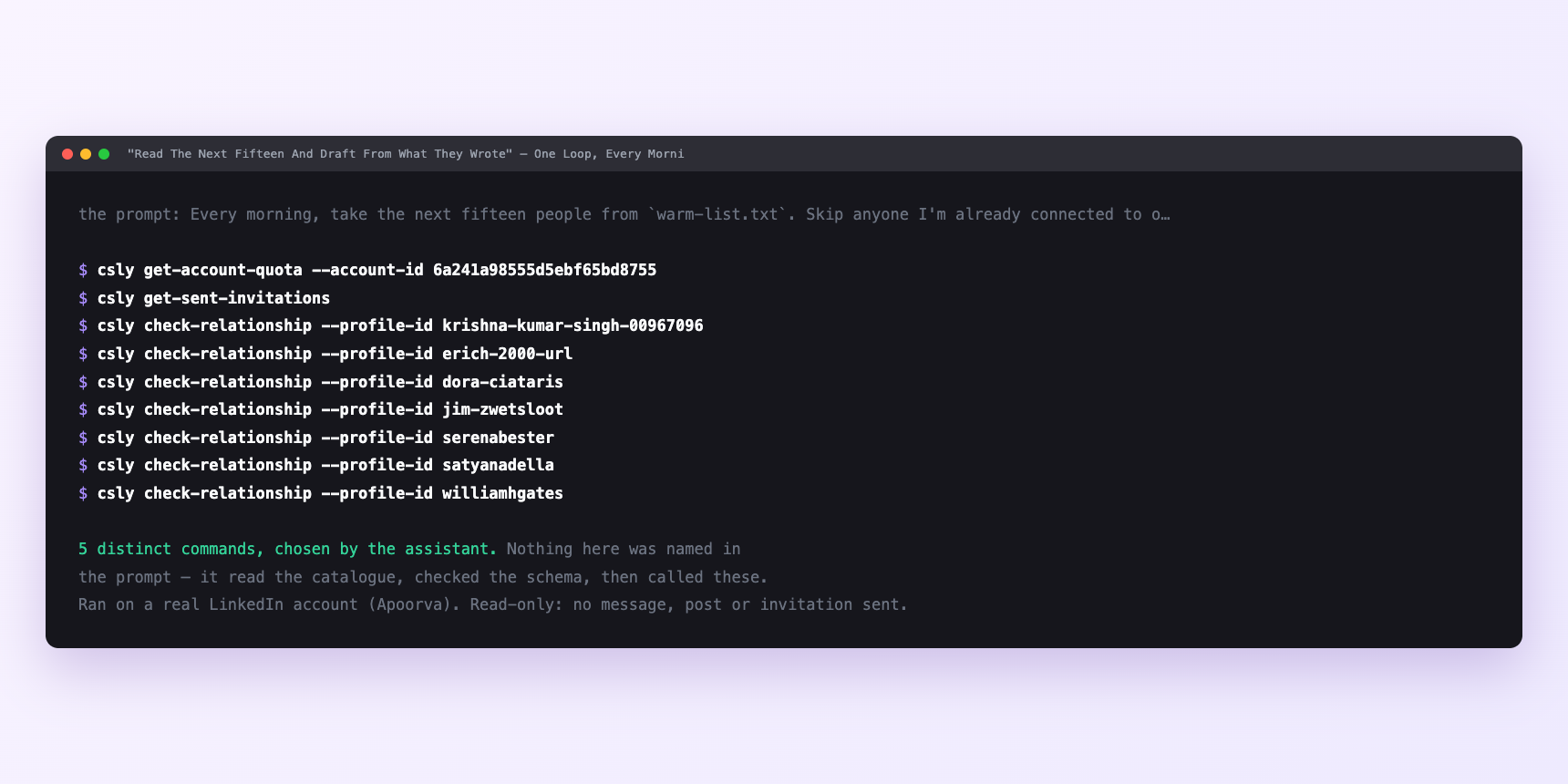
Not a mock-up. This is the actual run: the assistant was given the prompts above and nothing else, and these are the 5 distinct commands it chose from the catalogue. It ran read-only on a real LinkedIn account — nothing was sent, posted or invited.
Can I make it run on its own?
Yes. Add one more sentence and it keeps happening without you. This is the part a chat window cannot do — a saved job runs on the days you are busy.
“Show me all of them with a one-line reason each. Send the approved ones in threes across the afternoon at varied gaps.”
How many LinkedIn actions does this use?
LinkedIn limits how much any account can do in a day. These are the real numbers, and your assistant checks what is left before it starts.
- Connection requests: 90 a week, reset Monday. The only weekly limit there is, and the one that quietly makes most outreach plans impossible before they begin. Go over and the account is held for twenty-four hours — the fastest route to an account that suddenly stops working.
- Treat 60 as the working target. The thirty you leave on the table is not caution for its own sake — it is the invitation you send because somebody commented usefully on your post, the three after a conference, the one your co-founder asks for. Planned outreach that spends the whole budget pushes every unplanned invitation towards a hold.
- Sixty across five working days is twelve a day. Three or four per send, three or four sends a day, at gaps that vary.
Watch it instead
4 minutes
Common questions
- What if every note is flattery again?
- The negative instruction fell out of context on a long run. Restate it per batch, not once at the top of the loop.
- What if the run stopped partway?
- You asked for more than the daily budget, or the session needs reconnecting. Ask what actually sent, not what was planned, and resume tomorrow.
- What if sends reported as successful, nothing appeared?
- A soft limit talking. Stop for a couple of hours rather than route around it.
- What if a bare profile with no posts?
- No material to quote. Send the invitation blank, or do not send it. There is no rescue draft.
- How many LinkedIn actions does write connection notes that land use up?
- Connection requests: 90 a week, reset Monday. The only weekly limit there is, and the one that quietly makes most outreach plans impossible before they begin. Go over and the account is held for twenty-four hours — the fastest route to an account that suddenly stops working.
How do I set this up?
Once, and it takes about four minutes. After this you only write sentences.
$ npm install -g @connectsafely/cli$ export CONNECTSAFELY_API_KEY=...$ csly list-linkedin-accounts$ export CONNECTSAFELY_ACCOUNT_ID=...$ csly skill installThe package is @connectsafely/cli on npm. You need Node 20 or newer.
Then start your chat with this line, so your assistant uses the CLI instead of trying to open LinkedIn itself and hitting a login page:
“Use the ConnectSafely CLI (csly) for anything that touches LinkedIn. Run csly commands to see what exists, and csly schema before calling one. Don't guess a command name.”
Other things you can do
Try this on your own LinkedIn account
From $10 a month, on the LinkedIn account you already use, with zero ban risk.
What the CLI actually is— 86 commands, same plan, no extra cost.