
Clear both inboxes at once on LinkedIn, using one prompt
Last updated 2026-10-16 · Tested on a real LinkedIn account
Short answer
Read both LinkedIn inboxes at once and reply where the thread actually started. You ask in plain English. Your AI assistant runs the LinkedIn CLI for you, so you never type a command yourself.
What do I actually type?
This one sentence. That is the whole thing.
“Read both my LinkedIn inboxes. Rank the unread by cost of delay across both. For each, show me where the last message came in and what other threads that person has open on the other side. Draft a reply and put it in the send channel the thread started on. Do not send anything.”
How does it work, step by step?
Paste these one at a time. Each one is written in normal English — no command names, no flags.
We gave these exact prompts to a real AI assistant and wrote down every command it ran. It chose 6 commands: get-inmail-credits, list-conversations, sales-nav-list-threads, get-conversation-messages, sales-nav-get-thread, conversation-exists. Nobody told it which ones to use.
“How many InMail credits are left on this account, and what tier is it?”
First, always. The cheapest possible check that the licence is still live, and your planning number for the week in one call. An account reporting zero credits, or reporting itself as free, is telling you the same thing.
your assistant picks this“List every unread thread across both my regular inbox and my Sales Navigator inbox. For each, tell me where the last message arrived, and flag anyone active on the other side.”
Unread across both, not one after the other. The point of running this through a saved instruction is that the join across inboxes happens in one pass, so the list is already correct when you read it.
your assistant picks this“Rank them by cost of delay, using the archetypes in the skill file. Open the top four and summarise what each person is asking.”
Same rule as the regular-inbox piece, which is why it lives in the skill file rather than in this prompt. Navigator threads usually opened with an InMail you wrote weeks ago and no longer remember the wording of, so the summary picks up mid-conversation rather than restarting it.
your assistant picks this“Draft a reply for each in the send channel the last message arrived on. If someone is active on the other side, cross-reference their prior thread so the reply sounds like one conversation. Show me before sending anything.”
The last five words are the important ones, and they are also the default. You approve from your phone in about ninety seconds.
your assistant picks thisWhat it printed when we ran it
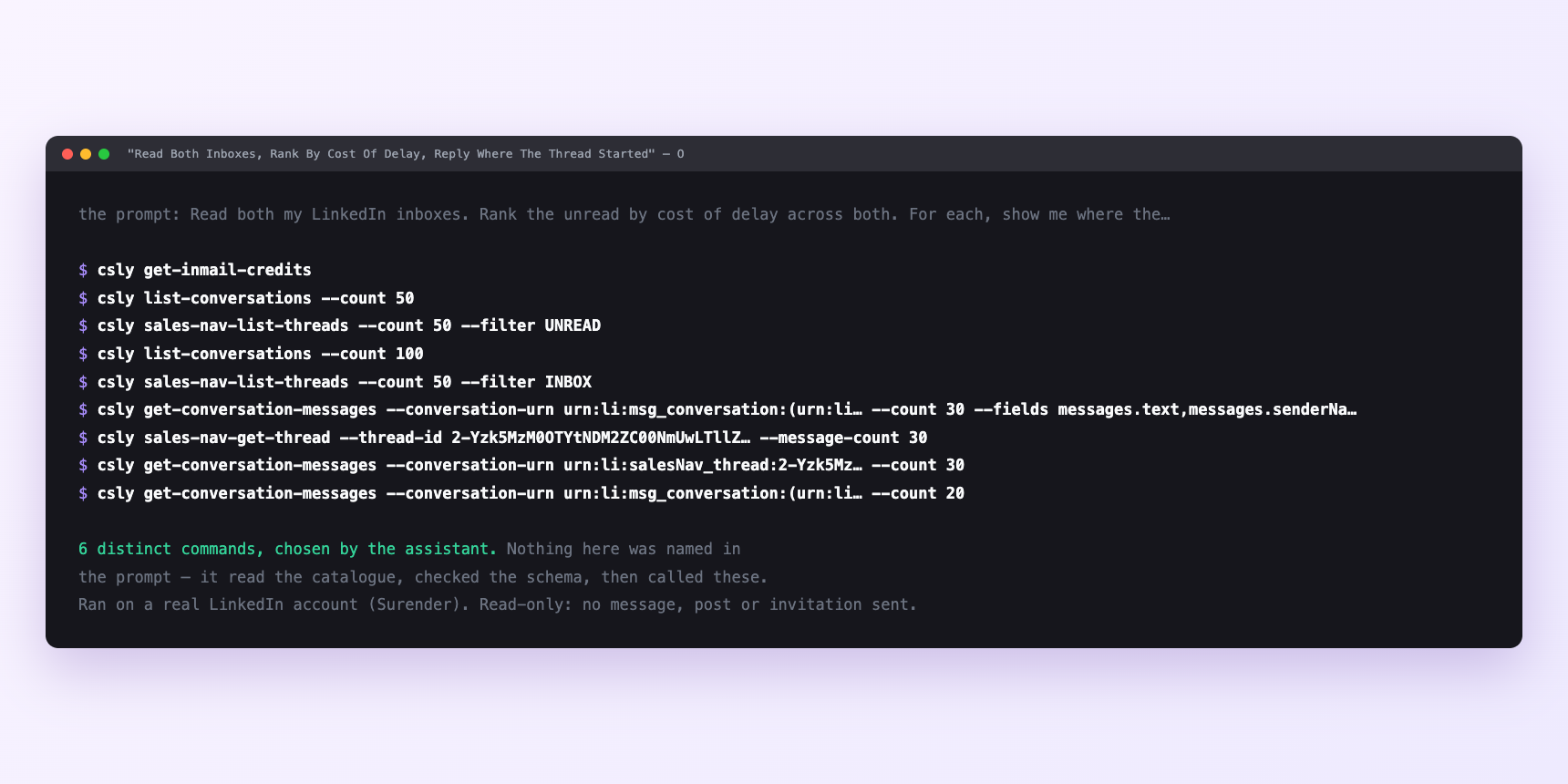
Not a mock-up. This is the actual run: the assistant was given the prompts above and nothing else, and these are the 6 distinct commands it chose from the catalogue. It ran read-only on a real LinkedIn account — nothing was sent, posted or invited.
Can I make it run on its own?
Yes. Add one more sentence and it keeps happening without you. This is the part a chat window cannot do — a saved job runs on the days you are busy.
“Do this every morning at 06:00 and leave the drafts in `inbox/` for me.”
How many LinkedIn actions does this use?
LinkedIn limits how much any account can do in a day. These are the real numbers, and your assistant checks what is left before it starts.
- Triage is free. Opening is expensive. Replying inside a thread that already exists does not spend a credit — the credit went when the conversation was opened. Reading and answering your Navigator inbox costs nothing beyond message budget, which is why it belongs in the daily routine rather than a project plan. The credit decision applies only to starting something new.
- Credits are the decision, not the sending. With twenty-three credits and sixty people you would like to reach, the interesting question is not how fast you can send. It is which twenty-three. That ranking is the actual work; the sending is trivial at the end of it.
Watch it instead
4 minutes
Common questions
- What if every Navigator call fails or comes back empty?
- Check the licence first. Seats get reassigned without ceremony, and a lapsed one presents as an empty inbox rather than a clear error. the most misleading way for it to fail.
- What if somebody appears in both inboxes?
- Expected. Answer where the last message came in, cross-reference the other thread in your reply, and leave a one-line handover in the abandoned thread.
- What if you replied and it still shows unread?
- You replied in the other system. Read states do not cross.
- What if the morning file is empty?
- The job did not run, or the LinkedIn session needs reconnecting. Ask the assistant to check the account status before assuming the tool broke.
- How many LinkedIn actions does clear both inboxes at once use up?
- Triage is free. Opening is expensive. Replying inside a thread that already exists does not spend a credit — the credit went when the conversation was opened. Reading and answering your Navigator inbox costs nothing beyond message budget, which is why it belongs in the daily routine rather than a project plan. The credit decision applies only to starting something new.
How do I set this up?
Once, and it takes about four minutes. After this you only write sentences.
$ npm install -g @connectsafely/cli$ export CONNECTSAFELY_API_KEY=...$ csly list-linkedin-accounts$ export CONNECTSAFELY_ACCOUNT_ID=...$ csly skill installThe package is @connectsafely/cli on npm. You need Node 20 or newer.
Then start your chat with this line, so your assistant uses the CLI instead of trying to open LinkedIn itself and hitting a login page:
“Use the ConnectSafely CLI (csly) for anything that touches LinkedIn. Run csly commands to see what exists, and csly schema before calling one. Don't guess a command name.”
Other things you can do
Try this on your own LinkedIn account
From $10 a month, on the LinkedIn account you already use, with zero ban risk.
What the CLI actually is— 86 commands, same plan, no extra cost.