
Sort invites you receive on LinkedIn, using one prompt
Last updated 2026-10-16 · Tested on a real LinkedIn account
Short answer
Sort the invitations you receive into accept, ignore and answer-first. You ask in plain English. Your AI assistant runs the LinkedIn CLI for you, so you never type a command yourself.
What do I actually type?
This one sentence. That is the whole thing.
“Read my pending invitations. Sort them into four buckets — quiet strangers, quiet buyers, noted buyers, bulk templates. Accept the middle two, archive the outer two, flag anyone senior at a target account. Show me the flag pile.”
How does it work, step by step?
Paste these one at a time. Each one is written in normal English — no command names, no flags.
We gave these exact prompts to a real AI assistant and wrote down every command it ran. It chose 2 commands: get-account-quota, get-received-invitations. Nobody told it which ones to use.
“What's my quota — how many messages and profile views do I have left today?”
First, always. Accepting itself does not touch the ninety-a-week connection-request cap — that cap is on invitations you send. But the follow-up messages do spend a real budget, and a run that finds six people worth writing to on a day where you have four sends left needs to know that before it starts drafting.
your assistant picks this“Read my pending invitations. For each card, give me name, headline, company, and the note in full if there is one — do not summarise the notes.”
Grouping first, deciding second. You will rewrite your rules once you see the actual distribution, because the rules you write from imagination are about the people you picture inviting you, and the pile is never that. The instruction to leave notes intact is not optional — a summarised note has already lost the thing that made it worth reading.
your assistant picks this“Sort into four buckets — quiet strangers, quiet buyers, noted buyers, bulk templates. For bulk, flag anything where the same opening line appears in more than five invites this week. Archive buckets one and four, accept buckets two and three, and flag anyone senior at a target account for a personal reply.”
Rules in your words. Conservative on ignore is deliberate: an auto-archive should fire only when several things are true at once, because a false archive is invisible and permanent — you will never know which one it was, and the head of platform you have been chasing for eight months does not send a chase-up.
your assistant picks this“Draft a first message for each accept in bucket two, referencing something concrete on their profile. Show me before sending anything.”
The last five words are the important ones, and they are also the default — the skills tell the assistant to draft rather than send, and any batch of sends can be rehearsed with nothing leaving the machine.
your assistant picks thisWhat it printed when we ran it
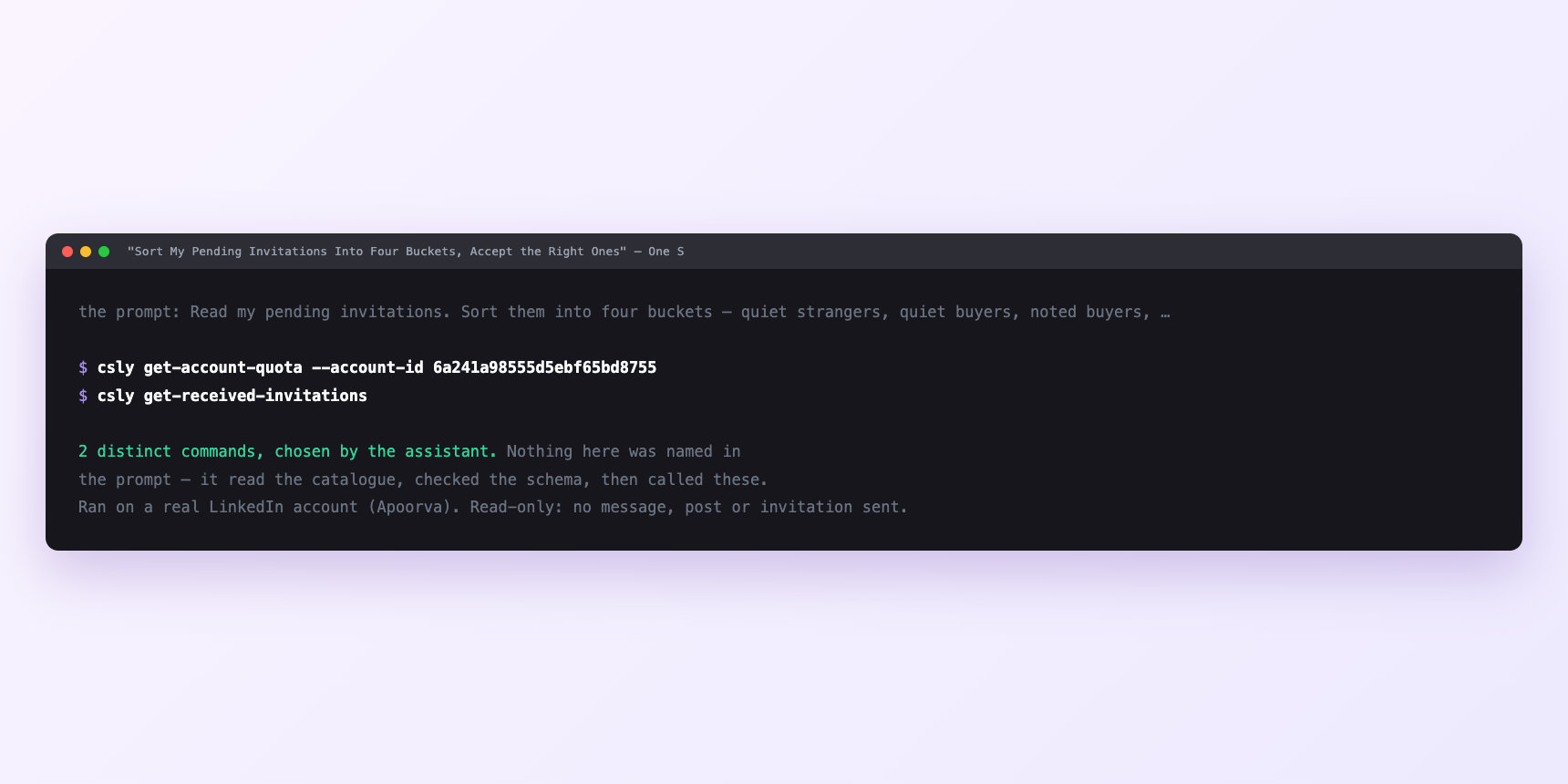
Not a mock-up. This is the actual run: the assistant was given the prompts above and nothing else, and these are the 2 distinct commands it chose from the catalogue. It ran read-only on a real LinkedIn account — nothing was sent, posted or invited.
Can I make it run on its own?
Yes. Add one more sentence and it keeps happening without you. This is the part a chat window cannot do — a saved job runs on the days you are busy.
“Do this every morning at 7am and leave the accepts pending and the flag pile in `invites/` for me.”
How many LinkedIn actions does this use?
LinkedIn limits how much any account can do in a day. These are the real numbers, and your assistant checks what is left before it starts.
- Inbox reads are uncapped. Reading the queue costs nothing. That is what makes the daily pass sensible rather than reckless — the read side has no ceiling to size against, and you can grade a queue of four hundred cards every morning without spending anything.
- Accepting is a write. Same class as a message or a connection request, and the class is capped at fifteen a minute. Four hundred accepts fired off in one sitting does not read as housekeeping from the outside — it reads as an account that ignored its invitations for nine months and processed all of them in half an hour. So the accepts drip: eight to ten a tick, four or five ticks a day, at gaps that vary rather than repeat.
- Accepting does not spend the ninety-a-week connection request cap. Worth naming, because most people assume it does. That cap is on invitations you send. The received queue grows your network without competing with your outbound, which is a better reason to work it than tidiness.
- Profile views: 120 a day. The budget people waste here. Do not read forty profiles for forty cards — the card already carries a name, a headline and a note, which sorts most of the pile with no view spent. Enrich only the ambiguous and the high-value: eight of forty on a normal day.
- Messages: 150 a day. Reading the inbox is unlimited. Sending, including the immediate reply to a bucket-three note, is not.
Watch it instead
4 minutes
Common questions
- What if the run stopped halfway?
- Ask what it actually accepted rather than what it planned. The queue is the state; re-pull and carry on.
- What if notes are missing from the output?
- Ask it to distinguish "no note" from "note not returned". Only one is information.
- What if the bulk-template detector flagged a real note as bulk?
- The flag is cheap; the archive is expensive. Ask the assistant to hold anything the detector is less than certain about in the flag pile rather than archive it.
- What if it acted as the wrong LinkedIn account?
- A stale saved setting beating the one you assumed. Ask which account it is using and rehearse before sending.
- How many LinkedIn actions does sort invites you receive use up?
- Inbox reads are uncapped. Reading the queue costs nothing. That is what makes the daily pass sensible rather than reckless — the read side has no ceiling to size against, and you can grade a queue of four hundred cards every morning without spending anything.
How do I set this up?
Once, and it takes about four minutes. After this you only write sentences.
$ npm install -g @connectsafely/cli$ export CONNECTSAFELY_API_KEY=...$ csly list-linkedin-accounts$ export CONNECTSAFELY_ACCOUNT_ID=...$ csly skill installThe package is @connectsafely/cli on npm. You need Node 20 or newer.
Then start your chat with this line, so your assistant uses the CLI instead of trying to open LinkedIn itself and hitting a login page:
“Use the ConnectSafely CLI (csly) for anything that touches LinkedIn. Run csly commands to see what exists, and csly schema before calling one. Don't guess a command name.”
Other things you can do
Try this on your own LinkedIn account
From $10 a month, on the LinkedIn account you already use, with zero ban risk.
What the CLI actually is— 86 commands, same plan, no extra cost.