
Message people from your groups on LinkedIn, using one prompt
Last updated 2026-10-16 · Tested on a real LinkedIn account
Short answer
Message people from a group you genuinely take part in, without looking like a scraper. You ask in plain English. Your AI assistant runs the LinkedIn CLI for you, so you never type a command yourself.
What do I actually type?
This one sentence. That is the whole thing.
“Once a week, take the top-ranked group in `groups-scored.md`. Check my own recent posts and comments — only proceed if I posted or commented in that group in the last 90 days. Pull the member list, drop anyone I'm already connected to, draft up to three genuinely useful notes referencing something specific from a thread I engaged with, and show me before sending anything.”
How does it work, step by step?
Paste these one at a time. Each one is written in normal English — no command names, no flags.
We gave these exact prompts to a real AI assistant and wrote down every command it ran. It chose 4 commands: list-linkedin-accounts, get-account-quota, get-account-comments, get-latest-posts. Nobody told it which ones to use.
“What's my quota — how many messages and relationship checks do I have left today?”
First, always. It reports what is actually left on your specific account today, which beats any number in any article including this one.
your assistant picks this“Here are the groups I participate in, in `groups.txt` — one LinkedIn group URL per line. Check my activity in the last 90 days and tell me which of them I actually posted or commented in, and how recently.”
The gate. If the group you were about to message does not appear on that list, the sweep ends here and nothing gets drafted. This is the sentence that most often produces "nothing to do this week", which is the intended output for the weeks when it is right.
your assistant picks this“For the top-ranked group I've engaged in recently, pull the member list. Drop existing 1st-degree connections. Draft up to three messages referencing something specific from a thread I actually commented on. Cap at three sends from this group this week. Show me before sending.”
Three sends, not thirty. The cap is in the prompt as a belt-and-braces; the skill file is already carrying it.
your assistant picks thisWhat it printed when we ran it
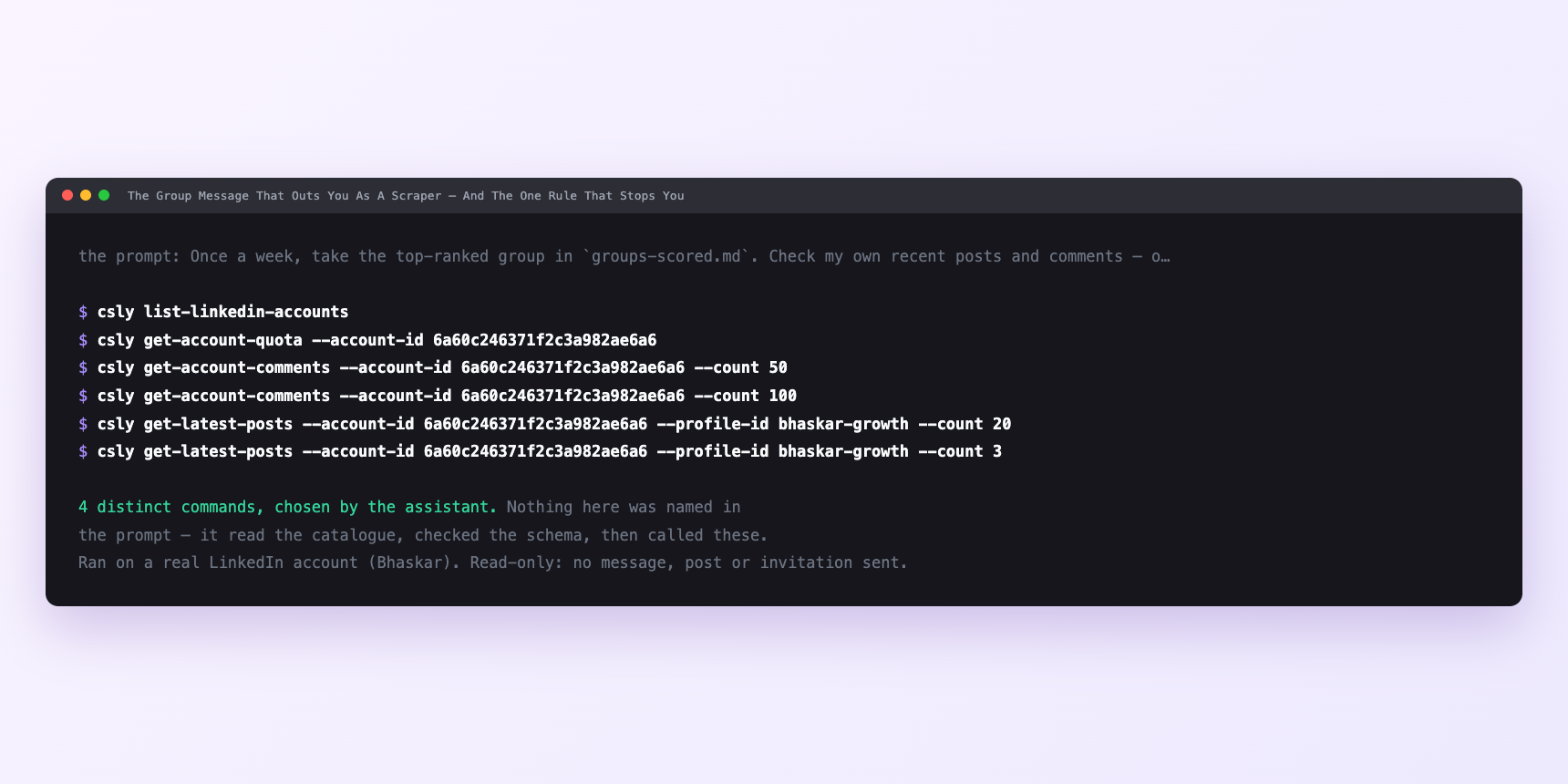
Not a mock-up. This is the actual run: the assistant was given the prompts above and nothing else, and these are the 4 distinct commands it chose from the catalogue. It ran read-only on a real LinkedIn account — nothing was sent, posted or invited.
Can I make it run on its own?
Yes. Add one more sentence and it keeps happening without you. This is the part a chat window cannot do — a saved job runs on the days you are busy.
“Run this every Monday at 07:00 and leave any drafts in `drafts/` for me.”
Watch it instead
4 minutes
Common questions
- What if it could not work out which group to use?
- It never can, from your activity alone. a group post is flagged as one without naming which group it was in. Give it the group URLs in a file. If it produced a group anyway without being handed one, do not trust the member list that follows.
- What if the queue is empty?
- Your participation aged out, or the qualifying groups have no members you are not already connected to. Comment in the groups that matter, or accept that this week has nothing to say.
- What if the activity check returned less than expected?
- get-account-activity covers the last fifteen days at full resolution. For the ninety-day gate, the assistant is combining that with whatever it has logged on previous runs into a participation.md file in the repo. If you just installed the skill, the file is fifteen days of history and will fill in over the following months.
- What if a group came back empty?
- You are not a member, or the admin has restricted the member list. Membership is a hard prerequisite and no pacing gets around it.
How do I set this up?
Once, and it takes about four minutes. After this you only write sentences.
$ npm install -g @connectsafely/cli$ export CONNECTSAFELY_API_KEY=...$ csly list-linkedin-accounts$ export CONNECTSAFELY_ACCOUNT_ID=...$ csly skill installThe package is @connectsafely/cli on npm. You need Node 20 or newer.
Then start your chat with this line, so your assistant uses the CLI instead of trying to open LinkedIn itself and hitting a login page:
“Use the ConnectSafely CLI (csly) for anything that touches LinkedIn. Run csly commands to see what exists, and csly schema before calling one. Don't guess a command name.”
Other things you can do
Try this on your own LinkedIn account
From $10 a month, on the LinkedIn account you already use, with zero ban risk.
What the CLI actually is— 86 commands, same plan, no extra cost.