
Pick message, invite or InMail on LinkedIn, using one prompt
Last updated 2026-10-16 · Tested on a real LinkedIn account
Short answer
Decide whether each person gets a message, an invitation or an InMail. You ask in plain English. Your AI assistant runs the LinkedIn CLI for you, so you never type a command yourself.
What do I actually type?
This one sentence. That is the whole thing.
“Route the 25 people in `outreach-queue.txt`. Check the degree, the requests I've spent this week, and the InMails I have left. Assign one channel per person, draft the message for that channel, and show me before sending anything.”
How does it work, step by step?
Paste these one at a time. Each one is written in normal English — no command names, no flags.
We gave these exact prompts to a real AI assistant and wrote down every command it ran. It chose 5 commands: list-linkedin-accounts, get-account-quota, get-inmail-credits, check-relationship, fetch-profile. Nobody told it which ones to use.
“How many connection requests do I have left this week, and how many InMail credits this month?”
First, always. It reports what is actually left on that specific account today, which beats any number in any article. A week with twenty requests remaining routes differently from a week with two.
your assistant picks this“Route the 25 people in `outreach-queue.txt`. Check the degree per person, apply the rule from the skill files, and give me one channel per name.”
Twenty-five, not two hundred and fifty, because the tightest budget the routing touches is relationship checks at 150 a day and the thirds rule puts a run at around fifty.
your assistant picks this“Draft a message per person for the assigned channel. DMs sound like a follow-up. Notes sound like a warm intro. InMails acknowledge they are paid touches.”
The message is not portable across channels, and the model will happily write one draft and mail-merge it. Ask explicitly for per-channel voice.
your assistant picks this“Show me all of them. Send only what I approve, dripped four or five DMs at a time and InMails slower.”
Approved sends leave in small groups with randomised gaps of forty-five seconds to two minutes; InMails slower because a burst of paid touches from one account is more visible than a burst of DMs.
your assistant picks this“Do this whenever somebody appends a line to `outreach-queue.txt`.”
Now routing runs on the file rather than the chat window. Drop three names in at lunch and the drafts are waiting when you get back to the desk.
your assistant picks thisWhat it printed when we ran it
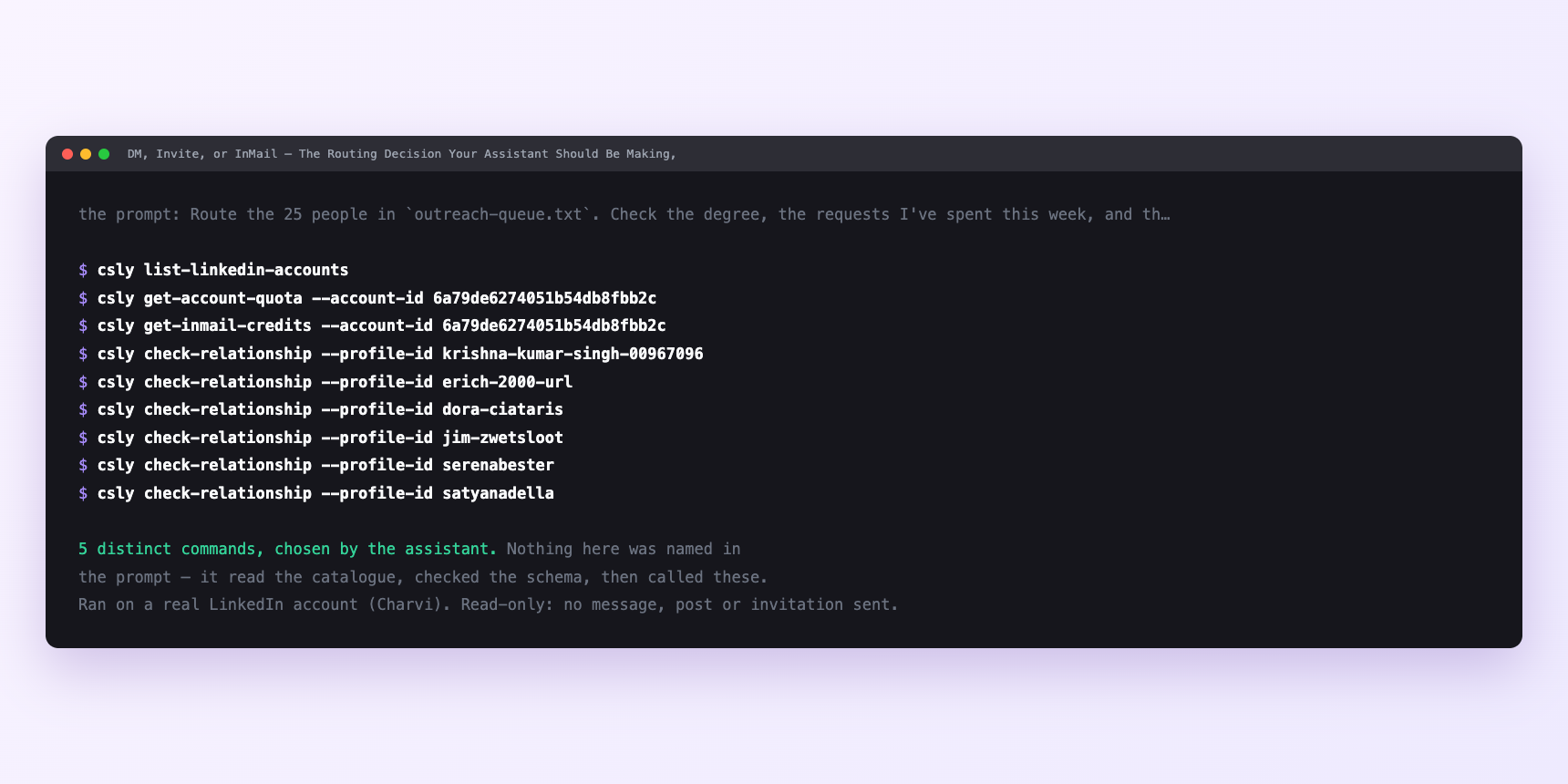
Not a mock-up. This is the actual run: the assistant was given the prompts above and nothing else, and these are the 5 distinct commands it chose from the catalogue. It ran read-only on a real LinkedIn account — nothing was sent, posted or invited.
How many LinkedIn actions does this use?
LinkedIn limits how much any account can do in a day. These are the real numbers, and your assistant checks what is left before it starts.
- Connection requests: 90 a week, reset Monday. The only weekly limit. Sixty is the working target, so a busy week never pushes you into a hold. Twelve a day across five working days, split into three or four per run at gaps that vary. Push past ninety and the account is held for twenty-four hours — the fastest route to an account that suddenly stops working.
- Messages sent: 150 a day, reset midnight UTC. Reading the inbox is unlimited. Sending is not, and this cap covers DMs and InMails combined.
- Relationship checks: 150 a day. Cheap, but not free, and the endpoint with a real record of accounts getting disabled when hammered. This is why the routing batch is twenty-five and not two hundred.
- InMail credits. Not a ConnectSafely cap — a Sales Navigator one. Monthly, plan-dependent, does not always roll over. There is no realistic way to route third-degree traffic without knowing today's balance, which is why get-inmail-credits is a fixed part of the routing prompt. If credits are the constraint you keep hitting, how to get more InMails is the honest guide.
Watch it instead
5 minutes
Common questions
- What if nothing routed to InMail even though I have credits?
- Almost always because the priority flag is not set on any name in the file. Ask for the routing with everyone marked high-priority as a test; if the InMails appear, the routing is fine and the queue is the problem.
- What if everything routed to "follow and engage"?
- You are at sixty-plus requests this week and credits are low. Correct behaviour. Wait for the following week and re-run.
- What if a request was declined?
- Leave it. A second invitation to somebody who declined the first is the most reliable way to get reported.
- What if an InMail bounced silently?
- LinkedIn's soft limits sometimes accept a send and never create the thread; check get-inmail-credits again and stop sending InMails for a couple of hours.
- How many LinkedIn actions does pick message, invite or inmail use up?
- Connection requests: 90 a week, reset Monday. The only weekly limit. Sixty is the working target, so a busy week never pushes you into a hold. Twelve a day across five working days, split into three or four per run at gaps that vary. Push past ninety and the account is held for twenty-four hours — the fastest route to an account that suddenly stops working.
How do I set this up?
Once, and it takes about four minutes. After this you only write sentences.
$ npm install -g @connectsafely/cli$ export CONNECTSAFELY_API_KEY=...$ csly list-linkedin-accounts$ export CONNECTSAFELY_ACCOUNT_ID=...$ csly skill installThe package is @connectsafely/cli on npm. You need Node 20 or newer.
Then start your chat with this line, so your assistant uses the CLI instead of trying to open LinkedIn itself and hitting a login page:
“Use the ConnectSafely CLI (csly) for anything that touches LinkedIn. Run csly commands to see what exists, and csly schema before calling one. Don't guess a command name.”
Other things you can do
Try this on your own LinkedIn account
From $10 a month, on the LinkedIn account you already use, with zero ban risk.
What the CLI actually is— 86 commands, same plan, no extra cost.