
Send the right document on LinkedIn, using one prompt
Last updated 2026-10-16 · Tested on a real LinkedIn account
Short answer
Send the right document in a LinkedIn thread, not the one in your sales folder. You ask in plain English. Your AI assistant runs the LinkedIn CLI for you, so you never type a command yourself.
What do I actually type?
This one sentence. That is the whole thing.
“What have I got in `sales-docs/` and what does each tag say it answers?”
How does it work, step by step?
Paste these one at a time. Each one is written in normal English — no command names, no flags.
We gave these exact prompts to a real AI assistant and wrote down every command it ran. It chose 5 commands: list-conversations, sales-nav-list-threads, search-people, conversation-exists, get-conversation-messages. Nobody told it which ones to use.
“What have I got in `sales-docs/` and what does each tag say it answers?”
First, always. Before the assistant can pick the right document it needs to know what is on the shelf. Runs offline, costs nothing.
your assistant picks this“Read the last four messages in the thread with Marta at Snowflake. What did she actually ask? If a document in `sales-docs/` answers it, attach the one whose tag matches, with a one-line note above it. If none of them match, draft a text reply and do not attach anything.”
Every part of that carries weight. "What did she actually ask" forces the assistant to read for the specific question rather than the topic. "If a document matches" makes attachment conditional rather than default. "If none match, draft a text reply" is the escape hatch that prevents attaching the wrong thing.
your assistant picks this“For every thread I promised a document in, tell me which document and let me approve before anything goes out.”
The chase list, from the giving side. Weekly cadence, approvals on a phone in ninety seconds.
your assistant picks thisWhat it printed when we ran it
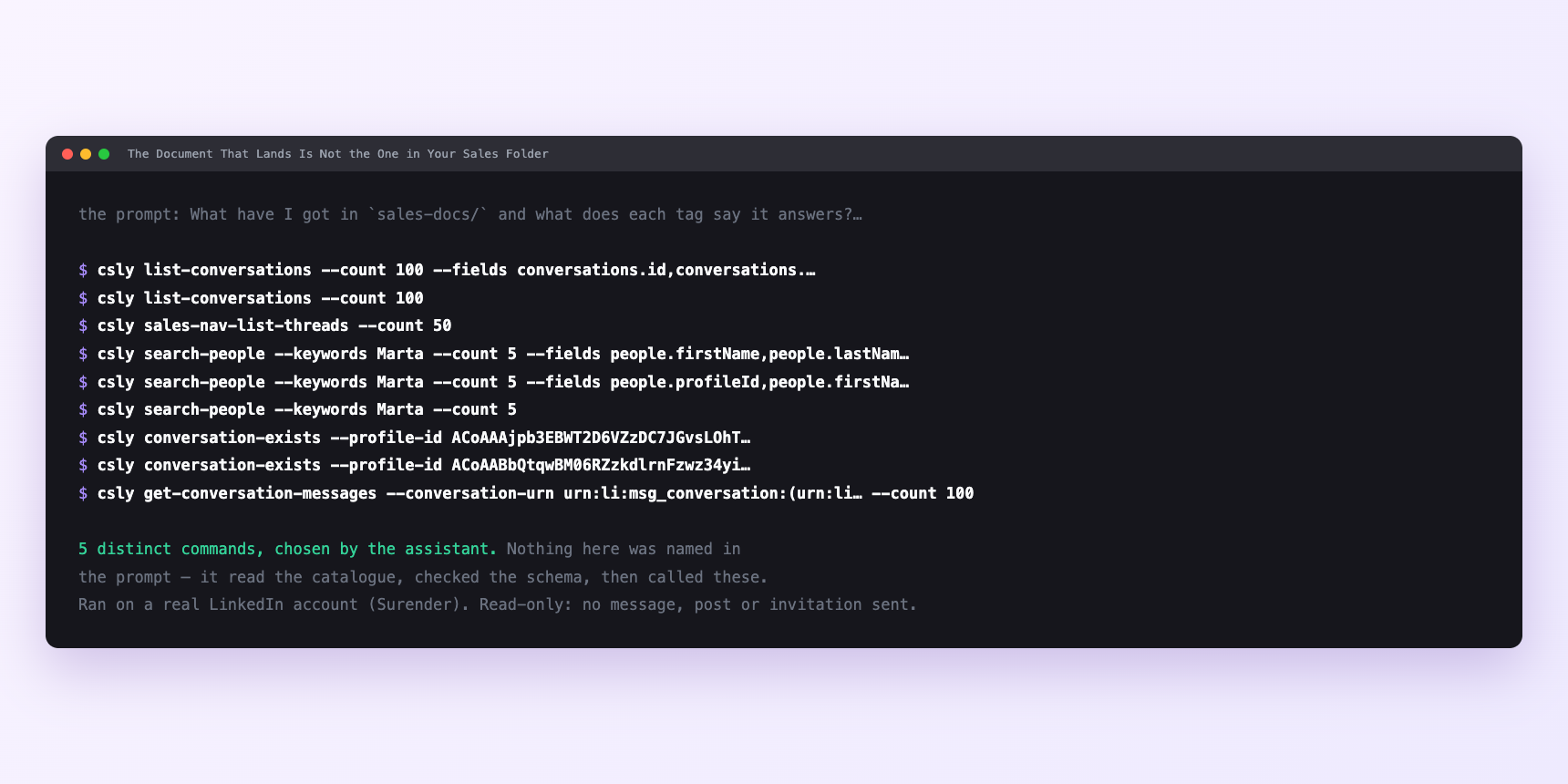
Not a mock-up. This is the actual run: the assistant was given the prompts above and nothing else, and these are the 5 distinct commands it chose from the catalogue. It ran read-only on a real LinkedIn account — nothing was sent, posted or invited.
Can I make it run on its own?
Yes. Add one more sentence and it keeps happening without you. This is the part a chat window cannot do — a saved job runs on the days you are busy.
“Pull down every attachment anyone sent me in the last month and summarise each in a sentence.”
How many LinkedIn actions does this use?
LinkedIn limits how much any account can do in a day. These are the real numbers, and your assistant checks what is left before it starts.
- Attachments are writes. That is the first thing to internalise, because sending a file feels like uploading and uploading feels like a read.
- Messages sent are capped at 150 a day, reset at midnight UTC. An attachment spends that budget. So does the covering line above it. A document plus its note is two actions, not one, and any plan built on this needs to count it that way.
- Take a third of the daily budget as a working ceiling — fifty sends — leaving room for the replies and follow-ups that are the rest of your day. Five documents with covering lines is ten of those fifty, which leaves forty sends for actual conversation.
- Which means the cap almost never binds here. Most people are not in fifty live sales conversations, let alone fifty asking for a proposal in the same day. The number that binds is how many real conversations you are in, and that is usually under ten a week. Say that plainly rather than manufacture a constraint.
- Writes are capped at fifteen a minute as a velocity ceiling. An upload plus a note across five threads is ten writes and will never approach it. Before anything unusually large, ask for the remaining quota — it reports what is actually left on that account today, which beats any number in this article. The inbound sweep is cheaper still — reading conversations is uncapped, and the only writes in a sweep are the nudges afterwards.
Watch it instead
5 minutes
Common questions
- What if they never got it?
- Read the thread back. If the attachment is not there, it failed on size or type. Convert and resend rather than sending the identical file again.
- What if the sweep found nothing?
- The inbox needs syncing before it can be read. Ask for a refresh first.
- What if it attached the wrong document?
- A tag was too broad. Narrow it, and add the answer it did not have to sales-docs/. The rule is that when no tag matches exactly, nothing gets sent. a broad tag matching everything is what produces the sales-deck-in-message-two failure.
- What if the wrong file went to the wrong thread?
- Say so immediately, in the same thread. Recoverable in a way a slow correction is not.
- How many LinkedIn actions does send the right document use up?
- Attachments are writes. That is the first thing to internalise, because sending a file feels like uploading and uploading feels like a read.
How do I set this up?
Once, and it takes about four minutes. After this you only write sentences.
$ npm install -g @connectsafely/cli$ export CONNECTSAFELY_API_KEY=...$ csly list-linkedin-accounts$ export CONNECTSAFELY_ACCOUNT_ID=...$ csly skill installThe package is @connectsafely/cli on npm. You need Node 20 or newer.
Then start your chat with this line, so your assistant uses the CLI instead of trying to open LinkedIn itself and hitting a login page:
“Use the ConnectSafely CLI (csly) for anything that touches LinkedIn. Run csly commands to see what exists, and csly schema before calling one. Don't guess a command name.”
Other things you can do
Try this on your own LinkedIn account
From $10 a month, on the LinkedIn account you already use, with zero ban risk.
What the CLI actually is— 86 commands, same plan, no extra cost.