
Publish a carousel or PDF on LinkedIn, using one prompt
Last updated 2026-10-16 · Tested on a real LinkedIn account
Short answer
Publish a carousel or PDF on the days you cannot face the upload. You ask in plain English. Your AI assistant runs the LinkedIn CLI for you, so you never type a command yourself.
What do I actually type?
This one sentence. That is the whole thing.
“On the day I publish, take the newest PDF in `decks/`, upload it to LinkedIn with the title in the front matter and the caption in `caption.md`, wait for processing, tell me when it's ready, and if it's ready draft the first comment with the download link. Don't post the comment. I'll approve it from my phone.”
How does it work, step by step?
Paste these one at a time. Each one is written in normal English — no command names, no flags.
We gave these exact prompts to a real AI assistant and wrote down every command it ran. It chose 1 command: scrape-post. Nobody told it which ones to use.
“Show me the newest PDF in `decks/` and read the caption in `caption.md`. Tell me the page count, the file size, and the first line of the caption. Do not upload yet.”
A dry-run. Two things kill a carousel before it starts: a file that has drifted past the platform's ceiling, or a caption that starts weakly because it was written last. Both are visible in one line before anything is spent.
your assistant picks this“Upload it as a document post with the title from the front matter and the caption you just read me. Wait for processing to finish, then tell me the post URL and whether the conversion succeeded.”
The whole three-stage upload protocol under one instruction, plus the poll that catches the failure that matters. Processing has three states and only one is good; a failed conversion still produces a post, with your caption sitting under a broken document.
your assistant picks this“If it's ready, draft the first comment with the download link for the source PDF and one line about who it's for. Show it to me. Don't post it.”
The follow-through. A carousel with no link in the first comment gets saved; one with a link produces a conversation. Drafting rather than posting is the pattern the skills already default to for any write.
your assistant picks thisWhat it printed when we ran it
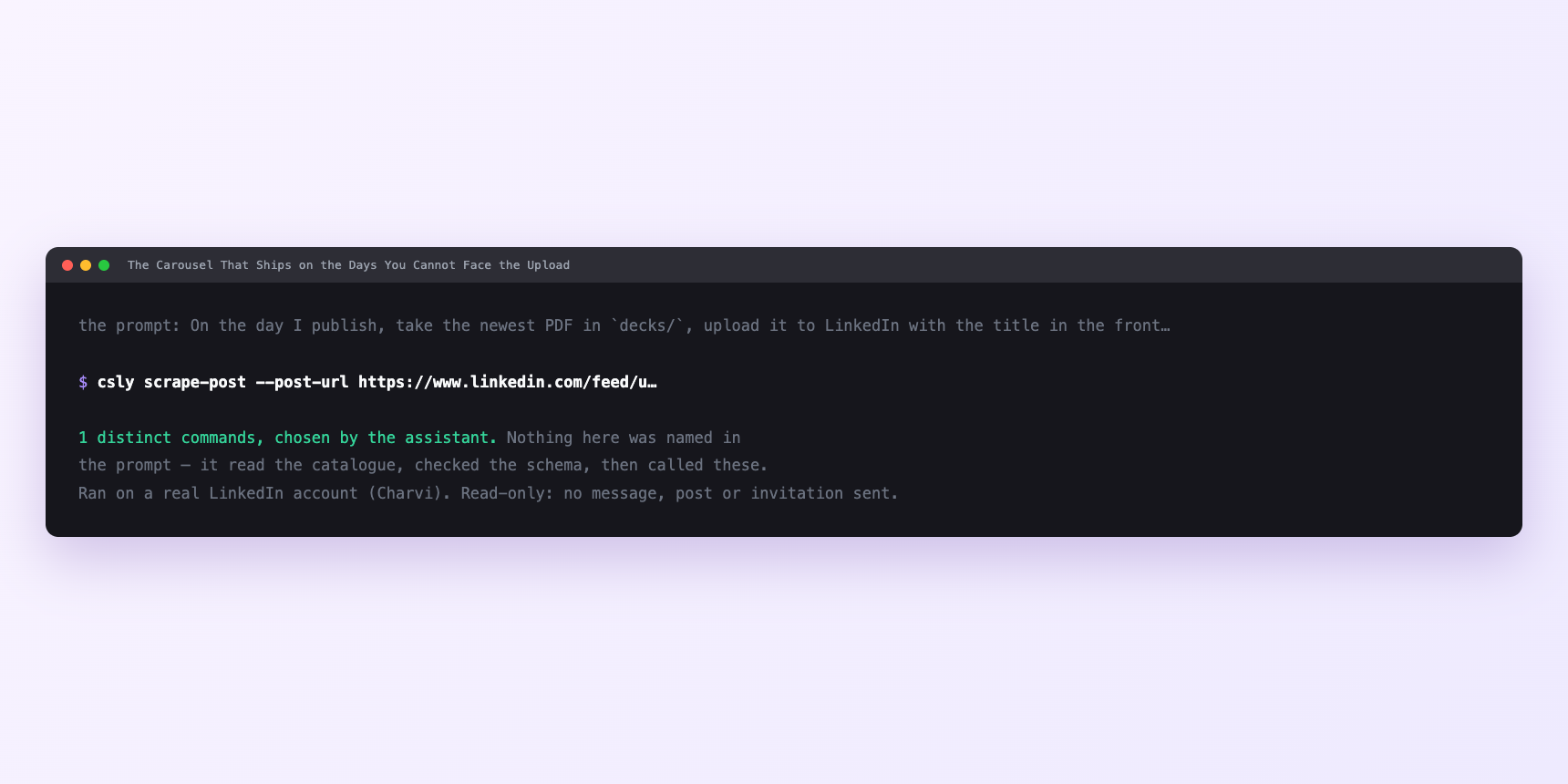
Not a mock-up. This is the actual run: the assistant was given the prompts above and nothing else, and these are the 1 distinct commands it chose from the catalogue. It ran read-only on a real LinkedIn account — nothing was sent, posted or invited.
Can I make it run on its own?
Yes. Add one more sentence and it keeps happening without you. This is the part a chat window cannot do — a saved job runs on the days you are busy.
“Do this every publishing day the same way, and leave the drafts in `drafts/` for me to approve.”
How many LinkedIn actions does this use?
LinkedIn limits how much any account can do in a day. These are the real numbers, and your assistant checks what is left before it starts.
- Almost every LinkedIn workflow is shaped by a rate limit. This one is not.
- A document post spends one write. The first comment spends one comment from a budget of a hundred a day. The publishing cadence is four or five posts a week per account — LinkedIn's own algorithm hygiene, not a ConnectSafely cap — which is nowhere near either ceiling. Profile views at 120 a day are not touched. Connection requests at 90 a week are not touched. Writes are capped at fifteen a minute, calls are paced two to five seconds apart automatically, and a document post is a handful of writes over about a minute.
- The ceilings that bind belong to the platform, and they are about the file rather than the account. 100 MB and 300 pages are the hard limits. The working numbers are much smaller — eight slides is the target, twelve is the padded ceiling, five megabytes is plenty. Completion rates fall away long before page fifty, and a fifty-page PDF is a landing page in a carousel's clothes.
- So the cadence is not set by any quota. It is set by how long it takes to write something worth swiping through, which for most people is one deck a week.
Watch it instead
4 minutes
Common questions
- What if it says documents are not supported?
- They are, but not by the command an assistant reaches for first. The one-shot upload that posts an image or a video in a single call accepts only those two; a PDF goes through a three-step path instead. start the upload, poll until LinkedIn has finished processing it, then publish. A real assistant hit exactly this and concluded documents were impossible. If yours says the same, tell it to upload and wait for processing rather than to post in one call.
- What if processing came back failed?
- That is the file, not the tool. Almost always fonts, an unusual PDF producer, or size. Re-export as a standard PDF with fonts embedded and try again.
- What if it has been processing for a long time?
- Large files take a while. Wait rather than publishing alongside, and do not start a second upload on top of the first.
- What if the post is live and the pages are missing?
- Something published before the document was ready. There is no edit. Delete, publish again, accept the lost hour.
- How many LinkedIn actions does publish a carousel or pdf use up?
- Almost every LinkedIn workflow is shaped by a rate limit. This one is not.
How do I set this up?
Once, and it takes about four minutes. After this you only write sentences.
$ npm install -g @connectsafely/cli$ export CONNECTSAFELY_API_KEY=...$ csly list-linkedin-accounts$ export CONNECTSAFELY_ACCOUNT_ID=...$ csly skill installThe package is @connectsafely/cli on npm. You need Node 20 or newer.
Then start your chat with this line, so your assistant uses the CLI instead of trying to open LinkedIn itself and hitting a login page:
“Use the ConnectSafely CLI (csly) for anything that touches LinkedIn. Run csly commands to see what exists, and csly schema before calling one. Don't guess a command name.”
Other things you can do
Try this on your own LinkedIn account
From $10 a month, on the LinkedIn account you already use, with zero ban risk.
What the CLI actually is— 86 commands, same plan, no extra cost.