
Catch your post's first hour on LinkedIn, using one prompt
Last updated 2026-10-16 · Tested on a real LinkedIn account
Short answer
Catch the people engaging with your post in the first hour, while it still matters. You ask in plain English. Your AI assistant runs the LinkedIn CLI for you, so you never type a command yourself.
What do I actually type?
This one sentence. That is the whole thing.
“Every time I publish a post, wait twenty minutes, then check who has commented, list any of my ten most-frequent engagers who have posted in the last hour, and draft a reply to each. Leave the drafts in `drafts/` and message me. Send nothing.”
How does it work, step by step?
Paste these one at a time. Each one is written in normal English — no command names, no flags.
We gave these exact prompts to a real AI assistant and wrote down every command it ran. It chose 5 commands: get-account-quota, get-account-status, get-latest-posts, get-post-comments, get-all-post-comments. Nobody told it which ones to use.
“Before I publish, message three people from my inner circle and ask if this topic is worth a comment from them. Skip anyone who has messaged me in the last twenty-four hours.”
The skip clause is the whole difference between this and a pod. You are not conscripting the same faces on every post. You are asking the people this specific topic might reach, and letting the ones already asked rest.
your assistant picks this“What is my quota — how many comments, reactions and messages do I have left today?”
First, on a busy content day. The daily budgets are generous for one window, but a launch week with a listening loop, a triage sweep and four windows can spend twenty comments before you write your own reply.
your assistant picks this“My post went live twenty minutes ago. Who has commented, and draft a reply to each. Draft an interested follow-up question rather than a summary.”
The last sentence is the precision section restated as an instruction. Left to a default, an assistant writes agreement, because that is what "reply politely" produces. Told to end on a question, it drafts what you would draft, which is a third turn waiting to happen.
your assistant picks this“Show me the last hour of posts from the ten people who engage with me most. I need the ones I would have replied to anyway.”
Reads only. An hour of scrolling replaced by a list, and the list is a filter rather than a queue. If six are worth engaging with and four are not, you engage with six.
your assistant picks thisWhat it printed when we ran it
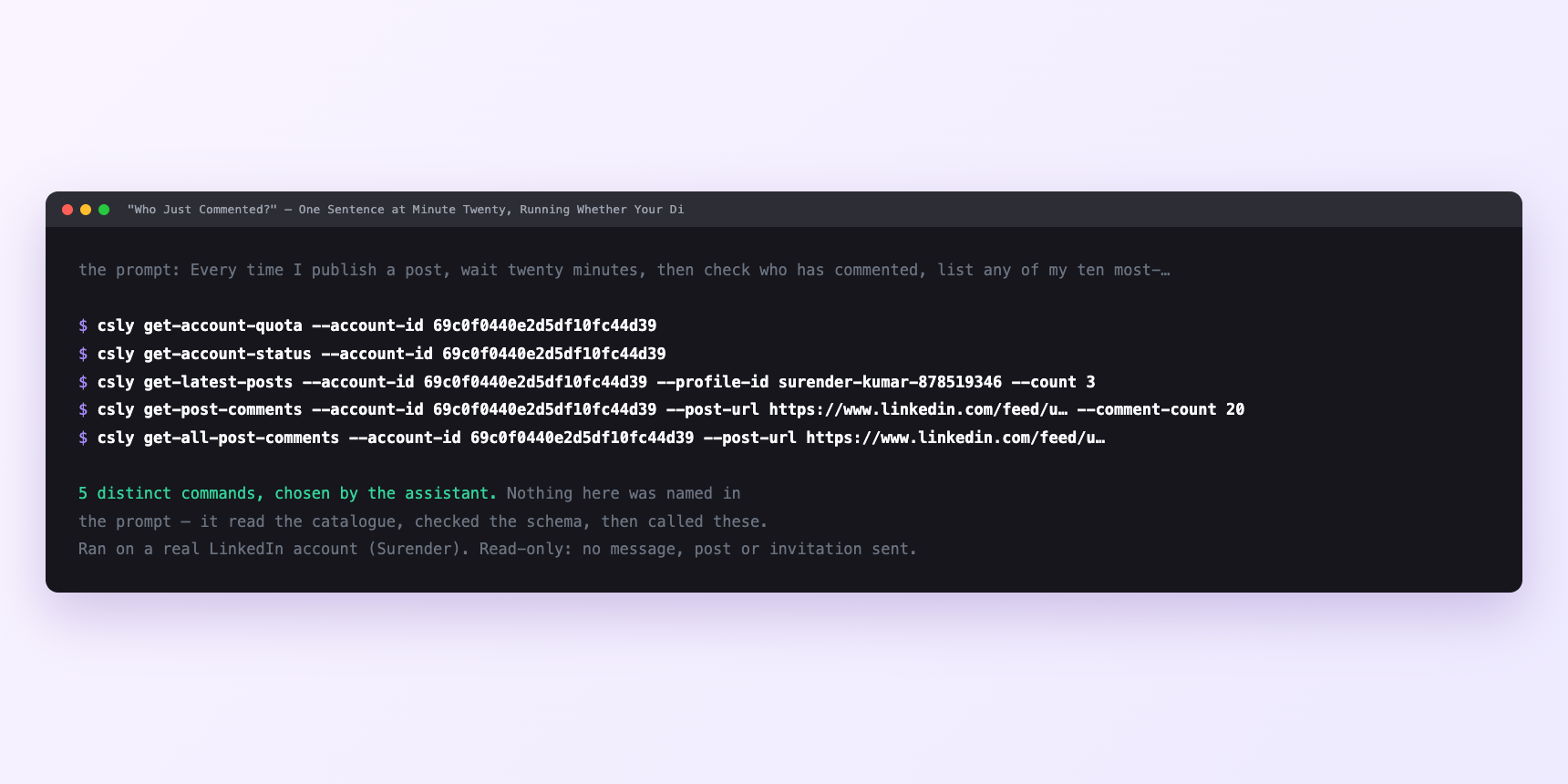
Not a mock-up. This is the actual run: the assistant was given the prompts above and nothing else, and these are the 5 distinct commands it chose from the catalogue. It ran read-only on a real LinkedIn account — nothing was sent, posted or invited.
How many LinkedIn actions does this use?
LinkedIn limits how much any account can do in a day. These are the real numbers, and your assistant checks what is left before it starts.
- Writes: fifteen a minute. The tightest velocity class there is, and the cap that shapes the whole loop. Ten reactions plus five comments is exactly fifteen, so the naive run is a minute at the ceiling in the one window where the people you are engaging with are online and watching. That is the mistake below.
- Comments: 100 a day, default 50, adjustable. Assume 50. Five per window is a tenth; four windows a week is twenty out of two hundred and fifty across five working days.
- Reactions: 120 a day. Ten per window is plenty.
- Messages: 150 a day. The pre-publish ask spends three to five; twenty a week is a rounding error.
- Silent rejection puts you in a two-hour hold. LinkedIn sometimes accepts a comment and quietly does not create it. Retrying into that turns two hours into something longer. Stop and come back to it.
Watch it instead
4 minutes
Common questions
- What if the comment list is empty two minutes after publishing?
- It usually is. Start at fifteen or twenty minutes, not at zero.
- What if a reply went out and is not on the thread?
- Silent rejection. Stop commenting for two hours rather than retrying into the hold. Reactions behave the same way.
- What if everything failed at once?
- Ask the assistant to check the account status before assuming the tool is broken. A session needing reconnection fails quietly mid-run.
- What if the drafts sound like you but not quite?
- They will. Approve the close ones, rewrite the rest, send none of the wrong ones.
- How many LinkedIn actions does catch your post's first hour use up?
- Writes: fifteen a minute. The tightest velocity class there is, and the cap that shapes the whole loop. Ten reactions plus five comments is exactly fifteen, so the naive run is a minute at the ceiling in the one window where the people you are engaging with are online and watching. That is the mistake below.
How do I set this up?
Once, and it takes about four minutes. After this you only write sentences.
$ npm install -g @connectsafely/cli$ export CONNECTSAFELY_API_KEY=...$ csly list-linkedin-accounts$ export CONNECTSAFELY_ACCOUNT_ID=...$ csly skill installThe package is @connectsafely/cli on npm. You need Node 20 or newer.
Then start your chat with this line, so your assistant uses the CLI instead of trying to open LinkedIn itself and hitting a login page:
“Use the ConnectSafely CLI (csly) for anything that touches LinkedIn. Run csly commands to see what exists, and csly schema before calling one. Don't guess a command name.”
Other things you can do
Try this on your own LinkedIn account
From $10 a month, on the LinkedIn account you already use, with zero ban risk.
What the CLI actually is— 86 commands, same plan, no extra cost.