
See which posts worked on LinkedIn, using one prompt
Last updated 2026-10-16 · Tested on a real LinkedIn account
Short answer
See which posts actually worked, and why, without opening the analytics tab. You ask in plain English. Your AI assistant runs the LinkedIn CLI for you, so you never type a command yourself.
What do I actually type?
This one sentence. That is the whole thing.
“Pull my last twenty posts and their dashboard numbers. For each post, look up the reactors and commenters and tag which ones match my ICP file. Then look up profile visits from the seventy-two hours after each post and tag those the same way. Write both tables to `retro/YYYY-MM/` so I can diff against last month.”
How does it work, step by step?
Paste these one at a time. Each one is written in normal English — no command names, no flags.
We gave these exact prompts to a real AI assistant and wrote down every command it ran. It chose 5 commands: get-account-quota, list-linkedin-accounts, get-creator-dashboard, get-latest-posts, get-post-reactions-v2. Nobody told it which ones to use.
“What's my quota — what's left on account reads today?”
First, always. Account reads are the tightest velocity class at ten calls a minute, because nothing legitimate polls them faster. A full retro is around ten calls plus one per post read, so this is close to free — but the check makes the assistant plan the rest of the run around what is actually available.
your assistant picks this“Pull my last twenty posts and their dashboard numbers. Read the reactor and commenter lists on each. Do not open any individual profile yet — just give me the names and headlines.”
Names and headlines come back with the list. Reading them costs no profile views, and reading them first is what makes the ICP check affordable on a large post. Filter before you enrich.
your assistant picks this“Tag each engager against `icp.yml`. Match on company from my list of named accounts, or on title against the role patterns file. Compute engaged-ICP over seen-ICP for each post.”
The ICP file is the thing you build once and adjust twice a year. It is what turns "engagement rate" into a number that has anything to do with pipeline.
your assistant picks this“Now pull profile visits from the seventy-two hours after each post. Tag them the same way. Give me the silent-read ratio per post.”
Fifteen days is the window on recent-activity data, so a retro covering the last four weeks sits inside it. Beyond that the picture is partial.
your assistant picks this“Write both tables to `retro/YYYY-MM/`. Then rank the twenty posts by silent-read ratio and by ICP engagement rate, side by side.”
Both rankings. Not one. The posts that top one and not the other are the ones worth reading.
your assistant picks this“Diff last month's top ten against this month's. Which winners repeated? Which were one-hit?”
The question that costs nothing to ask because the file is already there, and impossible to ask otherwise.
your assistant picks thisWhat it printed when we ran it
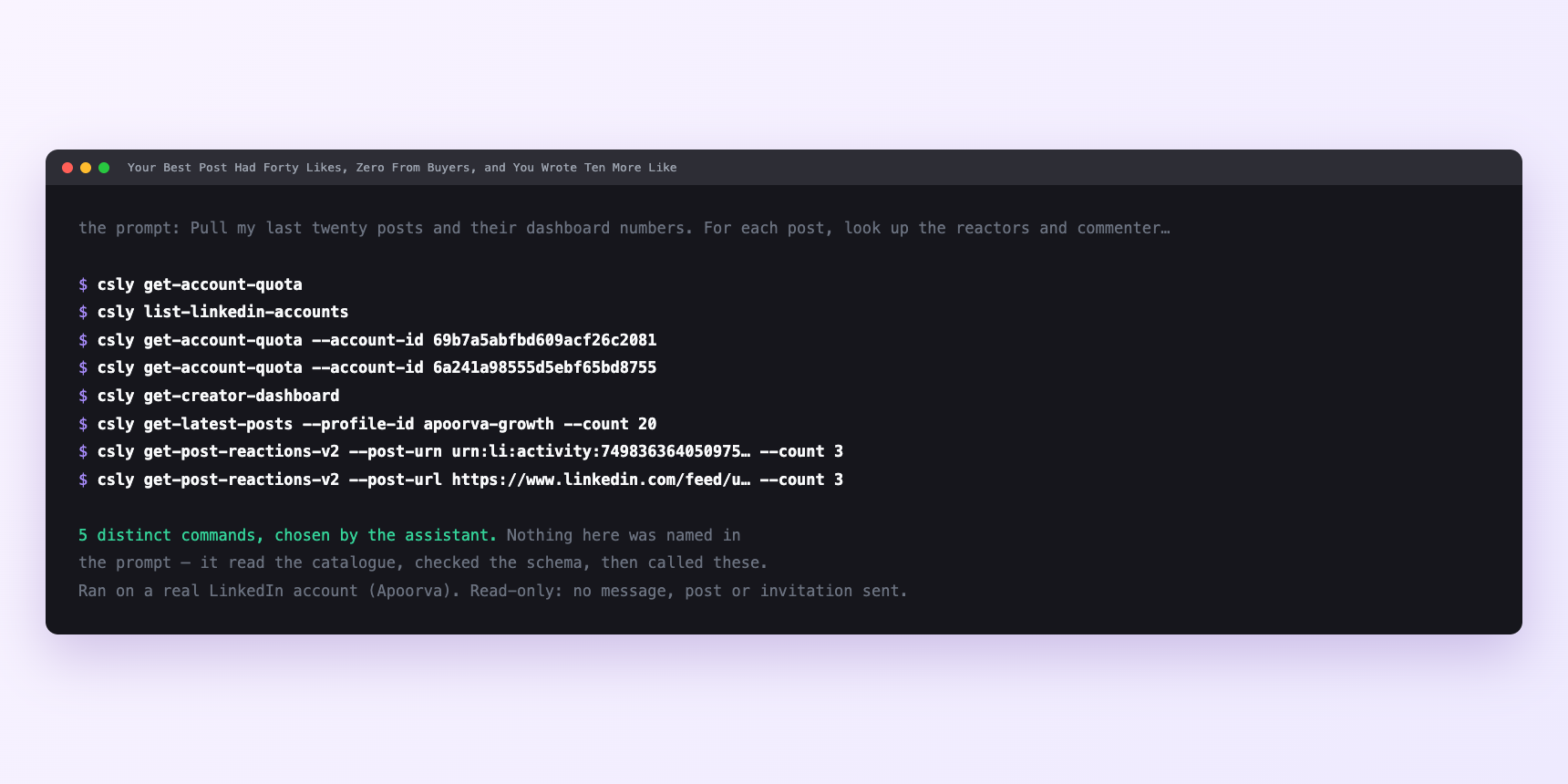
Not a mock-up. This is the actual run: the assistant was given the prompts above and nothing else, and these are the 5 distinct commands it chose from the catalogue. It ran read-only on a real LinkedIn account — nothing was sent, posted or invited.
Watch it instead
4 minutes
Common questions
- What if the dashboard comes back thin?
- Creator mode is probably off. Turn it on and wait for data.
- What if the silent-read count is much lower than the reactor count on a big post?
- That is normal on a post that reached casual scrollers, and it is why the two ratios exist independently. A mismatch is data, not a bug.
- What if every finding is trivially true?
- "Your best posts got more engagement" means the ICP tag was skipped. Ask for the ICP-narrowed table first and re-run the finding.
- What if the pattern reverses next month?
- Both months were samples of twenty. A finding that flips is one you should not have acted on, and knowing that is worth the run.
How do I set this up?
Once, and it takes about four minutes. After this you only write sentences.
$ npm install -g @connectsafely/cli$ export CONNECTSAFELY_API_KEY=...$ csly list-linkedin-accounts$ export CONNECTSAFELY_ACCOUNT_ID=...$ csly skill installThe package is @connectsafely/cli on npm. You need Node 20 or newer.
Then start your chat with this line, so your assistant uses the CLI instead of trying to open LinkedIn itself and hitting a login page:
“Use the ConnectSafely CLI (csly) for anything that touches LinkedIn. Run csly commands to see what exists, and csly schema before calling one. Don't guess a command name.”
Other things you can do
Try this on your own LinkedIn account
From $10 a month, on the LinkedIn account you already use, with zero ban risk.
What the CLI actually is— 86 commands, same plan, no extra cost.