
Check your network health on LinkedIn, using one prompt
Last updated 2026-10-16 · Tested on a real LinkedIn account
Short answer
Track the three network numbers that actually move, in one file. You ask in plain English. Your AI assistant runs the LinkedIn CLI for you, so you never type a command yourself.
What do I actually type?
This one sentence. That is the whole thing.
“Run my network health check. Read impressions from the creator dashboard, my current follower count, this week's new connections and how many have reacted to a post since connecting, and count the non-me-initiated inbound threads this week. Write it to `network-health.md` with the week-over-week delta on each ratio, and tell me what actually moved.”
How does it work, step by step?
Paste these one at a time. Each one is written in normal English — no command names, no flags.
We gave these exact prompts to a real AI assistant and wrote down every command it ran. It chose 9 commands: get-creator-dashboard, get-connection-count, get-connections, list-conversations, get-account-status, conversations-sync-status, get-latest-posts, get-post-reactions, get-post-reactions-v2. Nobody told it which ones to use.
“Run my network health check. Read impressions from the creator dashboard, my current follower count, this week's new connections and how many have reacted to a post since connecting, and count the non-me-initiated inbound threads this week. Write it to `network-health.md` with the week-over-week delta on each ratio, and tell me what actually moved.”
A short readout comes back. Reach ratio is up nine per cent on last week; the engagement rate on new connections is flat; inbound is up one thread on a base of six. Two of the three are inside the noise threshold and the assistant says so.
your assistant picks thisWhat it printed when we ran it
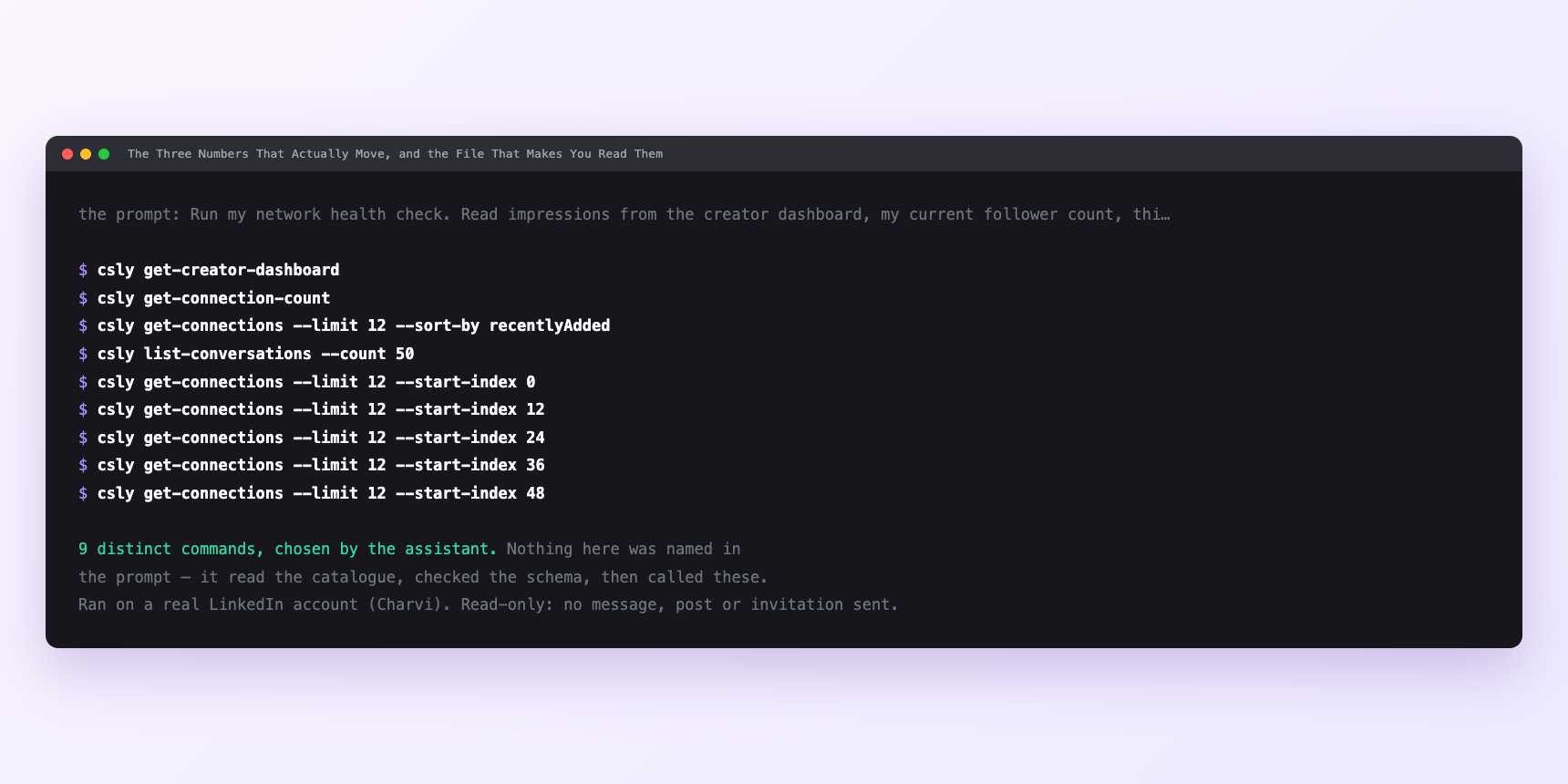
Not a mock-up. This is the actual run: the assistant was given the prompts above and nothing else, and these are the 9 distinct commands it chose from the catalogue. It ran read-only on a real LinkedIn account — nothing was sent, posted or invited.
Can I make it run on its own?
Yes. Add one more sentence and it keeps happening without you. This is the part a chat window cannot do — a saved job runs on the days you are busy.
“Do this every Monday at 07:00 and append the row to `analytics/network-health.md` for me.”
How many LinkedIn actions does this use?
LinkedIn limits how much any account can do in a day. These are the real numbers, and your assistant checks what is left before it starts.
- This one spends no capped action budget. It only reads.
- Profile views (120 a day) stay untouched, because reading your own analytics screens opens no profile. Connection requests (90 a week) — no writes. Messages (150 a day) — the count of inbound threads is a read against your own conversation list, not a send.
- The only limit in play is velocity. Account reads — status, quota, SSI, creator dashboard, network summary — are capped at ten a minute, which is low by design. Nothing legitimate needs to poll account status faster than that. The whole weekly run is about ten calls, plus three ratio computations client-side. At one call every six seconds, that is a minute of wall clock. Nothing to size, no drip loop needed.
- The temptation worth resisting is enrichment. You could open each new connection's profile to read a real seniority field instead of inferring from the headline they wrote themselves. Two hundred profile reads is nearly two days of the tightest budget on the account, spent to sharpen a number you are about to call approximate anyway. Read the headline. Keep the run free.
Watch it instead
5 minutes
Common questions
- What if the SSI comes back empty?
- It is read from LinkedIn's own SSI dashboard. If that page does not load for the signed-in account there is nothing to read; the rest of the run still works.
- What if follower analytics look thin?
- On a small or new account there is little to trend. Real, not an error.
- What if the reading disagrees with what you see on the dashboard?
- LinkedIn's dashboards round and cache aggressively. The numbers behind them update more often than the surface does. A gap of a few per cent on the same day is normal.
- What if you want to run it for a client?
- You cannot, as above. Score, network summary and creator dashboard are own-account only.
- How many LinkedIn actions does check your network health use up?
- This one spends no capped action budget. It only reads.
How do I set this up?
Once, and it takes about four minutes. After this you only write sentences.
$ npm install -g @connectsafely/cli$ export CONNECTSAFELY_API_KEY=...$ csly list-linkedin-accounts$ export CONNECTSAFELY_ACCOUNT_ID=...$ csly skill installThe package is @connectsafely/cli on npm. You need Node 20 or newer.
Then start your chat with this line, so your assistant uses the CLI instead of trying to open LinkedIn itself and hitting a login page:
“Use the ConnectSafely CLI (csly) for anything that touches LinkedIn. Run csly commands to see what exists, and csly schema before calling one. Don't guess a command name.”
Other things you can do
Try this on your own LinkedIn account
From $10 a month, on the LinkedIn account you already use, with zero ban risk.
What the CLI actually is— 86 commands, same plan, no extra cost.