Save a copy of your network on LinkedIn, using one prompt
Last updated 2026-10-16 · Tested on a real LinkedIn account
Short answer
Snapshot your LinkedIn network before the titles go out of date. You ask in plain English. Your AI assistant runs the LinkedIn CLI for you, so you never type a command yourself.
What do I actually type?
This one sentence. That is the whole thing.
“Snapshot my full network into `crm/2026-08/`. Pull every connection with connected date, headline, my saved note on them, and the mutuals we shared when we connected.”
How does it work, step by step?
Paste these one at a time. Each one is written in normal English — no command names, no flags.
We gave these exact prompts to a real AI assistant and wrote down every command it ran. It chose 1 command: get-connection-count. Nobody told it which ones to use.
“Snapshot my full network into `crm/2026-08/`. Pull every connection with connected date, headline, my saved note on them, and the mutuals we shared when we connected.”
That is the pull. Notice what it does not ask for — no current title, no employer, no follower count. Cheap fields off the connection record, plus the note (one small fetch per connection) and the mutuals snapshot. It runs unattended over several days because notes are per-profile fetches, and per-profile fetches are bounded by the daily cap.
your assistant picks this“Add our thread history — the last five exchanges per person and the date of the last activity.”
The dormant-relationship join. Inbox reads have no velocity cap at all, so a thousand threads is minutes rather than days.
your assistant picks this“Diff `crm/2026-08/` against `crm/2026-07/`. Show me new connections, closed threads that just moved, notes that got added or edited, and headlines that changed.”
The diff is the point. A single snapshot is a photograph; two adjacent snapshots is the first useful thing you own about your own network.
your assistant picks this“For headline changes that look like new jobs, add them to `movers.csv` and keep it going forwards.”
The free job-change detector. The headline sits in the connection record and costs no profile view; a diff of the headline column against last month is a job-change list across your whole network for the price of one paginated pull.
your assistant picks thisWhat it printed when we ran it
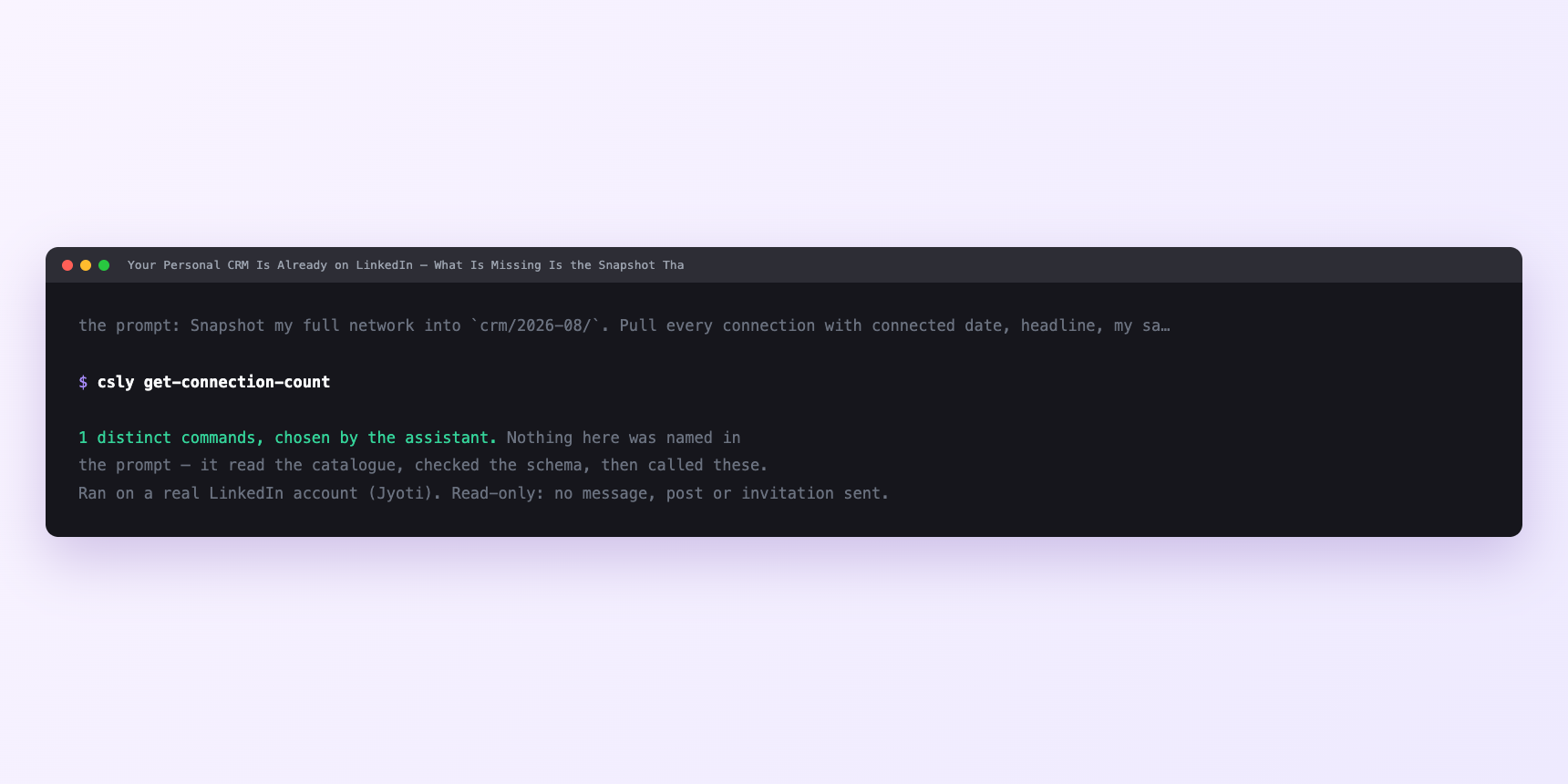
Not a mock-up. This is the actual run: the assistant was given the prompts above and nothing else, and these are the 1 distinct commands it chose from the catalogue. It ran read-only on a real LinkedIn account — nothing was sent, posted or invited.
How many LinkedIn actions does this use?
LinkedIn limits how much any account can do in a day. These are the real numbers, and your assistant checks what is left before it starts.
- The connection pull comes back twelve rows at a time. That is the page size and it is not adjustable. Three thousand connections is 250 calls, paced two-to-five seconds apart server-side — between eight and twenty minutes of wall clock.
- Notes are a per-profile fetch and share the 120-a-day profile view budget. Three thousand notes at a third of the daily budget is forty a day, which is seventy-five days. Nobody wants a seventy-five-day snapshot.
- The fix is to prioritise. Not every connection is worth a note fetch every month. The instruction files tell the assistant to pull notes first for anyone with a thread in the last twelve months, then anyone who has a note ever written, then everybody else in strict connection-date order. On most accounts the first two buckets are a few hundred people, which fits inside a working week of budget. The long tail catches up on the months you have nothing else to spend the budget on.
- Thread history is close to free. Conversation lists come back a hundred at a time, and inbox reads are the one class with no velocity cap at all. A thousand threads is ten calls and a minute.
- Mutuals-at-connection is not a live query — LinkedIn does not surface it. What the assistant stores is the current mutuals list on this snapshot, alongside the connected date. Diffed against the first snapshot after you connected, it is functionally the same thing.
- Before any of it, ask what the account has left today. That number beats any figure in any article including this one.
Watch it instead
4 minutes
Common questions
- What if the pull came back short?
- The failure worth watching for, because it looks like success. A temporary error mid-run returns an empty page, and a client treating an empty page as the end of the list stops early without complaining. Ask what row count came back and compare it against get-connection-count. If they disagree, resume rather than restart.
- What if notes are all blank?
- You have never written any. That is common and the fix is not automation. it is spending twenty minutes writing notes on the twenty people you actually care about. The point of the note field is that it captures things you already know; a full one is worth more than an empty one on a hundred people.
- What if everything failed at once?
- Ask the assistant to check the account status before assuming the tool broke. A session needing reconnection fails quietly inside a long paginated run, which is the worst place for it.
- What if a diff shows implausible mutuals movement?
- LinkedIn's mutual-connections view is not always consistent. the same page can show different counts on different days depending on caching. A small gap between months is not a bug to chase.
- How many LinkedIn actions does save a copy of your network use up?
- The connection pull comes back twelve rows at a time. That is the page size and it is not adjustable. Three thousand connections is 250 calls, paced two-to-five seconds apart server-side — between eight and twenty minutes of wall clock.
How do I set this up?
Once, and it takes about four minutes. After this you only write sentences.
$ npm install -g @connectsafely/cli$ export CONNECTSAFELY_API_KEY=...$ csly list-linkedin-accounts$ export CONNECTSAFELY_ACCOUNT_ID=...$ csly skill installThe package is @connectsafely/cli on npm. You need Node 20 or newer.
Then start your chat with this line, so your assistant uses the CLI instead of trying to open LinkedIn itself and hitting a login page:
“Use the ConnectSafely CLI (csly) for anything that touches LinkedIn. Run csly commands to see what exists, and csly schema before calling one. Don't guess a command name.”
Other things you can do
Try this on your own LinkedIn account
From $10 a month, on the LinkedIn account you already use, with zero ban risk.
What the CLI actually is— 86 commands, same plan, no extra cost.