
The Post Scheduler lets you create, queue, and manage LinkedIn content. You can write drafts, view live previews, schedule posts on a calendar, and automatically boost them upon publication.
Accessing the Post Scheduler
In the left sidebar, navigate to Post Scheduler to access the Create Post and Scheduled Posts features.
1. Creating and Drafting Posts
Click Create Post to open the content editor. Here, you can write and format your post while seeing exactly how it will look on LinkedIn.
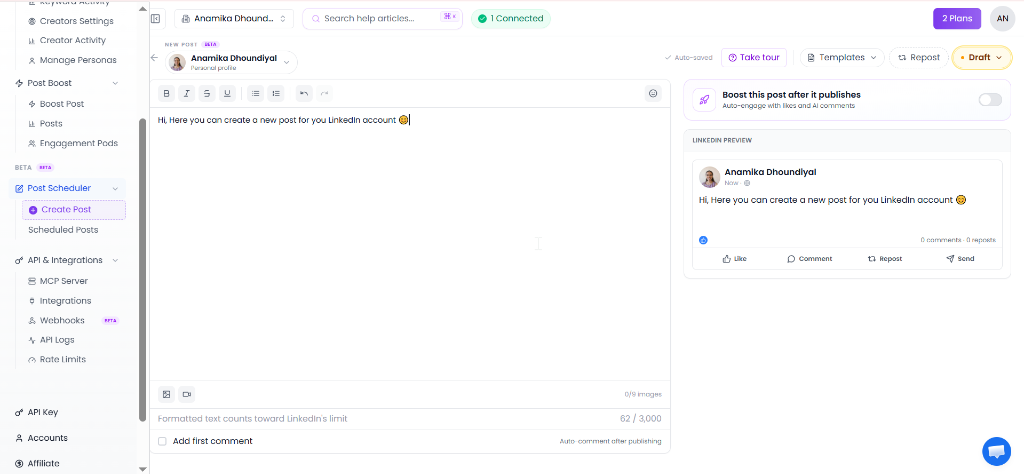
The post creation interface featuring real-time preview and scheduling options.
Key Features of the Editor:
- Rich Editor & Character Limit: Format text (bold, italic, lists) with a counter showing character usage (max 3,000).
- LinkedIn Preview: A live mock-up on the right showing exactly how your formatting and content render for users.
- Post Boosting Integration: Toggle Boost this post after it publishes to automatically queue automated likes and AI-generated comments to trigger immediately when the post goes live.
- Add First Comment: Toggle this to automatically publish a predefined comment (e.g., links, call-to-actions) immediately after the post is published.
- Save/Queue Options: Choose to save as a draft, use pre-made templates, or schedule for a specific date and time.
2. Managing Scheduled Posts & Calendar
Click Scheduled Posts to view your schedule calendar, view/edit draft posts, and keep track of your content pipeline.
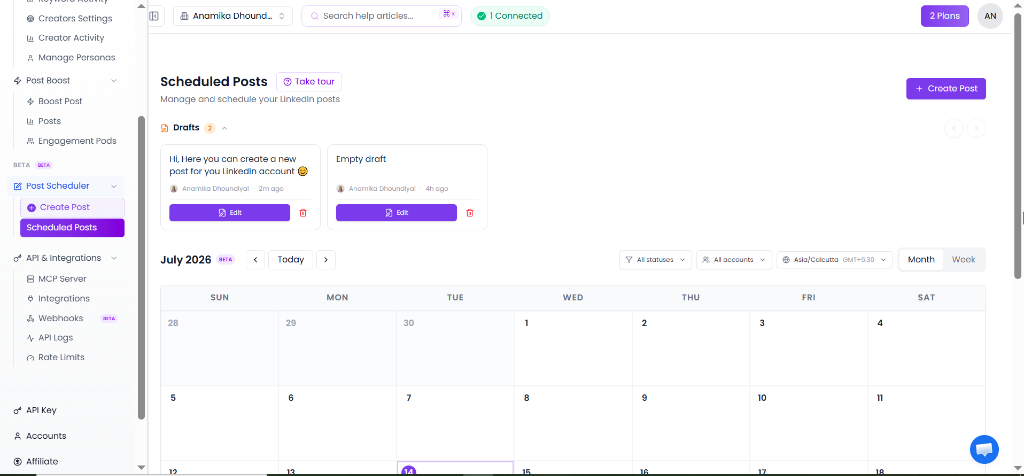
The Scheduled Posts view showing saved drafts and calendar organization.
Key Features of the Scheduled View:
- Drafts Shelf: Shows all your incomplete or unscheduled drafts. Click Edit to refine them or the bin icon to delete.
- Calendar Interface: View all planned posts on a visual grid layout. You can switch between Month and Week views.
- Create Post Shortcut: Access the post composer instantly via the purple + Create Post button.