
Find people who changed jobs on LinkedIn, using one prompt
Last updated 2026-10-16 · Tested on a real LinkedIn account
Short answer
Find who on your target list started a new job in the last 90 days, and draft a first message for each. You ask in plain English. Your AI assistant runs the LinkedIn CLI for you, so you never type a command yourself.
What do I actually type?
This one sentence. That is the whole thing.
“Go through the 40 accounts in q3-targets.txt. Tell me who started a new role in the last ninety days, whether I'm already connected to them, and draft a first message for each. Don't send anything.”
How does it work, step by step?
Paste these one at a time. Each one is written in normal English — no command names, no flags.
We gave these exact prompts to a real AI assistant and wrote down every command it ran. It chose 1 command: fetch-profile. Nobody told it which ones to use.
“What's my quota on this LinkedIn account — how many profile views today and connection requests this week?”
First, always. It reports what is left on your specific account right now, which beats any number in any article. It changes what the next prompt should attempt: a sweep that finds eight movers in a week with four invitations left needs to know that before it drafts eight messages. The check is a database read — it makes no LinkedIn call and spends none of the quota it reports.
get-account-quota“Read the 40 accounts in q3-targets.txt and tell me who started a new role in the last ninety days. Include each person's full role history, not just the summary. Name, old company, new company, new title, start month, and whether I'm already connected — the profile read already returns the connection degree, so don't run a separate relationship check.”
Two clauses in that sentence are doing work, and both were added after watching an assistant get it wrong. "Full role history" is the one that decides whether the sweep works at all: the default profile payload can return the role somebody just left as their most recent entry, with the new one missing entirely — so a sweep that does not ask for the detailed history reports your mover as still at the old company. Ask for it and the current role appears. The connection-degree clause saves a second daily budget: without it an assistant reads the profile and then calls the relationship check anyway, for a field it is already holding.
fetch-profile --include-experience“Draft a different first message for each one, referencing the new role. No pitch, under four lines. Show me before sending anything.”
The last five words are the important ones, and they are also the default — the installed skills tell the assistant to draft rather than send. You approve from your phone in about ninety seconds.
(no call — drafting only)“Send the three I approved, spaced out rather than all at once.”
Pacing is the part you must not leave to the model. Asked to send twelve invitations, an assistant sends twelve invitations as fast as its loop allows, because nothing in your sentence said to wait. Handed to the batch runner instead, approved sends go out 30–90 randomised seconds apart. Twelve invitations take about twenty minutes of wall clock and none of your attention.
batch → send-connection-requestWhat it printed when we ran it
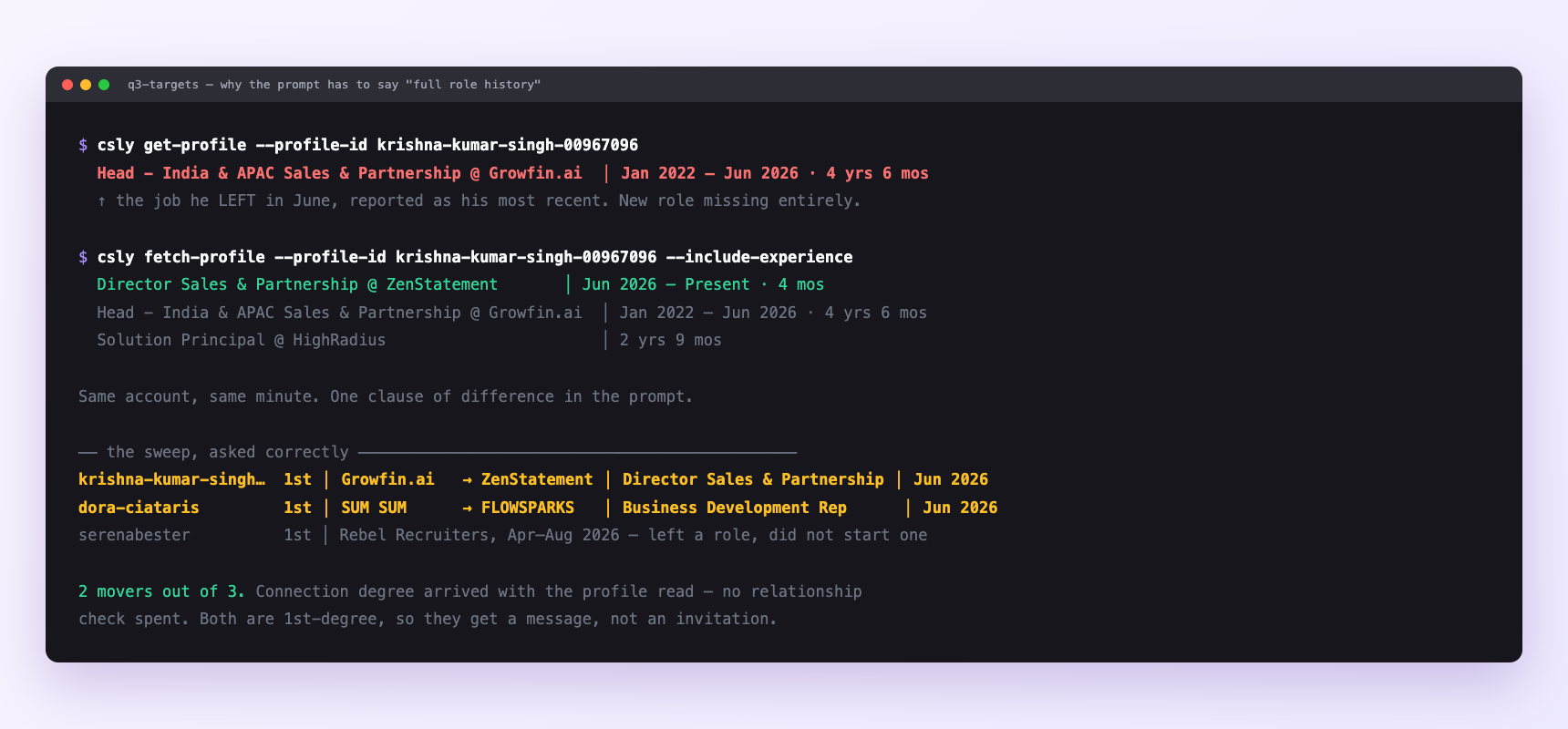
The same three targets, read both ways. Without the full role history the sweep reports Krishna as still at Growfin — the job he left in June — and finds one mover. With it, his current role appears and the answer is two. Same account, same minute, one clause of difference. The connection degree came back on both, so no relationship check was spent either way.
Can I make it run on its own?
Yes. Add one more sentence and it keeps happening without you. This is the part a chat window cannot do — a saved job runs on the days you are busy.
“Do this every Monday at 7am and leave the drafts in drafts/ for me.”
How many LinkedIn actions does this use?
LinkedIn limits how much any account can do in a day. These are the real numbers, and your assistant checks what is left before it starts.
- Profile views: 120 a day, reset midnight UTC. A profile read costs one view whichever spelling is used, and so does a deliberate profile visit — asking for the full role history costs no extra view, so there is no reason not to.
- Connection requests: 90 a week, reset Monday. Treat 60 as the working target so a busy week never pushes you into a 24-hour hold.
- Relationship checks: 150 a day — and on this sweep you should never touch it, because the connection degree arrives with the profile read.
- LinkedIn's own commercial use limit caps commercial-intent people searches per month. It is LinkedIn's, not ours, and nothing warns you first. Sweeping a fixed list you will never meet it; building the list with searches, it is the first ceiling you hit.
Watch it instead
3 minutes
Common questions
- What if it stopped halfway?
- you asked for more than the daily budget. Ask what it actually completed, not what it planned, and pick up tomorrow.
- What if everything failed at once?
- ask it to check the account status before assuming the tool broke. A LinkedIn session needing reconnection fails quietly mid-run.
- What if it acted as the wrong account?
- almost always a stored config beating the environment variable you thought was in effect. Ask which account it is using and where that answer came from.
- What if somebody you know moved is reported as still at the old company?
- the role history was not asked for, so the summary answered with the job they left. This is the failure mode that matters here, because it is silent: you get a clean table with the wrong row in it. Say 'full role history' in the prompt.
- How many LinkedIn actions does find people who changed jobs use up?
- Profile views: 120 a day, reset midnight UTC. A profile read costs one view whichever spelling is used, and so does a deliberate profile visit — asking for the full role history costs no extra view, so there is no reason not to.
How do I set this up?
Once, and it takes about four minutes. After this you only write sentences.
$ npm install -g @connectsafely/cli$ export CONNECTSAFELY_API_KEY=...$ csly list-linkedin-accounts$ export CONNECTSAFELY_ACCOUNT_ID=...$ csly skill installThe package is @connectsafely/cli on npm. You need Node 20 or newer.
Then start your chat with this line, so your assistant uses the CLI instead of trying to open LinkedIn itself and hitting a login page:
“Use the ConnectSafely CLI (csly) for anything that touches LinkedIn. Run csly commands to see what exists, and csly schema before calling one. Don't guess a command name.”
Other things you can do
Try this on your own LinkedIn account
From $10 a month, on the LinkedIn account you already use, with zero ban risk.
What the CLI actually is— 86 commands, same plan, no extra cost.