
 Make
MakeBuild LinkedIn Lead Lists in Seconds with Google Sheets: Make.com Scenario
Stop manually searching LinkedIn and copying profiles into spreadsheets. This Make.com scenario automates it — search LinkedIn and save results to Sheets.
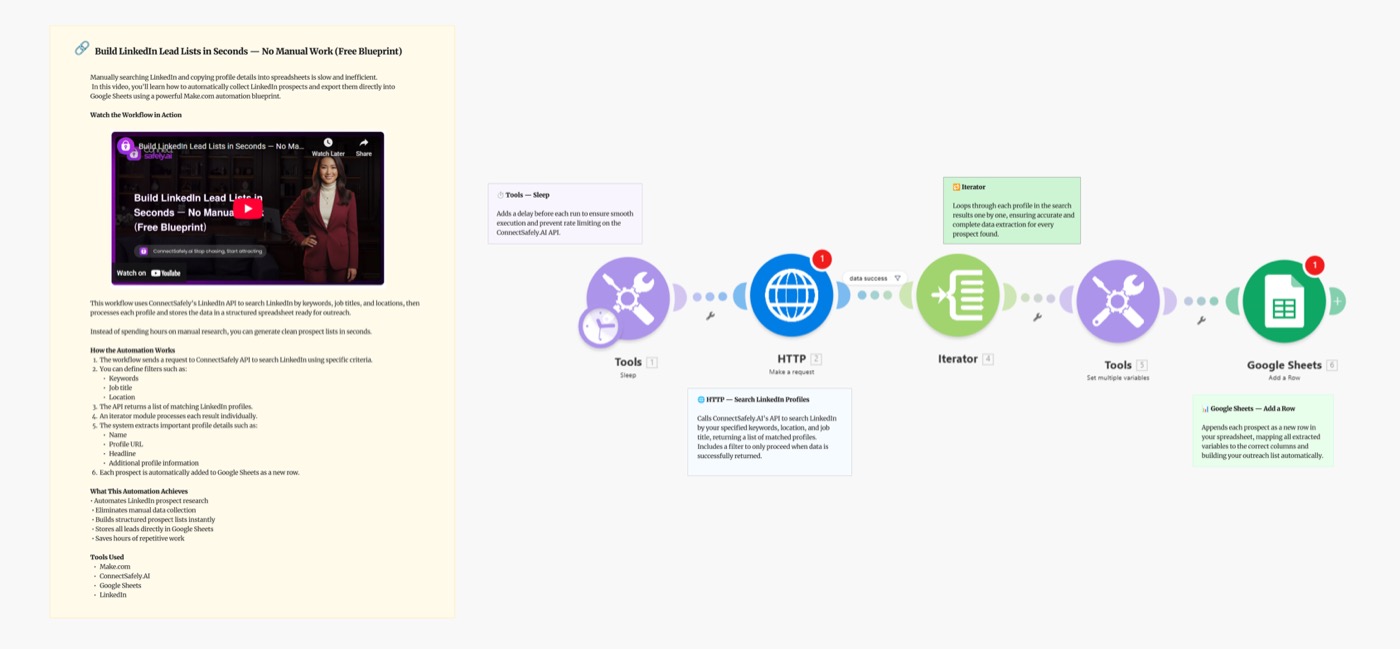
Stop spending hours manually searching LinkedIn and copying profiles into spreadsheets. This Make.com scenario automates the entire process — run a LinkedIn search with your filters and save every result directly to Google Sheets, ready for outreach.
Video Tutorial
Why Automate LinkedIn Lead List Building?
Manual LinkedIn prospecting is the biggest time drain in B2B sales and recruiting:
- Hours per list — searching, clicking, copying, pasting repeats
- No scalability — human bottleneck prevents growth
- Inconsistent data — manual copies miss fields, introduce errors
- Stale lists — by the time you've built it, it's already outdated
This blueprint replaces that process entirely. Define your search once, get a clean Google Sheet of prospects within minutes.
Scenario Overview
What You'll Build
A Make.com scenario that:
- Runs a LinkedIn search with your specific filters (title, company, location, keyword)
- Iterates through all matching profiles
- Deduplicates against existing sheet rows
- Appends each profile to Google Sheets with full data
- Status-tagged and ready for outreach immediately
Trigger → LinkedIn Search → Iterator → Dedup Check → Append to Sheets
Setting Up the Blueprint
Step 1: Prepare Your Google Sheet
Create a sheet with these columns:
| Column | Description |
|---|---|
| LinkedIn URL | Profile link (primary key for dedup) |
| Full Name | First + Last name |
| Headline | Current job title/description |
| Company | Current employer |
| Location | City, Country |
| Search Query | Which search this came from |
| Added Date | When the row was created |
| Status | Pending (for outreach workflow) |
Step 2: Connect Your API Key
- Go to ConnectSafely.ai → Settings → API Key
- Add to Make's HTTP module:
Authorization: Bearer YOUR_API_KEY
Step 3: Configure the Modules
Module 1: Manual Trigger (or Webhook)
- Run on-demand when building a new list
- Or trigger via webhook from another Make scenario
Module 2: ConnectSafely — People Search
GET https://api.connectsafely.ai/v1/search/people
Headers: Authorization: Bearer YOUR_API_KEY
Body: {
  "keywords": "VP Marketing",
  "location": "United States",
  "company": "SaaS",
  "limit": 100
}
Supported search parameters:
keywords— Job title, name, or any keywordlocation— City, state, or countrycompany— Company name or industrycurrentCompany— Only current position (not past)limit— Results per run (max 100 recommended)
Module 3: Iterator
- Loop through each profile in search results
Module 4: Google Sheets — Search Existing
- Search column A (LinkedIn URL) for the profile URL
- Skip if already in sheet
Module 5: Router
- Route A: Exists → Skip
- Route B: New → Append
Module 6: Google Sheets — Append Row
- Add all profile fields
- Set
Search Queryto whatever filter you used (for tracking) - Set
Status = Pending - Set
Added Date = {{now}}
Step 4: Build Targeted Search Queries
For SaaS Sales:
{
  "keywords": "VP Sales OR Head of Sales OR CRO",
  "location": "United States",
  "company": "SaaS OR Software",
  "limit": 100
}
For Recruiting:
{
  "keywords": "Senior Software Engineer",
  "location": "San Francisco Bay Area",
  "company": "Tech OR Startup",
  "limit": 100
}
For Partnerships:
{
  "keywords": "Partnerships Manager OR Business Development",
  "location": "New York",
  "company": "Enterprise Software",
  "limit": 100
}
Building Multiple Lists at Scale
Run the blueprint multiple times with different search queries to build a comprehensive prospect database:
- Run Search 1 → Append to Sheet A
- Run Search 2 → Append to Sheet A (dedup prevents duplicates)
- Use filters in Sheet to segment by persona or search source
- Feed into outreach blueprint for automated follow-up
Using Your List for Outreach
| Next Step | Blueprint |
|---|---|
| Send connection requests with AI personalization | AI-Powered Outreach with Make.com + Gemini |
| Follow all profiles first (warm up) | Auto-Follow Profiles from Sheets |
| Push to HubSpot as contacts | Commenters to HubSpot |
Best Practices
Search Query Tips
- Narrow is better — 50 highly-qualified leads beat 500 generic ones
- Use OR for variants —
"VP Marketing" OR "Head of Marketing" OR "CMO" - Avoid vanity keywords — "thought leader" or "influencer" attract noise
- Location filtering — always specify if you're targeting a region
List Maintenance
- Run the same search weekly to capture new profiles matching your criteria
- Archive processed leads (Status = Done or Connected) to keep the active list clean
- Add a "Last Contacted" column to track outreach timing
Compliance
- Only use publicly available LinkedIn data
- Honor opt-out requests immediately
- Don't purchase or share extracted lists
Common Issues & Fixes
| Issue | Solution |
|---|---|
| Returns fewer results than expected | Broaden search — try simpler keywords |
| Duplicate rows appearing | Check dedup logic in Search Rows module |
| Search returns wrong profiles | Add more specific filters (company, location) |
| Rate limit hit | Reduce limit per run to 50, add 2s delay between calls |
Frequently Asked Questions
How do I build a LinkedIn lead list automatically?
Use this Make.com scenario with ConnectSafely's API. Define your search criteria (job title, location, company), connect your API key, and the scenario runs the search and appends every matching profile to your Google Sheet automatically.
How many profiles can I extract per LinkedIn search?
The ConnectSafely API returns up to 100 results per search query. Run multiple searches with different keyword variations to build larger lists. Typical extraction: 300–500 qualified profiles per hour of scenario runtime.
Is automated LinkedIn data extraction legal?
Extracting publicly available LinkedIn profile data for legitimate business purposes is generally permitted under LinkedIn's terms for authorized API access. ConnectSafely uses official API endpoints. Always comply with GDPR, CCPA, and applicable privacy regulations in your region.
Related Workflows
- Extract LinkedIn Group Premium Members - Alternative lead source from group membership
- Auto-Follow Profiles from Sheets - Follow your extracted list automatically
- n8n: LinkedIn Search to Sheets - Same workflow built on n8n
Build your entire outreach list in minutes, not days. Start your ConnectSafely free trial and launch today. { "keywords": "VP Sales OR Head of Sales OR Chief Revenue Officer", "company": "B2B SaaS", "location": "United States" }
**For Tech Recruiting:**
```json
{
  "keywords": "Senior Software Engineer React",
  "location": "San Francisco OR New York OR Remote"
}
For Partnership Outreach:
{
  "keywords": "Partnership Manager OR Business Development",
  "company": "Marketing Agency"
}
Building Multiple Lists at Scale
Run the blueprint multiple times with different search queries to build a comprehensive prospect database:
- Run Search 1 → Append to Sheet A
- Run Search 2 → Append to Sheet A (dedup prevents duplicates)
- Use filters in Sheet to segment by persona or search source
- Feed into outreach blueprint for automated follow-up
Using Your List for Outreach
| Next Step | Blueprint |
|---|---|
| Send connection requests with AI personalization | AI-Powered Outreach with Gemini |
| Follow all profiles first (warm up) | Auto-Follow from Sheets |
| Push to HubSpot as contacts | Commenters to HubSpot |
Best Practices
Search Query Tips
- Narrow is better — 50 highly-qualified leads beat 500 generic ones
- Use OR for variants —
"VP Marketing" OR "Head of Marketing" OR "CMO" - Avoid vanity keywords — "thought leader" or "influencer" attract noise
- Location filtering — always specify if you're targeting a region
List Maintenance
- Run the same search weekly to capture new profiles matching your criteria
- Archive processed leads (Status = Done or Connected) to keep the active list clean
- Add a "Last Contacted" column to track outreach timing
Compliance
- Only use publicly available LinkedIn data
- Honor opt-out requests immediately
- Don't purchase or share extracted lists
Common Issues & Fixes
| Issue | Solution |
|---|---|
| Returns fewer results than expected | Broaden search — try simpler keywords |
| Duplicate rows appearing | Check dedup logic in Search Rows module |
| Search returns wrong profiles | Add more specific filters (company, location) |
| Rate limit hit | Reduce limit per run to 50, add 2s delay between calls |
Frequently Asked Questions
How do I build a LinkedIn lead list automatically?
Use this Make.com scenario with ConnectSafely's API. Define your search criteria (job title, location, company), connect your API key, and the scenario runs the search and appends every matching profile to your Google Sheet automatically.
How many profiles can I extract per LinkedIn search?
The ConnectSafely API returns up to 100 results per search query. Run multiple searches with different keyword variations to build larger lists. Typical extraction: 300–500 qualified profiles per hour of scenario runtime.
Is automated LinkedIn data extraction legal?
Extracting publicly available LinkedIn profile data for legitimate business purposes is generally permitted under LinkedIn's terms for authorized API access. ConnectSafely uses official API endpoints. Always comply with GDPR, CCPA, and applicable privacy regulations in your region.
Related Workflows
- Extract LinkedIn Group Premium Members - Alternative lead source from group membership
- Auto-Follow Profiles from Sheets - Follow your extracted list automatically
- n8n: LinkedIn Search to Sheets - Same workflow built on n8n
Build your entire outreach list in minutes, not days. Start your ConnectSafely free trial and launch today.
Prerequisites
- Make.com account (free tier works for testing)
- ConnectSafely.ai account with API key
- LinkedIn account connected to ConnectSafely
- Google Sheets account
Required Integrations
Make.com ConnectSafely
 LinkedIn
 Google Sheets
Use Cases
- Build targeted prospect lists from LinkedIn search results automatically
- Extract profiles by job title, company, location, or keyword
- Populate Google Sheets with lead data without manual copying
- Create outreach lists for sales, recruiting, or partnerships
- Save hours of manual LinkedIn research per week
Ready to get started?
Download this workflow template and customize it for your needs.
Related Templates
Scrape LinkedIn Group Members to Google Sheets: Make.com Scenario
Stop copying LinkedIn group member profiles one by one. This Make.com scenario automatically extracts premium members from Groups and saves them to Sheets.
View TemplateAI-Powered LinkedIn Outreach: Make.com Scenario
Automate personalized LinkedIn outreach at scale with Make.com, Google Sheets, Gemini AI, and ConnectSafely.ai. Build a complete AI-powered lead gen scenario.
View TemplateLinkedIn Search to Sheets | n8n 2026
Export LinkedIn search results to Google Sheets with n8n. Build prospect lists automatically with this simple 3-node workflow.
View Template